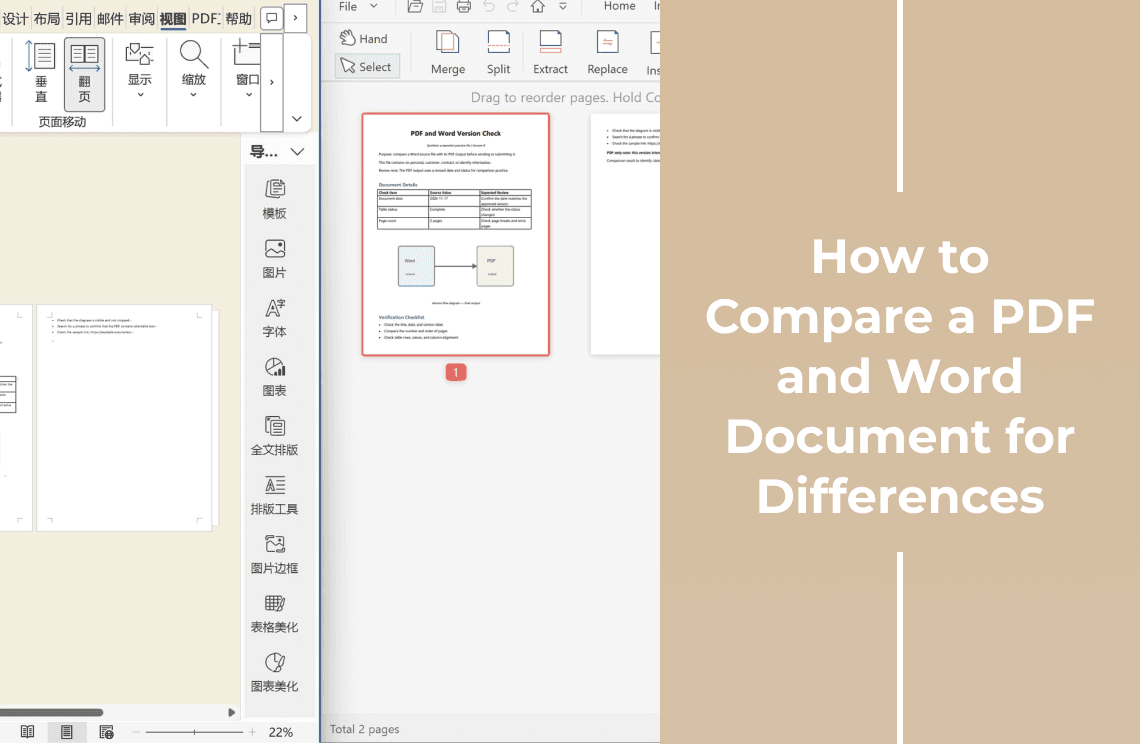
A PDF and the Word file it came from can look the same on screen and still differ where it counts: a table cell that wrapped, a date edited after the export, one page break in the wrong place, a link that no longer resolves. The export between the two formats is not a neutral copy.
This guide is about checking those versions against each other and deciding which one to send. It does not convert a PDF into Word, edit a PDF inside Word, insert one file into the other, or merge them. You have a Word file and a PDF, and you need to know whether they agree before one of them leaves your machine.
Comparing Is Not Converting or Editing
The three tasks get searched as if they were one, and each ends in a different file.
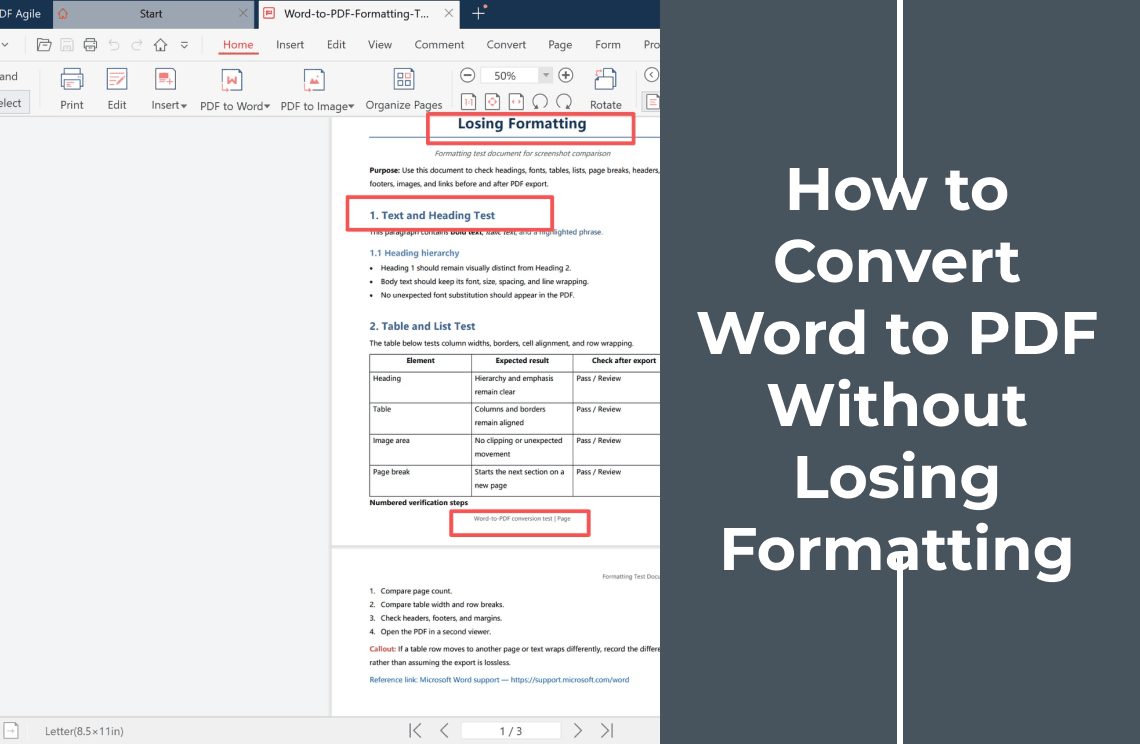
- Converting changes the container; the content is meant to survive. How to convert Word to PDF without losing formatting covers that job.
- Editing changes content. The wider map of that work is how to edit a PDF.
- Comparing changes nothing. You read both files, note where they disagree, and choose one.
A comparison means something only when one file came from the other. If the PDF was rebuilt by hand or made from a scan, you are comparing two documents, and every difference has to be judged on its own.
Why a PDF and a Word File May Not Match
A Word file stores text plus instructions. The PDF stores the finished result of applying them on one machine, at one moment.
- Font substitution. A font missing on the exporting machine is replaced, glyph widths change, and a paragraph that fitted on page 1 spills onto page 2.
- Table auto-fit. Column widths in Word are often dynamic, so one extra character can push a table past the text area and change every row height.
- Tracked changes and comments. The export writes what the document is currently showing, whatever the markup setting says.
- Paper size and margins. Letter and A4 are not the same shape, and mixing them changes where pages break.
- Content in one file only. Hidden text, a trailing blank page, a watermark added on export, and page numbers or cross-references recalculated after a heading moved.
- A scan in disguise. A PDF made from a scanner has no text layer, so nothing is missing — there are simply no character codes to search.
What to Check Before You Compare Anything
- Confirm the PDF came from the Word file in front of you. Check the date, the version label, and the file name.
- Look at the revision state. Is Track Changes on, and is the display set to show all markup or none? That setting decides what the export contains.
- Decide whether comments should ship. Reviewing notes are useful internally and rarely wanted by a client.
- Note the paper size and margins on both sides.
How to Compare a PDF and a Word Document
Start with the checks that fail loudly and stop at the first real mismatch. One wrong page break makes every later comparison look wrong.
Step 1: Confirm the Word Source You Are Comparing Against
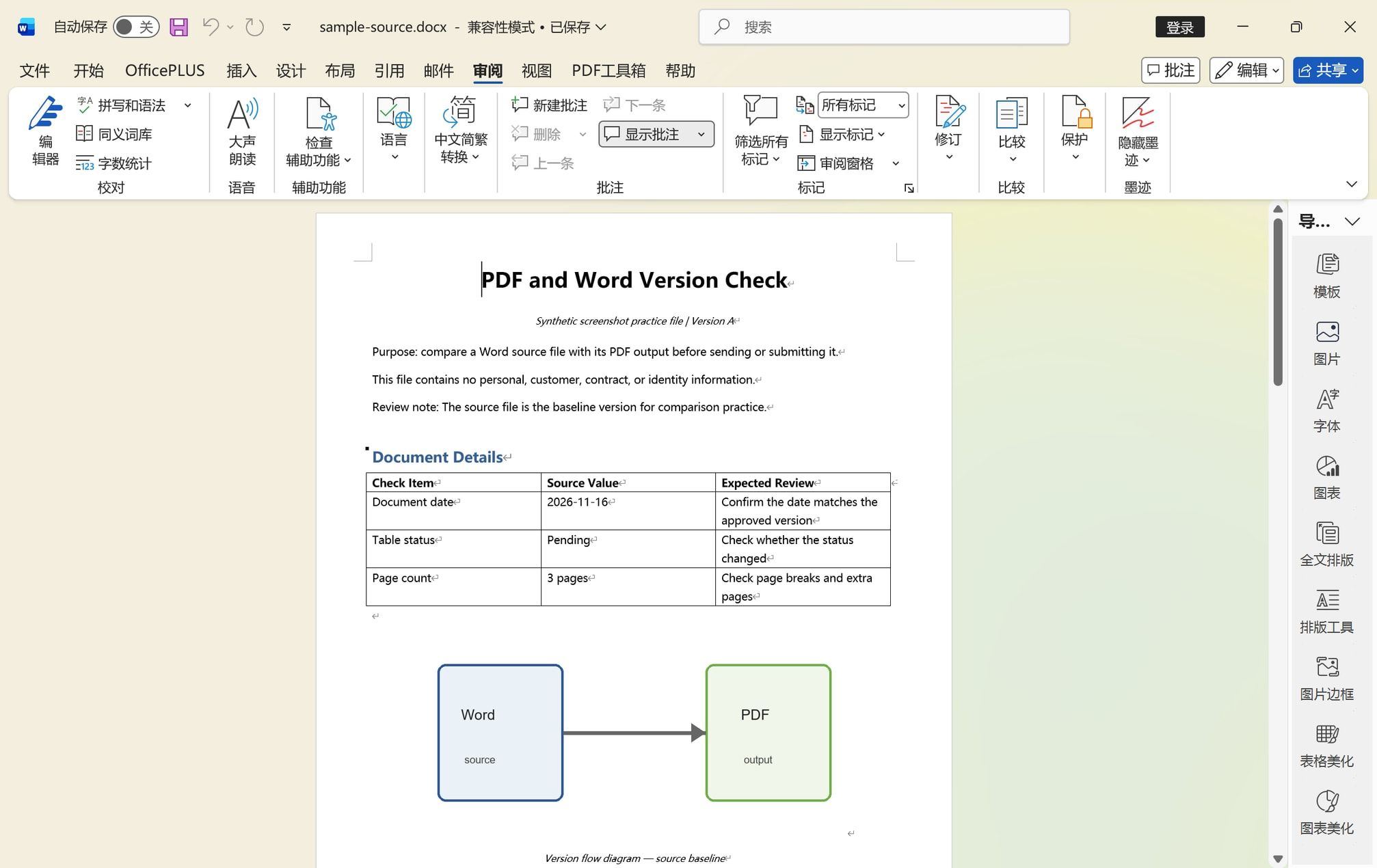
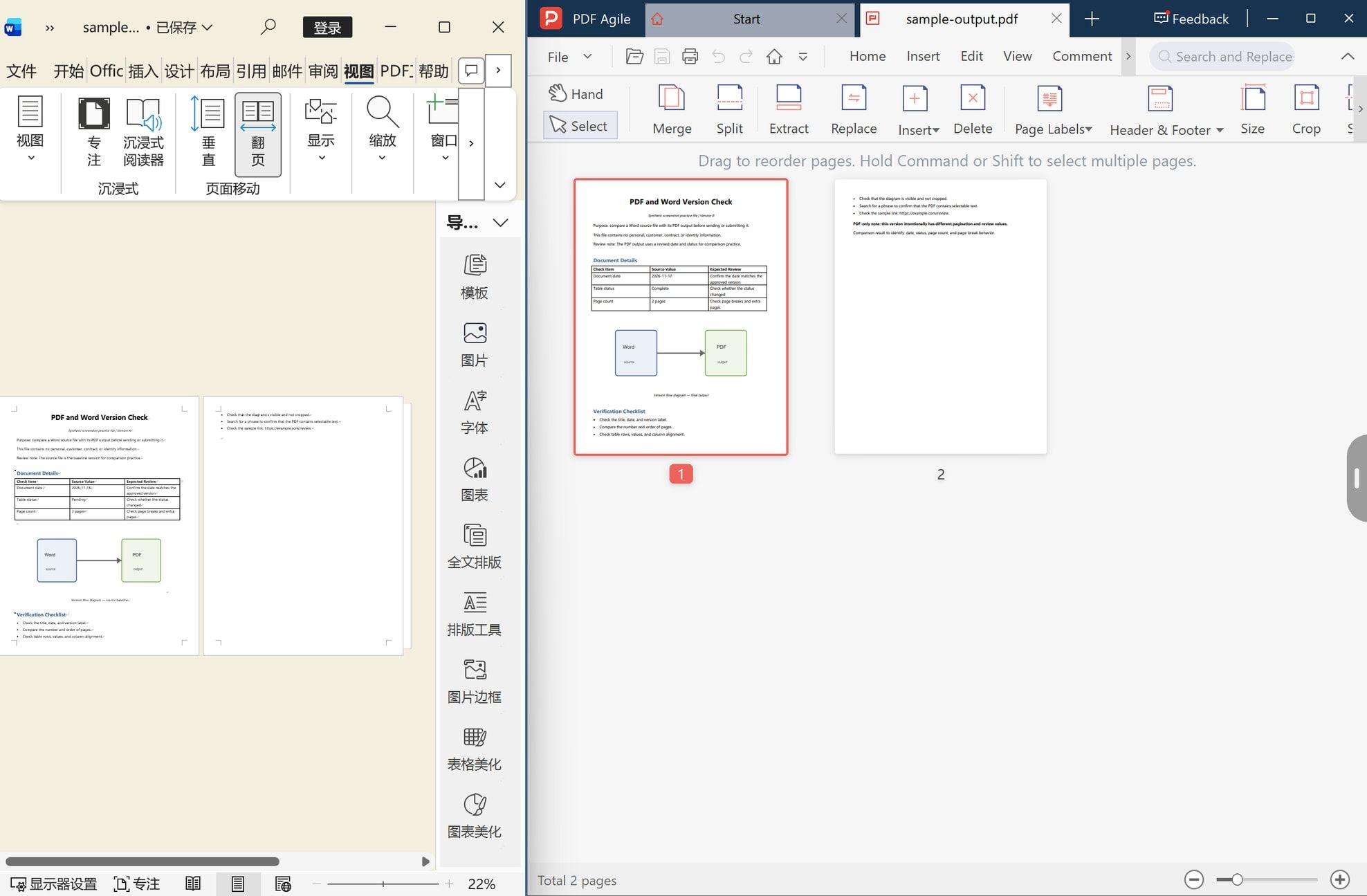
Read the document before touching a comparison tool: the version label or date inside the file, the review state on the Review tab, and whether this copy is the one that was sent. In the screenshot the document carries its own version label and a details table listing the date, a table status, and an expected page count — an anchor for the comparison.
If tracked changes are still pending, read the markup first. A PDF that seems to be missing an edit is often an accurate export of the accepted version.
Step 2: Export That File to PDF Yourself
Do not treat the PDF you were sent as the reference. Export the Word file yourself, so both sides come from one source.
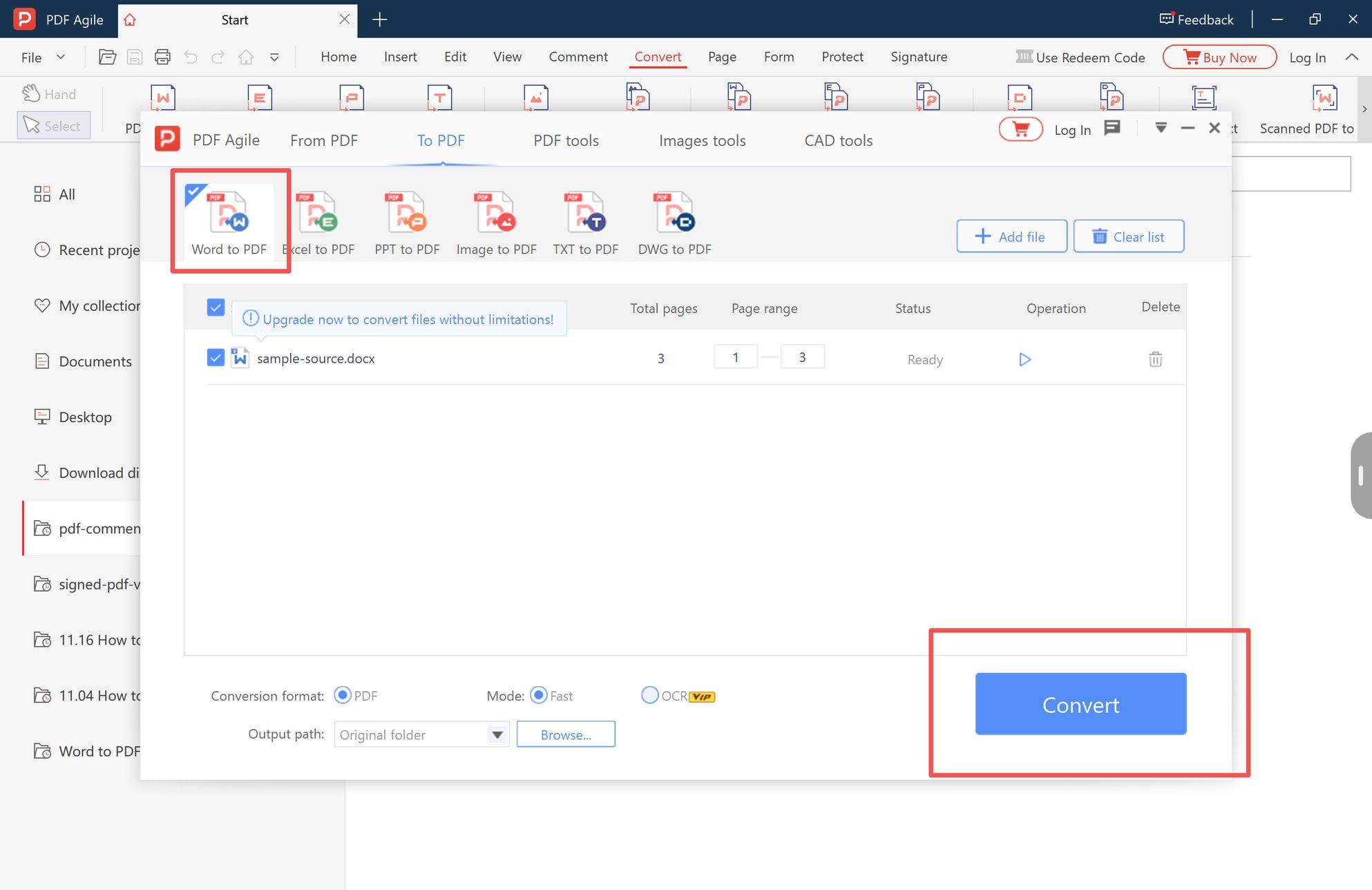
In PDF Agile the conversion sits on the Convert tab under To PDF: choose Word to PDF, add the .docx, leave the page range on the whole document, check the output folder, then convert.
Step 3: Check the Page Count and the Page Order
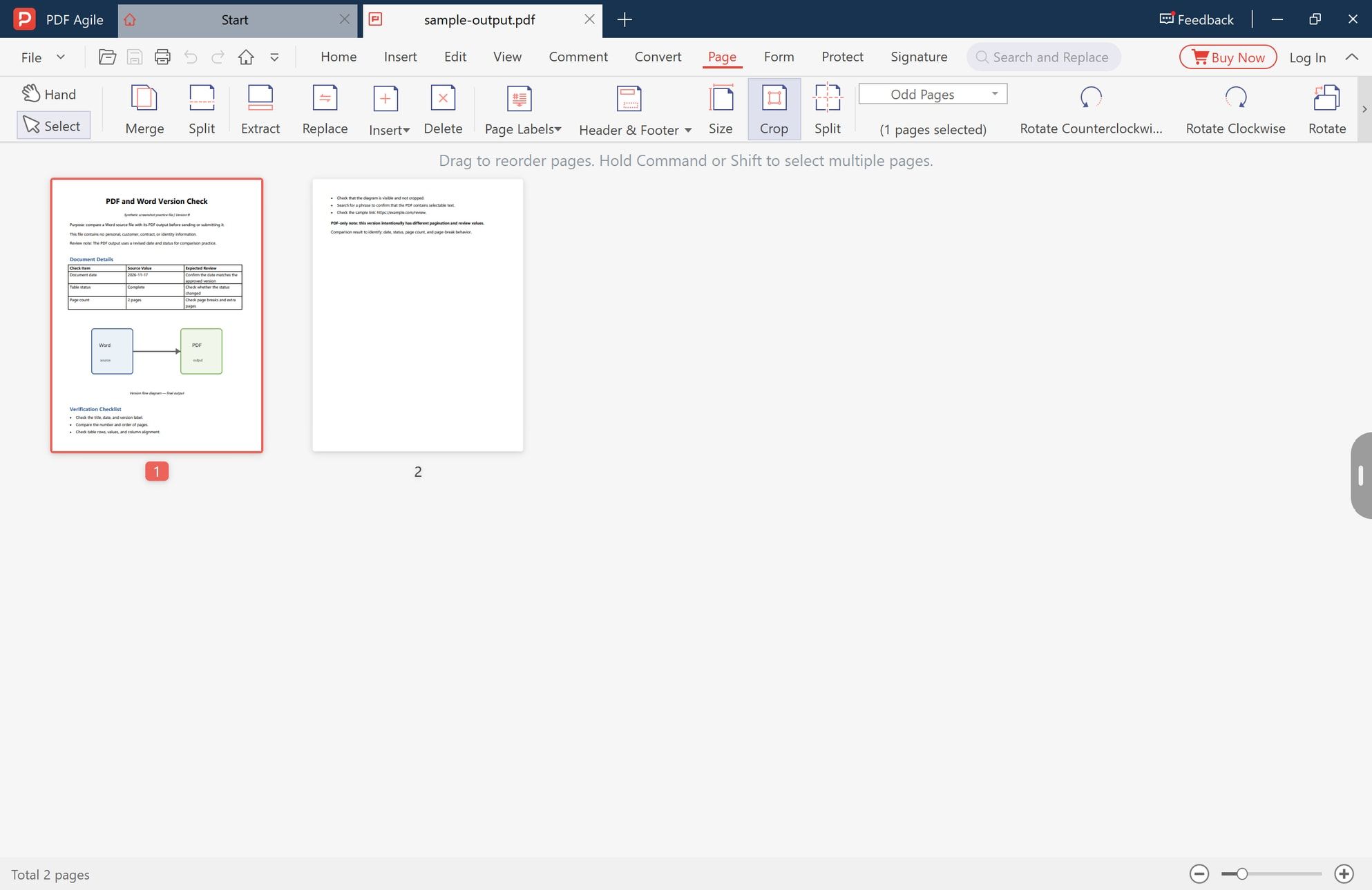
Page count is the fastest signal that something moved. Read the total in the status bar, then look at the thumbnails: they show the order and where each page ends. A page holding three lines broke early, and that is the difference a full-page reading habit hides — the example below is a two-page output whose second page carries only the tail of the content.
If the counts differ, work through the causes in order: paper size, margins, fonts, explicit page breaks, paragraph spacing. Fixing the cause in Word and re-exporting is quicker than patching the PDF.
Step 4: Compare the Two Layouts Side by Side
Put the Word window and the PDF window side by side at the same zoom and walk down the pages together. Look for four things: where each heading falls, whether tables kept their row heights, whether an image crossed a page boundary, and whether anything is cut off at the edge.
Side-by-side viewing has a limit worth stating: it confirms a difference in a second, but it cannot prove the files are the same.
Step 5: Verify the Text Layer and the Links
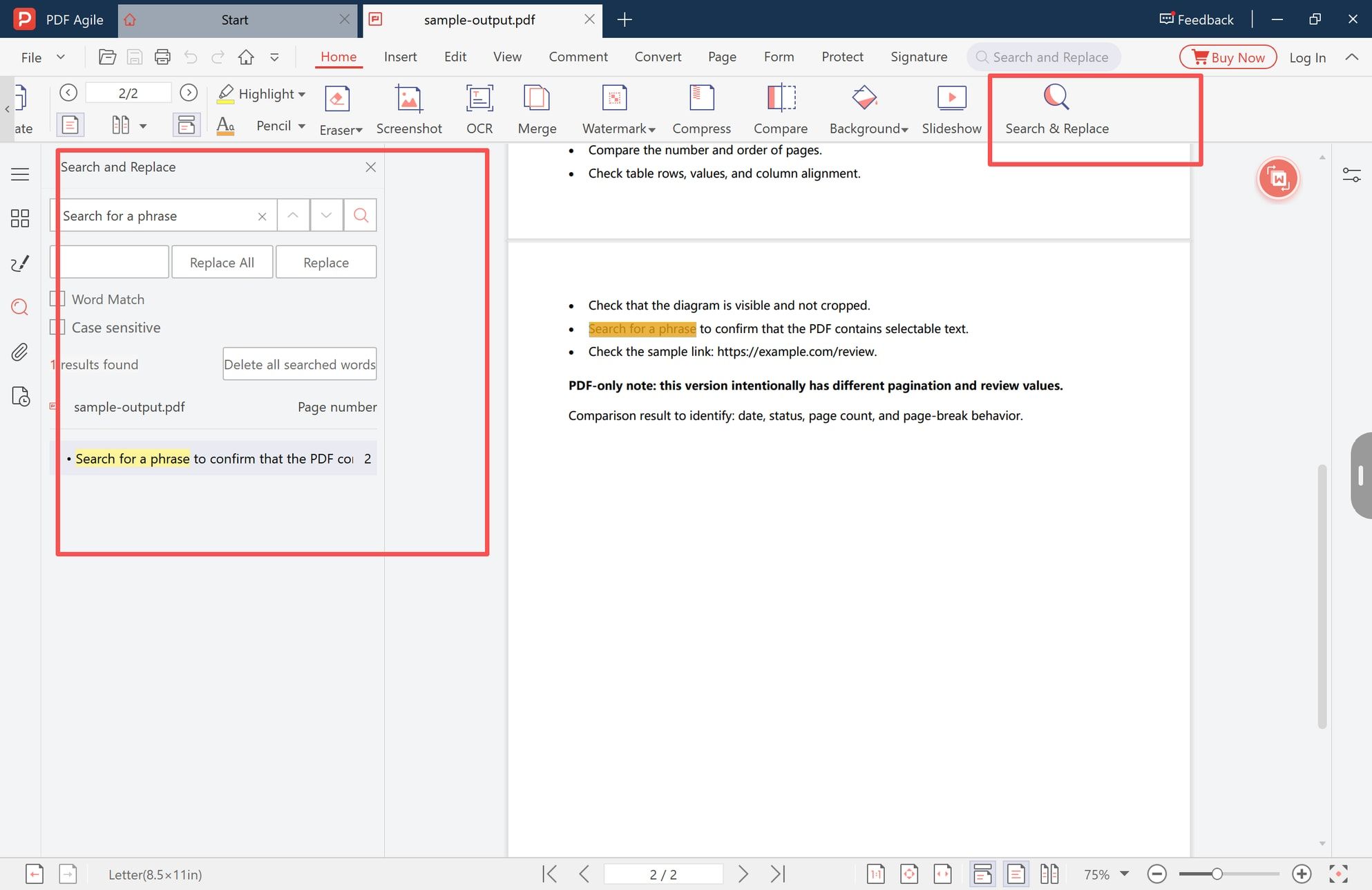
Search is the cheapest proof that a PDF carries real text. Pick a phrase you know is in the document, search it, and read the hit list: the results show how many matches there are and which page each sits on. One hit on page 2, as below, tells you the text is selectable, the phrase survived, and its page did not move.
Then test what search cannot reach:
- Paste a paragraph into a plain text editor. Mangled characters mean the font encoding did not survive.
- Click every link, including table-of-contents entries. A link can look correct and be dead; only a click proves it.
- Check attachments and form fields, if the document should carry any. Both sit outside page content and are easy to lose on export.
How to Verify Which Version Is Ready to Send
Step 6: Run the Pre-Send Checklist
The comparison is finished when each item has an answer, not when the pages look clean.
- Page count matches the requirement, and no page is nearly empty.
- The file name and version label are the ones you meant to send.
- Key figures agree — totals, dates, reference numbers. Read them on the PDF, not the Word file.
- Every page renders fully, with nothing clipped at the margin.
- The PDF is searchable and copyable. If it is not, you are shipping an image.
- Links open, including any that leave the document.
- No tracked changes, comments, or reviewer notes should have stayed internal.
- Nothing private is embedded — document properties, author names, hidden layers.
What to Do When the Files Do Not Match
Match the symptom to the cause before changing anything, because the wrong fix makes a clean file dirty.
- The words differ. Check the revision state in Word first. More often than not the PDF is an accurate export of a version you did not mean to send.
- The page count differs. Paper size, then margins, then fonts, then explicit breaks. Re-export instead of editing the PDF to compensate.
- A table shifted, split, or an image moved. Narrow the columns in Word, fix the table layout, and check the image anchor and its resolution for the printed size.
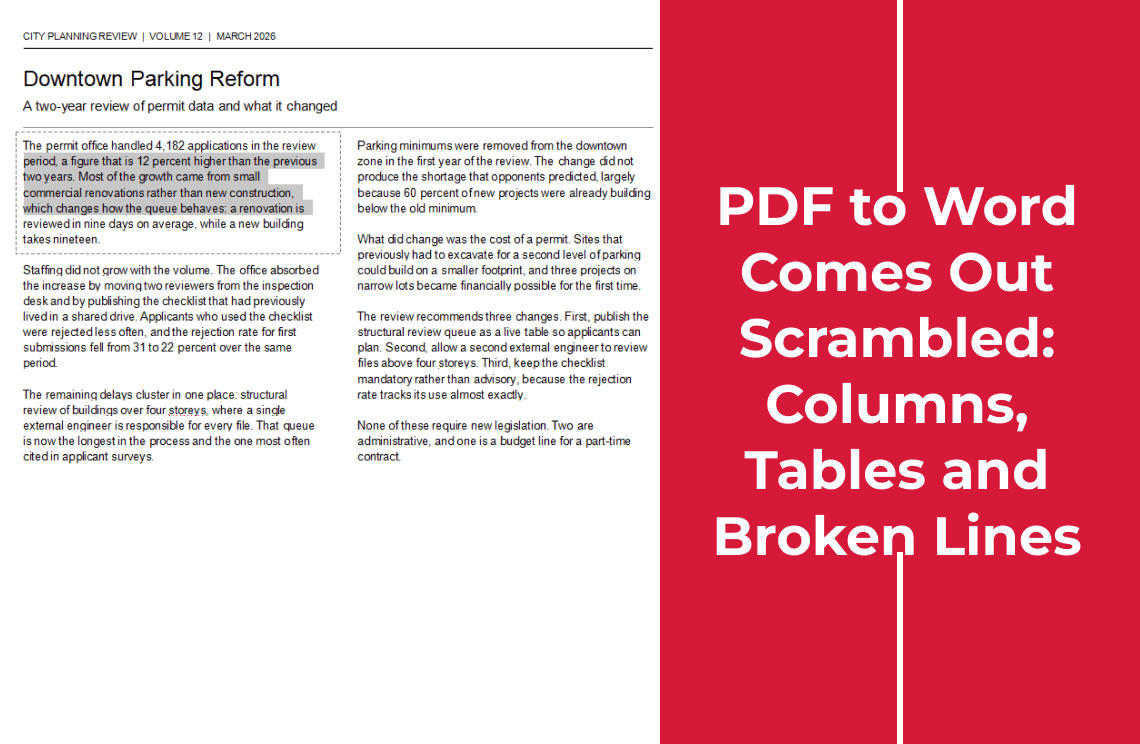
- The PDF has no selectable text. It was scanned or photographed. Search keeps failing until the page is recognised with OCR, which lays a text layer over the image.
- The PDF is wrong and the deadline is now. Editing the PDF is a legitimate route: adjust text, pages, images, or annotations without rebuilding the document. The PDF converter page covers the conversion side, and the editing tools are described under editing a PDF like a slide deck.
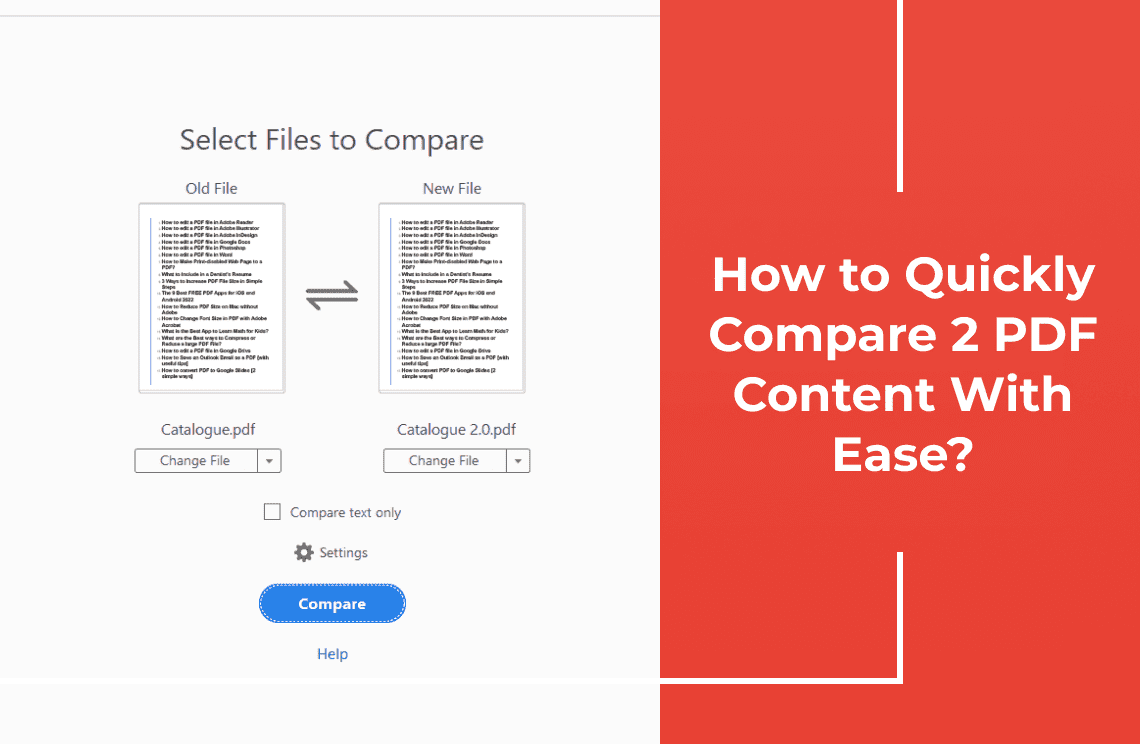
- You have two PDFs, not a PDF and a Word file. That is a different comparison, covered by comparing two PDFs.
FAQ
Can I compare a PDF and a Word document without converting either one?
Not in one automated pass. Comparison tools work inside a single format: Word's comparison feature takes two documents, a PDF editor's takes two PDFs. The practical route is to freeze one side and compare the two PDFs, or compare the text by hand.
Why does the PDF have different page breaks from the Word file?
Page breaks are calculated, not stored. The PDF is the result of laying the document out on one machine, with the fonts, paper size, and margins available there.
How do I check whether the PDF contains the same text as the Word file?
Search for phrases from the source, including one near the end, and compare the hit count. Then paste a paragraph out and read it. Search confirms the characters exist; it does not confirm they are correct.
Why do tables change when Word is saved as PDF?
Most Word tables size their columns to content. When the text area, font, or margins shift slightly, the columns adjust and rows grow or shrink. Fixed column widths keep the geometry stable.
Should I compare the PDF visually or compare its text?
Both, in that order. The visual pass finds layout damage in seconds. The text pass finds what the eye skips: a changed figure, a dropped sentence, a wrong date.
How can I check a PDF before submitting it?
Run the pre-send list above, and keep the checked copy under a new file name, so the version you submitted is the version you can point to later.
Checking a PDF against its Word source is a short routine — confirm the source, export it yourself, compare count and layout, then search the text and click the links — and it is the difference between sending a document and sending the right one. The app keeps the conversion, the page thumbnails, and the search panel in one window, and the conversion writes its output to a folder you choose on your own machine, so a confidential draft need not pass through a browser upload to be checked. The screenshots come from the Windows version; the download page lists what is available for your platform, and more walkthroughs sit in How-to & Tips.
*Steps and screenshots reflect the desktop app as of November 2026; menus and labels may change in later versions. Microsoft Word, Adobe Acrobat, and macOS are trademarks of their respective owners. We build PDF Agile; the checks above work in any editor.*