Most answers to "how do I make a PDF" assume one file. If you are holding twelve contracts or a week of reports, the slow part is not the conversion — it is repeating it. A converter that takes a list does it in one pass.
What One Pass Saves You
- One settings pass. Format and destination are chosen for the set, not for each file.
- One page-range decision per file. You narrow the document that needs it and leave the rest whole.
- One place to check the result. Every PDF lands in the same folder.
How to Make a PDF From Several Files
Step 1: Open the Convert Tab
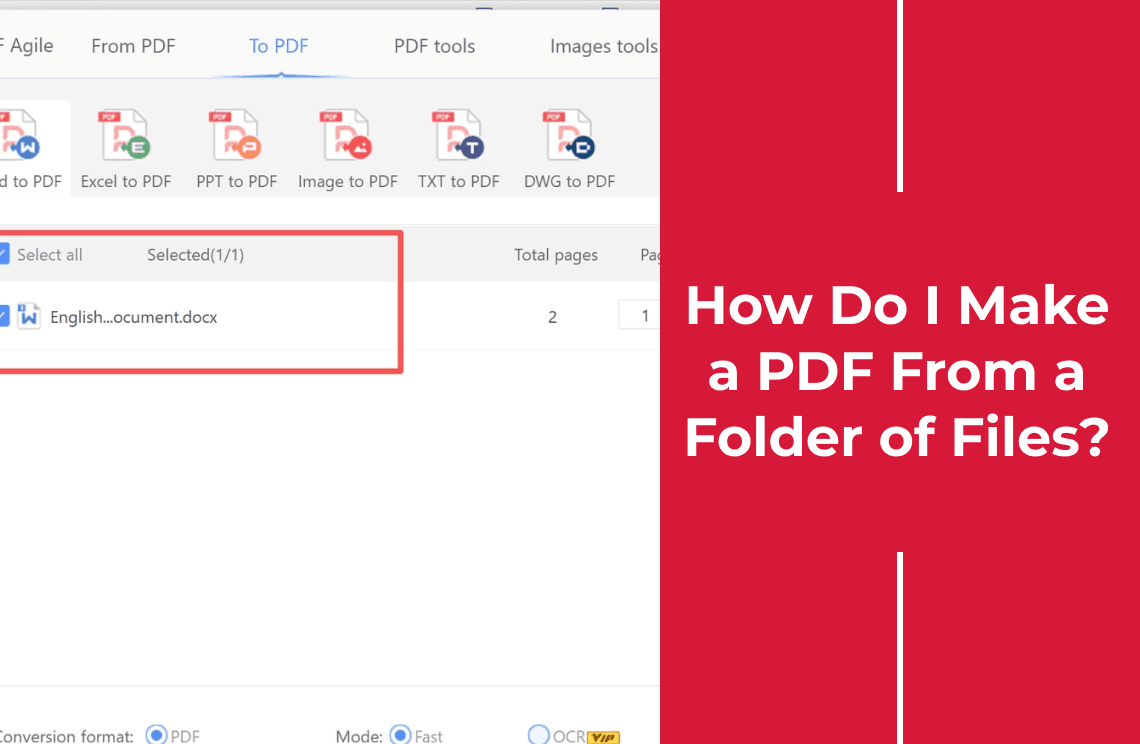
The ribbon is split by direction: PDF to Word, Excel, PPT, TXT, Image, and CAD on one side, and the to-PDF tools — Image to PDF, Excel to PDF, PPT to PDF, and Word to PDF — on the other. Pick the match for your files.
Step 2: Add the Whole Set
Click + Add file, or drop the selection on the panel. Each file joins a list showing its page count and a Ready status, and a Select all control appears once the first one lands.
Step 3: Set the Output Folder Once, Then Convert
Conversion format is fixed to PDF. Output path defaults to the original folder, which writes each PDF beside its source — use Browse once to send the whole batch elsewhere. Nothing is uploaded in this workflow; a browser converter would send every file to a server instead. Then click Convert.
Step 4: Check the Output Before Sending It
The converted file opens in the editor, so you can check the pages first. For a second copy, open File and choose Save as (Ctrl+Shift+S).
What Still Breaks in a Mixed Set
- Different source formats are different tools. A folder of .docx and .xlsx files is two runs, each writing to the same folder.
- Wide tables and licensed fonts can reflow; open the first page of each output.
- Tracked changes and comments usually do not appear in the converted PDF.
- Scanned pages stay unsearchable until OCR runs; the Mode row offers Fast and OCR, and OCR carries a VIP badge.
- Password-protected files must be unlocked before a converter can read them.
FAQ About Making PDFs in Bulk
Can I mix Word, Excel, and PowerPoint files in one list?
Not in one window. Each direction has its own tool, so run Word to PDF, then Excel to PDF, then PPT to PDF; the outputs can still share one folder.
Where do the finished PDFs go?
To the path in Output path, which stays the original folder unless you change it.
Can I convert only part of a document?
Yes. Each file carries its own page range, so you narrow one document and convert the rest in full.
Working through a backlog? PDF Agile converts a list of Word, Excel, PowerPoint, TXT, or image files to PDF on Windows, with the output folder chosen once per batch.