You make a PDF by producing it from something that already exists. The content is usually already written — a Word contract, an Excel report, a scan of a signed form — and what you need is a file whose layout stays put on someone else's computer.
That makes the real question narrower than it sounds: which route fits your source file, and what does that route do to your formatting?
The Route Map: Match the Route to Your Source File
- You have a Word, Excel, PowerPoint, TXT, or image file — convert it, so text stays text and tables stay tables.
- You have paper, or a photo of paper — import the images as pages, then run OCR if anyone needs to search or copy the words.
- You have a web page, an email, or anything that can print — use Print to PDF, which captures what is on screen.
- You have nothing written yet — type it in a word processor and export, rather than placing text boxes on a blank page.
The walkthrough further down covers the first route, because converting a document you already have is what most people mean when they ask how to make a PDF.
What Each Route Does to Your Layout
Route choice matters more than tool choice, because each one treats your content differently.
- Save As or Export from Word stays closest to the original, since Word itself lays out the PDF. It needs the source app installed, and fonts that are not embedded can still shift.
- Print to PDF captures what the page looks like on screen, browser headers and footers included. Long articles can break mid-sentence, and links may print as visible URLs.
- A converter opens formats the source app cannot handle (scan images, TXT, DWG) and processes a list of files at once. Complex layouts may reflow, so check the first page before sending.
- Screenshots stitched into a PDF give you pages that look right but contain no selectable text, which is the slowest option the moment someone needs to search the document.
How to Make a PDF from a Word Document
Four steps, and no formatting settings to guess. The screenshots below were captured in PDF Agile on Windows.
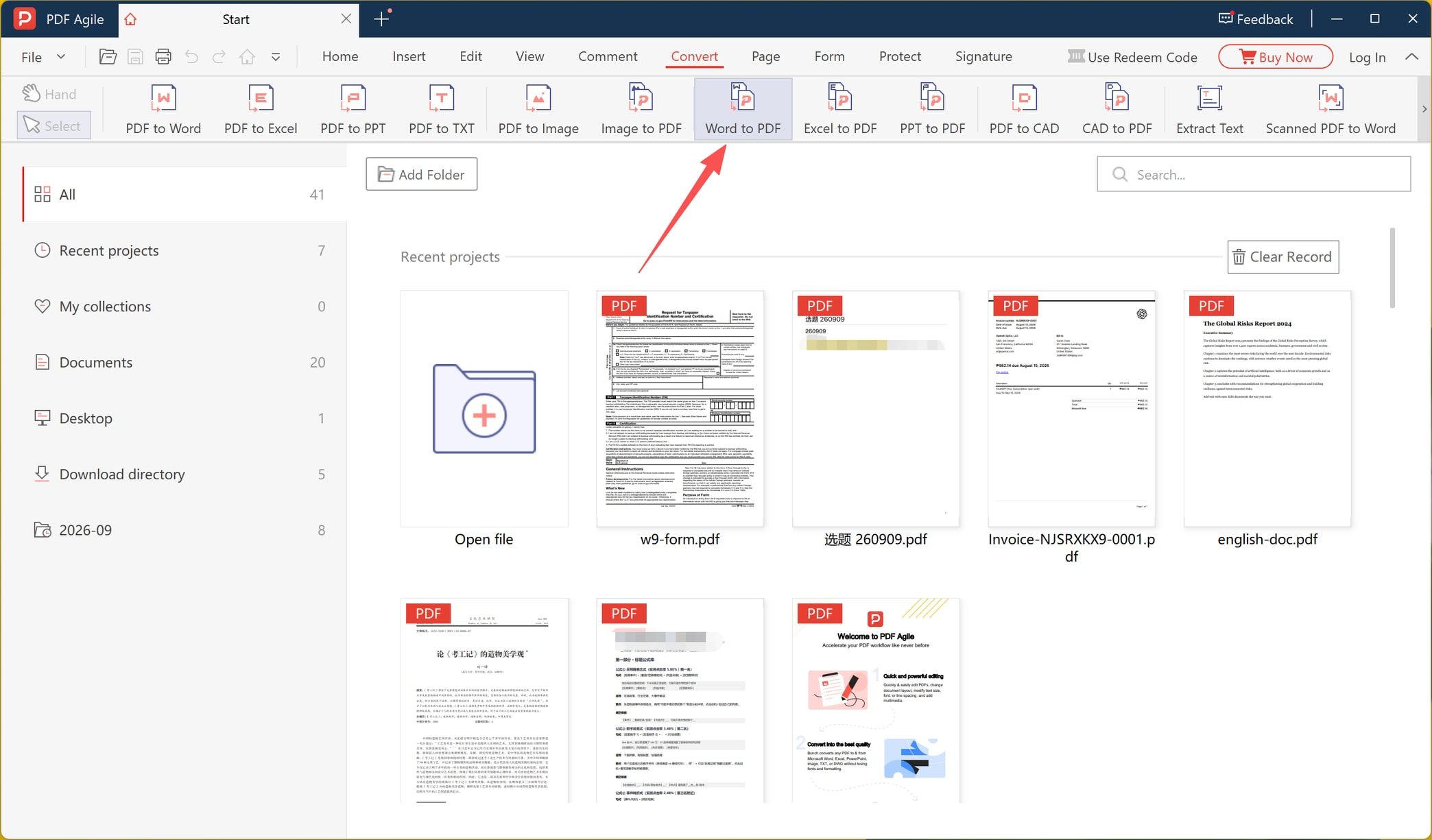
Step 1: Open the Word to PDF Tool
Switch to the Convert tab. The ribbon lists the conversions the app supports: PDF to Word, Excel, PPT, TXT, Image, and CAD, plus the reverse direction — Image to PDF, Excel to PDF, PPT to PDF, and Word to PDF. Select Word to PDF.
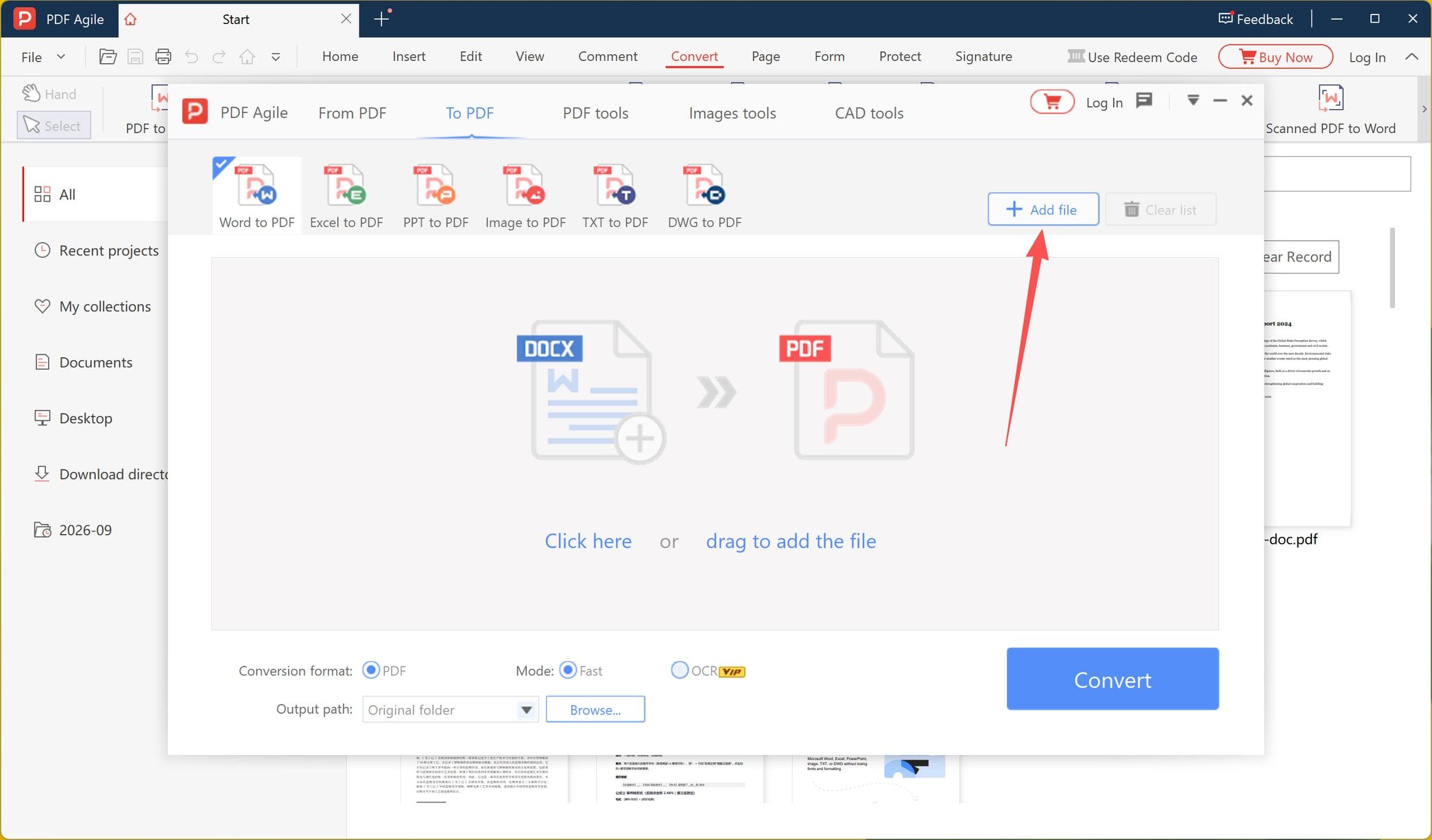
Step 2: Add the Word File
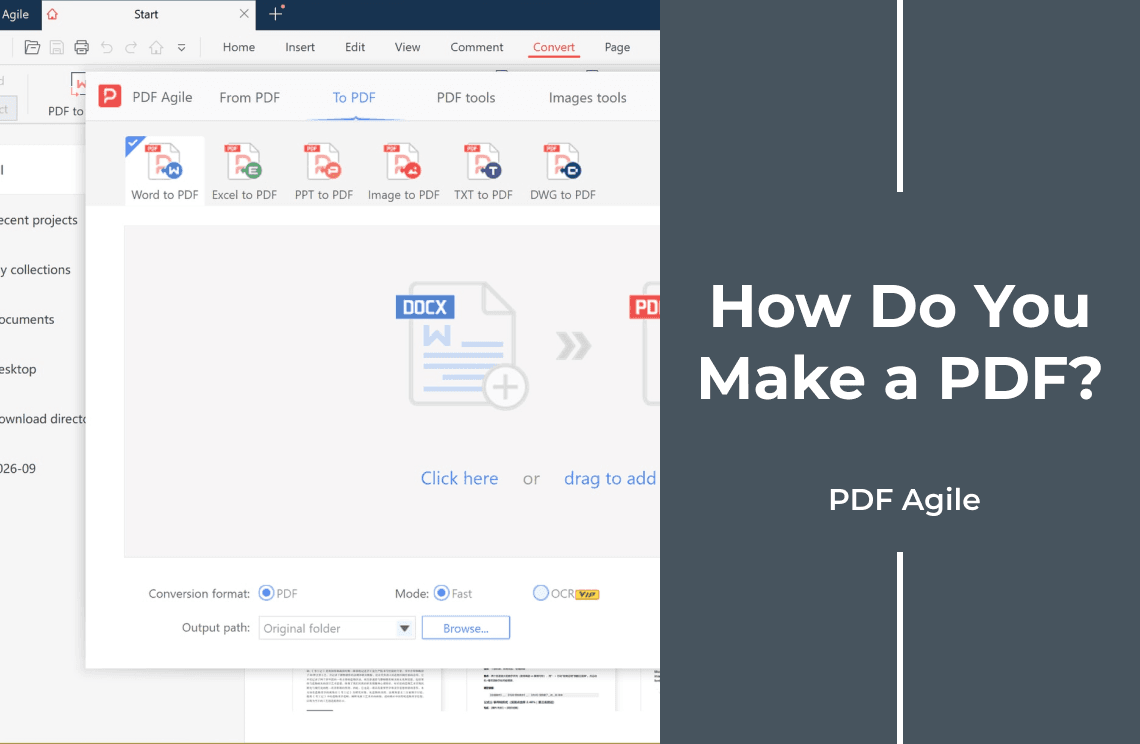
A Word to PDF window opens, with all six to-PDF tools lined up across the top. Click + Add file, or drop the document on the panel where it reads Click here or drag to add the file.
Two settings on this screen are worth a glance before you continue. Conversion format is set to PDF, and Output path defaults to *Original folder*, so the PDF is written next to your source file — use Browse to send it elsewhere.
Step 3: Confirm the File and Convert
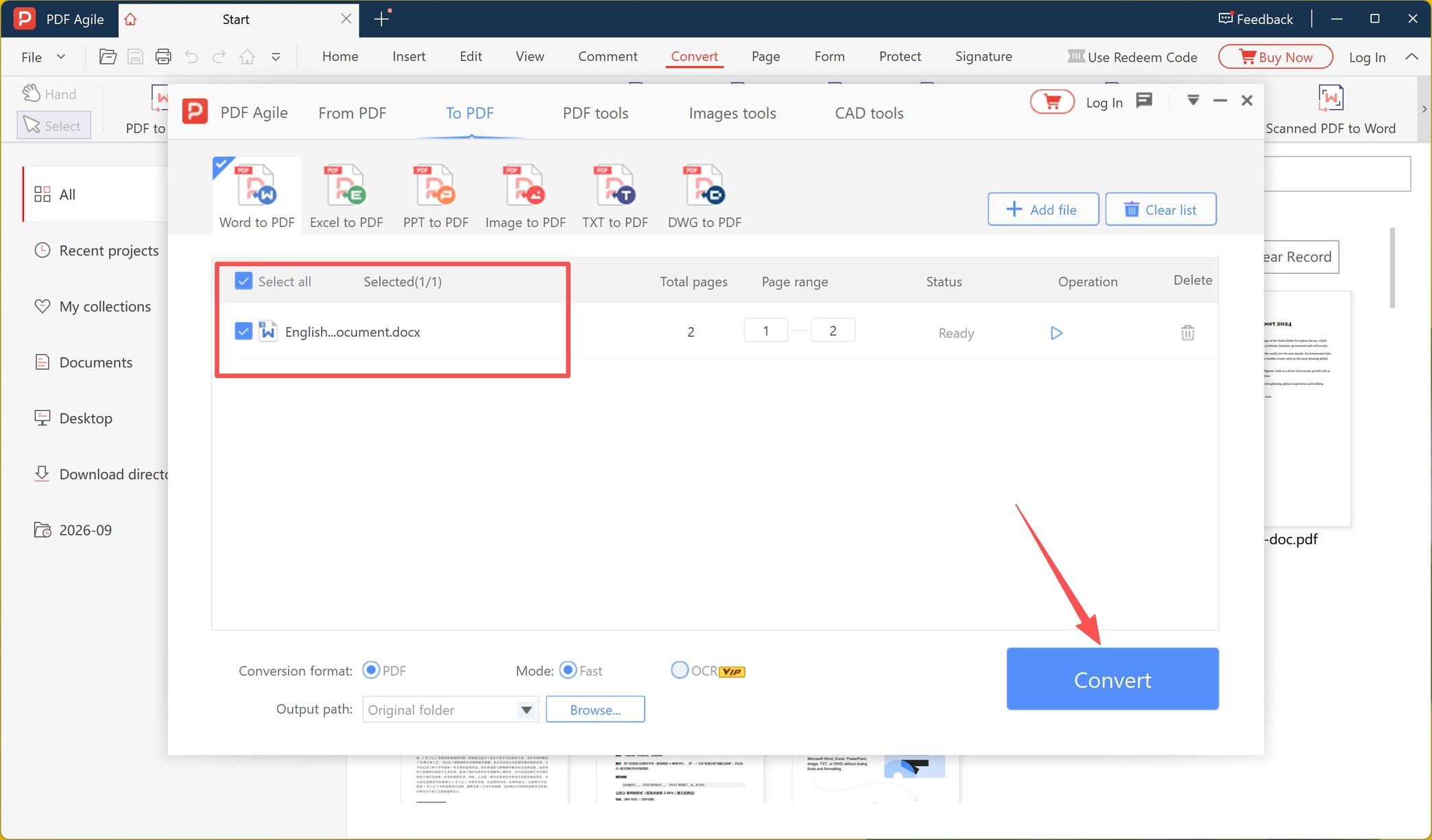
The document appears in a list with its total page count, a page range you can narrow, and a status that reads Ready. Keep the checkbox beside the file selected, adjust the range if you only need part of the document, then click Convert.
The same list accepts more than one file — a Select all control appears as soon as the first one lands — so a set of contracts can go through in a single pass.
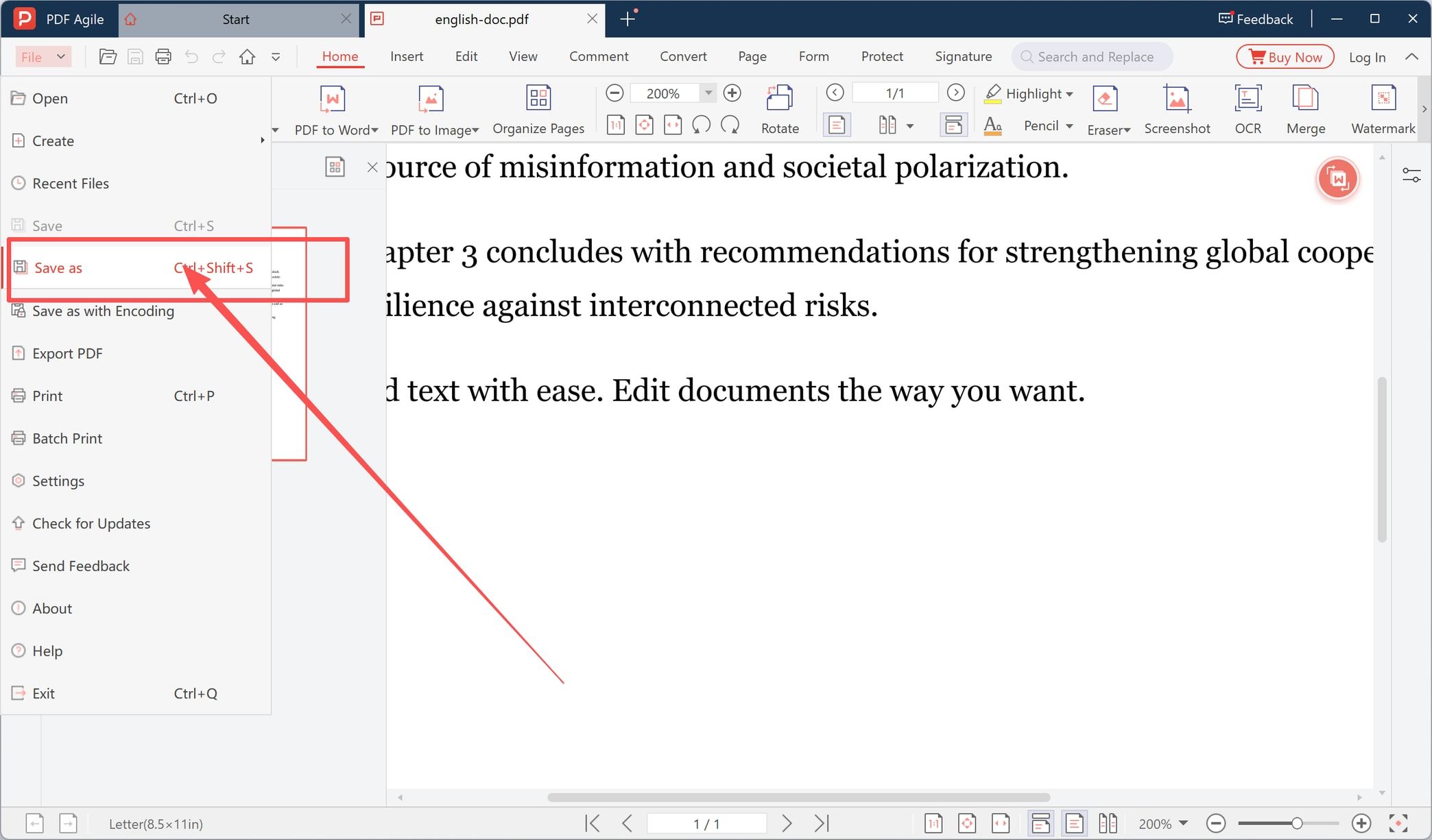
Step 4: Open the Result and Save a Copy When You Need One
The converted file opens in the editor, so you can check the pages before anyone else sees them. If you want a second copy — a signed version, or one filed somewhere else — open File and choose Save as (Ctrl+Shift+S). The same menu holds Export PDF, Print, and Batch Print.
What Carries Over, and What Can Still Move
A conversion from Word to PDF is usually faithful on the things that matter:
- fonts, as long as they are embedded in the source document
- tables, images, headers, footers, and page numbers
- page breaks and margins, because the PDF follows the Word page setup
- hyperlinks, which stay clickable in the output
- both .doc and .docx files
It is less reliable on wide tables with many columns, which may shrink or split; on licensed fonts the conversion engine cannot embed; on tracked changes and comments, which generally do not appear in the PDF; and on scanned pages sitting inside an otherwise digital document, which stay unsearchable until OCR runs.
Make a PDF from a Scan or a Photo
Photographing a signed page and saving it as a PDF gives you a file that looks right and reads badly: every letter is part of an image, so search, copy, and screen readers all fail on it. OCR is the fix, because it rebuilds a text layer over the image. In the conversion window above, the Mode row offers *Fast* and *OCR*, and the OCR option carries a VIP badge, so confirm the feature you need is included before you plan around it.
Where Your File Actually Goes
The steps above run inside an installed desktop app, and the output path defaults to the folder your source file came from. There is no upload step in that workflow, and the finished PDF lands on your own drive.
Browser converters work differently: your document is uploaded to someone else's server, converted there, and kept for however long that company's policy allows. For a contract, a payslip, or anything carrying an ID number, read the retention terms first or keep the work local.
Password-protected documents need a little planning too. Most converters cannot read a file until it is unlocked, so remove the password first and re-protect the PDF afterwards.
FAQ About Making a PDF
Do I need Microsoft Word installed?
No. A dedicated converter reads the .docx or .doc file directly, which is also why it can handle Excel, PowerPoint, TXT, DWG, and image sources from the same window.
Will the PDF look exactly like my Word file?
On ordinary documents, yes. Expect small shifts on wide tables, uncommon fonts, or heavy column layouts, so open the output and check the first and last page before you send it.
Can I convert several files at once?
Yes. Every file you add to the list is converted together, and the Select all box controls the whole batch.
How do I make the PDF searchable afterwards?
Run OCR on it. The text layer is what makes search, copy, and PDF to Word conversion possible at all.
Is making a PDF free?
The app downloads without a credit card and works on your own files, while some modes are marked VIP in the interface — so match the mode you need against what your license covers.
Ready to make your PDF? Download PDF Agile for Windows and turn a Word, Excel, PowerPoint, TXT, or image file into a PDF in four steps.