Two PDF forms can look identical and behave nothing alike. A cursor appears in one and nothing happens in the other, and that is not a Preview problem or a damaged file. It is the form type. Here is how to check it, write on each type in Preview, and save a file the recipient can actually read.
First, Check What Type of PDF Form You Have
Open the file, click the first line asking for a name, and watch. A cursor or highlighted box means real fields; no reaction means the page is a picture of a form; a grey, slightly crooked page means a scan. The general rules in how to write on a PDF form split the same way.
Fillable PDF forms
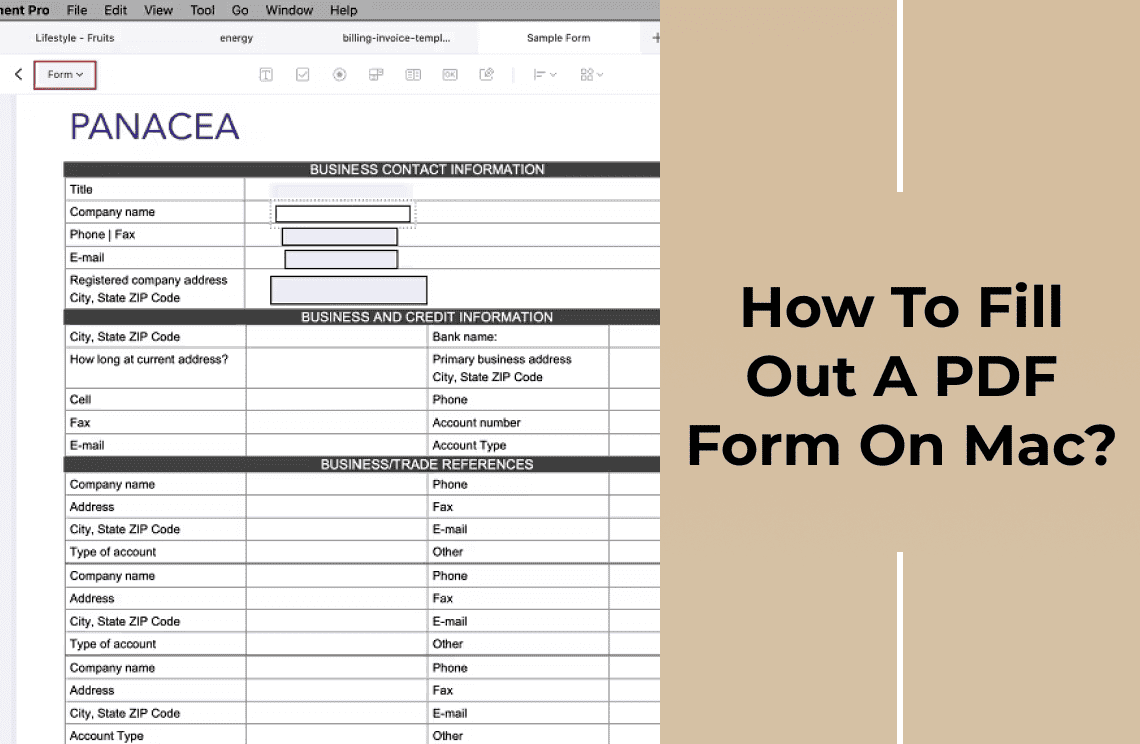
Click a field, type, and press Tab for the next one. Answers are stored as field values, so the recipient can read them. One limit: some forms use JavaScript for totals or required fields, and Preview does not run all of it, which is why a date can refuse to enter or a field stays blank.
Flat or non-fillable PDF forms
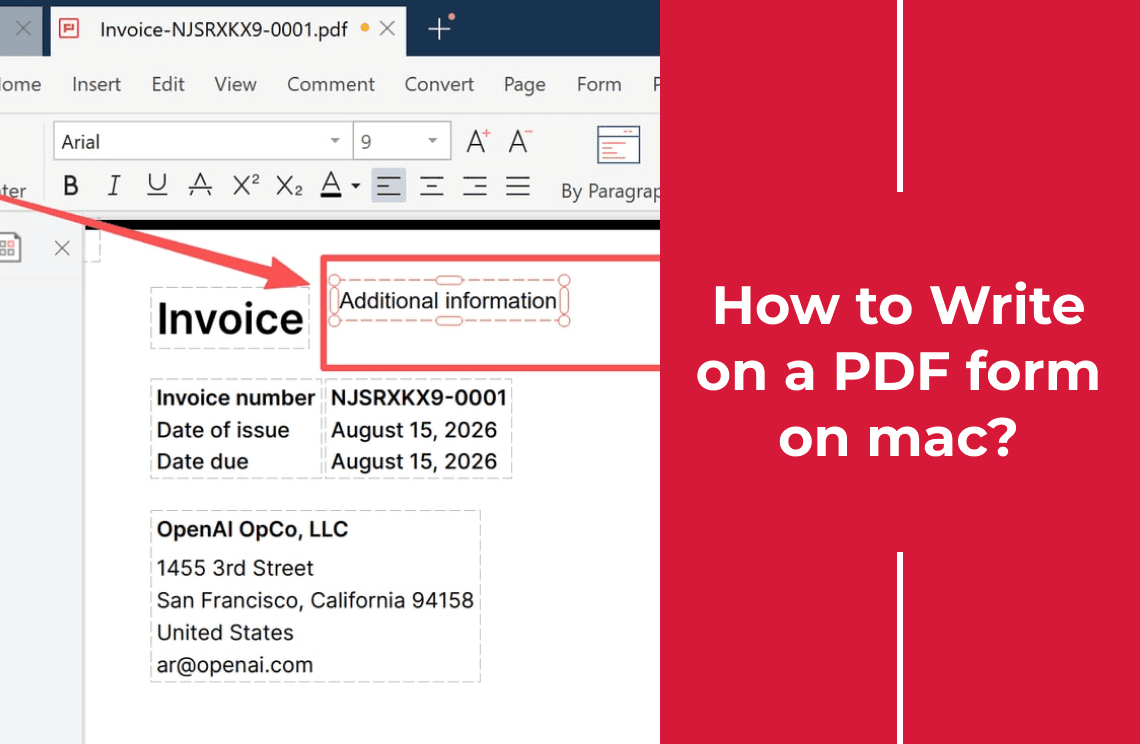
A flat form has lines and boxes printed as ordinary page content, so there is nothing to click. The file is not broken and not locked. You write on it by placing a text box over each line, which keeps the printed layout and puts each answer where a form expects it.
Scanned PDF forms
A scan is flat with an extra problem: the original text is a photo, so nothing is selectable or searchable. Place text boxes over the lines, or run OCR first to add a text layer. OCR reads clean print well and struggles with small type, tables, and handwriting, so check numbers against the paper.
How to Fill Out a PDF Form on Mac with Preview
Preview handles most everyday forms: applications, rental paperwork, school slips. These steps use the macOS menu names.
Step 1: Open the PDF in Preview
Double-click the file or right-click and choose Open With > Preview. Save a copy under a new name and work on that copy, so the blank master form stays blank.
Step 2: Show the Markup Toolbar
Choose View > Show Markup Toolbar. This row holds the Text tool, the Sign tool, shapes, highlight, and notes. Without it you can still click fields, but you cannot write on a flat page.
Step 3: Type into interactive fields
Click the first field and type; Tab moves forward, Shift-Tab back. Then click an empty part of the page: every answer should be visible and inside its box. If a long answer is cut off, shorten it instead of shrinking the font.
Step 4: Add text to a flat form
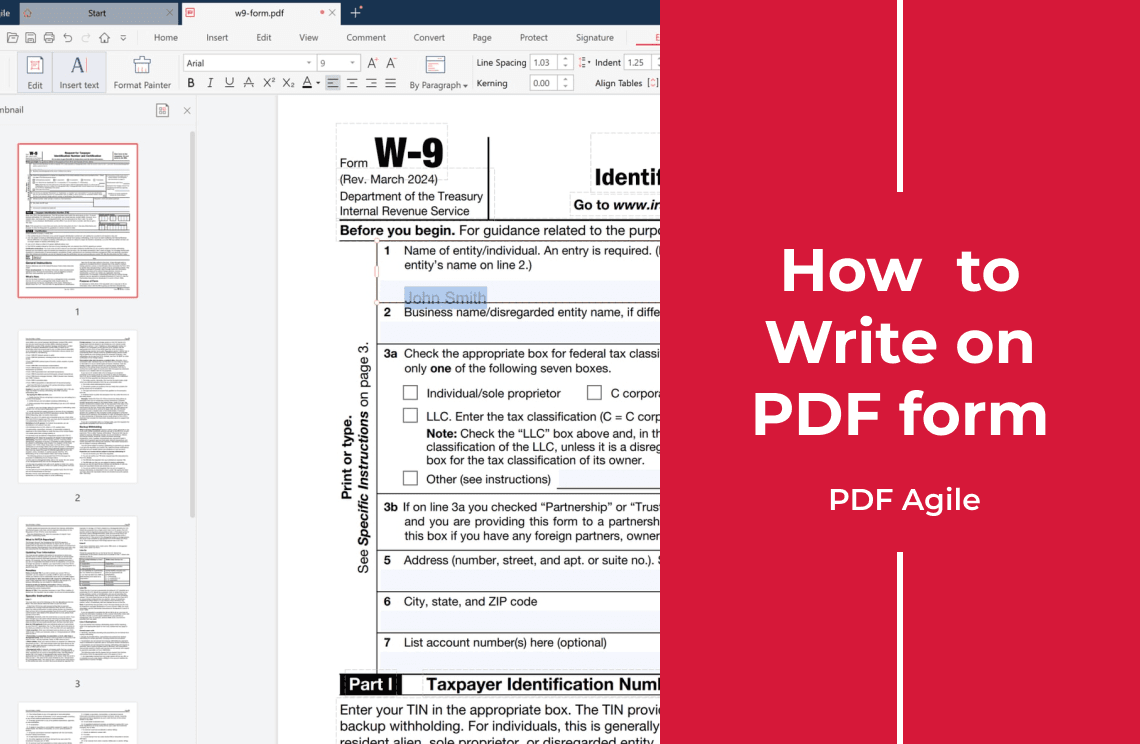
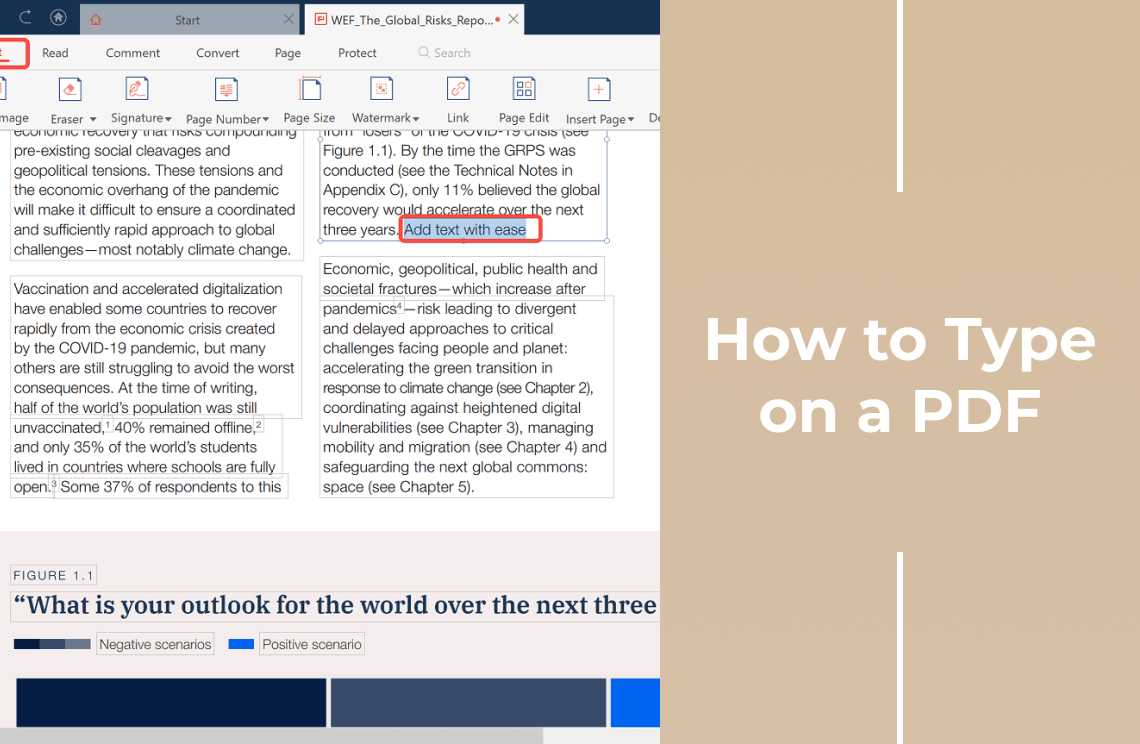
Pick the Text tool, click the line, and type. Size the text to the printed labels, then drag the box so the words sit on the line. Use one text box per field, and the Text tool rather than a sticky Note, which hides its text until clicked. See how to type on a PDF for placing a box versus changing existing words.
Step 5: Add checkmarks and a signature
For a flat checkbox, type a capital X in a small text box and centre it over the square. For the signature line, open the Sign tool, create a signature from the trackpad, camera, or an iPhone or iPad, then drag it in and resize it. Add the date last.
Step 6: Save a copy and check the result
File > Save updates the open file; File > Export as PDF writes a new one, which is the safer habit. Then reopen the saved copy and click through the fields: answers visible, no text over a line, the signature covering no question, the page count unchanged. A form that looks right on your Mac can still arrive broken.
When Preview Cannot Fill the Form
Preview is a viewer with a good markup kit, not a form application.
Complex or dynamic forms
Some official forms are XFA or otherwise dynamic: they expand, recalculate, and hide sections as you type. Preview does not run that logic, so fields may never appear. Government, tax, and insurance forms are where this turns up; a reader built for them, such as the free Adobe Acrobat Reader, is the answer.
Locked or permission-restricted PDFs
The file opens but the tools stay unavailable, or fields refuse input. A password to open a file and a permission allowing filling are different things. Do not use cracking tools on documents you do not own; ask the sender for a fillable version or the right password.
Scanned forms that need OCR
Preview has no OCR. If you only need a readable form, text boxes are enough. If the file must be searchable, run OCR in a desktop editor first; how to edit a PDF explains why a scan has no editable text until then.
How to Save a Filled PDF So Others Can See Your Answers
The commonest complaint after filling a form is that the recipient sees a blank page. Usually the answers are there, stored as annotations or field values the other viewer does not display.
Save an editable copy
File > Save or Save As keeps the answers editable and the field structure intact. Choose it when the recipient may correct something, or you may need to change an answer later.
Export or flatten a final copy
File > Export as PDF, or File > Print and then Save as PDF, bakes text and annotations into the page so every viewer shows the same thing. What you give up is real: fields and the data behind them, calculations, and any existing digital signature are lost. Flatten the copy you send; keep the editable one.
What to check before sending
Open the saved file on a second device and read it as the recipient will: answers visible, checkboxes marked, the signature inside its box, no password prompt. Name it clearly, for example rental-application-jane-doe.pdf.
Preview vs. a Desktop PDF Editor on Mac
Preview is free and already installed, which is why it handles most forms. A desktop editor earns its place further out: OCR on scans, creating real form fields, flattening, several documents in one pass. A desktop PDF editor such as PDF Agile runs on macOS 10.15 or later, Apple Silicon included, works on the file locally instead of uploading it, and its Edit tab carries Add Text for flat forms, a Signature tool, and the OCR Preview lacks.
Common Questions
Why can't I type into my PDF form?
Almost always one of three causes: the form is flat, so there are no fields and you need a text box; the page is a scan, so nothing is clickable until text goes on top or OCR runs; or the file is protected and the tools are disabled. Sometimes it is simply the wrong tool: in Preview, text goes in only after the Text tool is active.
Can I fill out a scanned PDF form?
Yes. Text boxes over the lines work without OCR and print correctly. Run OCR only when you need searchable text, and expect to correct errors in numbers and handwriting.
Can I sign a PDF form on Mac?
Yes. Open the Markup toolbar, choose Sign, and create a signature from the trackpad, camera, or an iPhone or iPad; Preview keeps it for reuse. That is a picture of your signature, not a certificate-based digital signature, which proves who signed and flags later changes.
Should I flatten a completed PDF?
Flatten when the other side only needs to read or print the form, or when your answers did not survive in their viewer. Do not flatten when the recipient must process the data or you may need to fix an answer.
Can I fill out a PDF form without printing it?
Yes, and that is the point. Printing, handwriting, and scanning back in adds a generation of quality loss and usually ends up harder to read than the file you started with.
Final Checklist
- Confirm the form type, so you know whether to click, to place text, or to run OCR
- Work on a copy and keep the blank original
- Fill real fields with Tab, and align one text box per field on flat forms
- Mark checkboxes with a capital X sized to the square
- Add the signature, then the date
- Save, reopen, and read it as the recipient would
More Mac fixes are in the how-to and tips section. If scans keep blocking you, read how to fill out a PDF form on Mac, or try PDF Agile for macOS and fill the form without printing it.