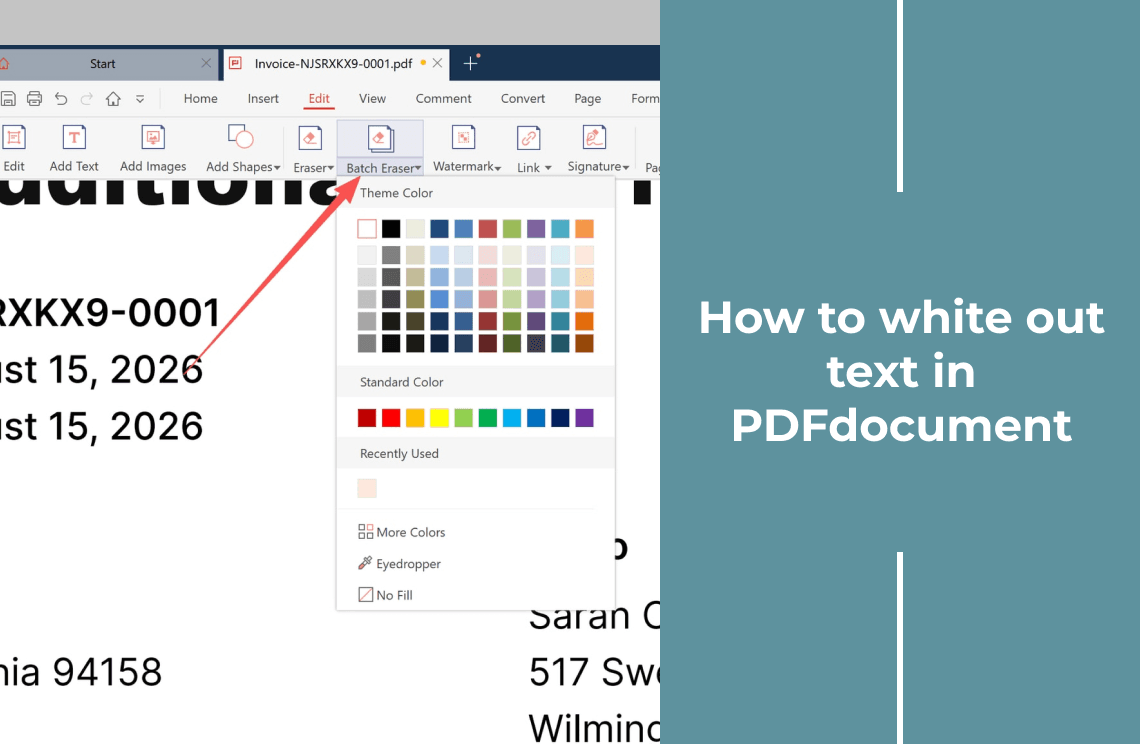
White out text in a PDF document and the page simply stops showing that text: a filled area sits where the words were, and everything around it stays exactly where it was. Four steps do it with the editing tools already built into a desktop PDF editor.
What a White Out Does to the Page
A white out is a covering action. The editor draws a filled area over the page, so the text beneath it is still in the file even though the page no longer shows it. That is the right result for a tidy proof, a cleaned-up screenshot, or a form you are about to print.
It is not the same as deleting the words. If a line has to be gone from the file, covering it is not enough, because the words stay selectable and searchable. Keep that difference in mind and run the three checks further down before you send the document to anyone.
How to White Out Text in a PDF Document
The walkthrough below uses PDF Agile for Windows, a desktop editor, so the document stays on your computer while you work. In it, an invoice is prepared for sharing with its billing address block hidden.
Step 1: Open the Edit Tools
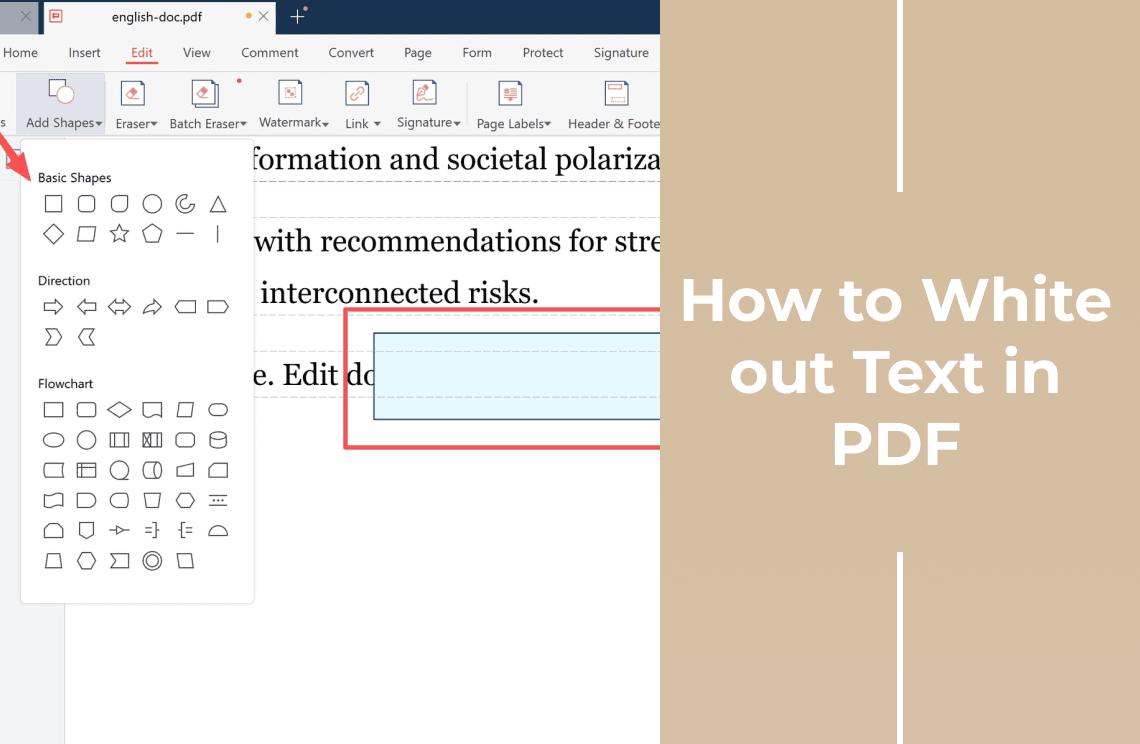
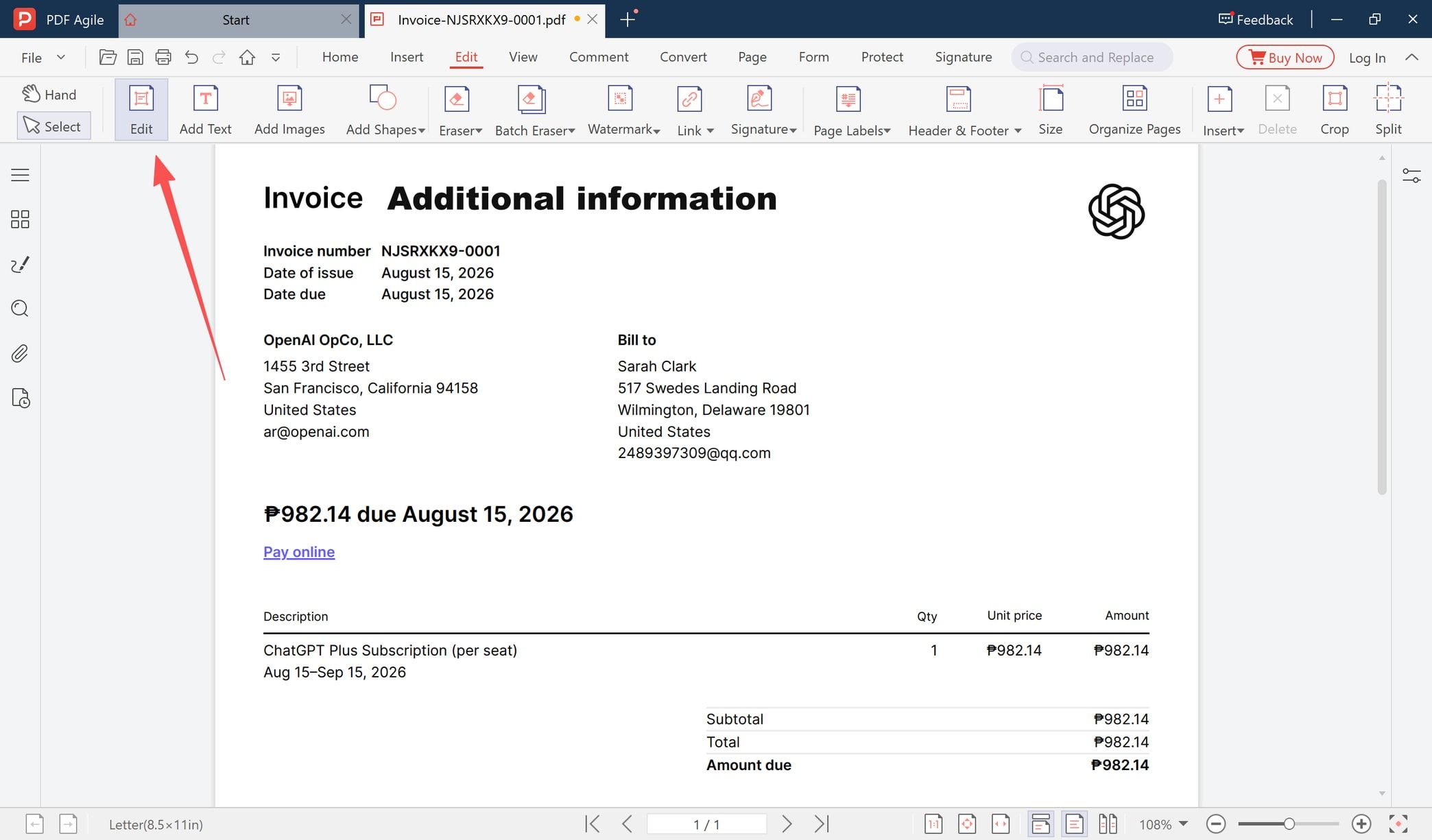
Open the PDF, then click Edit on the ribbon. The editing toolbar takes over from the home ribbon: Hand and Select sit on the left, and the tool group starts with Edit, Add Text, Add Images, Add Shapes, Eraser, and Batch Eraser. Watermark, Link, Signature, Page Labels, Header & Footer, Size, Organize Pages, Insert, Delete, Crop, and Split follow to the right.
Step 2: Choose the White Fill
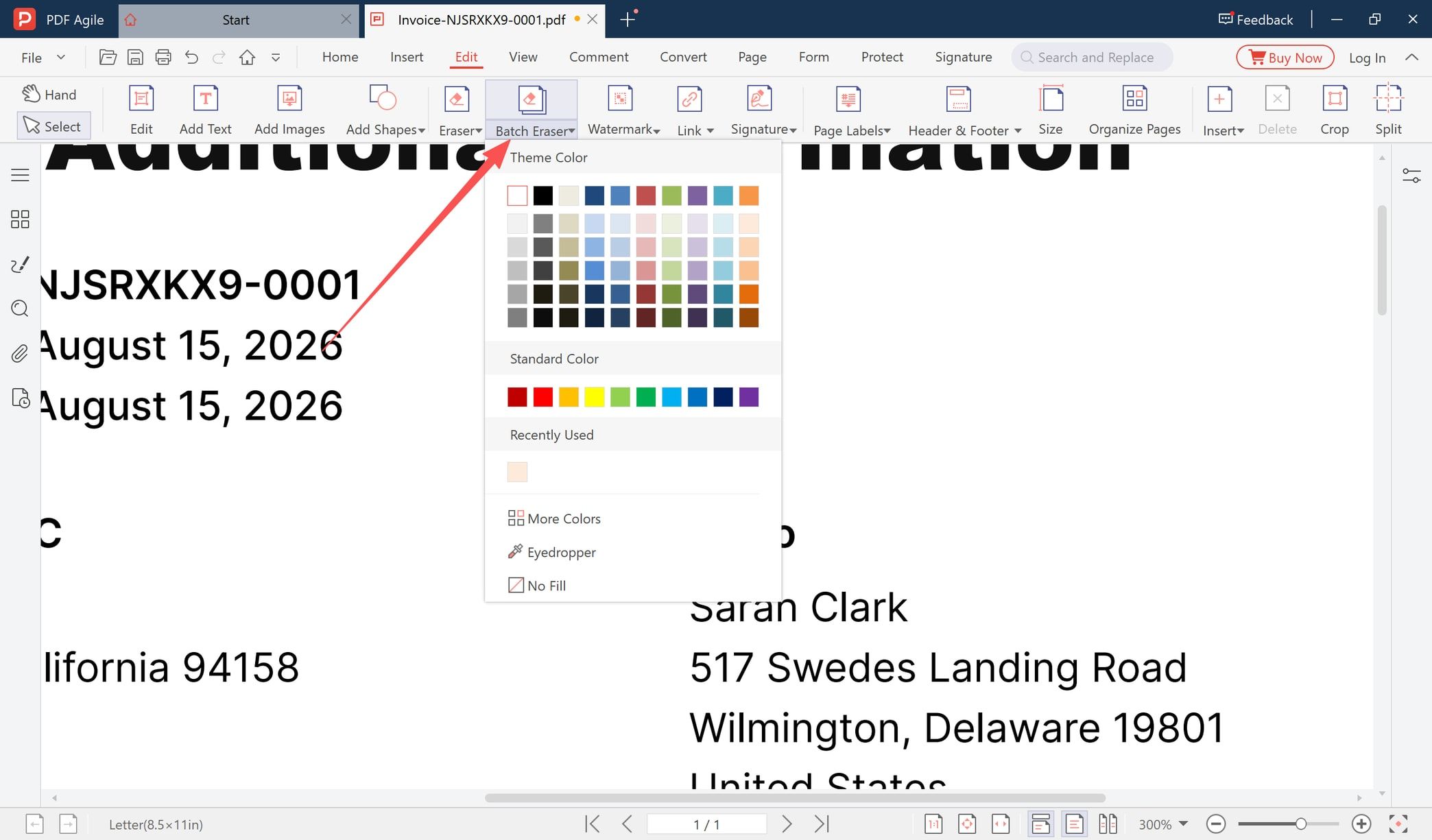
Open the Batch Eraser drop-down to set the colour the tool lays down. The palette offers Theme Color, Standard Color, Recently Used, More Colors, Eyedropper, and No Fill, and the first swatch in the top row is white.
White is the usual choice because a PDF page is white, so the covered area blends into the page. Two cases need a different answer. On a tinted or scanned page a pure white patch is visible, so sample the surrounding paper colour with the Eyedropper instead. And on a page that will only ever be read on screen, any light neutral colour hides the text just as well.
Step 3: Select the Text You Want to Cover
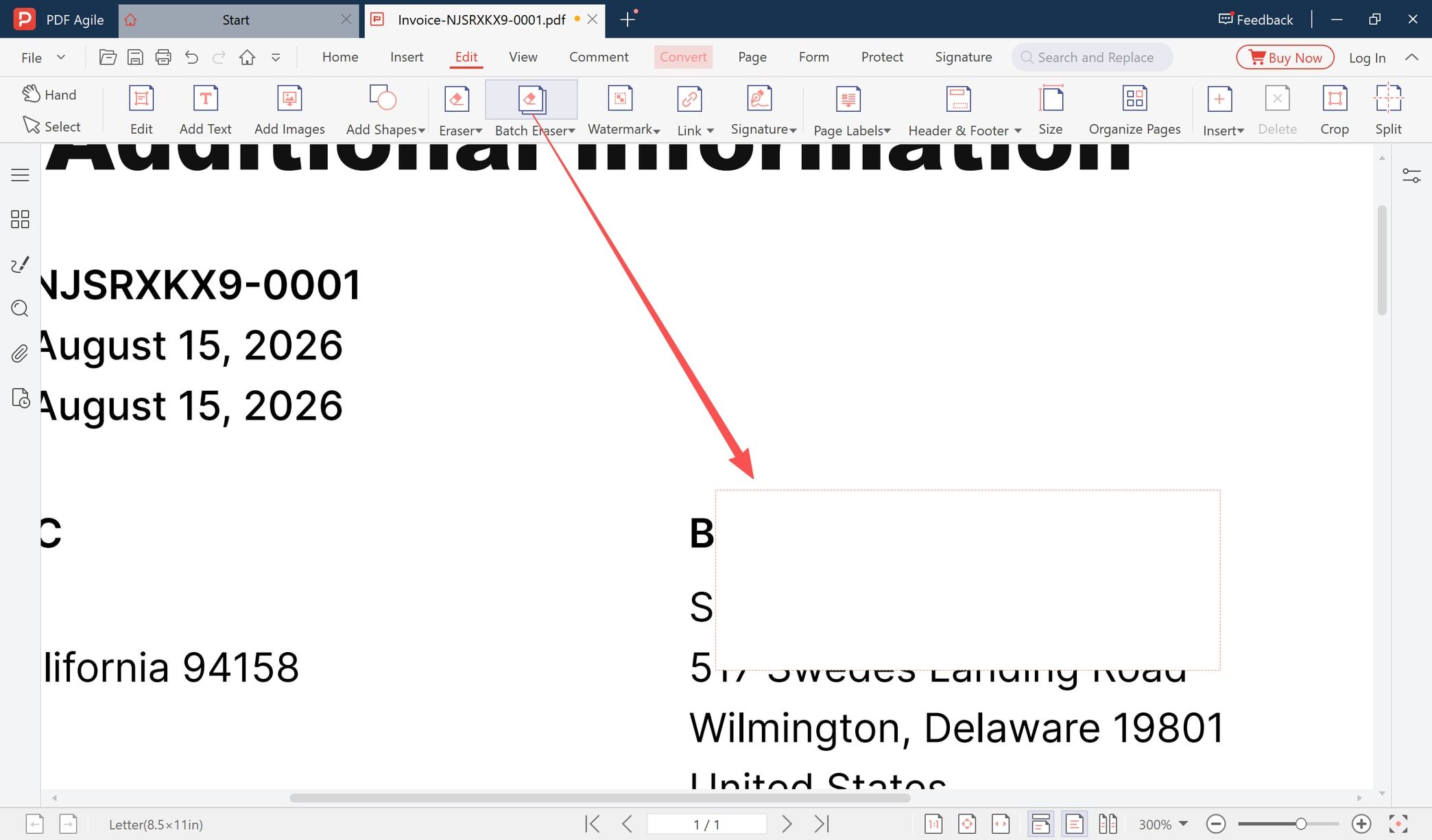
With the tool active, drag a rectangle over the text. A dashed outline follows your pointer and marks the area that will be filled; in the example below it wraps the name and address block on an invoice.
Cover the whole block rather than the words alone. Start a little above the first line and finish a little below the last, and drag a little past the right edge of the longest line. A character that falls outside the area stays visible, and a thin sliver of a letter is the usual reason a white out looks unfinished. If the first attempt is short, drag a second area over what is left.
Step 4: Save When the Editor Asks, Then Check the Area
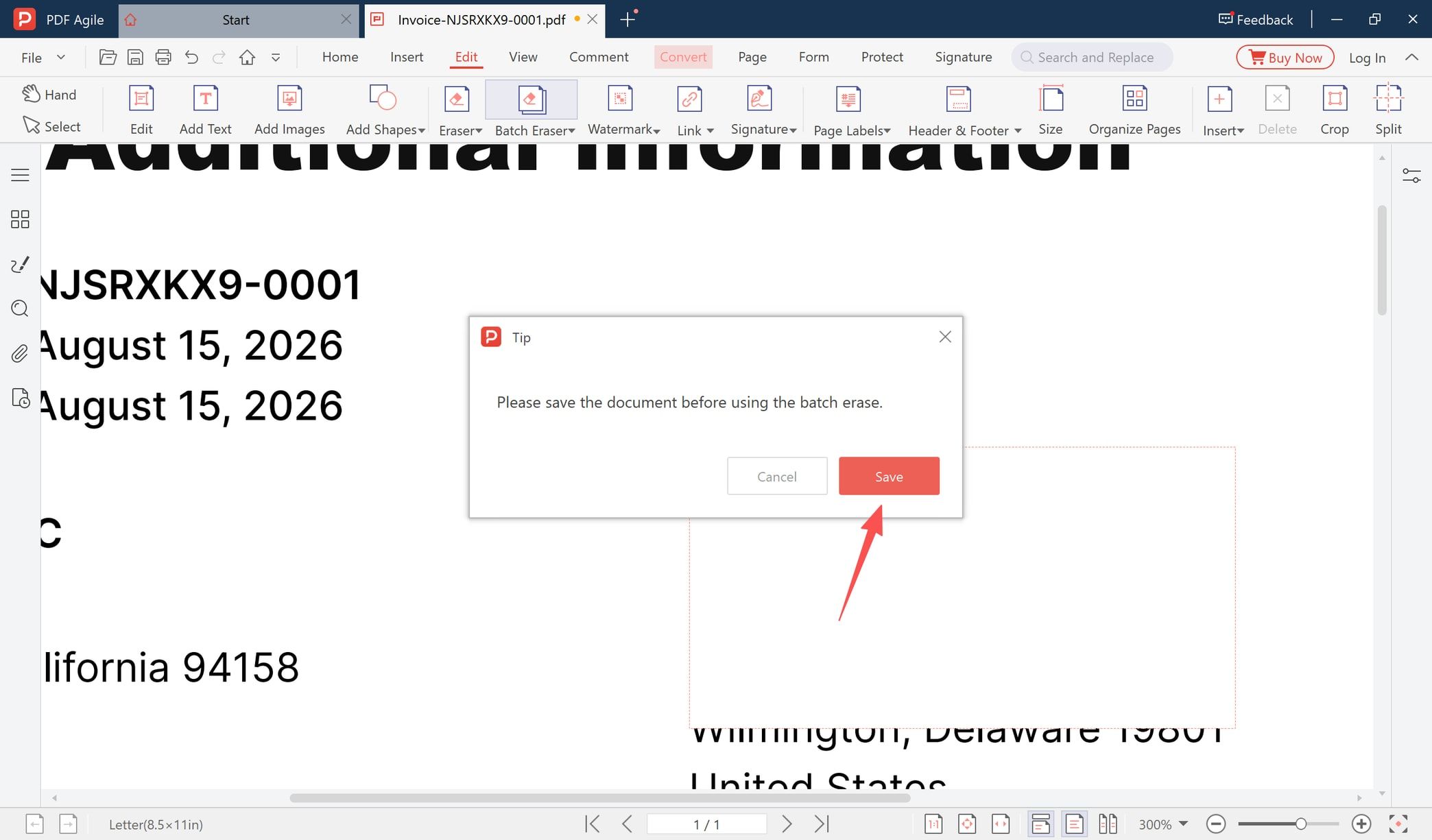
When the area is applied, a Tip dialog appears reading *Please save the document before using the batch erase*, with Cancel and Save. Choose Save: that prompt is the editor's guard on the tool, and the batch erase waits until the document has been written to disk. Cancel closes the prompt instead.
With the file saved, look at the covered area on screen and zoom in. If part of a character still peeks out beside or below the fill, drag a slightly larger area over it. Finish with File > Save as (Ctrl+Shift+S) when the untouched original should stay as it was.
Three Checks Before You Send the File
- Can the words still be found? Take the Select tool and drag across the covered line, or type a word you hid into Search and Replace in the ribbon. When the text highlights or the search finds it, the words are still in the file and only the view changed.
- Does the area print? A covering area is drawn on the page, so it prints with the document. Editors can switch annotation printing off, and the covered line then prints exactly as before, so check the first page before a whole file goes to a printer.
- Was the page a scan? An image-only page has no text layer to select, so the check above finds nothing and the cover looks convincing. The words are still pixels inside that image, and a later OCR pass can bring them back.
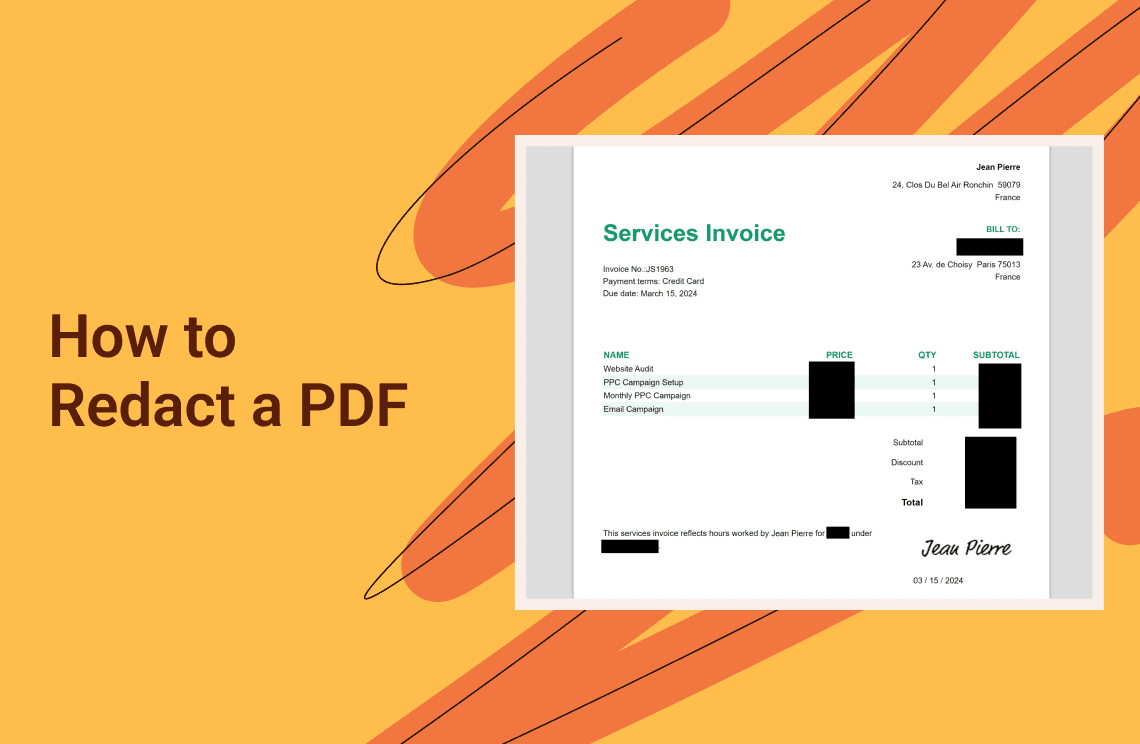
That last point is why a white out is not a way to publish personal data. Names, account numbers, and addresses need the text removed from the file rather than covered on top of it, especially once the document leaves your organisation.
When a White Out Is the Right Answer
- Tidying a draft, so a stray line, an old comment, or a leftover mark is off the page before a reviewer sees it.
- Cleaning up a form or a screenshot for a presentation, where the page only has to look right.
- Covering a block before printing or signing, so the paper copy reads the way you want.
- Preparing a sample invoice, a template, or an internal draft that carries no sensitive information.
Common Problems
- A visible patch instead of a blend. The page is not white: tinted paper, a scan, or a shaded table row. Reopen the palette and use the Eyedropper on the surrounding page colour.
- A sliver of text still showing. The area was too small. Drag a second area a few pixels wider and taller over what is left.
- Nothing happens when you drag. The tool was not armed. Check that Batch Eraser is highlighted in the ribbon before you start the selection.
- Working on a Mac or in an online editor. The idea is the same, except the rectangle comes from the shapes or comment tools. A desktop app keeps the file on your own machine, which is the part that matters for a contract or an invoice.
FAQ About White Out
Does a white out delete the text?
No. The area is drawn in front of the text, so the words stay in the file and remain selectable and searchable. Remove the text itself when the content has to be gone.
Can I white out text in a scanned PDF?
Yes, and the cover is convincing because a scan has no text layer to select. The words are still inside the page image, though, so a later OCR pass can recover them.
Why does the editor ask me to save before the batch erase?
It is the editor's own guard on the tool: the batch erase changes a whole area in one pass, so the document has to be written to disk first. Choose Save in the dialog, or Cancel to back out.
Will the white area show up when I print?
Usually yes, because the area is part of the page. When the covered line still prints instead of the white area, annotation printing is switched off in the print settings.
Can I undo a white out?
Use the undo arrow in the toolbar above the ribbon while the document is still open and unsaved. Once the file has been written, the cleanest route is to start again from the copy you kept before editing.
Need to cover a line and keep the file on your own machine? Download PDF Agile for Windows, open the page, set the batch eraser to a white fill, and save the covered copy.