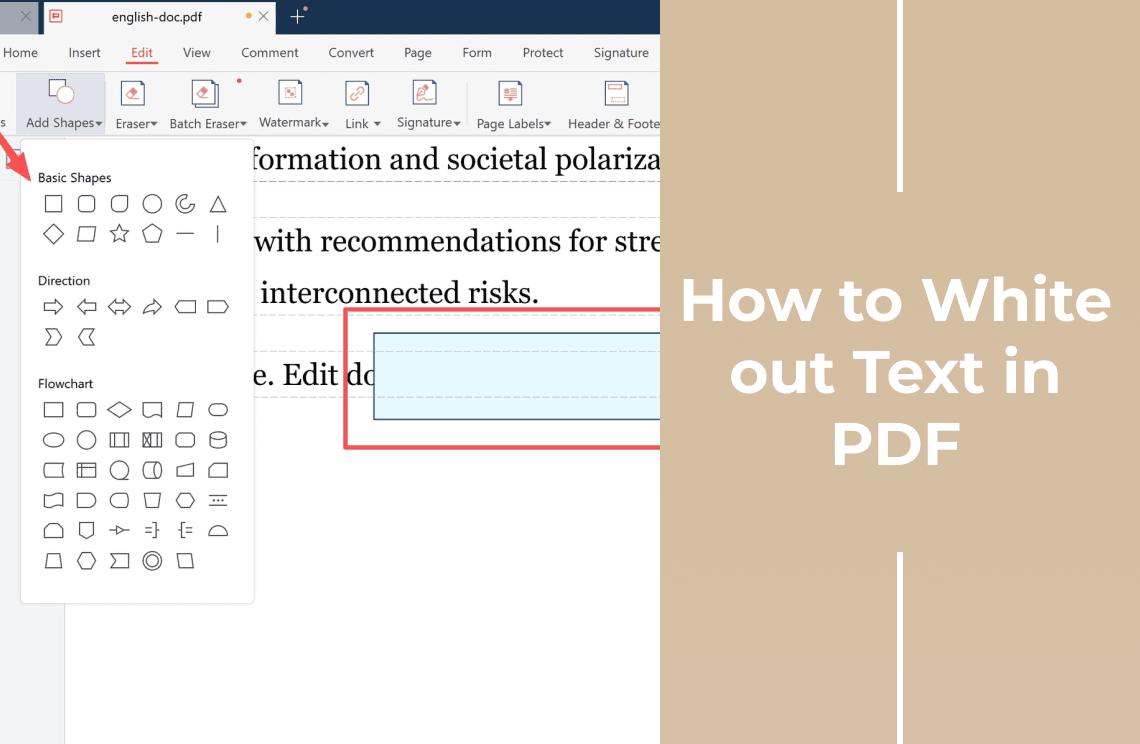
White out text in a PDF and one of two things happens: a line stops showing on the page, or the line stops existing in the file. Both look the same in a screenshot. They behave very differently in someone else's hands.
Covering and Removing Are Not the Same
Covering puts something in front of the text, usually a shape filled with the page colour. The layout stays as it was and nothing around the line moves.
Removing deletes the text itself, so the file no longer holds it. Most editors call this redaction.
That difference decides whether the edit is safe. Text under a white shape is still part of the PDF, which means it can still be selected, copied, pasted, and found with search. Cleaning up a messy draft? Covering is fine. Hiding a phone number, an address, or an account number? Covering is not enough.
How to White Out Text in a PDF
Step 1: Open the PDF in a desktop editor
A desktop editor works on the file directly, so the document stays on your computer instead of being uploaded to an online white out tool. If the file is private, that is the safer place to start.
Step 2: Cover the text with a shape
Open the Edit tab and pick Add Shapes. Place a rectangle over the line you want to hide, drag its handles until it covers the text completely, then set the fill colour to white so the shape blends into the page.
Step 3: Or erase the text instead
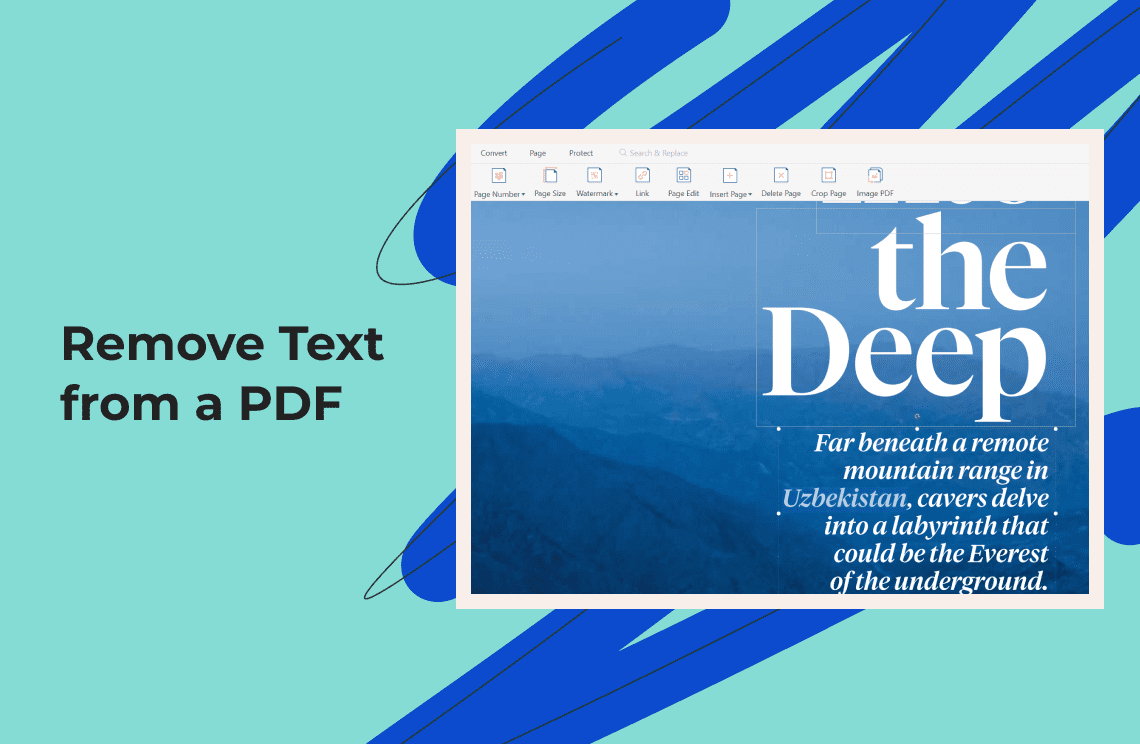
If the text has to disappear rather than just look hidden, use the Eraser in the same tab: drag across the object you want gone. When the same edit has to be repeated down a long document, Batch Eraser is faster than working line by line.
PDF Agile keeps both tools in one Windows app, so a line you want covered and a line you want deleted can be handled in a single session.
Step 4: Check what is still readable
Save a copy, then try to select the text you covered. If it highlights and copies, the words are still inside the file. Press Ctrl+F and search for a word you hid: when it is found, only the view changed. When search finds nothing and the text will not select, it is really gone.
White Out or Redact?
White out is a covering action, and it is the right answer when the goal is presentation: a clean proof, a tidy form, a page you are about to print.
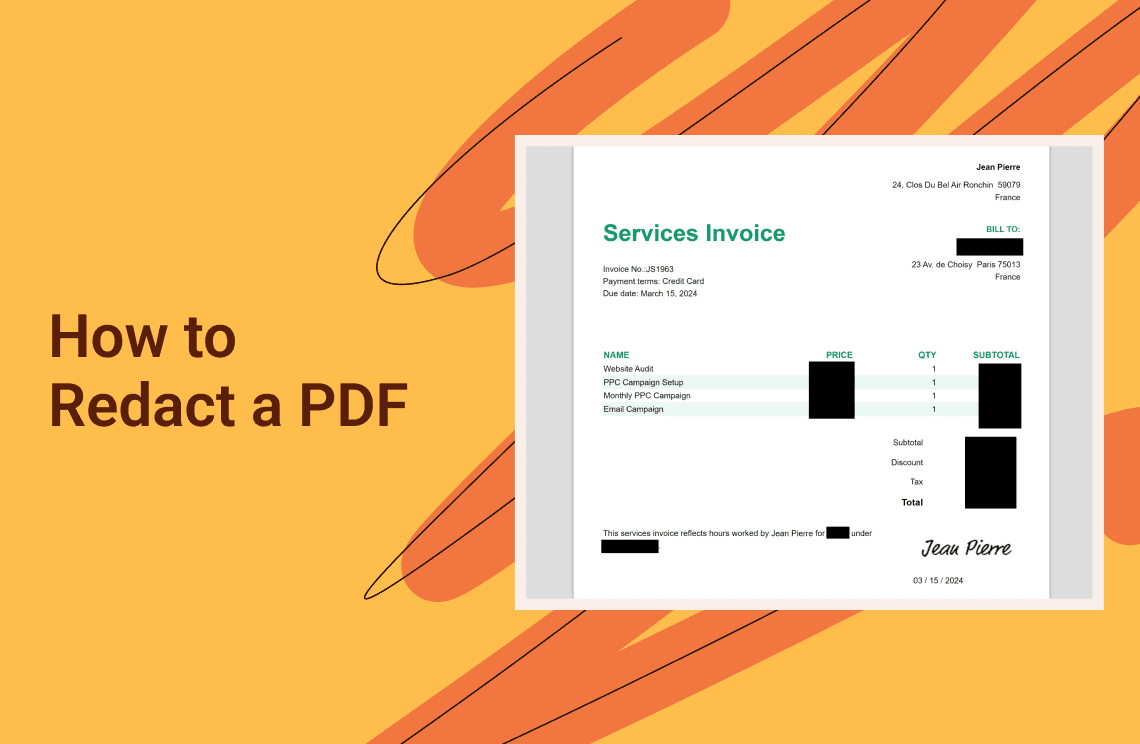
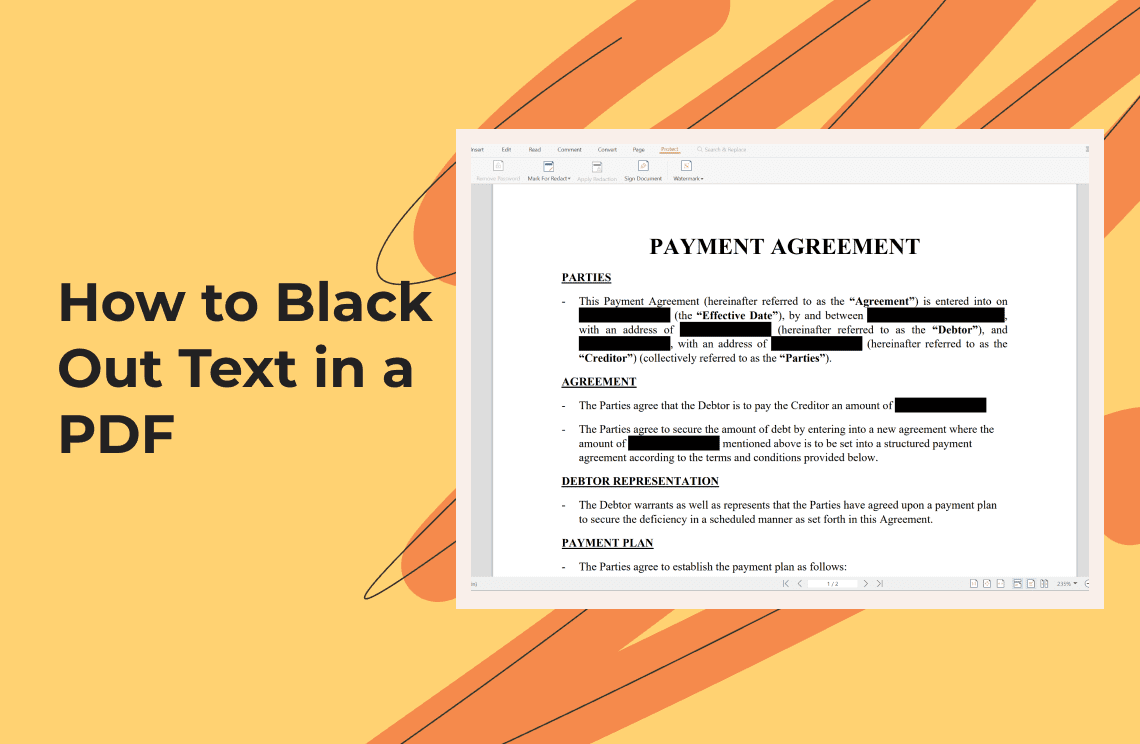
Redaction is a removal action, and it is the right answer whenever the content matters: legal drafts, invoices, medical records, HR paperwork, anything that leaves your team.
In editors that offer redaction, the usual trick is to remove the text first and then set the redaction fill colour to white, so the finished page still looks like a white out instead of a row of black boxes.
Scanned Pages Behave Differently
On a scanned page the content is an image, not text. A shape sits on top of that image and covers it visually, and there is nothing selectable underneath to copy. The words are still in the image, though. If someone later runs OCR on that page, or exports it without annotations, the covered line can come back. For scanned documents, erase the area or redact it rather than covering it.
FAQ
Does a white box delete the text?
No. A shape is drawn in front of the text, so the text keeps living in the file, still copyable and still searchable. Use the eraser or a redaction tool when the words have to be gone.
Can I white out text in a scanned PDF?
You can cover it, and the cover is harder to defeat because that page has no text layer to copy from. Removing it properly takes the same step as before: erase the area, or redact it.
Will the cover show up when I print or export?
Annotations travel with the document in most editors, so the white shape usually prints too. Check the print preview before you send anything, and turn annotation printing on if the shape is missing rather than assuming the text is hidden.
Is covering text ever the better choice?
Yes. When the page only has to look right and nothing private is involved, a covering shape is quicker than editing the content underneath it.
Need both in one document? Download PDF Agile for Windows, cover one line and erase another, and save a copy you can send without second thoughts.