Key takeaways
- Open the split tool, upload the PDF, choose Fixed ranges, and type the one page number you want.
- You get a new file with that page; the original stays untouched.
- Splitting reorganises pages without recompressing them, so the saved page looks exactly as it did.
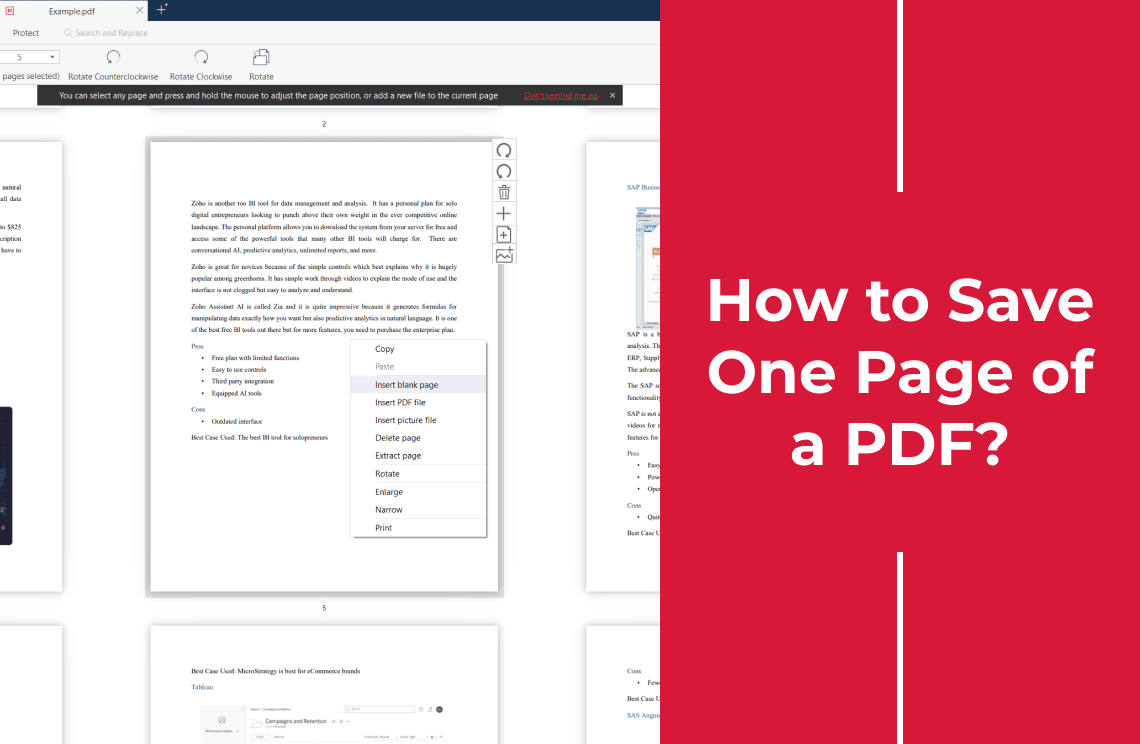
You save one page by naming it: open the split PDF tool, upload the file, type the page number in the range box, split, and download. One page in, one file out.
How Do You Save One Page of a PDF?
- Open the free split PDF tool.
- Click Select File and choose the PDF.
- Choose Fixed ranges and type `7` in the box labelled Split into page ranges of.
- Split, then download the file that contains that page.
What Do You Type in the Range Box?
The box labelled Split into page ranges of takes a page list, and a single number is the shortest list there is. Each entry in the list becomes one output file.
| You type | You get |
|---|---|
| `7` | one file containing page 7 |
| `7-7` | the same thing, written as a range |
| `1-3, 8` | two files: pages 1–3, and page 8 |
| `3-` | page 3 to the end of the document |
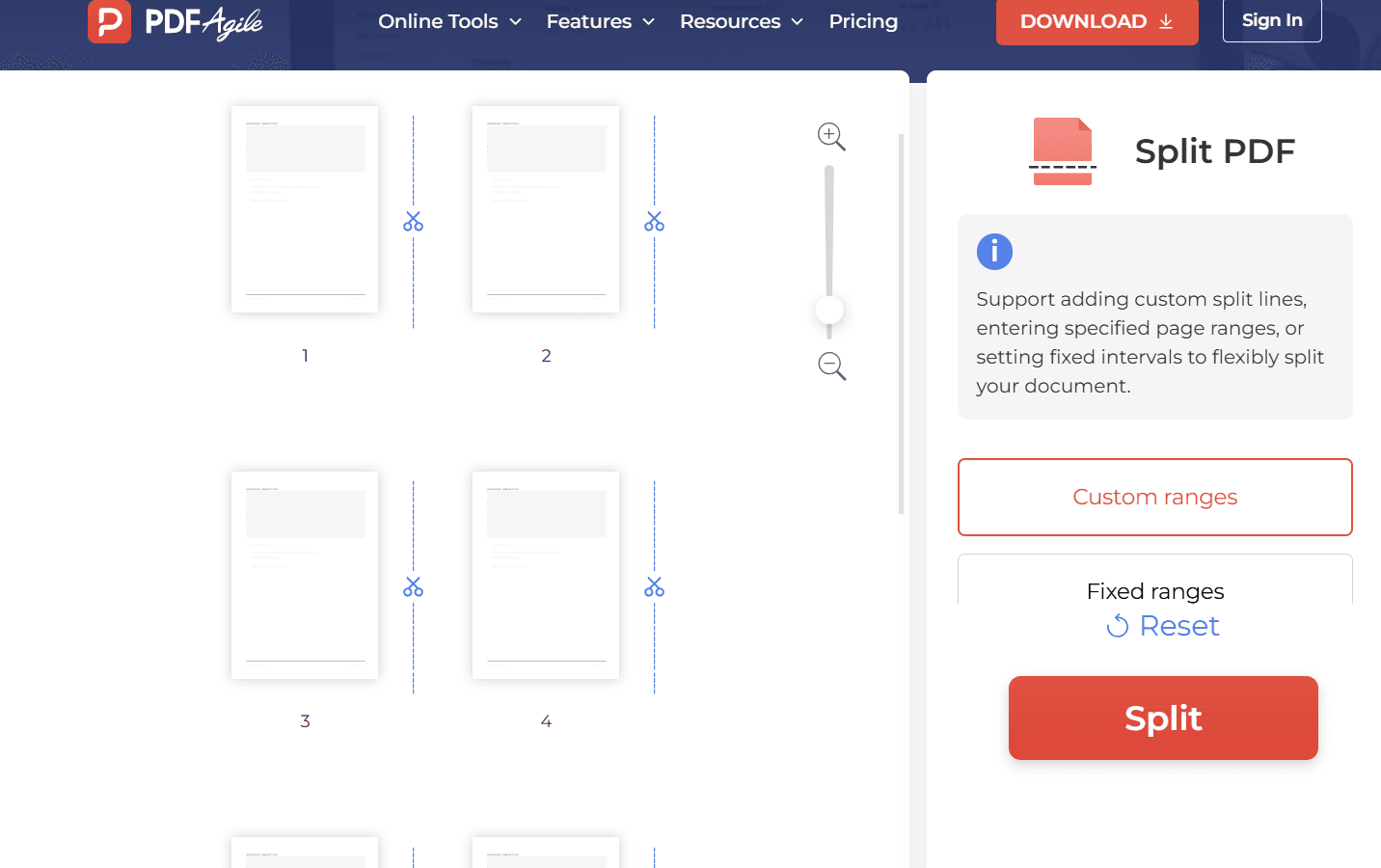
The other mode, Custom ranges, works the opposite way: you drag or remove cut lines between the page thumbnails instead of typing numbers. It is useful when the split points are easier to see than to count, but for one named page the typed box is faster.
Saving One Page vs Deleting the Other Pages
Both leave you with a file that has one page, and they are not the same operation.
Saving one page copies that page into a new file. The original keeps all its pages.
Deleting the other pages removes them from a copy of the file. The page you wanted stays, and so does everything attached to the document — but you have rewritten the file, which matters if it was signed.
Saving is the safer route when you only need one page to send someone. Deleting is the right route when the document itself has to become shorter. If the job is deletion, deleting certain pages covers the page-list syntax.
How Do You Check the Page You Saved?
Three checks, under a minute.
1. The count. The new file should show one page. If it shows more, the range caught a block rather than a single page.
2. The content. Open it and confirm it is the page you meant. Page numbers in the viewer and page numbers printed on the page are not always the same number — a cover page shifts everything by one.
3. The size. The page should look identical to the source, at the same width and height. Splitting does not recompress, so a page that looks softer than the original was already like that.
If the file that comes back is not the page you expected, do not split again on top of it — go back to the original PDF and try a wider range, because re-splitting a wrong output only narrows the mistake down further.
Why Is the Page Number Off by One?
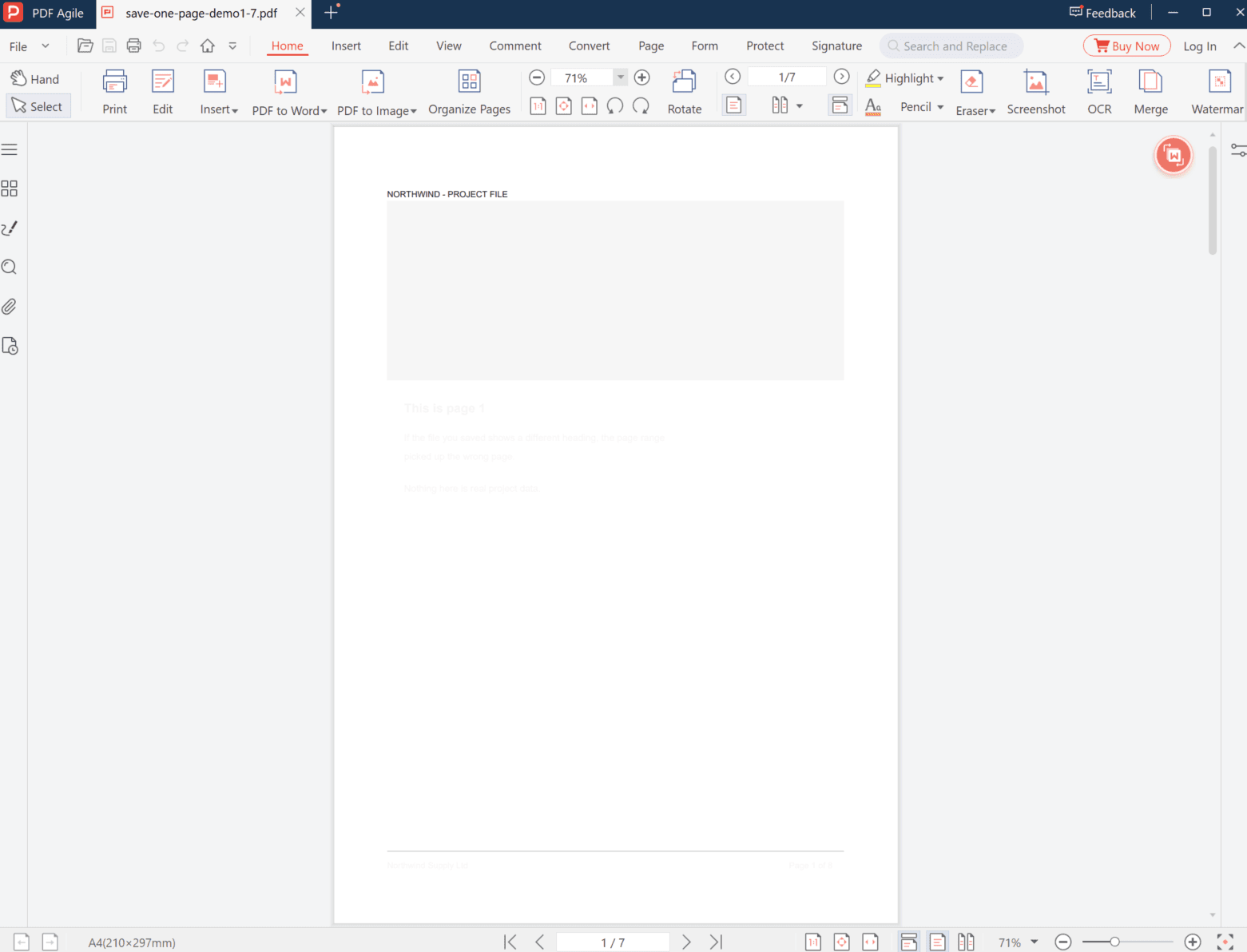
Because two numbering systems are in play. The viewer counts every page in the file, starting at one. The page you are looking at may have a printed number on it that starts later, after a cover, a table of contents, or a run of roman numerals.
The split tool uses the viewer count. So when a document prints "page 7" on the sheet, the tool may hold it at position 9.
Two ways to get it right:
- Count from the thumbnails. Find the page you want in the strip, then read its position, not the number printed on it.
- Type a wider range and pick. Enter `7-9`, split, then keep the file that has the right content and delete the rest.
If the download does not open, or the page looks wrong when it does, the file most likely never finished processing — re-run the split and watch for the completed state before downloading.
What This Cannot Do
- It does not shrink the page. A page from an A3 scan is still A3; you get one large page, not an A4 one.
- It does not add text. If the page is a scan, the saved file is a picture of that page.
- It breaks a signature. Splitting rewrites the file structure, so a document that was signed is no longer validly signed after the split.
- It does not keep links that pointed outside the page. A link to page 12 in a file that now contains only page 7 has nowhere to go.
FAQ
Can I save several pages as one file?
Yes — type them as a list or a range, such as `2-4` or `2, 5, 9`. One run produces one file per group.
Is the saved page lower quality than the original?
No. The split reorganises pages without recompression, so the page you saved carries the same image data it had before.
Can I save one page without uploading the file?
Not with the online tool. For a page from a contract or an ID, open the PDF in a desktop editor and export the page locally instead.
Why did I get several files instead of one?
Because the list had more than one entry. Each comma-separated group becomes its own file, so `1-3, 7` returns two files. Enter only `7` for a single output.
Does the original file change when I split it?
No. The tool reads the original and writes new files; the upload is not modified. Keep the original until you have checked the output, because it is the only clean copy.
Can I save a page from a password-protected PDF?
Not while the restrictions are in place. Remove the protection first, then split.
Where to Go Next
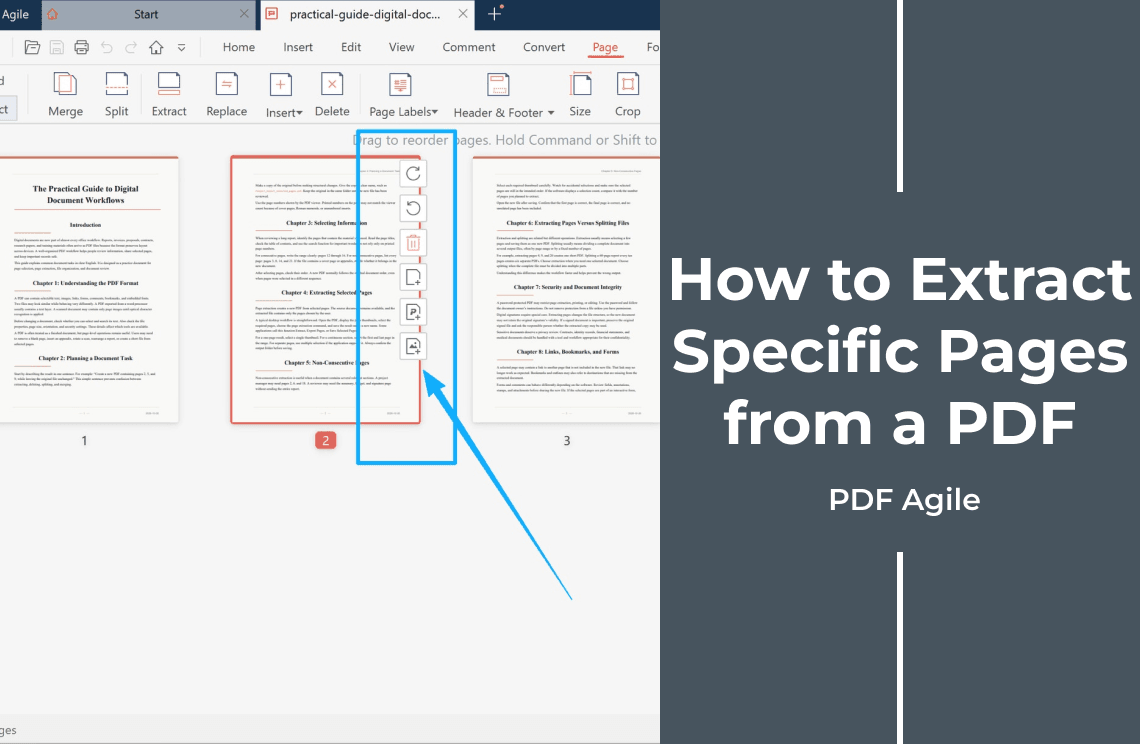
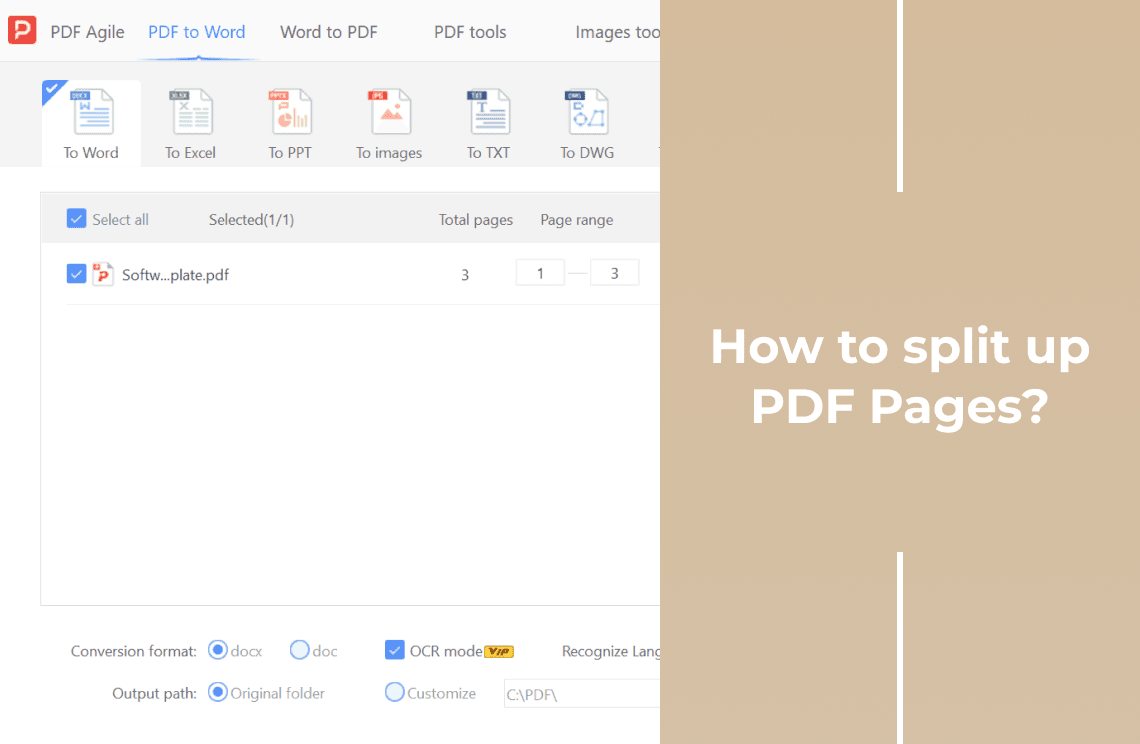
If you need a few specific pages rather than one, extracting specific pages is the wider version of this job, including how to group several ranges in one run. If you want every page as its own file, splitting up PDF pages covers that route.
That is the job: name the page, split, then check that the file in your hand has exactly one page on it. PDF Agile runs the split in the browser at the split PDF tool, and keeps the desktop editor for files that should not be uploaded. More page-level walkthroughs sit in the How-to & Tips section.