Key takeaways
- Select File, Convert, Download — there is no settings screen between them.
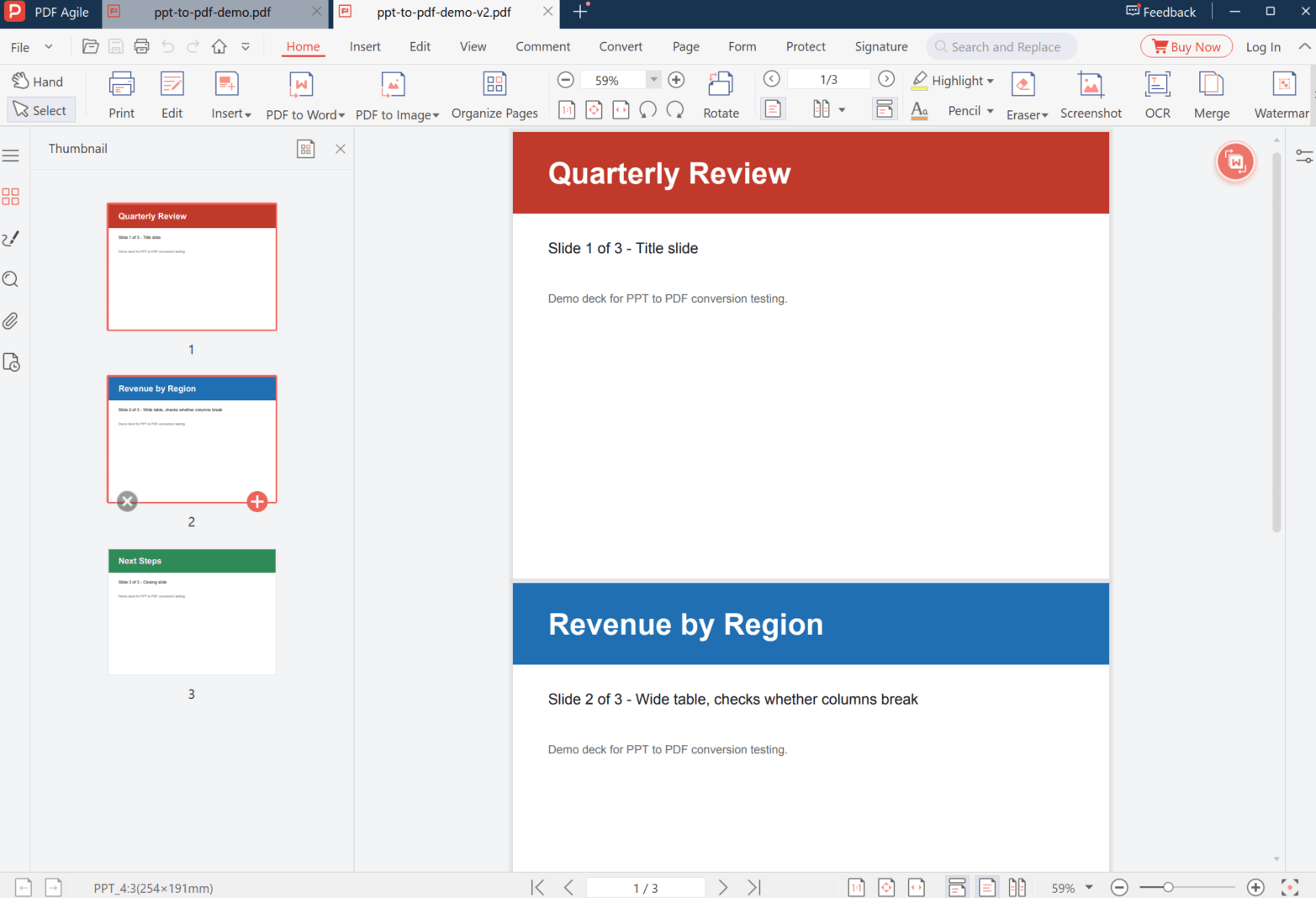
- The page keeps the slide's 4:3 shape: a 254 × 191 mm page here, not A4.
- The text stays text, but the font can be swapped — Calibri came back as Arial.
Converting PowerPoint to PDF in the browser is three clicks and no options. What comes back is close to the deck but not identical: the page is shaped like a slide rather than like paper, and typefaces the converter cannot find are replaced. Both are worth one check before the file goes to a client.
How Do You Convert PowerPoint to PDF Online?
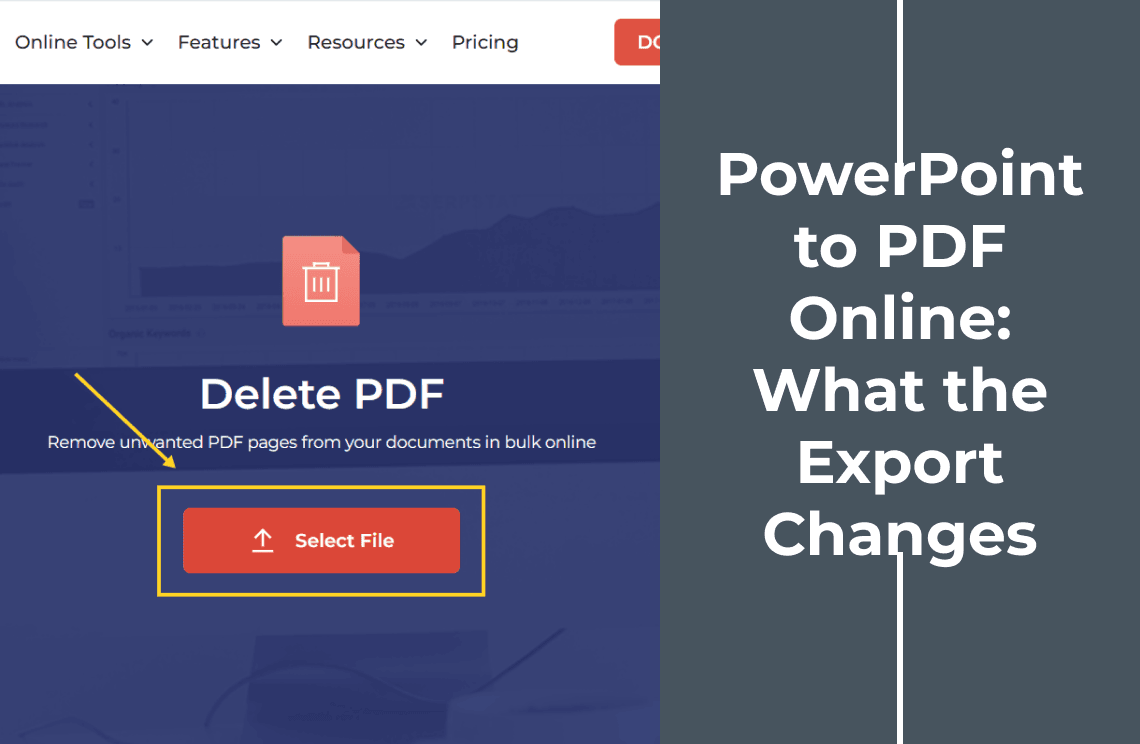
- Open the online PPT to PDF tool.
- Click Select File and choose the `.pptx`.
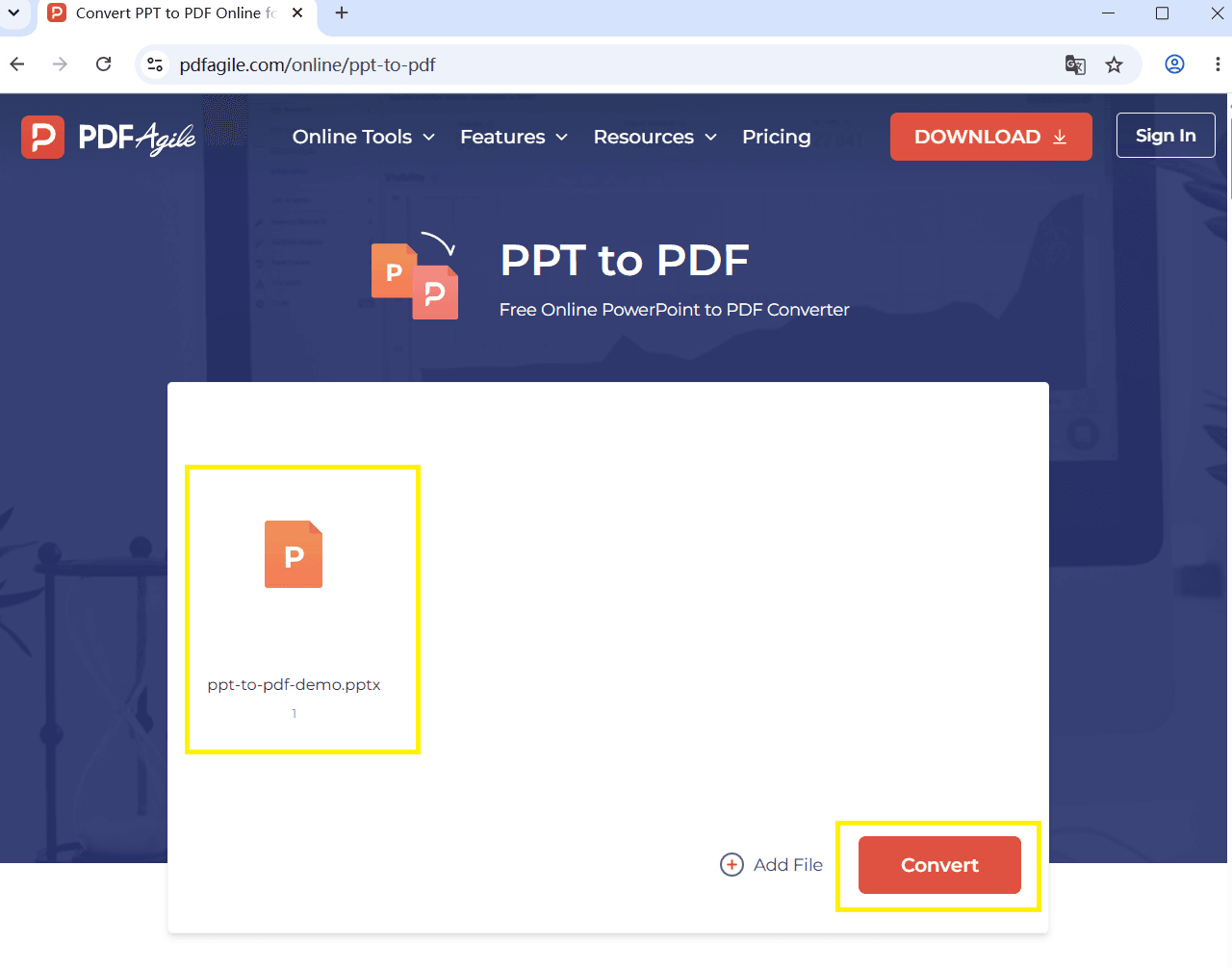
- Click Convert and wait for the green Done mark.
- Click Download.
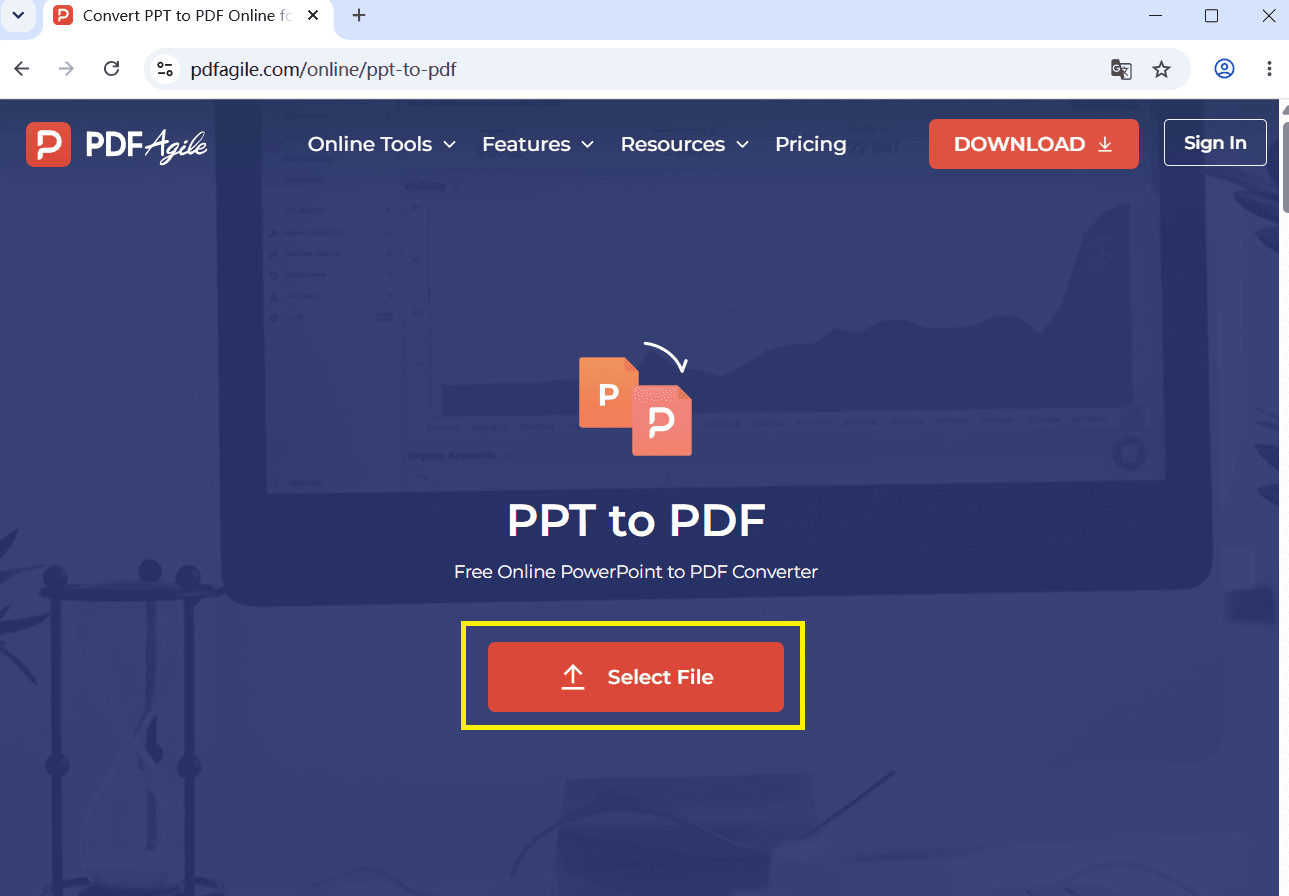
The upload card shows the file name and nothing else — no slide count, no size estimate. That is the first thing you will have to check on the output instead.
Which Decks Convert Cleanly?
| Your deck | What to expect |
|---|---|
| Text, shapes, solid fills | Converts cleanly — this is what the deck below was made of |
| Common fonts (Arial, Times, Calibri) | Usually substituted with a metric-compatible face, not always the same one |
| A specific brand font | Expect a substitute; check it before sending |
| Photos and charts | Rendered into the page; they stay sharp if the source was sharp |
| Animations and transitions | Gone — a PDF has no animation layer, only the end state of each slide |
| Speaker notes | Not part of the slide surface; do not count on them in the output |
What Actually Changes?
Three measured differences, taken from a three-slide deck converted through this tool.
1. The page is slide-shaped, not paper-shaped. Each page came out at 720 × 540 points, which is 254 × 191 mm — the 4:3 shape of the original slides, not A4 or Letter. On screen that is exactly right. Printed on A4 it leaves a white band top and bottom, and the reader's printer will either scale it or letterbox it. A widescreen deck behaves the same way with a different ratio: the page simply takes the shape of the slides it came from.
2. The font can be replaced. The deck was built with Calibri. The PDF came back with Arial — the converter substituted the typeface because Calibri was not available to it. Nothing warned about this. Text metrics change slightly, so a headline that fit on the slide can rewrap.
3. The text stays text. The output contains fonts, not pictures: the words are still selectable and searchable. That is worth knowing, because it means you can fix a typo's worth of trouble with an editor later — and it means the file is not just a set of screenshots.
How Do You Check the Output?
Four checks, all under a minute.
1. Page count against slide count. Three slides should give three pages. If the number is lower, a hidden slide was skipped or a section failed to render.
2. The page size. Look at the size in the viewer's status bar, or open the print dialog. A 254 × 191 mm page will not fill A4 without scaling.
3. The font. Zoom to 100 percent and compare a headline with the original. If the letterforms changed, the font was substituted — fix it in the deck by using a face the converter is likely to have, or accept it.
4. Selectable text. Drag across a line. If nothing highlights, the page was flattened into an image and search will not work.
What This Cannot Do
- It cannot choose a paper size. There is no A4 or Letter option; the page follows the slide.
- It cannot keep animations or transitions. Only the final state of each slide is exported.
- It cannot guarantee your font. Any typeface missing on the conversion side gets replaced.
- It cannot fix an overflowing slide. Text boxes that already spill outside the slide in PowerPoint spill in the PDF too.
- It cannot merge slides onto one page. One slide, one page.
FAQ
Why is my PDF page not A4?
Because the page is sized to the slide, not to paper. A 4:3 deck produces a 4:3 page; a 16:9 deck produces a widescreen page. Printing to A4 therefore scales or adds margins.
Why does the text look different from PowerPoint?
The font was substituted. Converters work with the fonts installed on their side; anything they do not have — often a custom or a newer Microsoft face — is replaced with a similar one, which changes letter widths and can rewrap a line.
Are speaker notes included in the PDF?
The notes are not part of the slide, so do not rely on them appearing. If the notes matter, export from the desktop application and choose the notes page layout explicitly.
Can I convert only some slides?
Not in this flow: the whole file is converted, one page per slide. Hide or delete the slides you do not want first.
Is the text still searchable?
Yes. The output keeps a real text layer — the converter embeds fonts rather than flattening the pages into images.
Can I turn a deck into one PDF page per handout sheet?
Not here. This tool writes one page per slide. The multi-slide handout layout belongs to the desktop print dialog, where you choose how many slides fit on a sheet.
Does a 16:9 deck turn into a different page size?
It follows the slides the same way: a widescreen deck produces a widescreen page rather than a 4:3 one. The ratio changes, the rule does not.
Where to Go Next
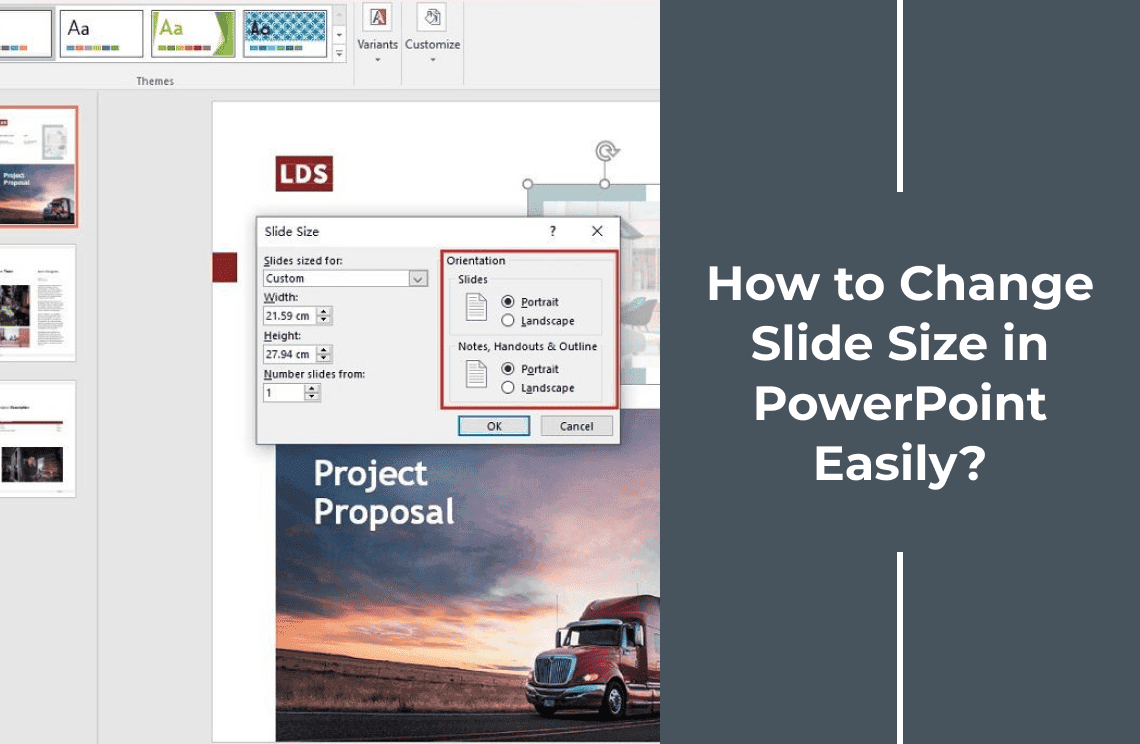
If the conversion has to happen on a Mac with PowerPoint itself — where you can also pick the paper size and the notes layout — how to make PPT to a PDF on Mac walks that route. Going the other way, converting a PDF to PowerPoint covers the reverse job and its own losses. And if the page shape is the problem, changing the slide size is the setting that decides it before you convert.
PDF Agile runs the conversion in the browser at the PPT to PDF tool, with the desktop editor left for decks that should not leave your machine. More presentation walkthroughs sit in the How-to & Tips section.
The job in one line: convert, then check the page size and one headline, because those two show up immediately if anything went wrong.