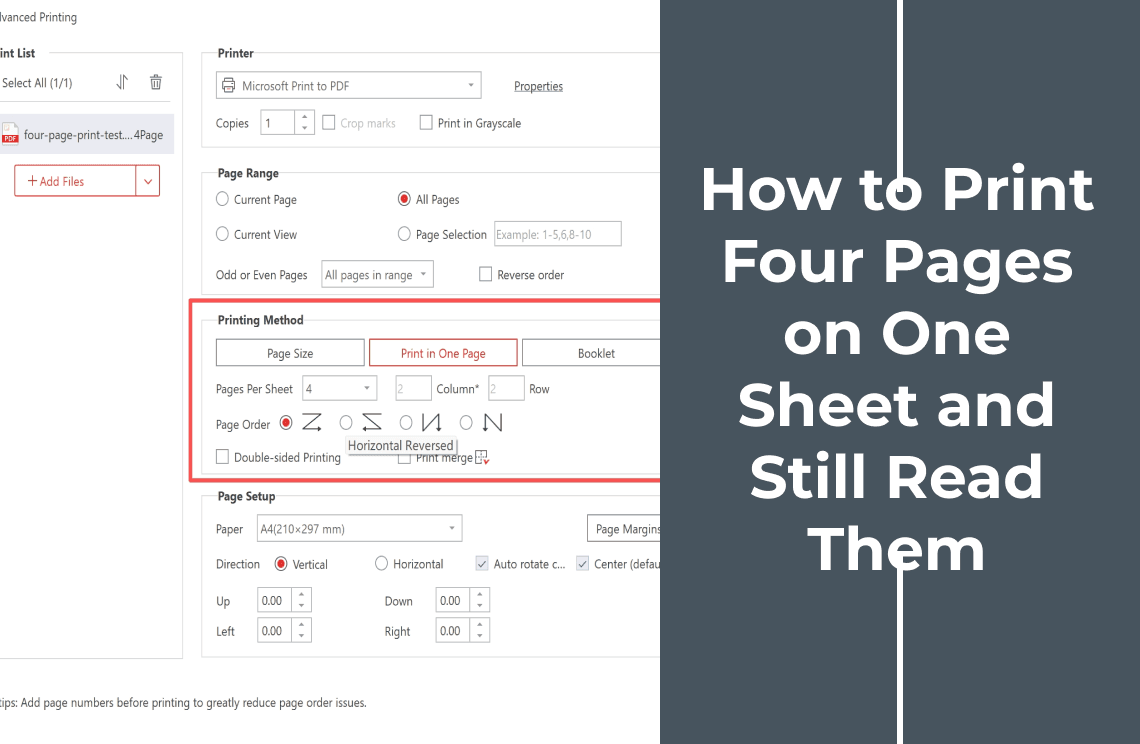
If you need to print four PDF pages on one sheet, use 4-up (or pages-per-sheet) printing rather than merging the pages into one long PDF page. The four source pages remain separate pages in the PDF; the print layout places them in a 2x2 grid on a single physical sheet.
This method is useful for draft reviews, slides, outlines, and compact handouts. It is not the same as combining PDF files, creating a booklet, or permanently redesigning the document. Because each page gets only part of the sheet, the main trade-off is readability: four-up saves paper, but small body text, footnotes, and dense tables may be uncomfortable to read.
What “four pages on one sheet” actually means
In a 4-up layout, the print system scales each PDF page to fit one of four cells. It does not rewrite the original page content or turn four pages into one editable PDF page. If you save the result through a virtual PDF printer, the output is a print rendering, so check whether you still need links, form fields, comments, or editable text before replacing the original.
Choose 4-up when the page is meant to be a quick reference or review copy. Choose 2-up when readers need to study paragraphs, footnotes, or small tables. For a folded and stapled booklet, use booklet imposition instead: booklet mode changes page order for folding, while 4-up keeps the pages in a grid.
| Goal | Use | Why | | --- | --- | --- | | Four compact pages on one sheet | 4-up / pages per sheet = 4 | Creates a 2x2 grid | | More comfortable reading | 2-up | Gives each page more room | | A folded booklet | Booklet mode | Rearranges pages for folding and binding | | One redesigned composite page | Re-layout or page-size editing | Changes the page design rather than only the print layout |
How to print four PDF pages on one sheet
The following workflow uses a desktop PDF viewer with a pages-per-sheet control. The supplied screenshots verify the demonstrated path and the visible 4-up preview; other readers may use labels such as Multiple, Pages per sheet, or N-up.
Step 1: Open the four-page PDF
Open the PDF and confirm that the pages you want to print are present and in the intended order. If you only need selected pages, note their page numbers before opening the print dialog. Do not use a source file that is still being edited as the only copy; save or duplicate it first if the print result will be archived.
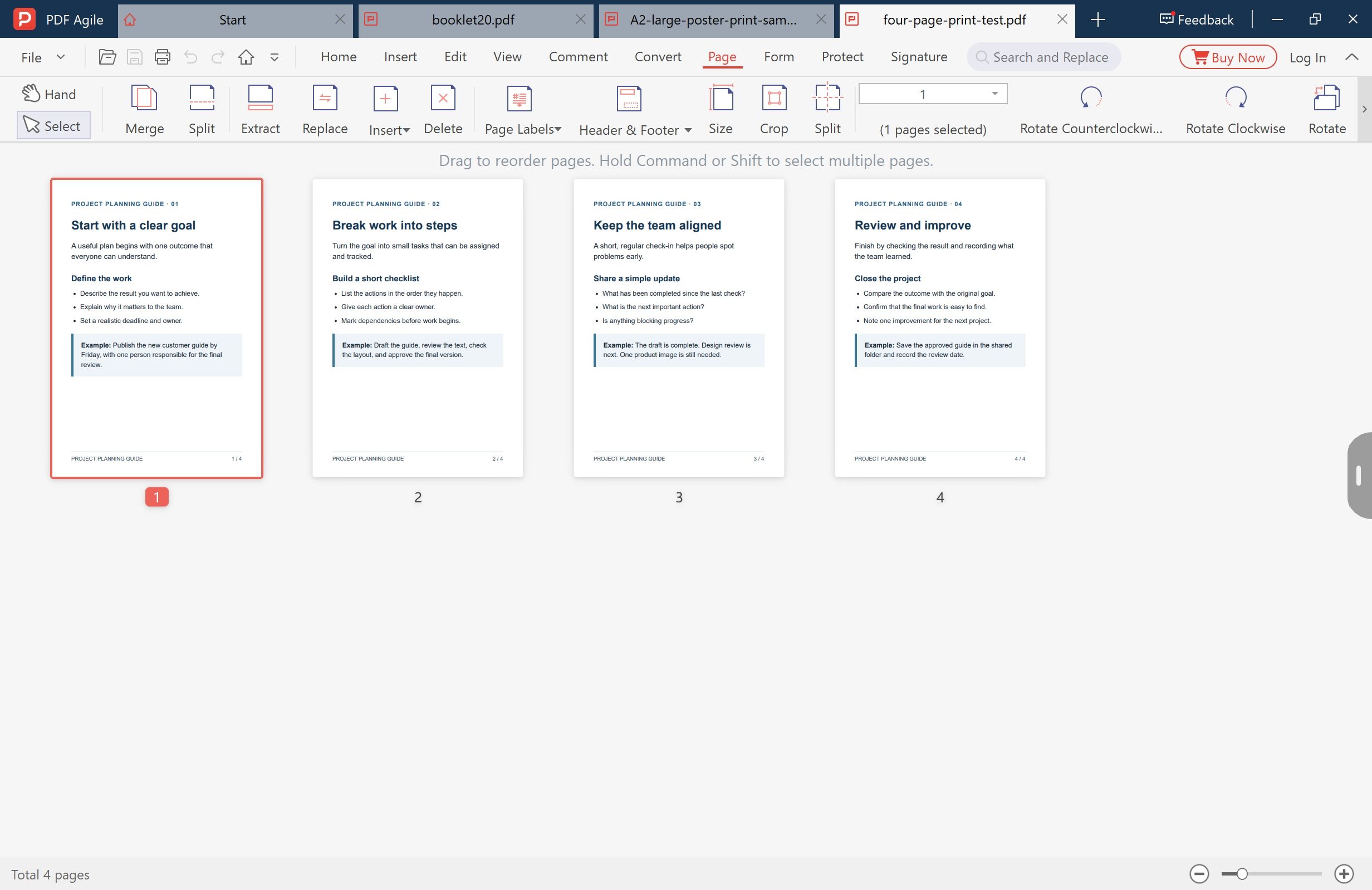
*Caption: Confirm the four-page source document and its page order before printing.*
Step 2: Open the print settings
Choose File > Print. In the demonstrated desktop workflow, the File menu shows Print (Ctrl+P). The printer dialog is where the physical sheet layout is selected; it is not the same as changing the PDF’s page size.
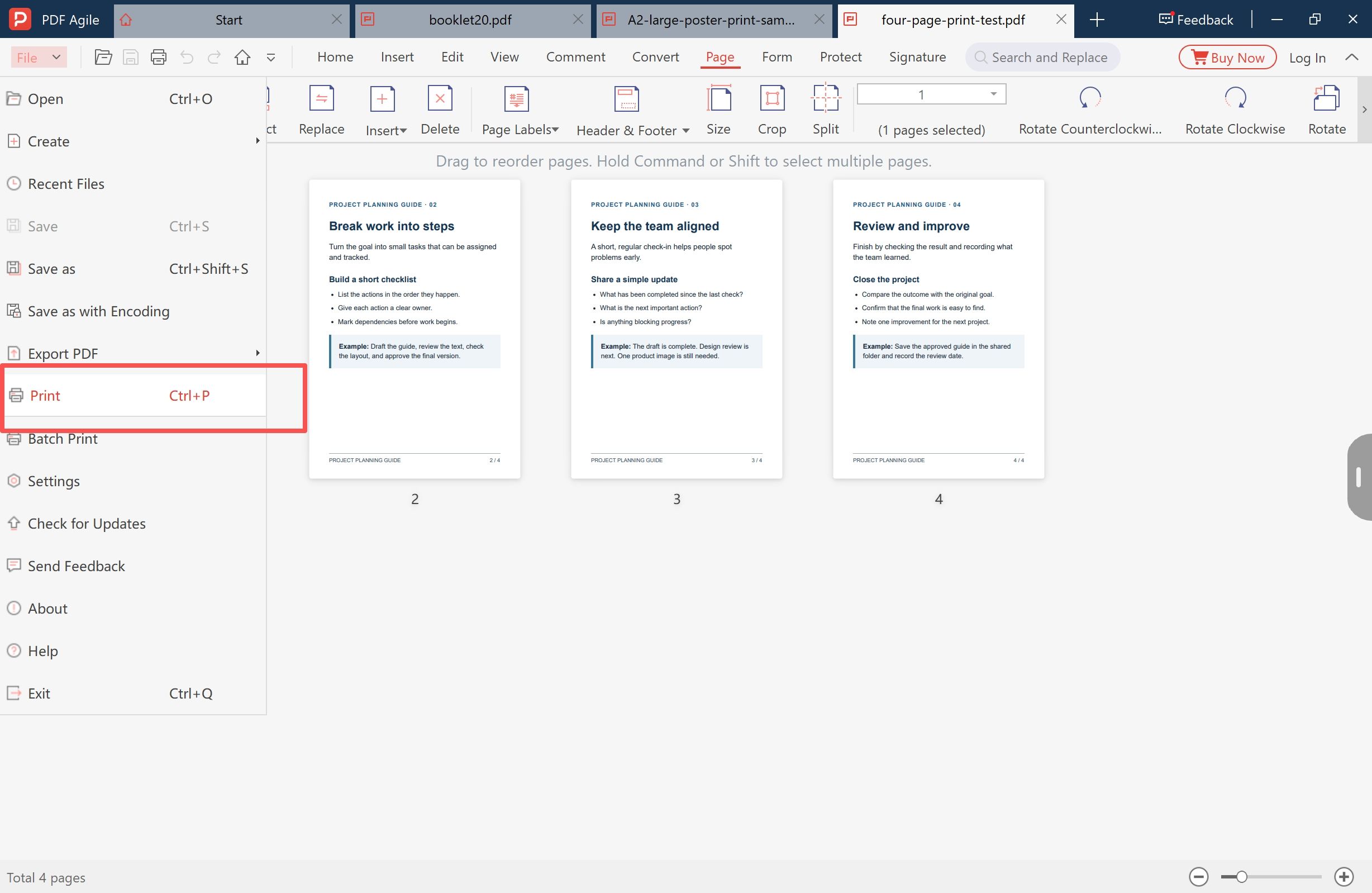
*Caption: Open File > Print to reach the pages-per-sheet settings.*
Step 3: Set the layout to four pages per sheet
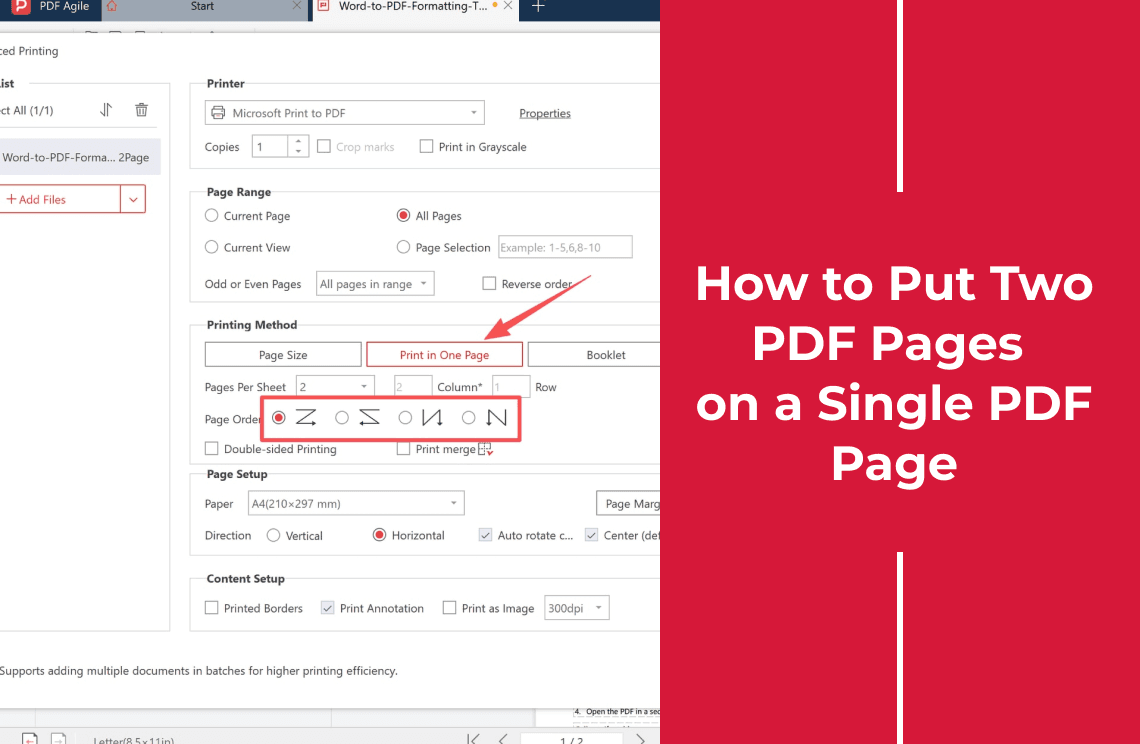
In the advanced printing dialog, select Print in One Page under Printing Method, then set Pages Per Sheet to 4. The verified example shows a 2 Columns × 2 Rows arrangement. Keep the page range set to All Pages when the whole four-page file is required, or select a narrower range for a test.
Check the preview before you print. It should show four separate page thumbnails arranged on one sheet, in a readable sequence. If the preview shows one page per sheet, the 4-up setting has not been applied. If the pages appear twice as small as expected, check whether both the PDF viewer and the printer driver are applying a pages-per-sheet setting.
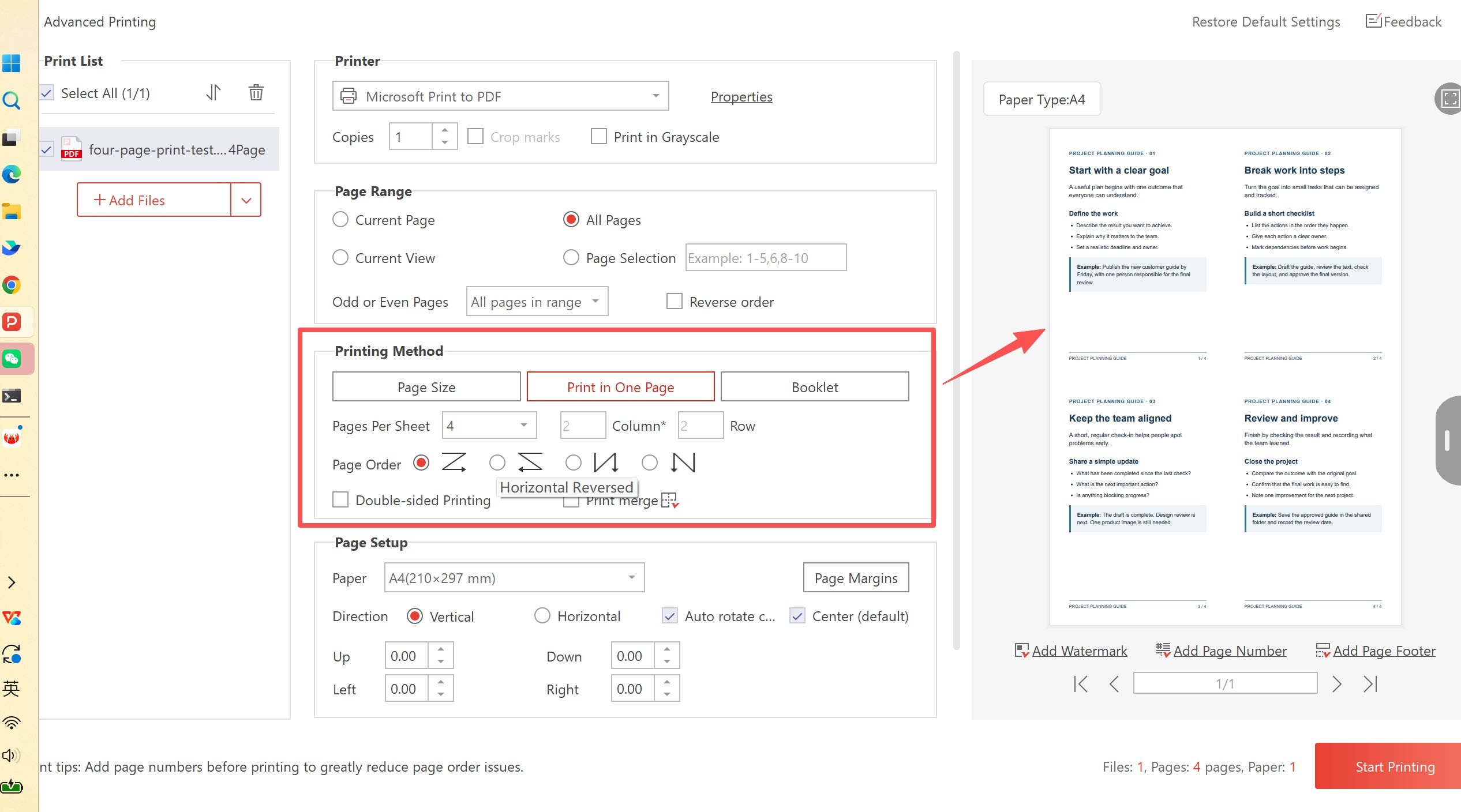
*Caption: Set Pages Per Sheet to 4 and confirm the 2x2 preview before printing.*
Step 4: Check paper size, orientation, and page order
Use paper that suits the source pages. Portrait pages usually work best on portrait paper; landscape slides may need landscape orientation so their content is not rotated or reduced unnecessarily. Keep one application responsible for the 4-up layout. If the printer driver also has a pages-per-sheet option, leave it at one page per sheet unless you intentionally want a second reduction.
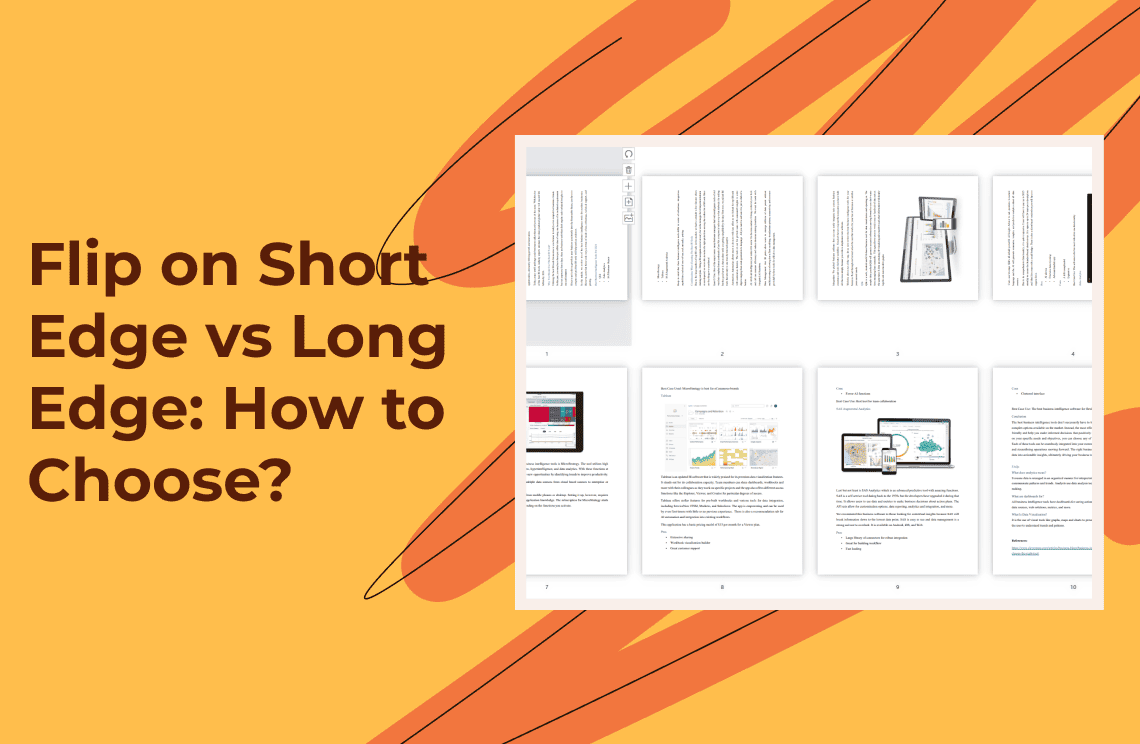
For double-sided output, the flip option belongs to the printer’s duplex settings. Long-edge flipping generally suits portrait, book-like reading; short-edge flipping is more common for landscape or top-bound pages. Print a test sheet when the document mixes orientations or when the back side must line up precisely.
Step 5: Print one sheet and test readability
Select the printer and start with one sheet if the document is important or the text is small. Read the smallest text at the distance you expect people to use the handout. Also check page order, clipped margins, rotated pages, blank cells on the last sheet, and whether comments or form fields appear as expected.
If the result is too small, return to 2-up instead of increasing the scale until the page is clipped. If the document is a slide deck or outline with large type, 4-up may be a practical compromise. Keep the original PDF unchanged so you can produce a different print layout later.
Common problems with 4-up PDF printing
The pages are too small to read
Four pages share the sheet, so the usable area of each page is reduced further by margins and the printer’s non-printable border. Body text, footnotes, signatures, and dense tables are warning signs. Use 2-up or a larger sheet when legibility matters more than paper savings.
The pages are printed twice as small
This usually happens when both the PDF application and the printer driver apply an N-up setting. Set 4-up in one place only, then return the other layout control to one page per sheet.
The order or orientation is wrong
Check the preview and the page-order setting. A 4-up grid is not booklet imposition, and duplex printing adds a separate front/back decision. For mixed portrait and landscape pages, test a small range or print the different orientation groups separately.
The saved PDF no longer behaves like the original
Printing to a virtual PDF printer creates a print-oriented copy. Internal links, form fields, comments, bookmarks, and selectable structure may not behave the same way. Keep the original file and treat the 4-up PDF as a distribution or review copy unless you have verified the features you need.
PDF viewer options: what changes between tools?
Adobe Acrobat Reader documents the same general concept under Print > Multiple, where users choose the number and order of PDF pages on one sheet. The supplied interface evidence shows a more specific Print in One Page > Pages Per Sheet = 4 path with a 2x2 preview. The useful difference for this article is the visible control and preview, not an unsupported claim that one product is universally better.
If you already use another desktop reader, look for Multiple, N-up, or Pages per sheet. If none is available, check the printer driver, but avoid enabling the same layout twice. Online tools may be convenient for non-sensitive files, but uploading a confidential PDF to a web service creates a separate privacy decision; a local desktop workflow is preferable when the document contains private or regulated information.
FAQ
Does 4-up printing merge four PDF pages?
No. It arranges four separate pages on one physical sheet. Merging files, re-laying out pages, and printing 4-up are different operations.
Will printing four pages per sheet reduce the PDF’s page count?
Not in the source PDF. It changes the printed arrangement. A PDF saved from a virtual printer may have a different page structure, so check the output before replacing the original.
Is 4-up suitable for a text-heavy report?
Sometimes, but test the smallest text first. For paragraphs, footnotes, and tables, 2-up is usually easier to read because each page receives more of the sheet.
Can I use 4-up for a booklet?
Use booklet mode when the pages will be folded and stapled. Plain 4-up printing does not create booklet page order.
Is an online PDF printer safer for private documents?
Not automatically. Before uploading, check the provider’s current handling and deletion information. For confidential files, use a desktop workflow that keeps the source on your computer and follow your organization’s document policy.
Final checklist
Before the full print job, confirm:
- The intended page range is selected.
- Pages per sheet is set to 4 in one place only.
- The preview shows a 2x2 grid in the right order.
- Paper size and orientation match the source pages.
- The smallest text is readable on a test sheet.
- The original PDF is kept separately.
For a verified local workflow with a visible four-page preview, PDF Agile can help you set up the 4-up print layout from the desktop print dialog. Use the existing How-to & Tips section for related page-level tutorials, and see how to edit a PDF when the document needs content changes rather than a print-only layout.
Product steps and interface labels were checked against the supplied interface screenshots. Interface wording can change between software versions. Adobe and Acrobat are trademarks of Adobe Inc.; this article is an independent workflow comparison, not an Adobe publication.