Adding page numbers to a PDF is a two-line job until the document has a cover. Then the 1 lands on the title page, the first page of real content starts at 2, and every page reference in the file is one out.
The fix is to separate two controls that look like the same thing. The page range decides which pages receive a number. The start page decides what number the first of those pages shows. Set only the start page and the cover is still numbered — it simply carries a 1. Set both and the cover stays clean while the first content page begins at 1.
This page covers that combination, and the check afterwards that catches a range which was off by one. It does not cover numbering done in the source file; if you still have the Word or Google Docs original, that is the more durable fix and it is covered at the end. Numbering an existing PDF changes no pages either — it adds no sheets and removes none.
The Number on the Cover Comes From the Page Range
A page-numbering dialog usually defaults its range to every page. The first page of the file therefore takes the first number, and the cover — usually the first page — is the one that takes it.
Changing the start number does not help on its own. If the range still says all pages, the cover simply receives whatever value you set as the starting number. The cover has to leave the range first, and then the count has to begin on the page that follows it.
- Cover blank, first content page reads 1 — page range from the first content page, start page 1.
- Cover blank, front matter counted as i–iv — page range from the first content page, start page 5.
- Every page numbered, cover included — all pages, start page 1.
The middle case is the one people get wrong. A report whose cover and contents pages are counted in roman numerals has its first body page as physical page 5, so the range and the starting number have to disagree on purpose.
Three Things to Decide Before You Click
- Does the cover count as page 1? If a reviewer will say "turn to page 12", settle now whether they mean the printed 12 or the twelfth sheet in the file.
- Do the contents, foreword and appendices share one sequence? Numbering the body only is normal for a report. A book usually needs continuous numbers, with the front matter in a separate sequence that starts again.
- Will anyone print it double-sided? Then a fixed corner drifts toward the binding on every second sheet. The margin fields in the dialog are what keep the number clear of the paper edge.
How to Add Page Numbers and Leave the Cover Blank
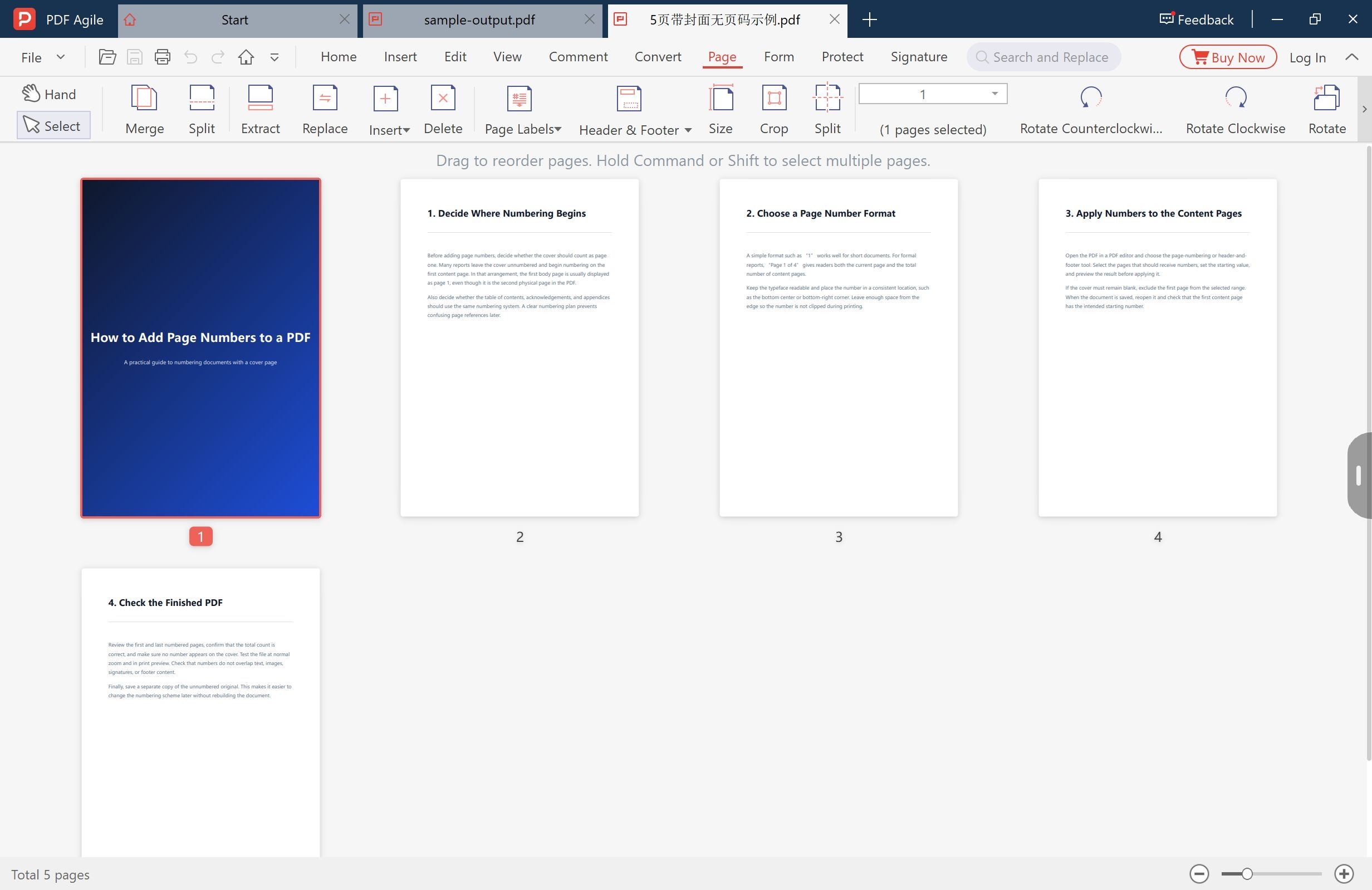
The captures below show a five-page file whose cover is the first sheet. Steps were taken in the desktop app we build, on Windows.
Step 1: Open the file and find the first page that should be numbered
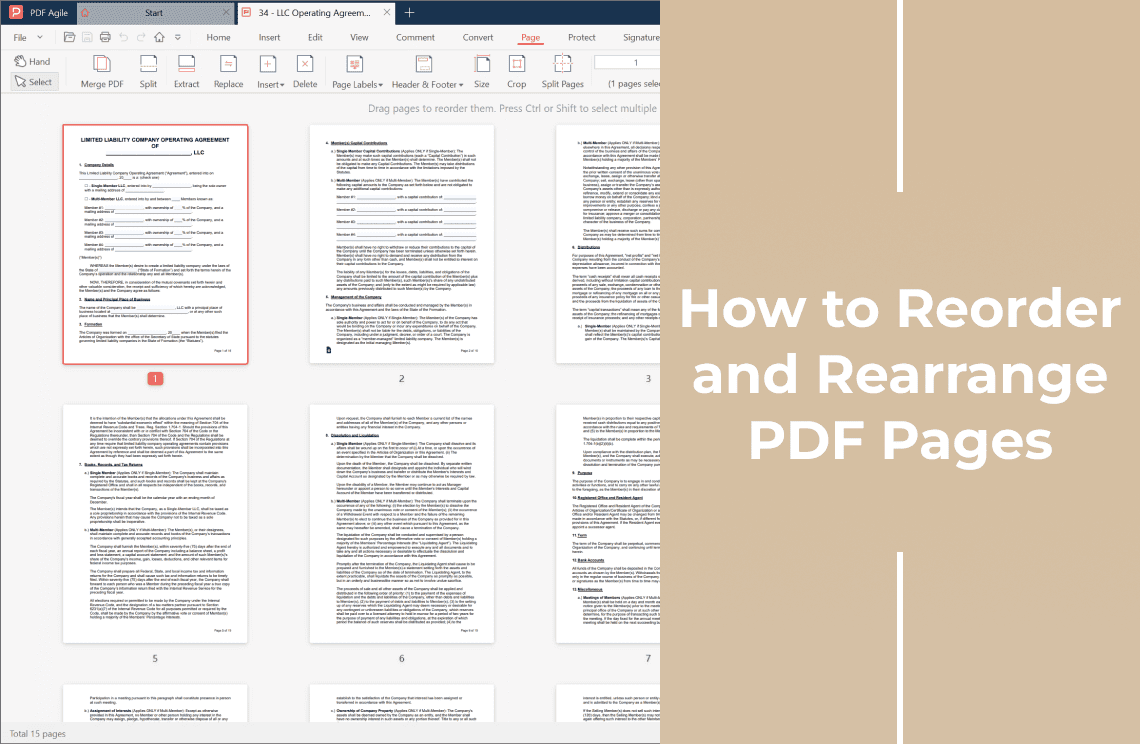
Switch to the Page tab. The document becomes a grid of thumbnails, each with its position underneath, and the total sits in the status bar — Total 5 pages in the capture. Confirm that the cover really is the first sheet before going further: a scan or an exported report often carries a blank sheet in front of it, and "skip one page" then skips the wrong one.
Step 2: Open the page numbering tool
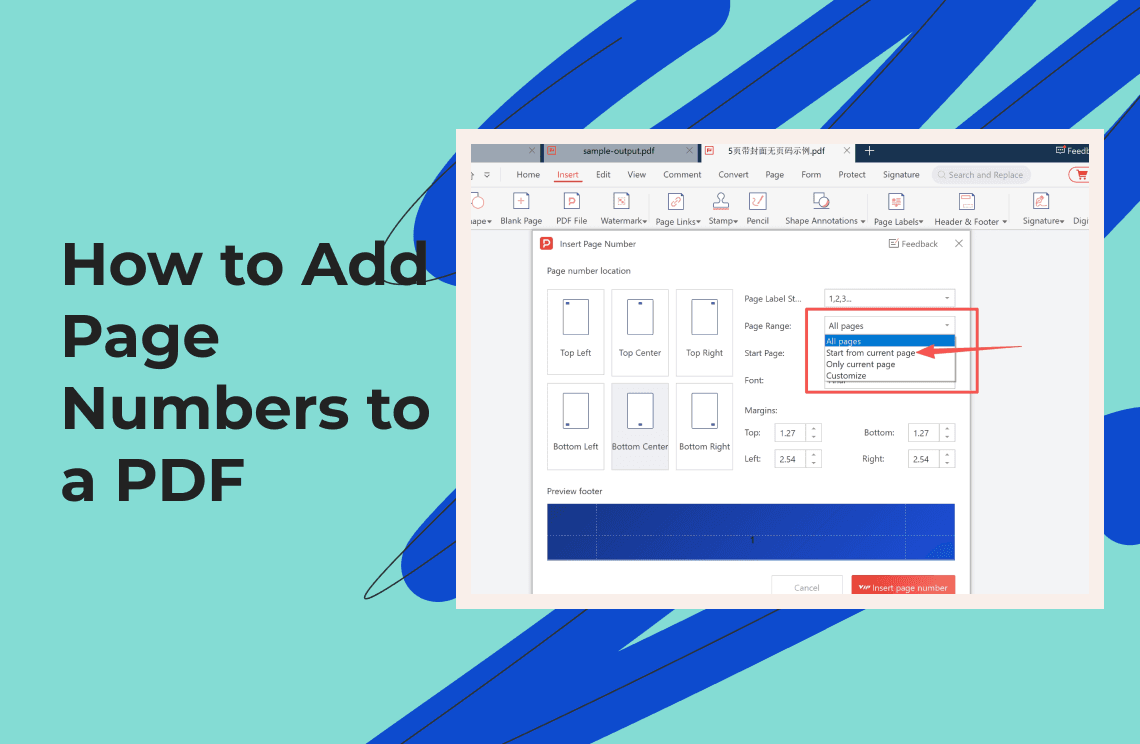
On the Insert tab, choose Page Labels. The Insert Page Number dialog opens.
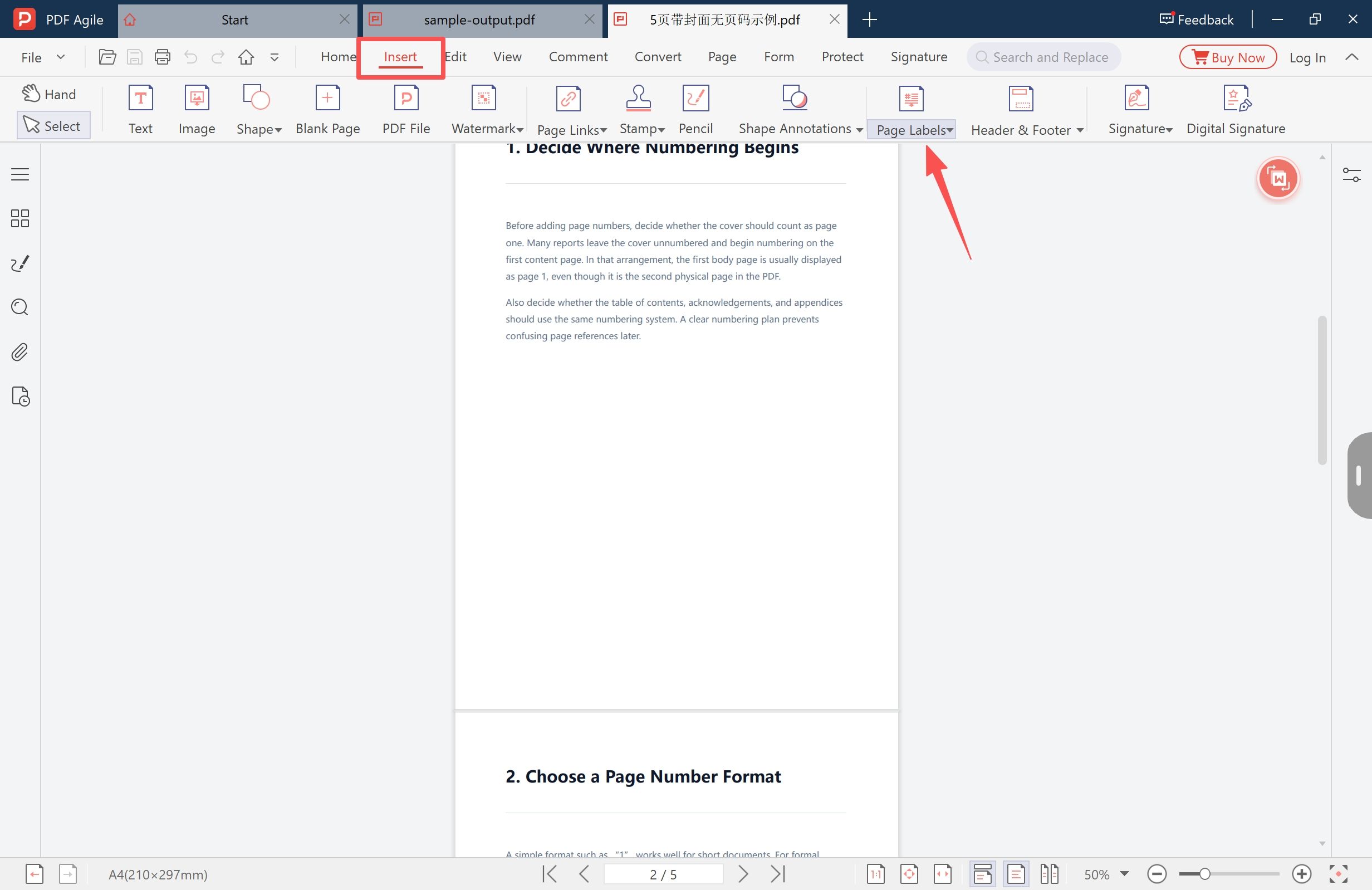
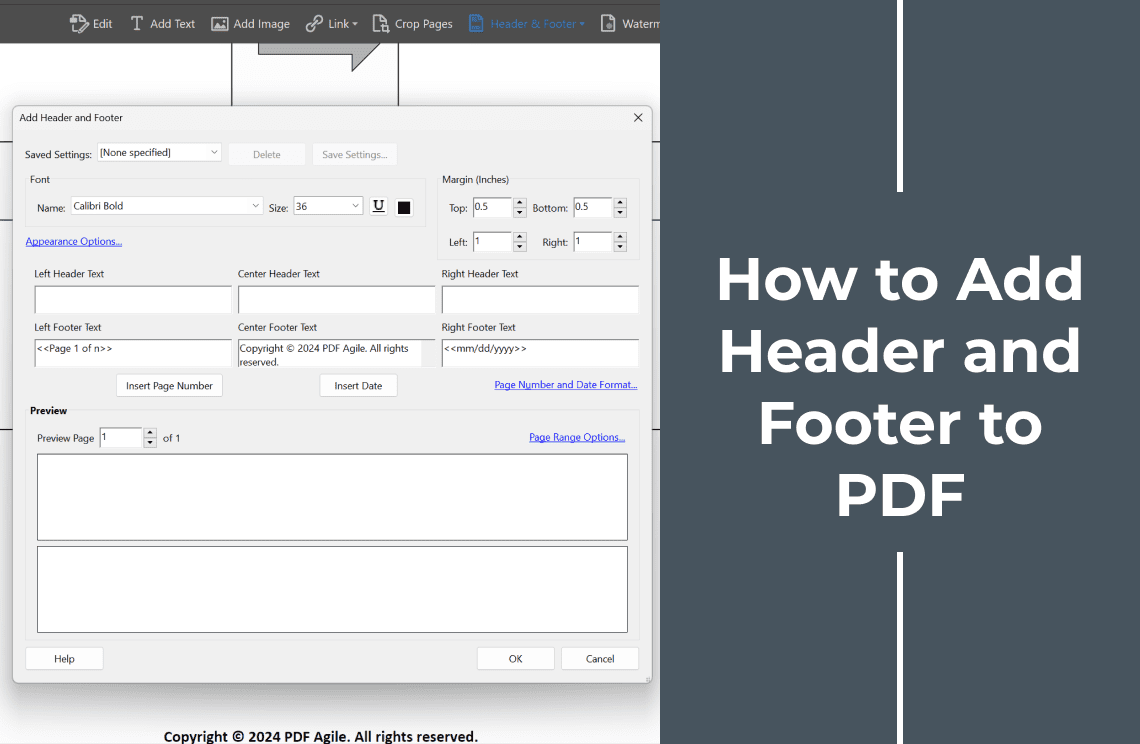
Header & Footer is a different tool and a different job — it is for running text at the top or bottom of a page, such as a document title, a date or a confidentiality line. Where the line has to say more than a number, the header and footer walkthrough covers it properly.
Step 3: Take the cover out of the range, then set the starting number
The dialog holds four decisions in one place:
- Page number location. Six presets, three across the top of the page and three across the bottom. Pick a bottom corner or bottom centre unless something is already sitting there.
- The numbering style, shown as `1,2,3,...` in the capture, and the font the number is set in.
- Page range. The menu offers All pages, Start from current page, Only current page and Customize. Choose Start from current page while the first content page is the page you are looking at — that setting is what keeps the cover out.
- Start page. Set it to `1`, so the first numbered page reads 1 rather than 2.
The four margin fields keep the number off the paper edge and clear of a footer the document already uses, and the preview strip under them shows where it will land before anything is written.
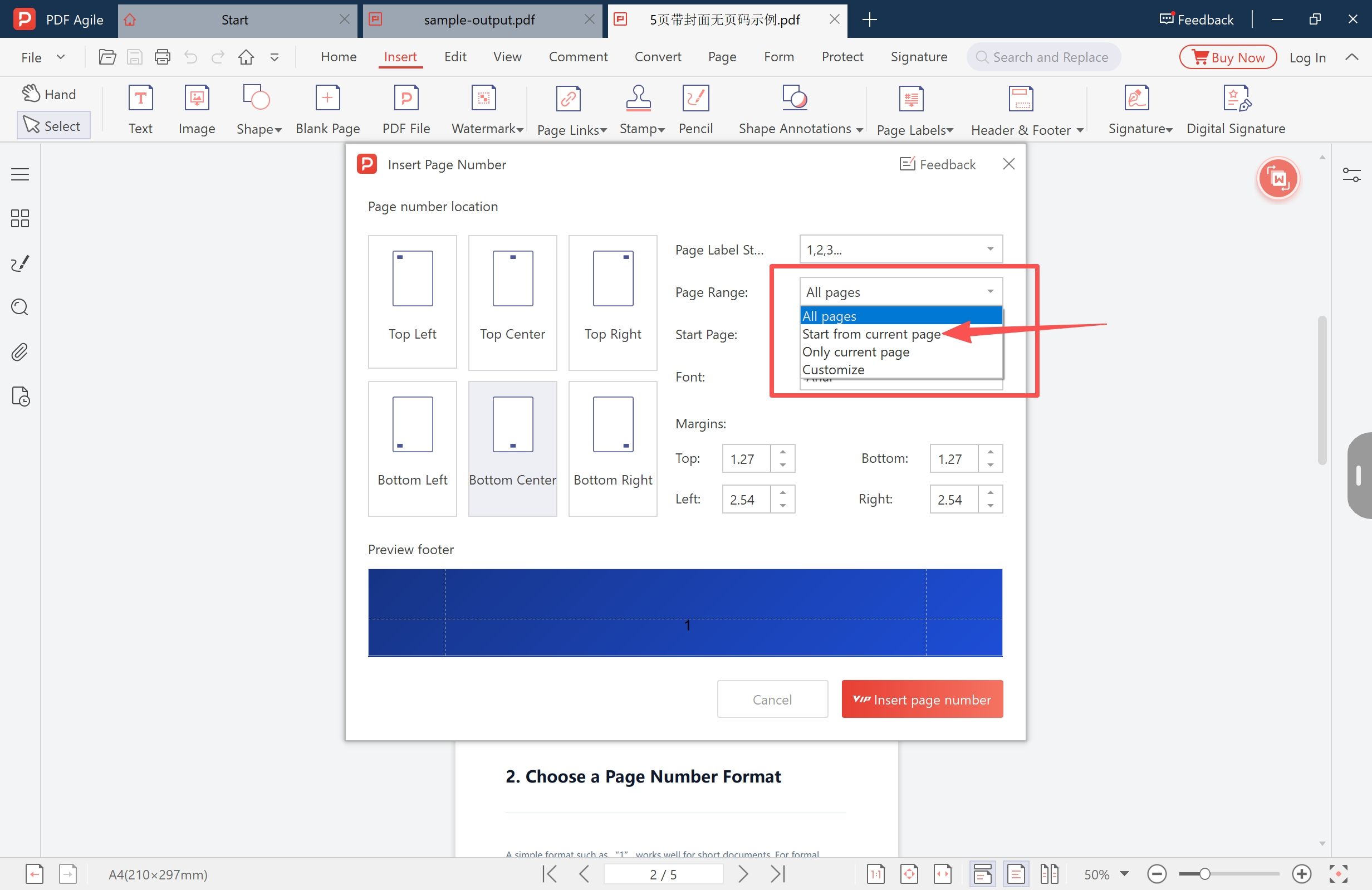
The status bar in that capture reads 2 / 5 with the range set to "start from current page", so the numbers begin on the second sheet. Had the file still been showing page 1, the same settings would have numbered the cover and started the body at 2 — which is the mistake the next section deals with. Then click Insert page number.
Step 4: Confirm the cover is blank and the body runs 1 to 4
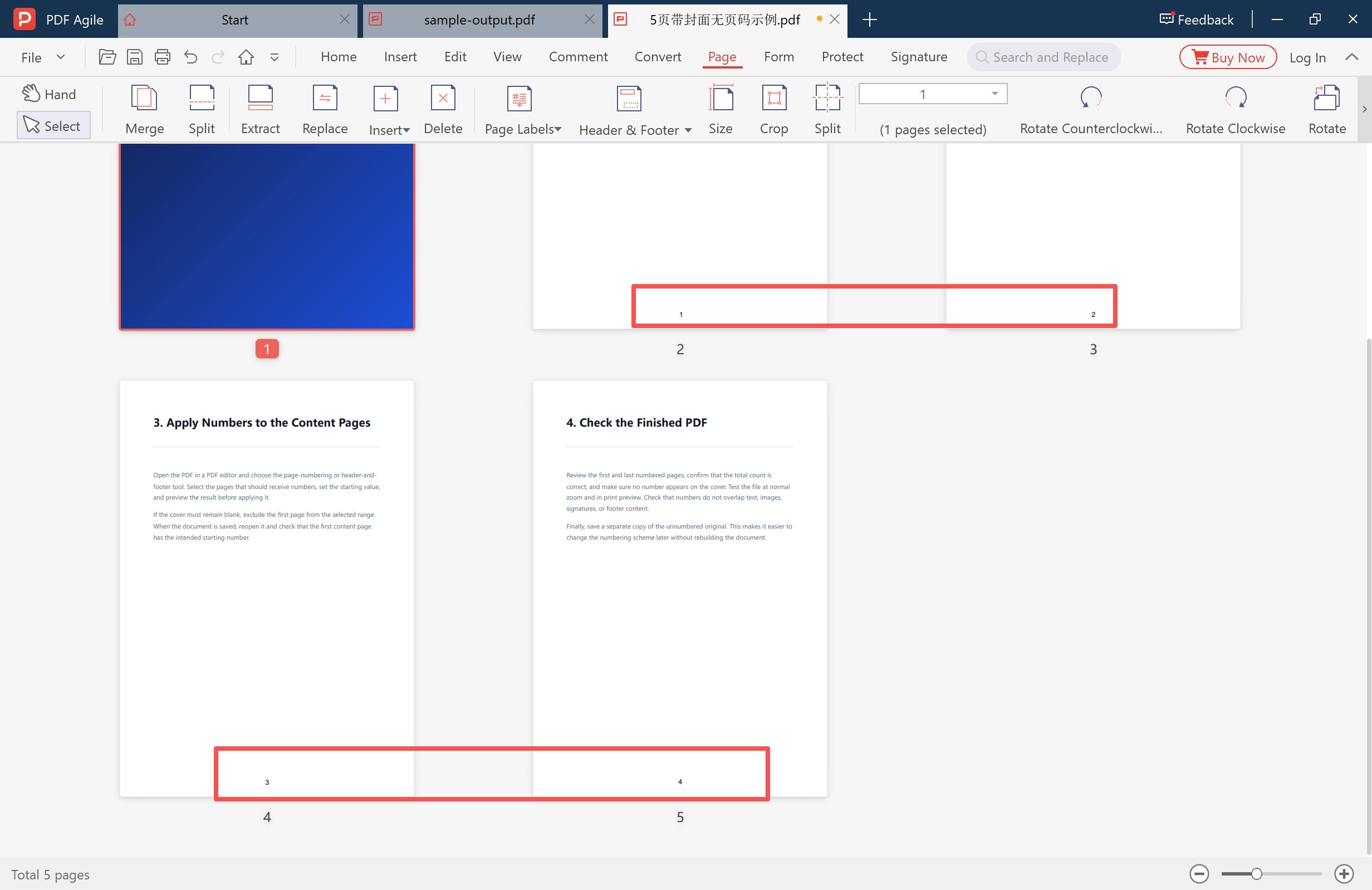
Back in the Page tab, read the footers: the cover carries nothing and the four pages after it read 1, 2, 3, 4. The status bar still reads Total 5 pages, which is the point — numbering an existing file does not add or remove a page.
If a Number Still Appears on the Cover
Five things cause this, and only the first two are wrong settings.
- The range was left on All pages. The most common case: the starting number was changed, the range was not.
- The range started from a page that included the cover. "Start from current page" is relative to where you are standing, so the setting is only as good as the page that was selected when the dialog opened.
- An earlier pass is still on the page. Numbering the same pages twice stacks a second number on the first. At thumbnail size one number looks like one number, so zoom to 200–400% before applying a second pass.
- The cover is not the first sheet. A blank sheet in front of it, a scanned cover, or a page moved during a round of reordering all push the cover down a position.
- The number is part of the artwork. If the cover was designed with a page number printed into it, or the file is a scan of a printed cover, that number is content rather than a page-number object. No range setting will remove it; it has to come out in the design file.
Printed Numbers and the Page Your Reader Jumps To
The number on the page and the page position a reader reports are separate settings. Skip the cover and the two diverge by one: the fourth sheet of the file may be printed as page 3, while the viewer still calls it page 4.
That matters in three places — a contents page built from physical order, bookmarks that point at a page, and any sentence of the form "see page 9". Check the contents after numbering, and check where the bookmarks land. If a file arrives in the wrong order, fixing the order is cheaper than numbering twice; if pages are missing altogether, inserting the missing page has to happen before the numbering does.
Number the Source File When You Still Have It
If you control the original Word or Google Docs document, number it there and export to PDF afterwards. The numbers then survive later edits, nobody has to renumber the file when a paragraph is added, and a reference to page 12 stays true.
That route closes when the PDF came from someone else, was assembled out of several documents, or is a scan. Numbering the PDF is then the only option — and it is worth keeping the unnumbered version, because renumbering a file that already carries numbers is where double numbers come from.
Other Ways to Add Page Numbers, and How They Differ
- Acrobat's header and footer tool answers the same question: a page range, a starting number and a position in a header or footer band. The job is the same, and anyone with Acrobat already installed needs nothing else.
- Online tools do it in a browser with nothing to install, at the price of uploading the document. For a contract, a payslip or anything under an NDA that is the wrong trade, because a desktop editor works from the file on your own disk.
- An editor's page-numbering dialog, the path shown above, keeps the page count in the status bar while you work and puts the range, the starting number, the position and the margins in one dialog with a live preview — so the cover decision is visible before it is applied. We build PDF Agile, so weigh that accordingly.
For a file with no cover, or when the format needs to read "Page 4 of 12" instead of a bare number, the full page-number walkthrough covers the general case. This page is about the cover decision that walkthrough gives one sentence to.
FAQ
How do I skip the cover when adding page numbers to a PDF?
Take the cover out of the page range and begin the count on the page after it. In the Insert Page Number dialog, set the range to start from the first content page and the start page to 1, then confirm that the cover's footer is still empty.
Why does my cover page already have a number on it?
Either the range was left on all pages, the range began on a page that included the cover, or an earlier numbering pass is still there. Zoom in before re-applying, because two stacked numbers look like one at thumbnail size. If the number was printed into the cover design, it is content and has to be removed in the design file.
Can I start the numbering at 1 on the second page?
Yes — that is exactly what a restricted range plus a start page of 1 produces. The cover stays blank and the second sheet reads 1.
Do page numbers add pages to the PDF?
No. The total before and after the captures above is the same five pages. Numbers are placed onto pages that already exist, so the length of the file only changes if you insert or delete a page yourself.
Can I number only some of the pages?
Yes. The page range menu offers all pages, a start from the current page, the current page only, and a custom range, so one file can be numbered in sections — front matter, body, appendices — each with its own starting number.
Before You Send It
The whole job is one dialog and one check. Take the cover out of the range, set the first numbered page to 1, and confirm in the thumbnails that the cover is blank and the last page carries the number you expect. Then look at the contents page and the bookmarks, because the printed number and the sheet a reader is on stop matching the moment a cover is skipped.
More page-level walkthroughs sit under the how-to archive, and the page-level editing guide covers the rest of the workflow — including putting the pages in order before you number them.
Steps and interface reflect the desktop app as of November 2026; menus may change in later versions. Adobe Acrobat is a trademark of Adobe Inc. Page labels and page order are separate settings in the PDF specification. The product notes above describe the app we build.