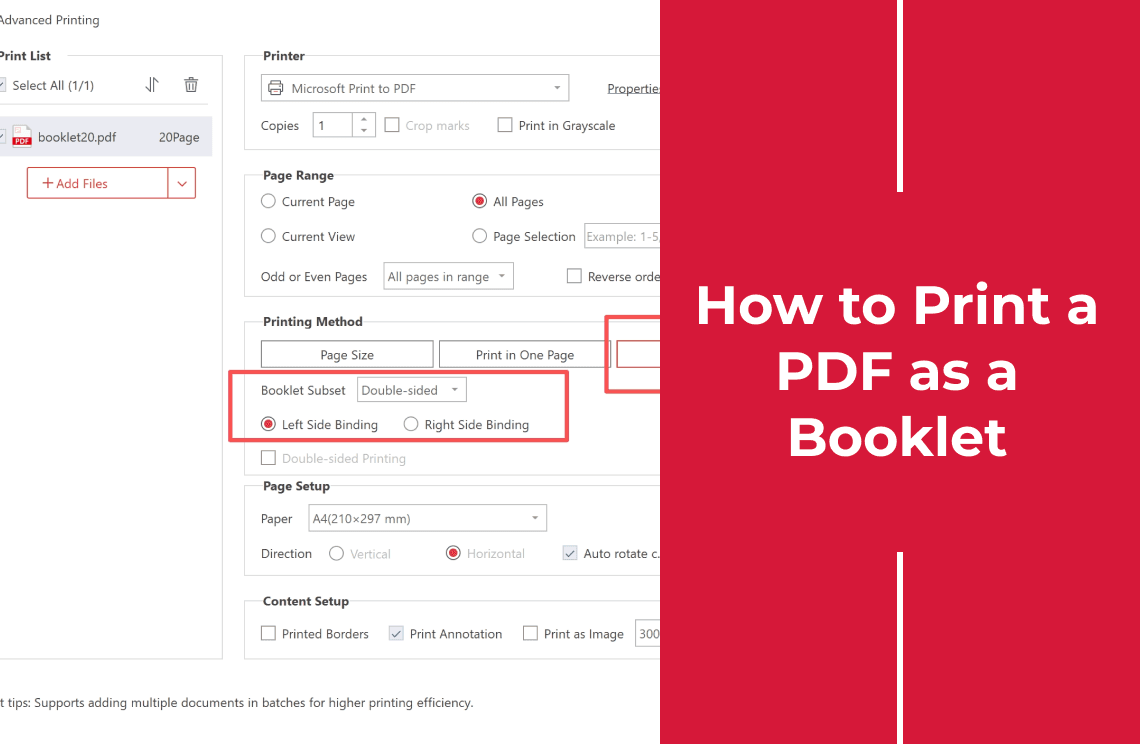
A PDF printed as a booklet comes out as landscape sheets carrying two pages each, arranged in an order that only makes sense once the stack is folded in half. The file does not change. It keeps its portrait pages, its margins and its page count; the reordering happens inside the print job, which is why the same document can be printed once as an ordinary report and once as a booklet without editing a thing.
Almost all of the work therefore happens before the print button: the page count has to suit a folded sheet, the paper has to be the size you want the finished booklet to be, and the binding side has to match the direction the booklet reads. Get those three right and the fold is trivial. Get them wrong and you get a complete, sharp, correctly paginated booklet in the wrong order, which is an expensive way to find out.
What Booklet Mode Does to the Page Order
A booklet is a set of nested sheets. The outermost sheet is the outside of the booklet, so its front carries the back cover and the front cover. The next sheet carries the pages that sit facing those two. The innermost sheet carries the two pages in the middle. Booklet mode arranges the file that way, and the reader never sees the scramble.
For an eight-page document, the imposition looks like this:
- Sheet 1, front: page 8 on the left, page 1 on the right
- Sheet 1, back: page 2 on the left, page 7 on the right
- Sheet 2, front: page 6 on the left, page 3 on the right
- Sheet 2, back: page 4 on the left, page 5 on the right
Two numbers sit on every printed side, and they always add up to one more than the total page count. In the list above that is nine. The rule holds for a four-page leaflet and for a sixty-page programme, and it is the fastest way to check a proof: if a spread does not add up, the imposition is not what you think it is.
This is also why the preview in a booklet job looks wrong at first glance: it draws printed sides rather than pages, so the first thing you see is the last page of your document sitting next to the cover.
Three Checks Before You Open the Print Window
Check the page count divides by four
Each sheet contributes four pages, two per side, so a booklet is 4, 8, 12, 16 pages and so on. When a file has 22 pages, the job has to invent two more, and it adds them at the end of the reading order. That puts the blanks where the back cover and the inside back cover sit, which is usually invisible, because the back cover was going to be blank paper anyway.
It stops being invisible when the last page of the document carried something you expected to see on the back, or when you are printing on coloured or pre-printed stock and the padding shows. Two ways to control it: delete pages until the count divides by four, or add a closing page on purpose so the padding is something you chose. Either way, read the sheet count before starting a run. It is printed in the window, and it is cheaper than discovering it on the fortieth copy. Where the padding lands is visible in the imposed preview as a blank half, so check the spread that pairs with the cover before printing more than one copy.
Choose paper for the folded size, not the page size
Booklet mode puts two pages side by side on one side of a sheet, so the finished booklet is half the size of the paper you feed in.
- A4 pages on A4 paper give an A5 booklet, and every page is reduced to fit its half of the sheet, roughly 71 per cent of its original linear size (A5 is 148 × 210 mm against A4 at 210 × 297 mm).
- A4 pages on A3 paper give an A4 booklet: two A4 halves make one A3 sheet, so the pages keep their original size once folded.
That single choice decides whether body text stays at the size you set or shrinks with everything else. It is the same paper control that decides clipping in an ordinary job, covered in printing a PDF on Windows without cropping.
Confirm the printer can use both sides
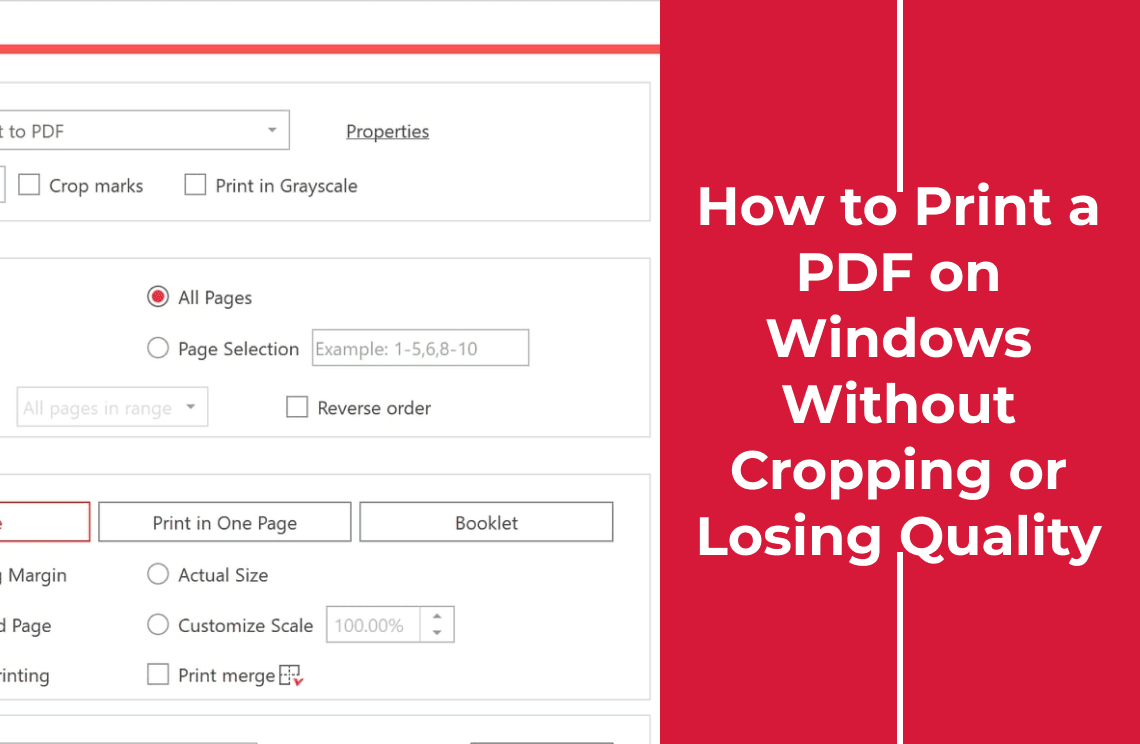
A booklet assumes two printed sides per sheet. Most office printers duplex automatically, but the job only duplexes if the driver setting is on: in the window below, Double-sided Printing is a checkbox in Page Setup, and it is greyed out while a virtual printer such as Microsoft Print to PDF is selected, because that printer has no second side to print on.
A printer without a duplexer does not block booklet printing. The Booklet subset control exists for exactly that case: all the fronts in one pass, all the backs in a second pass, described further down.
The driver side of duplexing, including which edge the second side is flipped on, is covered in printing a PDF back-to-back.
How to Print a PDF as a Booklet
The walkthrough below is on Windows with PDF Agile, because that is the build the screenshots come from. The decisions themselves are the same in any reader with a booklet mode; the labels are the ones this print window uses.
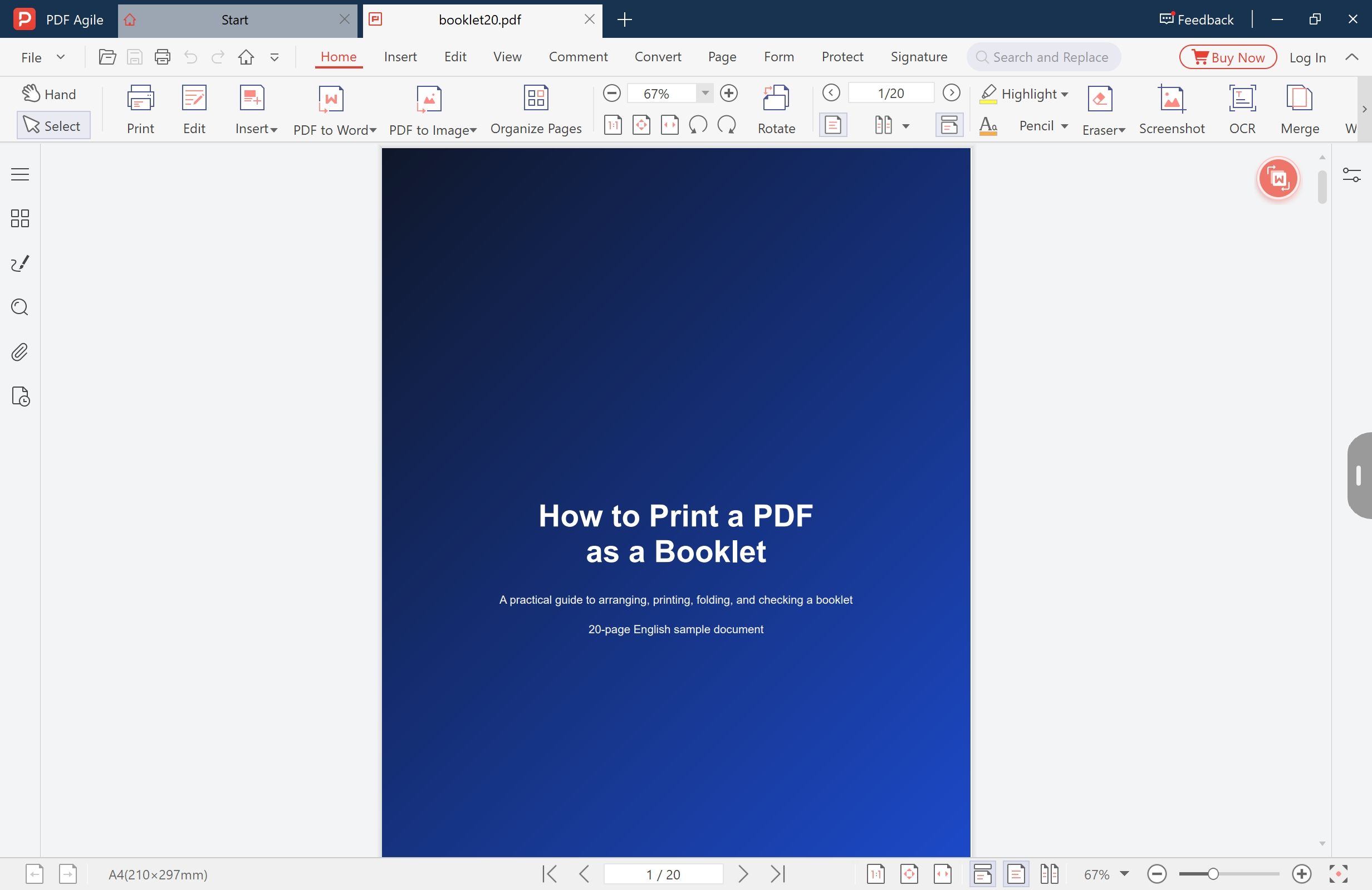
Step 1: Open the PDF and read the page count
Look at the status bar before you go near the printer. It reports the page size the file declares, here A4 (210 × 297 mm), and the page counter, here 1 of 20. Twenty pages is five sheets of four, and five sheets is thin enough to fold and staple by hand.
The same number tells you whether padding is coming. Twenty divides by four exactly, so nothing will be added. A file of 18 or 22 pages will get blank pages whether you want them or not.
Step 2: Open the print window
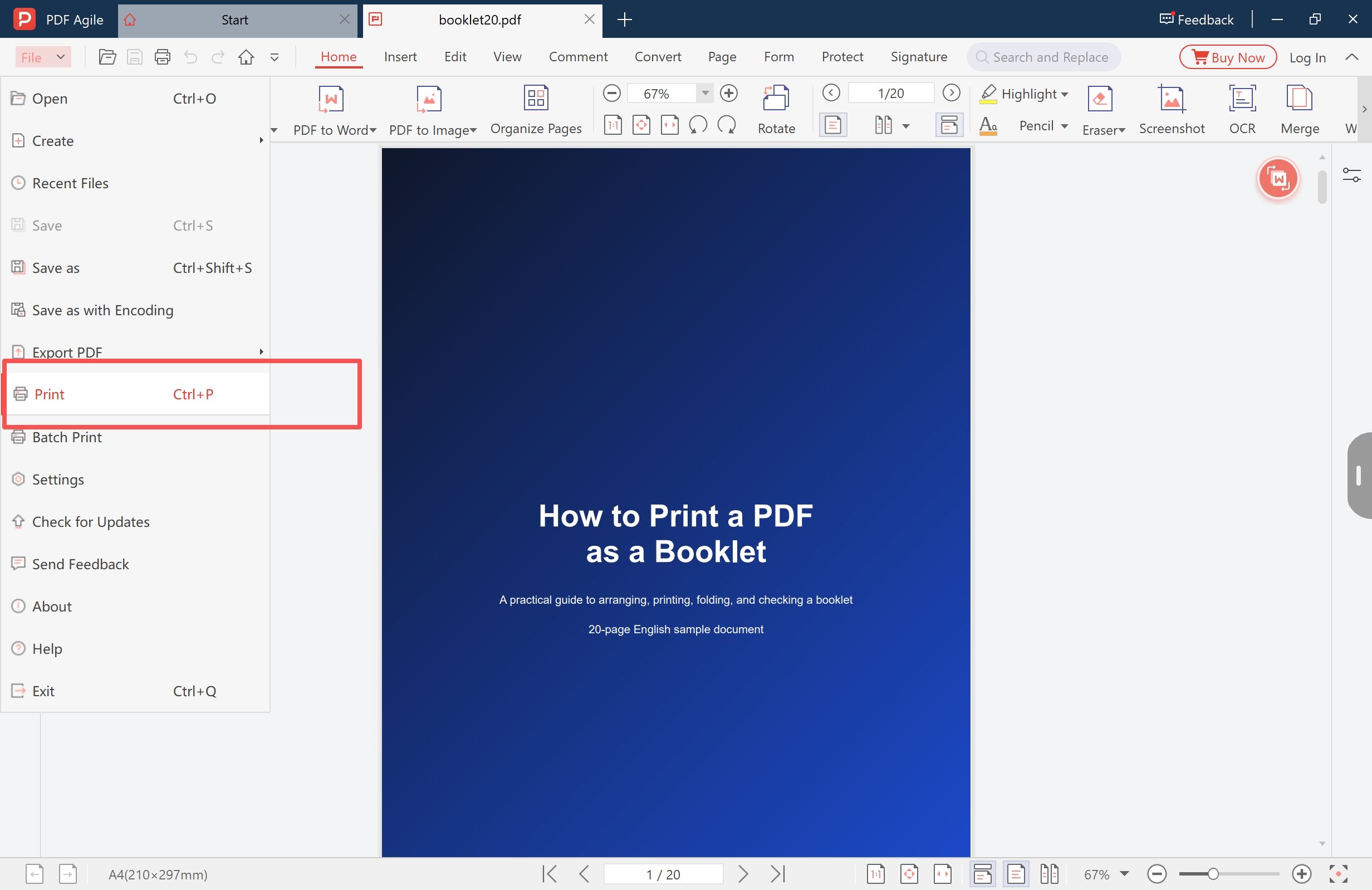
Use File > Print, press Ctrl+P, or click Print on the Home tab. All three open the application's own print window rather than the Windows system dialog.
Directly under Print in the File menu sits Batch Print, which sends several PDFs as one job. It matters here because a pair of covers and a body file can go through the same paper, scale and booklet settings in a single pass instead of being re-entered per file.
Step 3: Set the printing method to Booklet and choose the binding side
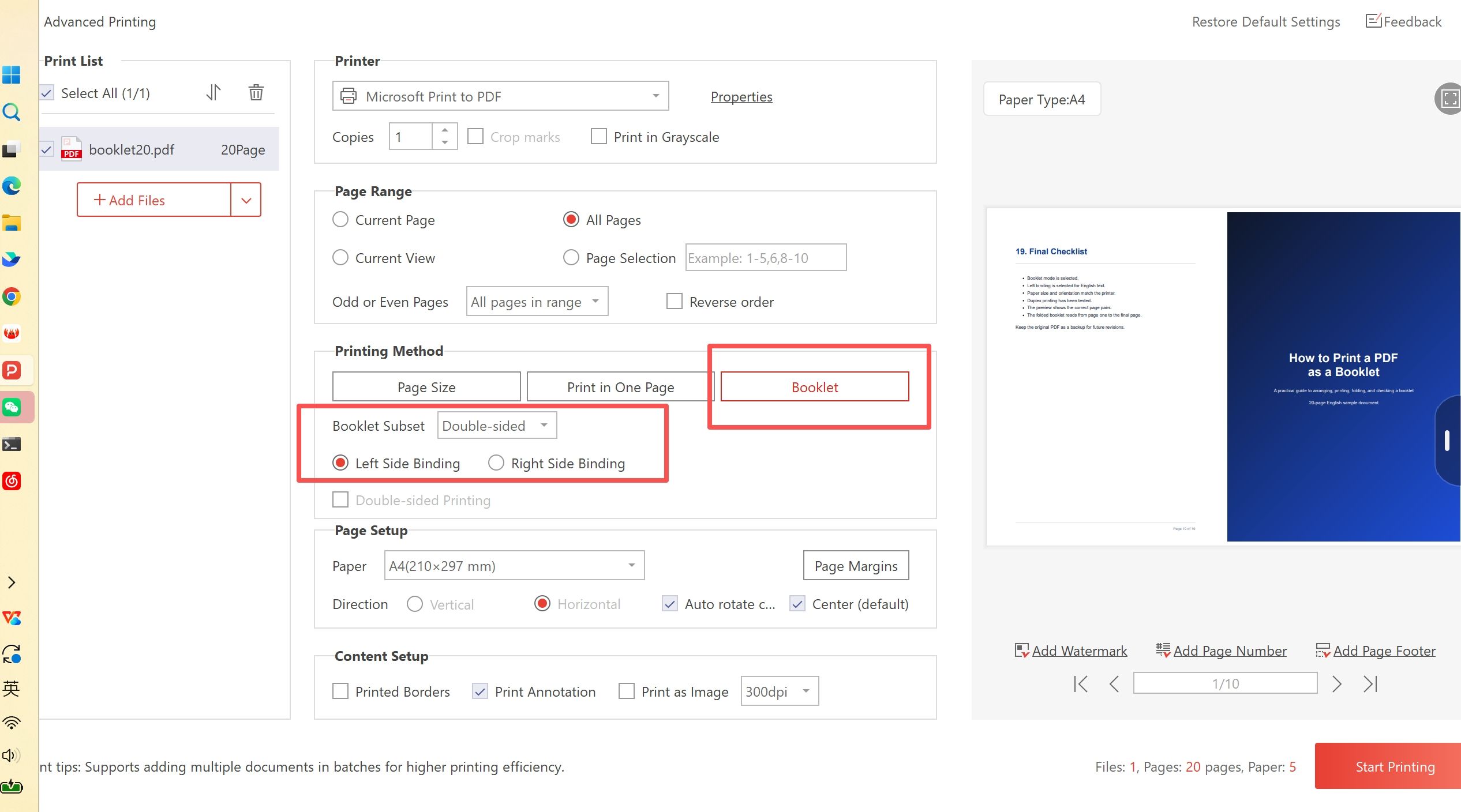
The window is titled Advanced Printing. It puts the decisions in one column with a live preview on the right, which is what makes this step checkable rather than guesswork.
- Printing Method → Booklet. The other two, Page Size and Print in One Page, are for ordinary single-sheet jobs.
- Booklet subset → Double-sided when the printer duplexes, or Front only / Back only for the two-pass route.
- Left Side Binding or Right Side Binding, according to which way the finished booklet opens.
- Page Setup: the paper, the direction (Horizontal, with Auto rotate on, is what turns portrait pages into a landscape spread) and Center, which stops a spread from drifting into one corner.
- Page Margins changes the printable area, not the pages in the file.
The preview is labelled with the paper type it will print on and draws the imposed sides rather than the pages, so what you are checking is whether both halves fit the sheet without being pushed off it, and whether the spread that lands beside the cover is the one you expected. The counter under the preview reads 1/10 for this 20-page file: ten sides, five sheets. The line at the bottom of the window repeats the same numbers as files, pages and paper.
Step 4: Fold the stack, staple on the fold, trim the open edge
Take the sheets in the order they come off the printer and fold the whole stack in half at once, then crease each fold. Folding sheet by sheet gives you five folds that do not line up.
Staple twice through the centre fold rather than through the face of the sheet. Stapling on the fold is what holds a nested booklet together and what lets it open flat.
Then trim the open edge, and do not skip it. Nested sheets cannot all fold on the same line, so the inner sheets push out slightly at the fore edge and the booklet looks ragged until that edge is cut square. A guillotine gives the cleanest result; a trimmer is fine for a short run.
Printing the Fronts and Backs in Two Passes
On a one-sided printer, booklet printing becomes two jobs over the same stack of paper.
- Set Booklet subset to Front only and print. One side of every sheet comes out.
- Take the stack out keeping its order and its orientation, then put it back in the tray.
- Set Booklet subset to Back only and print.
The failure point is the flip. If the second pass comes out upside down, or the backs land on the wrong sheet, the stack was turned over on the wrong axis, and the setting that decides it is the driver's flip-on-long-edge versus flip-on-short-edge choice in the printer's own properties.
Rather than reason about it, print a four-page test. Four pages is one sheet, one fold, and the whole booklet is visible at once: page 4 beside page 1 on the first side, page 2 beside page 3 on the second. If the test is right, the sequence is right, and you have spent one sheet finding out.
Two details for the second pass: leave the stack intact instead of re-dealing it sheet by sheet, and do not let the printer collate or staple between passes.
Left Side Binding or Right Side Binding
Left-side binding is the ordinary Western booklet: the spine, which is the fold, sits on the left of the closed booklet, the cover lands on the right half of the first side, and the pages read left to right.
Right-side binding mirrors the entire imposition, which is what right-to-left reading orders need. Picking it by accident breaks nothing: every page is present and the fold still works, but the spreads come out mirrored, so the booklet reads from the back cover forwards.
Booklet, Two Pages Per Sheet, and Splitting a File
Three different jobs get described as putting more than one page on a sheet, and only one of them folds.
- Two pages per sheet prints pages 1 and 2 on the first side, then 3 and 4 on the next. That is right for handouts, for lecture slides with a note column, and for saving paper on something that will be read flat.
- Booklet prints page 20 beside page 1, then page 2 beside page 19. This is the only one of the three meant to be folded.
- Splitting a file does not change the printing at all. It produces two smaller PDFs before any print settings are applied.
Two pages per sheet is the option people reach for when they mean booklet, and it cannot work: fold a sequential two-up printout and page four ends up behind page one. The question that separates them is what happens after printing. If the output gets folded, the pages have to be imposed for folding; if it is read flat, sequential is correct.
Because booklet mode is a print setting, the PDF on disk keeps its 20 portrait pages, its bookmarks and its comments. That matters when you proof the job by printing to PDF: the proof is a new document of imposed sides, useful for checking spread order, but not a replacement for the master file. It is the same mechanism as printing to PDF instead of saving as PDF, used as a check rather than as a way to make documents.
What Booklet Printing Will Not Fix
- The fold eats margins. A page reduced to half a sheet takes its side margins down with it, and the inner margin ends up closest to the fold. Pages designed with tight side margins finish with almost no white space at the spine.
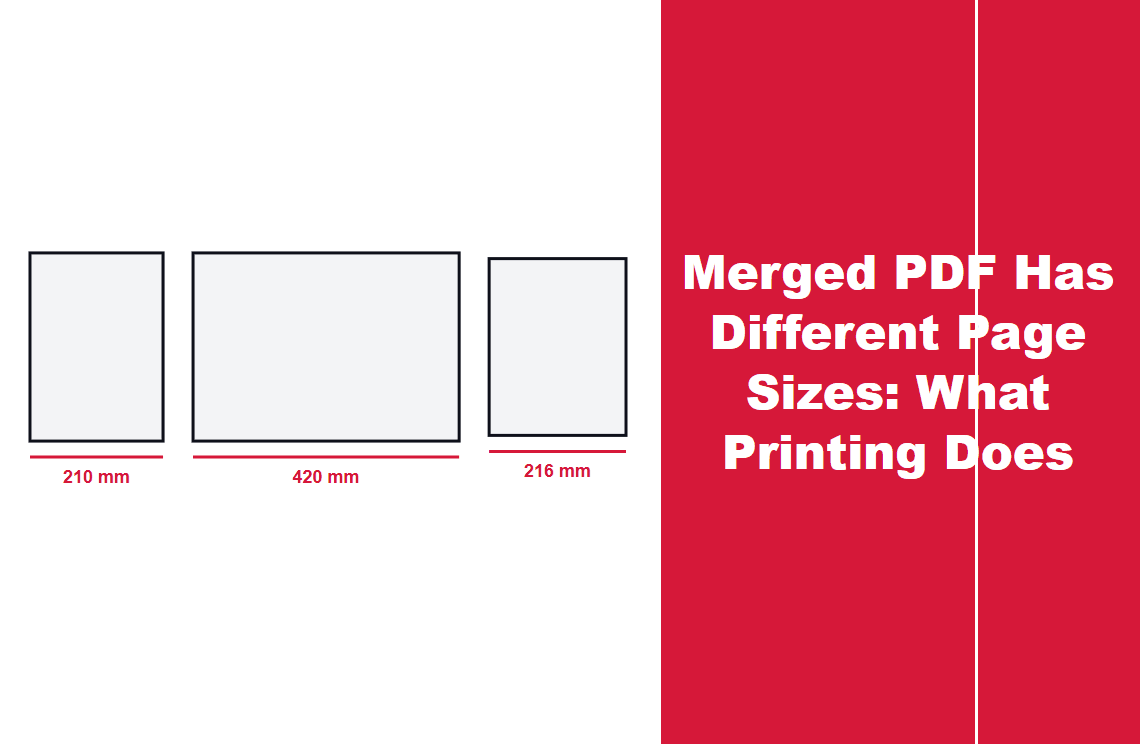
- Mixed page sizes in one file. One paper choice cannot suit both, and the imposition has nowhere sensible to put a page of a different shape. The printing consequences are set out in merged PDFs with different page sizes.
- Password and permission restrictions. A file that blocks printing blocks booklet printing at the same point, before any imposition happens.
- Rasterised output. Print as Image sends each side as a bitmap at the resolution beside it, 300 dpi in this window. Leave it off for text, and remember that a scan cannot exceed the resolution it was captured at.
- Thick booklets. A desktop stapler reaches through a limited stack, and a hand-folded pile of sheets cracks along the spine. Past that point the document needs a long-arm stapler or a different binding method, not a different setting.
Adobe Acrobat and the Other Routes
Acrobat's print dialog offers the same job under Booklet, with a subset for both sides or one side at a time and a binding choice for left or right, and Adobe's own guide to printing a booklet covers those same options. For a single booklet the output decisions are identical.
The difference is the arrangement of the window, not the result. On Windows, Acrobat leaves paper size to the printer driver's Properties dialog, so the paper and the imposition are chosen in two windows that can disagree without either one looking wrong. The window shown above keeps paper, direction, margins, binding, subset and a paper-labelled preview on one screen, which is the part that makes a booklet job checkable before it reaches paper. That is a workflow difference and worth no more than that: with Acrobat already installed and licensed, it will print the booklet.
Browser print dialogs are the weakest route for this job. They scale pages onto sheets and some offer several pages per sheet, but they do not impose spreads for folding, so a browser can only print the document flat.
This blog is published by the team behind the app in these screenshots, so read the comparison with that in mind.
FAQ
Does booklet printing change the PDF file?
No. Page order, margins and page count stay as they are, because the arrangement happens in the print job. Saving the imposed output as a new PDF produces a different, spread-based document, so keep the original as the master.
Why is the last page of my document next to the front cover?
Because the outermost sheet is the outside of the booklet: back cover on the left, front cover on the right. Every side pairs a page from the back half of the document with one from the front half, and the two numbers always add up to one more than the page count.
What happens if my page count is not a multiple of four?
The job adds blank pages at the end of the reading order, which places them at the back cover and the inside back cover. Delete pages, or add a closing page, if you want that space to be deliberate.
Can I print a booklet on a printer that only prints one side?
Yes, in two passes: Front only, reload the same stack in the same order, then Back only. Test the sequence with a four-page file first, which costs a single sheet.
Why is the back of my booklet upside down?
The stack was flipped on the wrong edge between passes, or the driver's duplex flip setting does not match how the sheets went back in. Flip on the other edge and reprint the test.
Should I use A4 or A3 paper for an A4 PDF?
A4 paper gives an A5 booklet, with each page reduced to about 71 per cent. A3 paper gives an A4 booklet, with the pages at their original size.
Is two pages per sheet the same as booklet printing?
No. Two pages per sheet prints pages in sequence, 1 beside 2, which falls out of order the moment it is folded. Booklet mode prints the last page beside the first, which is what a folded sheet needs.
A booklet is one of the few print jobs where the preview settles the question: if the first side pairs the back cover with the front cover, and the sheet count is the page count divided by four, the imposition is right and everything after that is folding.
PDF Agile keeps the booklet mode, the binding side, the subset for one-sided printers and the paper-labelled preview in a single print window, and applies the same settings to a whole batch, which is what makes a run of several documents practical. The printing options are described on the PDF printer page, and the remaining printing walkthroughs sit under How-to and Tips.
Steps and interface reflect the desktop app on Windows as of November 2026; menus and labels may change in later versions. Capabilities described here come from the print window shown above and the vendor's printer feature page. Adobe Acrobat, Microsoft Windows and Microsoft Print to PDF are trademarks of their respective owners.