You already have the content. What is missing is a file that looks the same on someone else's screen, and that is the whole job: turn what you have into a PDF, then check that nothing shifted.
The route depends on two things — what your source is and what device you are on. Both are below, so you can stop reading as soon as you have found your line.
Answer First: Pick Your Route
- A Word, Excel, PowerPoint, or TXT file — export it from the app that made it, so text stays text and tables stay tables.
- One or several JPG or PNG images — place them into a PDF in the order you want them read.
- A web page, an email, or anything visible on screen — use Print, then choose the PDF printer.
- Paper, a receipt, or a whiteboard — photograph or scan it, then straighten the edges.
- Nothing written yet — type it in a word processor and export, rather than dropping text boxes onto a blank page.
- A stack of files to get through — send the whole set through one converter window instead of repeating the same five clicks.
Settle one distinction before you click anything, because it changes which instructions you need. Converting a document you already have keeps its content in place. Creating a PDF starts from an empty page. Almost every "how do I PDF a document" question is the first kind, which is why the routes below all begin with a file you already own.
On Windows: Export, Print, or Convert
Windows has no single "make PDF" button, but every app that can print can produce one. Start with the app that created the file, because it lays out the PDF itself.
- Word — File → Save As, then set *Save as type* to PDF; the same result is behind File → Export → Create PDF/XPS.
- Excel — the same menu, but set the print area first (Page Layout → Print Area), switch the sheet to landscape, and use *Fit to 1 page wide* so a wide table does not split across three pages.
- PowerPoint — File → Export → Create PDF/XPS gives you one slide per page; animations and transitions do not survive the trip.
- Anything that can print — press Ctrl + P and choose Microsoft Print to PDF as the printer. It captures what is on screen, which is exactly what you want for a receipt page or a chat log.
The export route keeps hyperlinks clickable and headings as headings. The print route is faster but captures the page as the app drew it, headers, footers and all.
On a Mac: the Print Sheet Is the Converter
macOS puts PDF output inside the print dialog rather than a separate menu, and the sequence is the same in almost every app.
- Any app — File → Print (⌘P), then open the PDF dropdown at the bottom of the sheet and choose Save as PDF.
- Preview — File → Export as PDF writes the open document straight out, with a quality slider.
- Photos — select the images, File → Print, then Save as PDF; each photo becomes one page, in the order you selected them.
The dropdown also holds Save to Web Receipts and Mail PDF, which is why the print sheet is worth remembering: it is the same converter, wearing a different hat.
On iPhone and Android: Print or Scan
There is no *File → Save as PDF* on a phone. The PDF comes out of the print sheet, and the scan comes from the camera.
- iPhone, from an app — open the file, tap Share, tap Print. On the print preview, use the share gesture on the preview image to send the job to Files as a PDF.
- iPhone, from paper — the Files app and Notes both have Scan Document; they crop the edges and save a multi-page PDF straight to the folder you choose.
- Android, from an app — Share → Print, then choose Save as PDF in the printer list.
- Android, from paper — Google Drive's scan button photographs pages and exports one PDF; other scanner apps behave the same way.
Two things to check on a phone before you trust the result: the page order of a multi-photo job, and whether the camera caught the whole page. A scan that loses the last centimetre of a signature line is not a scan you can send.
When the Built-in Route Is Not Enough
The routes above cover one file at a time, and they assume the source app is installed. Three situations push people to a desktop converter instead: a batch of files, a format the source app cannot open, and a scan that needs a text layer.
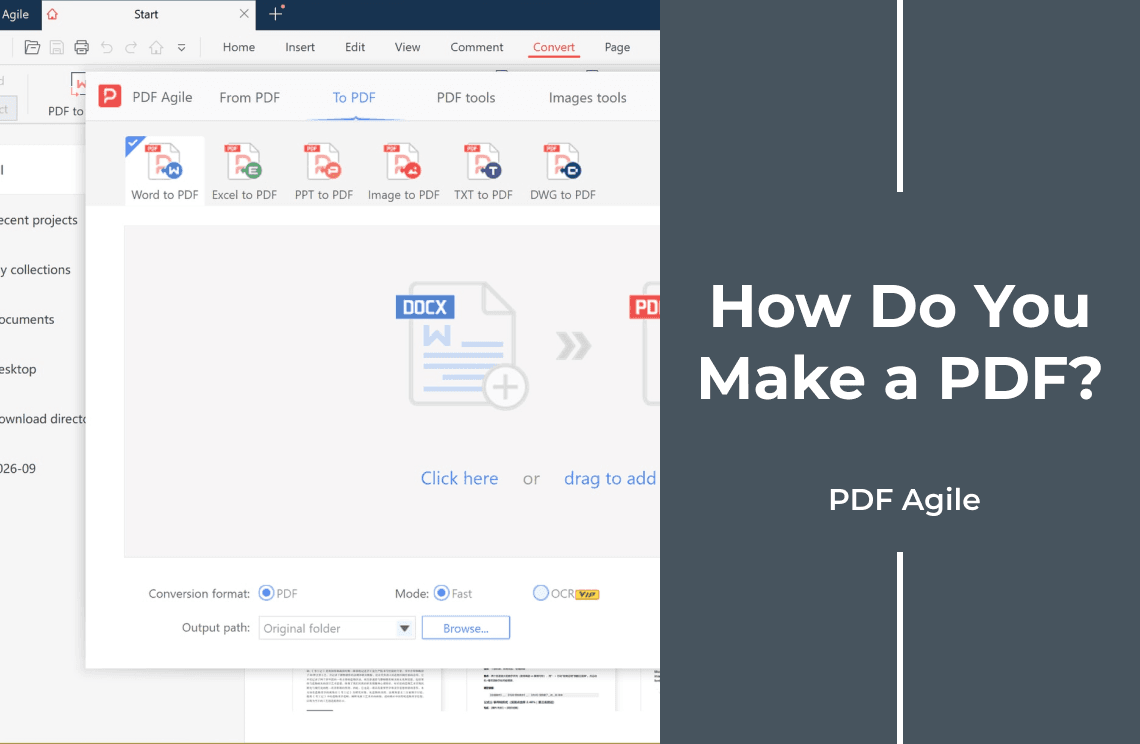
The screenshots below were captured in PDF Agile on Windows, which is one of those converters.
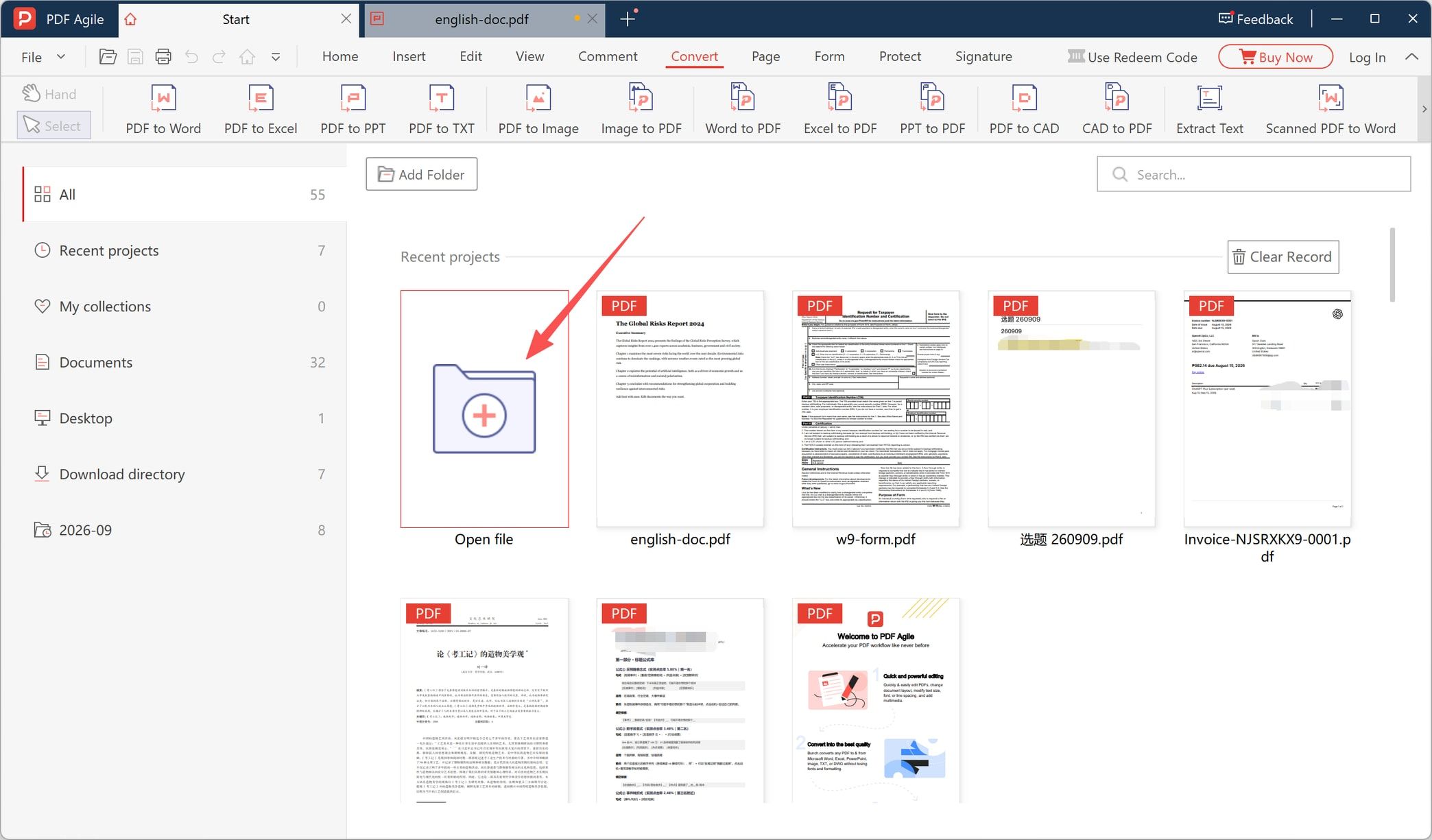
Step 1: Open the Document
The app opens on the Start screen, with a Recent projects grid of what you have touched lately. Select the Open file tile at the front of the grid — the folder with a plus sign — and point it at the document you want to convert.
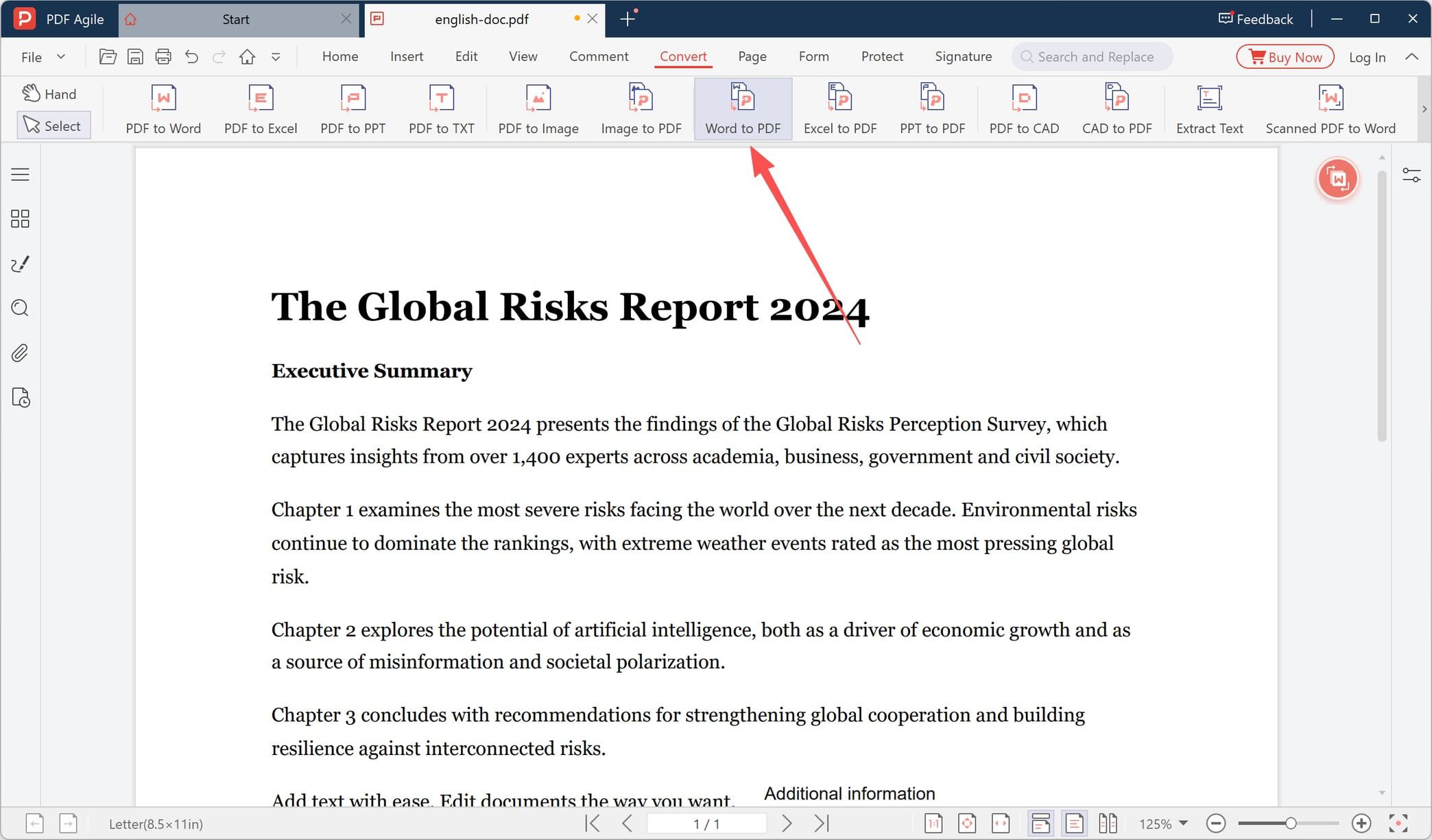
Step 2: Choose Word to PDF
Switch to the Convert tab. The ribbon runs in both directions: PDF to Word, Excel, PPT, TXT, Image, and CAD on one side, and Image to PDF, Word to PDF, Excel to PDF, PPT to PDF, and CAD to PDF on the other. With the document open, select Word to PDF.
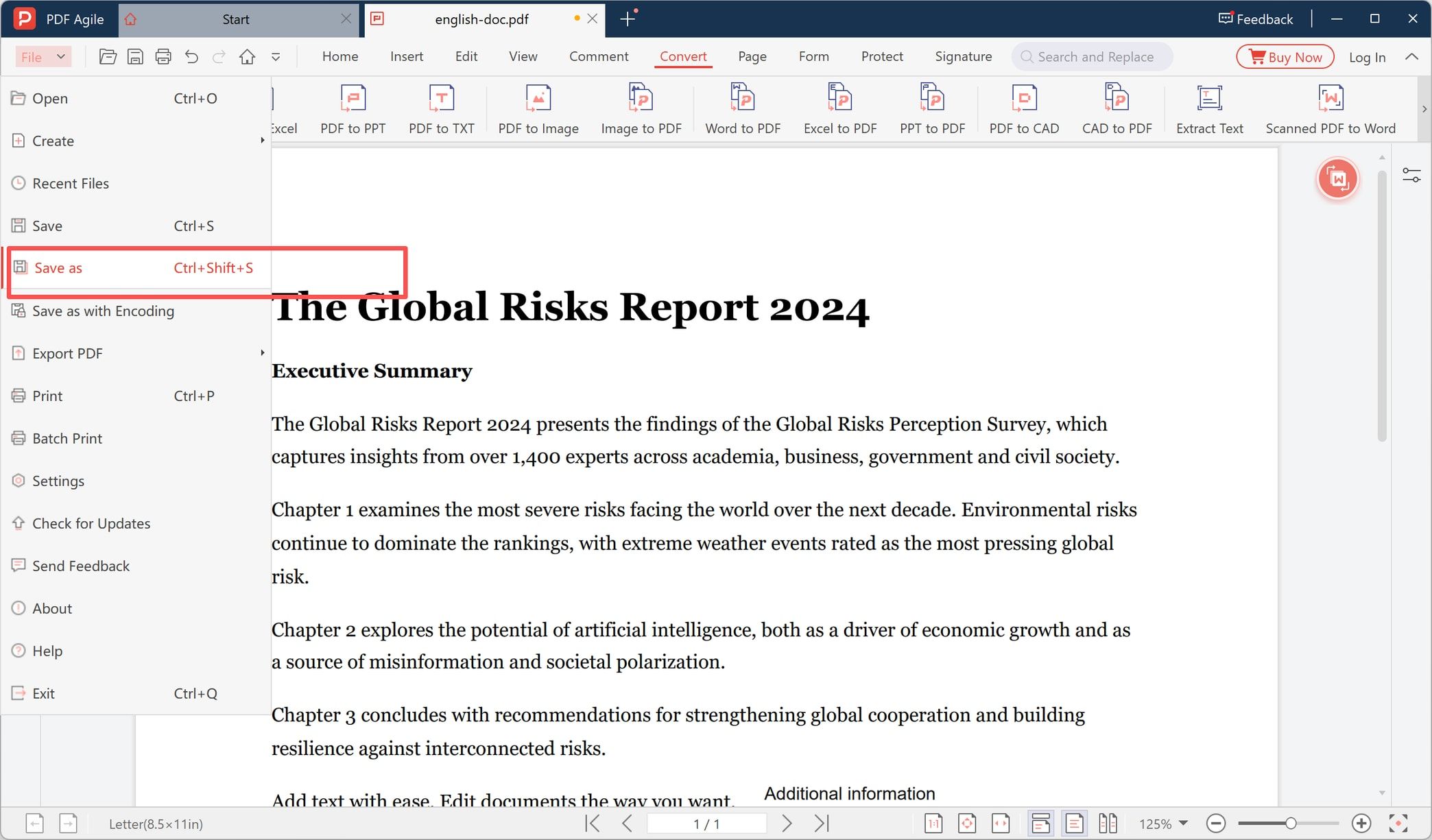
Step 3: Save the Converted File
When the conversion finishes, the result opens in the editor so you can look at the pages before anyone else does. Open File and choose Save as (Ctrl+Shift+S) to write the PDF under a new name or into another folder. The same menu holds Export PDF, Print, and Batch Print, which is where you go for a second copy or a paper run.
What a Conversion Keeps, and What It Quietly Changes
A conversion from a word processor or an office suite is usually faithful. Here is the honest split.
Usually kept:
- text as real text, so it stays searchable and copyable
- images, tables, headers, footers, and page numbers
- hyperlinks, still clickable in the output
- page breaks and margins, because the PDF follows the source page setup
Sometimes changed:
- fonts that are not embedded in the source, which a substitute font replaces
- wide spreadsheets, which may shrink or split across pages
- tracked changes, comments, and speaker notes, which usually do not appear
- slide animations and transitions, which a static PDF cannot carry
- text boxes and floating objects, which can drift by a millimetre or two
- rotated or landscape pages inside a portrait document, which can end up sideways
None of these are failures; they are the difference between a document that describes a layout and a page that fixes one.
Scanned Pages Need OCR
A scan is a photograph of text. It looks right and reads badly: search, copy, and screen readers all fail on it, because every letter is part of an image. OCR is the fix, since it rebuilds a text layer over the picture.
Some converters expose this as a Mode choice between *Fast* and *OCR*, and OCR is often the paid tier — in conversion windows it can carry a VIP badge. Confirm the mode you need is in the licence you have before you build a workflow around it.
Check the File Before You Send It
Open the finished PDF and run this list. It takes a minute and catches almost every complaint people have after sending.
- The file opens without a password prompt you did not set.
- The page count matches the source, including that last nearly empty page.
- Fonts look like the original, with no fallback serif where a sans-serif used to be.
- No table is cut off at the right margin, and no row sits alone on a new page.
- Images are sharp when you zoom in, not blocky.
- Landscape pages are still landscape, and nothing is upside down.
- Links open the right target, and bookmarks or a table of contents survived if you needed them.
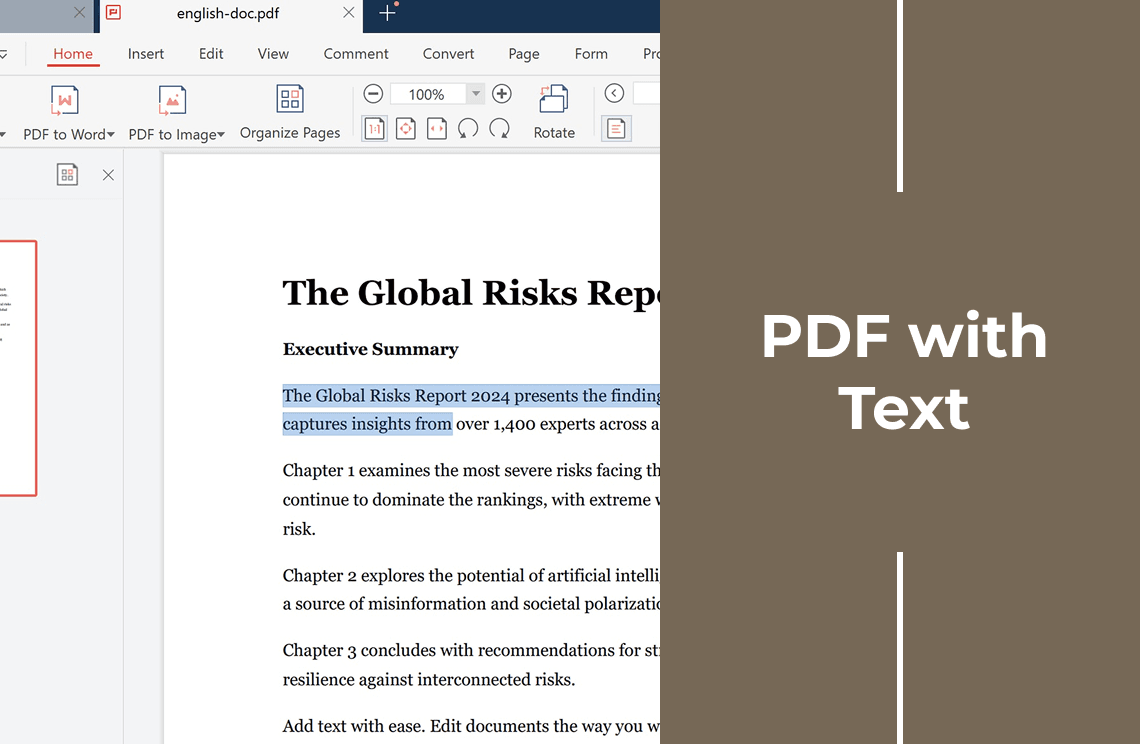
- Text can be selected with the cursor — try dragging across a sentence.
- A scanned page can be searched; if not, it still needs OCR.
- Comments, tracked changes, and document properties do not expose anything you meant to remove.
- The file size fits the channel: many mail servers reject attachments over 20 to 25 MB.
Where Your File Actually Goes
An installed converter reads the document from your own disk and writes the PDF next to it. There is no upload step, and the output stays on your machine.
A browser converter is a different arrangement: the file is uploaded to someone else's server, converted there, and kept for as long as that company's retention policy allows. Both models are legitimate — they are just not the same promise.
For a signed contract, a payslip, a passport scan, or a medical letter, either keep the work local or read the retention and deletion terms before you upload. Password-protected documents need unlocking before any converter can read them, so remove the password first and re-protect the finished PDF afterwards.
When There Is More Than One File
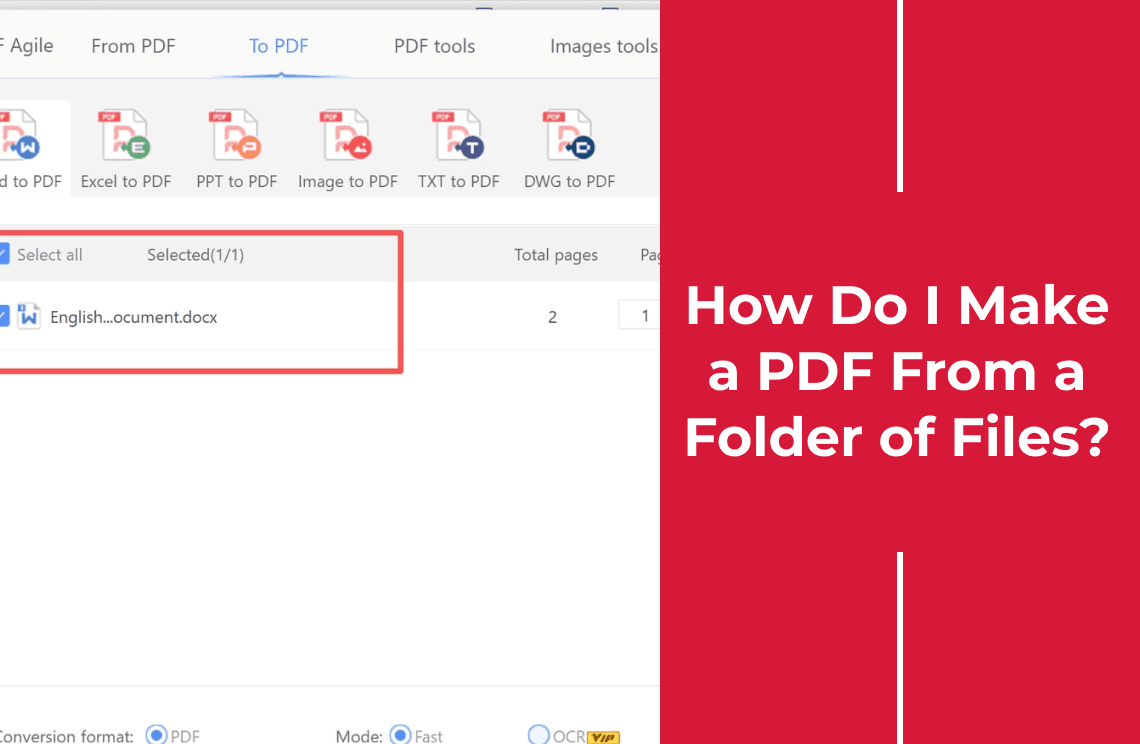
A single PDF is often an assembly job rather than a conversion job: the signed page, the appendix, and the invoice belong in one file, in that order. Convert each part first, then merge, then check the page order and the numbering at the end — the seams are where mistakes show. If the job is a whole folder rather than three documents, sending the set through one converter window is the difference between one pass and ten; making a PDF from a folder of files walks through that version.
FAQ About Turning a Document Into a PDF
Do I need Microsoft Word installed to PDF a document?
Not if you use a dedicated converter, which reads the .docx or .doc file directly. If you only have Word on another machine, the export route needs that machine, while a converter handles Word, Excel, PowerPoint, TXT, and image sources from one window.
Can I make a PDF on my phone without installing anything?
Yes. The print sheet that ships with iOS and Android already writes PDFs, and both platforms have a document scanner built in — the Files app on iPhone, Google Drive on Android. The limits are page order on multi-photo jobs and control over quality.
Why does my PDF look different from the Word file?
Almost always a font or a table. Fonts that are not embedded get substituted, and wide tables get squeezed or split. Check the first and last page every time, since that is where reflow shows up first.
Can I search or copy text after converting?
Yes, when the source was a real document — the text stays text. If the source was a photo or a scan, the PDF contains an image of words and needs OCR before it becomes searchable.
Which files should not go into an online converter?
Anything you would not email to a stranger: identity documents, contracts under negotiation, medical records, tax filings, and internal company material. Use a local tool for those, or confirm the service's deletion terms first.
Is there a free way to PDF a document?
Yes, and it is already on your machine: the Print dialog in Windows and macOS writes PDFs at no cost, and the phone print sheets do the same. Free browser converters exist as well, with the upload trade-off described above.
Working through documents in bulk, or need a searchable scan? PDF Agile converts Word, Excel, PowerPoint, TXT, and image files to PDF on Windows, with the output folder chosen once and an OCR mode for scanned pages.