Editing on a PDF file means changing something that is already on the page: a word, a number, a paragraph, a logo, a price. The page is a finished layout rather than a flowing document, so nothing rewraps on its own the way it would in a word processor. You change one block at a time, and the block takes the change.
That single fact explains most of what follows. Text only responds if the file stores real characters rather than a picture of them. A replaced sentence pushes the lines around inside its own block and nowhere else. An inserted image sits on top of the page until you size it. Work through the five steps below and the page keeps its original structure while the content changes.
What Can Be Edited on a PDF Page
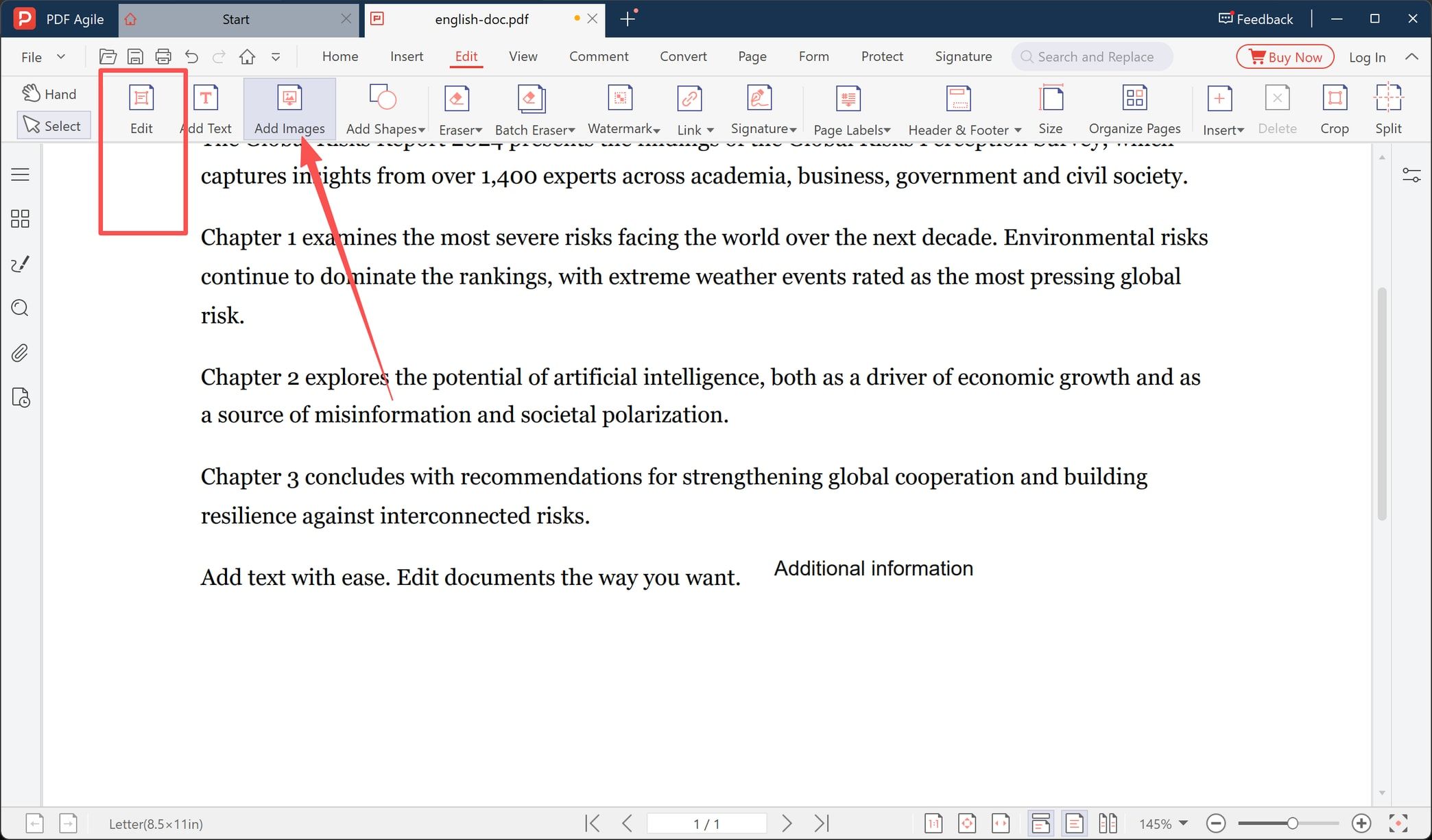
Open the editing tab of a desktop editor and the toolset is laid out in one row: text, images, shapes, eraser, watermark, link, signature, page labels, header and footer, page size, organize pages, insert, delete, crop, split. That list is a fair map of what a PDF page accepts.
- Text that is really text — retype a word, a date, an address, or a whole sentence in place.
- New text — place a line in a margin or an empty area, as its own box above the page.
- Images and shapes — add a logo, a stamp, a callout, or cover old content.
- Pages — reorder, delete, crop, split, rotate, without touching a single word.
- Page furniture — headers, footers, page labels, watermarks, links.
- Erasers — remove existing content one click at a time, or in batches.
How to Edit on PDF Files
The walkthrough below uses PDF Agile for Windows, a desktop editor, so the file stays on your computer while you work. Menu names in other programs differ, but the order of the steps does not.
Step 1: Open the Document
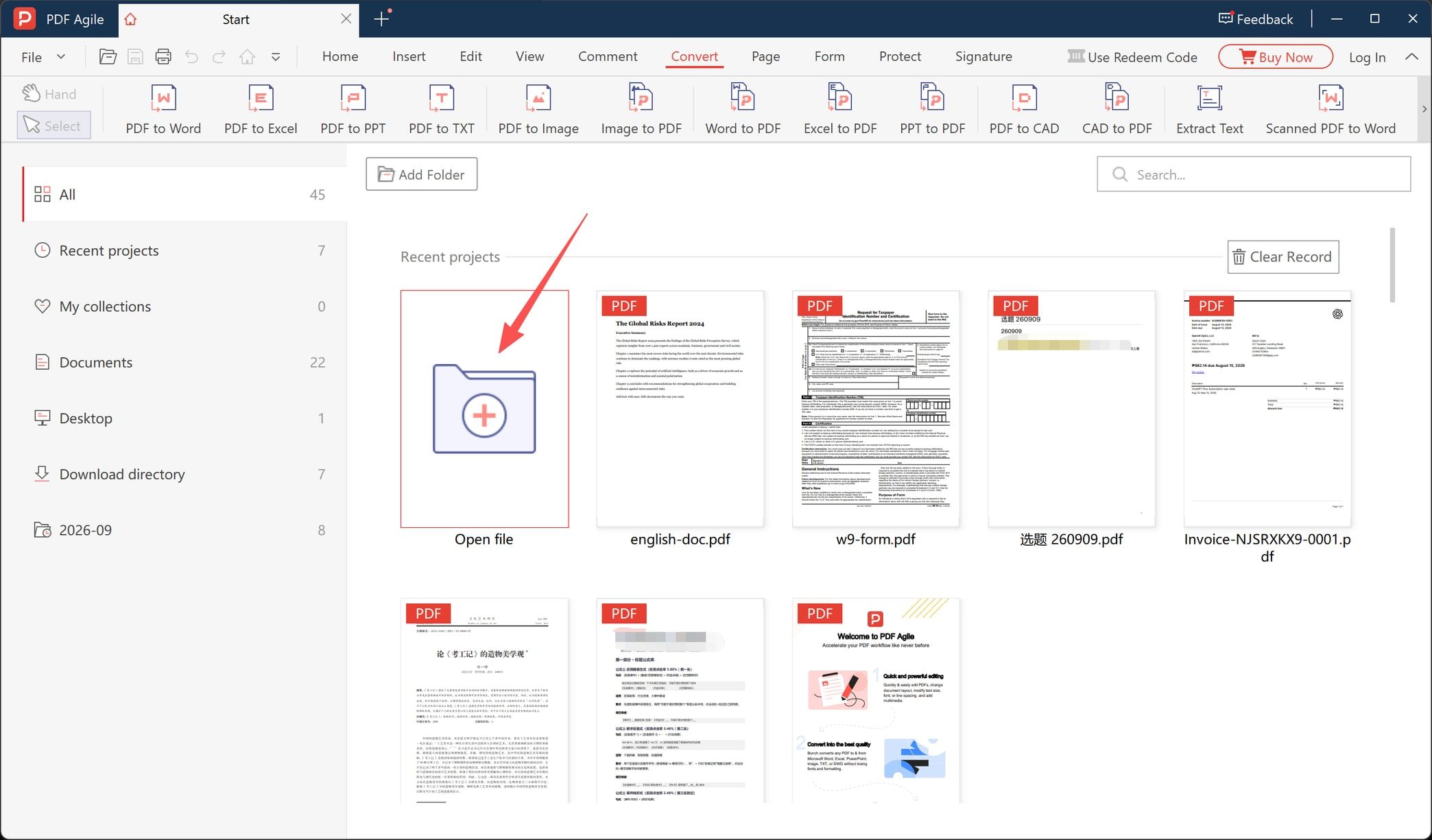
Start on the home screen. The Open file tile sits first in the row of recent documents, with Add Folder and a search box above it. Files you worked on before are listed by name — the report, the form, the invoice — so reopening one takes a single click.
Once the file is open it gets its own tab, and the status bar confirms what you are editing: page 1 of 1, page size Letter (8.5 x 11 in), zoom at 108 percent. Check those three readings before you type anything, because a page size you did not expect usually means you opened the wrong file.
Step 2: Retype the Words That Are Already There
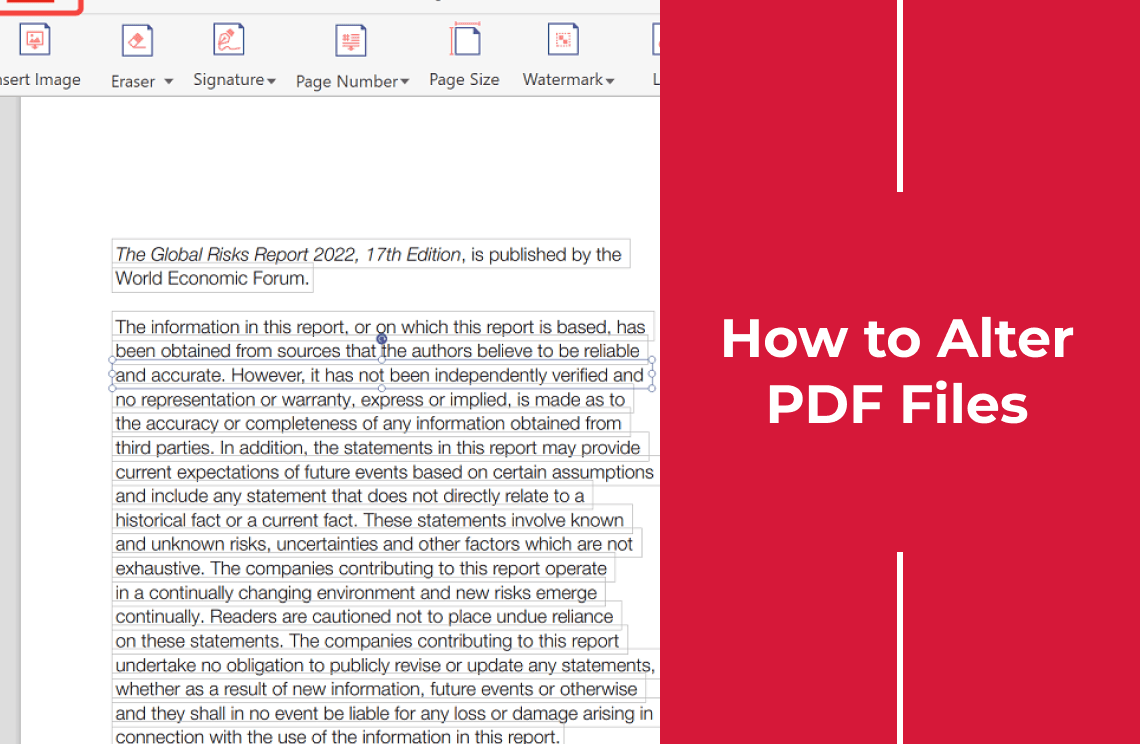
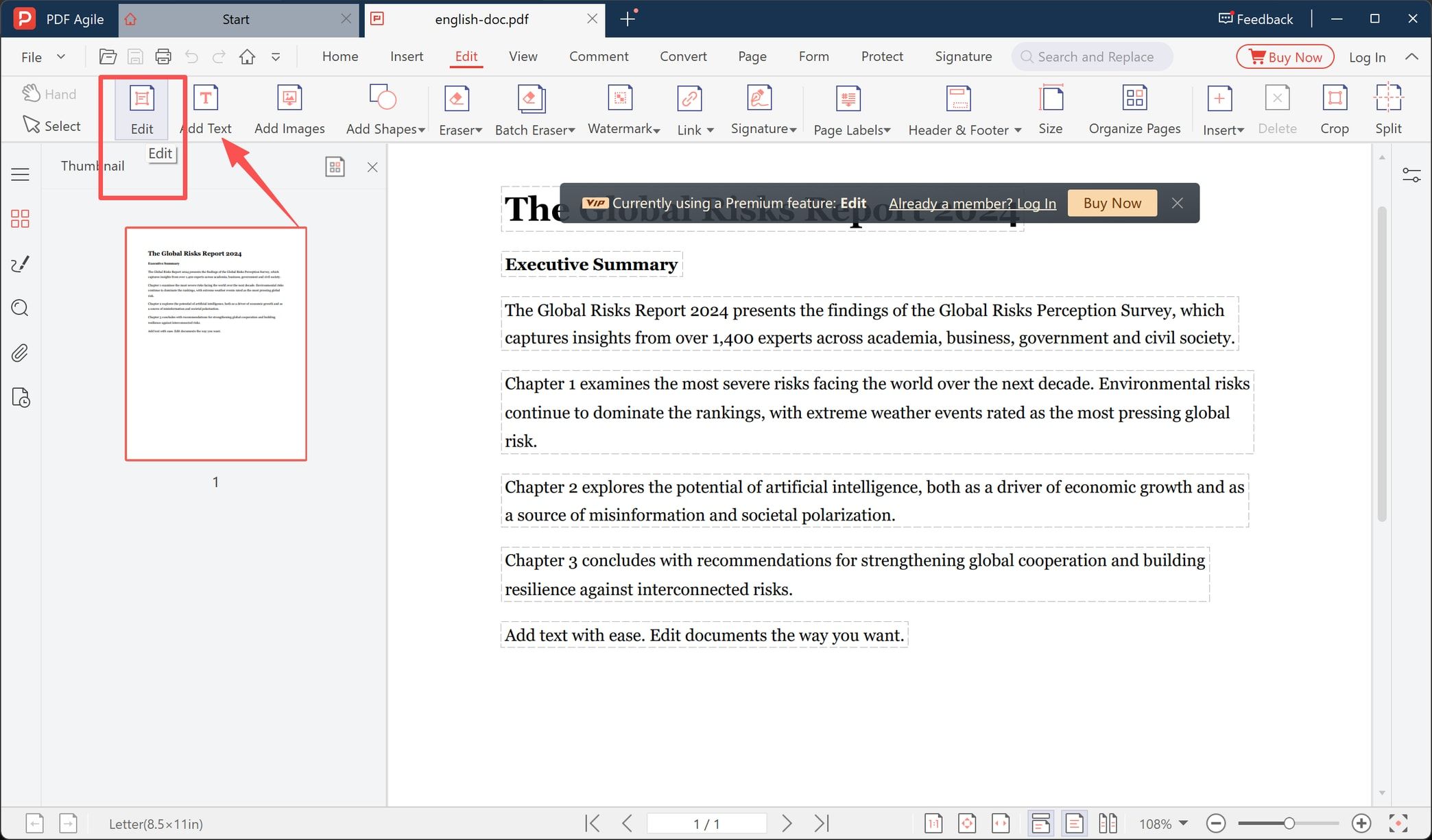
Click Edit on the ribbon, then click into a paragraph. A dashed outline appears around the whole block, which tells you the editor treats that paragraph as one unit rather than as separate lines. Select the words you want to change and type over them.
The replacement does not have to be the same length. Reflow happens inside the block: in the screenshot the word "dominate" was replaced with a shorter string, and the sentence that followed pulled up onto the same line. Keep the same font and size where you can, and stop typing at the block edge instead of pushing past it.
The editor also flags this toolset as a paid one: a notice reading Currently using a Premium feature: Edit, with Log In and Buy Now buttons, sits over the page. Assume text editing needs a member licence in this build, and check what your own copy includes before you plan around it.
Step 3: Add Text That Was Never in the File
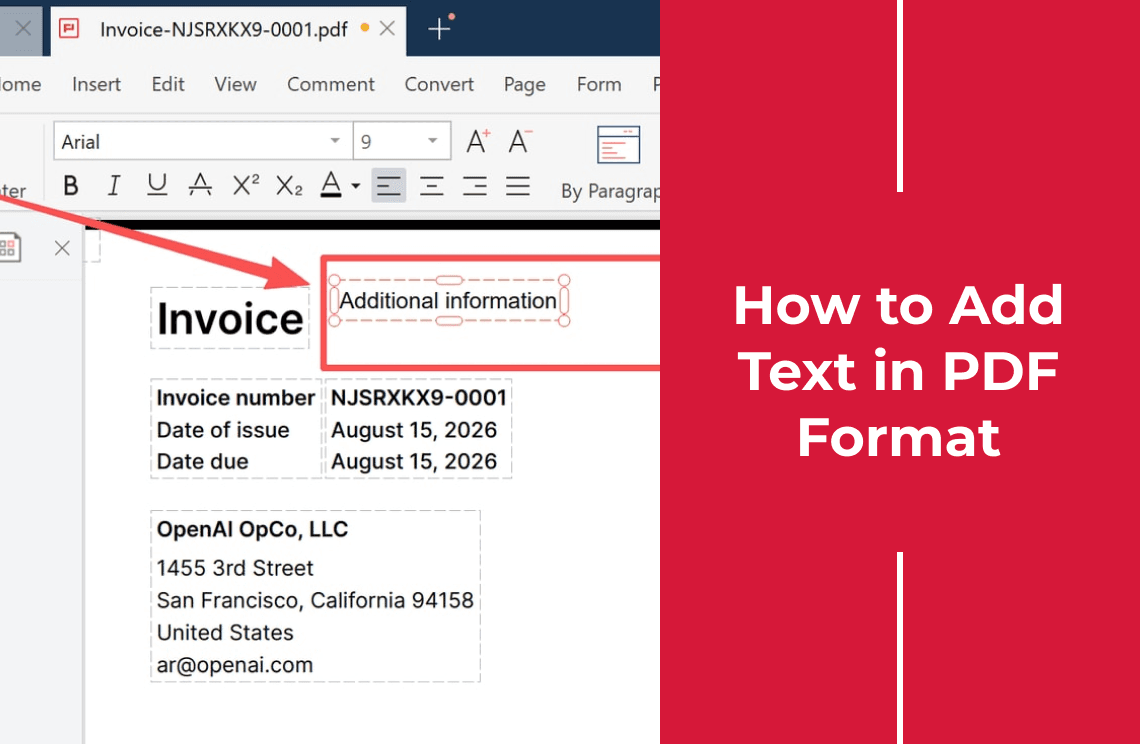
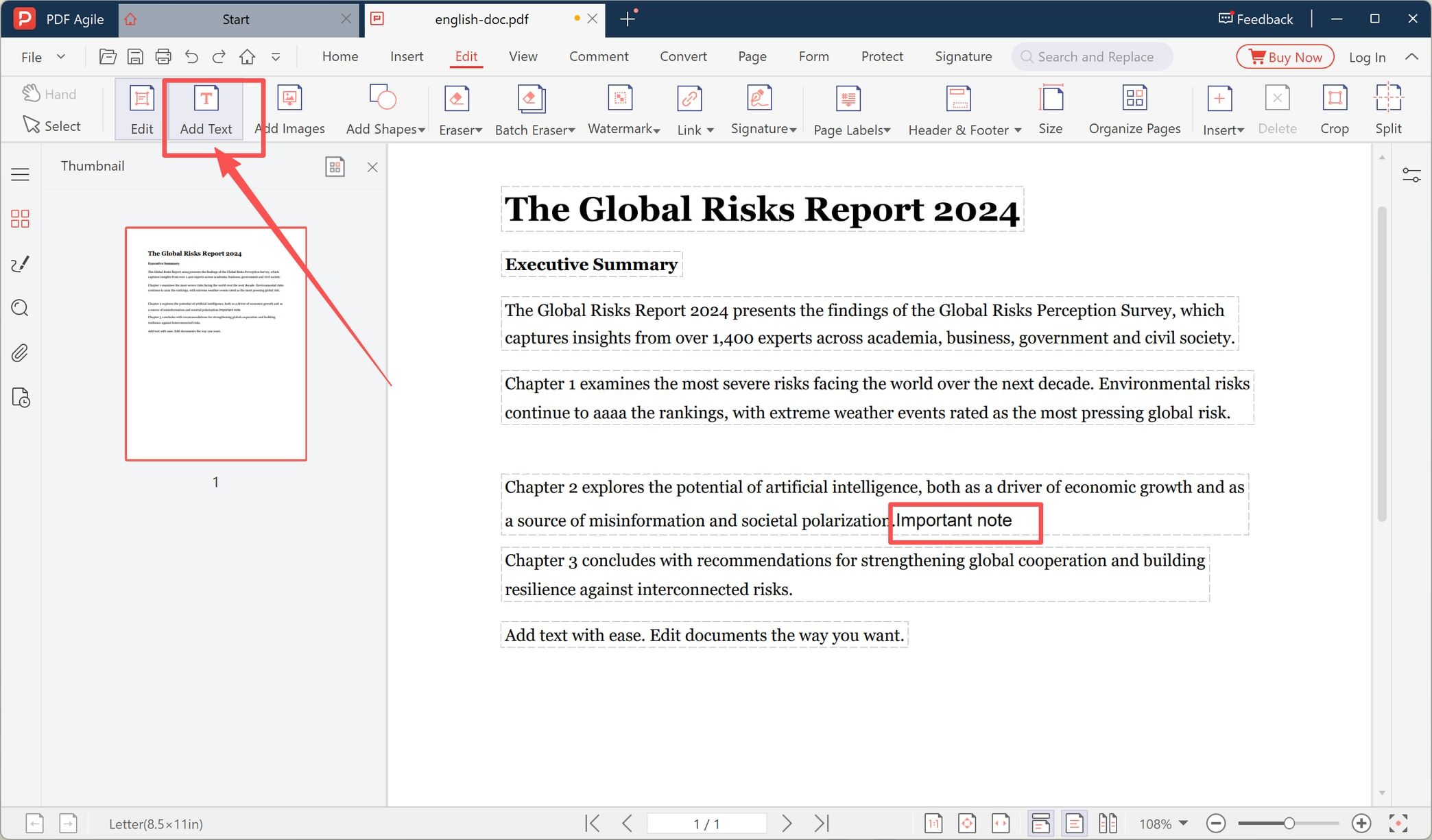
Choose Add Text from the same toolbar, then click on the page where the line should start and type. In the example a short label reading "Important note" is placed at the end of an existing paragraph.
New text goes into its own box, so it behaves differently from the words you retyped in step 2: you can drag it, resize it, or delete it without disturbing the original characters underneath. Put it roughly where you want it first, then fine-tune once the words are in — placing a box precisely on a line of body text is much easier at 150 percent zoom than at 100.
Step 4: Insert an Image
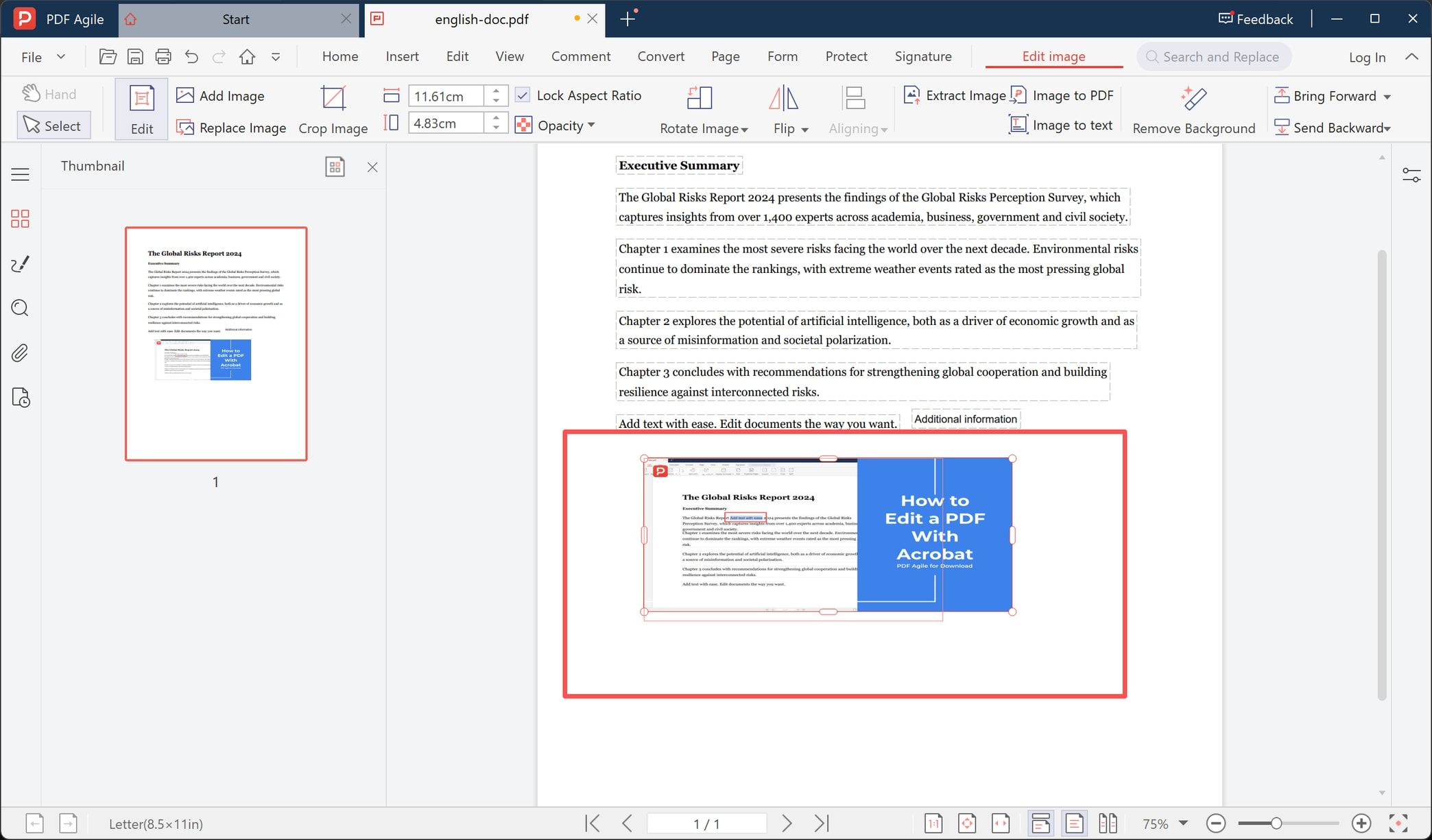
Select Add Images, which sits directly to the right of Add Text, and pick the file you want. The image lands on the page as a selected object with handles, ready to be moved. In the screenshot a banner has been dropped under the last paragraph, and by the next step the page thumbnail on the left has redrawn with the banner in place.
An inserted image is placed above the page content, not inserted into the text flow. That is what makes a stamp, a signature scan, or a logo replacement quick — and it is also why a large image can hide the paragraph you just fixed. Drag it clear and check the thumbnail again.
Step 5: Resize, Rotate, and Position the Image
Click the inserted image once and the ribbon switches to the image tools. The width and height boxes show the current size in centimetres (11.61 x 4.83 cm in this case) next to Lock Aspect Ratio, so you can either drag a corner or type an exact measurement. The same row holds Crop Image, Opacity, Rotate Image, Flip, Aligning, Extract Image, Image to PDF, Image to text, Remove Background, and Bring Forward / Send Backward.
Three of those do most of the work. Keep Lock Aspect Ratio ticked while dragging so the picture does not stretch. Use Bring Forward or Send Backward when the image and a text box overlap. Type the numbers when the layout has to match a margin, because eye-dragging rarely lands on 11.61 cm twice.
What Still Will Not Edit
- Scanned pages. A scan holds a picture of text, not text. Nothing above works until OCR rebuilds a text layer, and on a clean scan of printed text that conversion is usually good enough to edit; on handwriting it is not.
- Fonts you do not have. The editor substitutes a similar font, which shifts spacing across the whole block, so lines no longer line up with the original.
- Password-protected files. A permissions password that blocks editing has to be removed first, and some files are locked on purpose.
- Digitally signed files. Changing one character invalidates the signature and warns every reader who opens the file afterwards.
- Dense tables and columns. Each cell is its own block, and a longer entry pushes into the neighbouring column. Rebuild that page in a word processor instead.
Before You Save
Save under a new name first, because replaced characters cannot be restored exactly and the undo history ends when the file closes. Then check the page count and the last page — block reflow is the usual reason a paragraph spills onto an extra page — and open the saved file in a second viewer. A layout that renders well in one program can collapse in another, especially where fonts were substituted.
FAQ About Editing PDF Files
Can I edit a PDF file for free?
Adding notes, highlights, comments, and signatures is annotation work, and free readers handle that. Changing characters that are already on the page is an editor feature, and in the build shown here it carried a premium notice, so expect to pay for that part rather than for the whole task.
Why does the rest of the paragraph jump when I delete a word?
The block rewraps to fill the space. Lines are not fixed once the text inside the block changes length, so a shorter replacement pulls the following lines up and a longer one pushes them down. Editing the smallest block that contains the change limits how far that reaches.
Can I edit text in a scanned PDF?
Not directly. Run OCR first to convert the page image into characters, then edit the result. Text that OCR could not recognise stays as a picture of itself and has to be treated as an image.
Does editing change the original file?
Not if you save as a new file. Keep the original untouched until the edited copy has been opened, checked, and confirmed to render correctly elsewhere.
Editing PDF files often? Download PDF Agile for Windows to retype text, place new text, and size images in one desktop workspace, with the document staying on your own machine.