Key takeaways
- Upload the image, convert, download — no account needed.
- The PDF page takes the image's own size, so a phone photo can produce a page far larger than A4.
- If you need an A4 page, convert first and set the paper size in the print dialog, not in the converter.
You can convert a JPG to a PDF in the browser: open the JPG to PDF tool, select the image, click convert, and download the PDF. One image becomes one page. The part worth understanding is the page size you get back.
How Do You Convert a JPG to a PDF?
Four steps, under a minute.
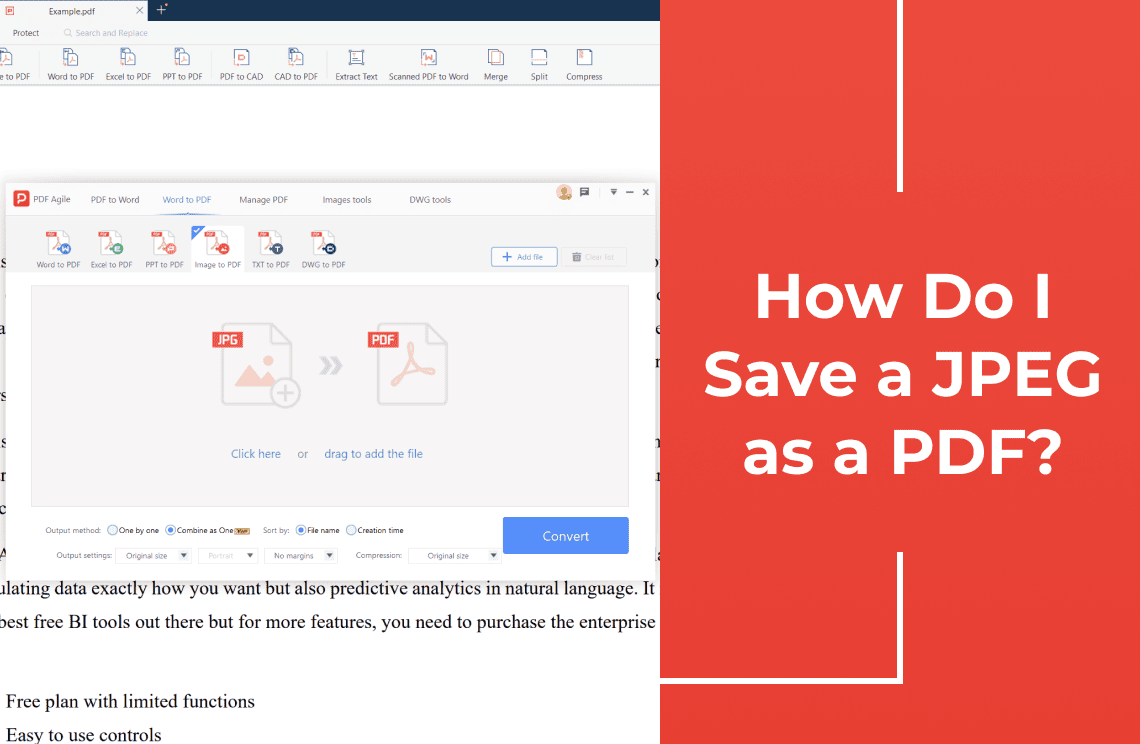
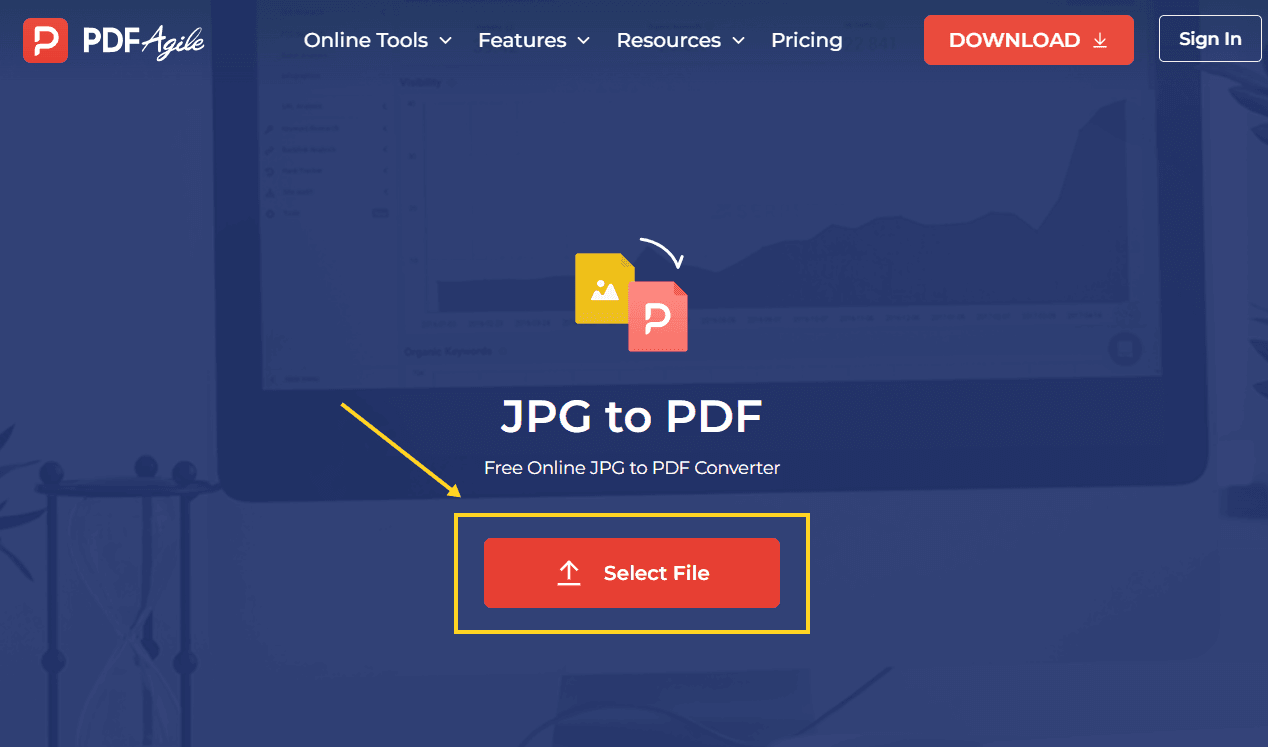
- Open the free JPG to PDF converter.
- Click Select File and choose the image.
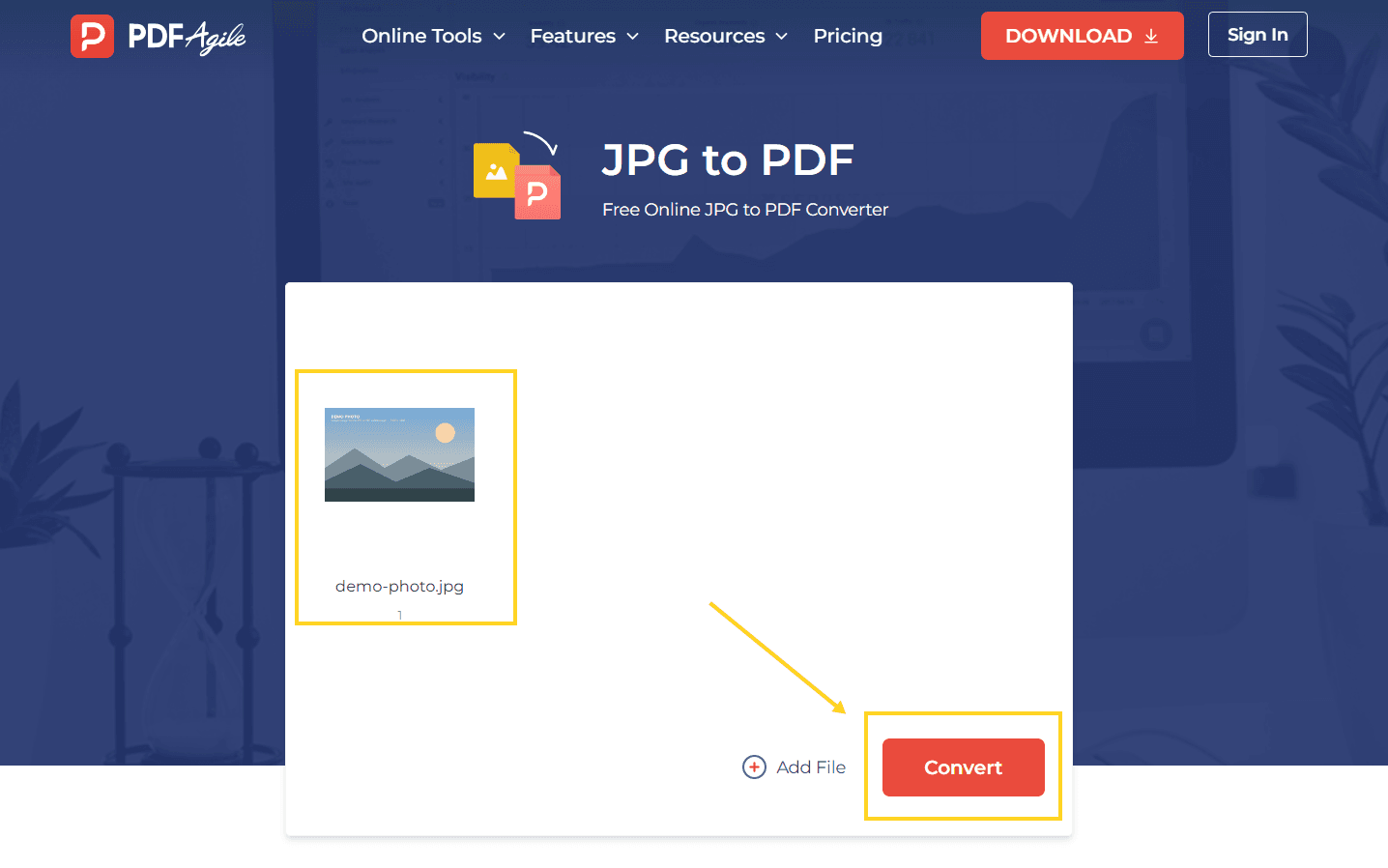
- Click Convert and wait for the status to finish.
- Download the PDF and open it.
What Page Size Does the PDF Get?
The page follows the image, not the other way round. A converter has no paper size of its own, so it sizes the page to the picture.
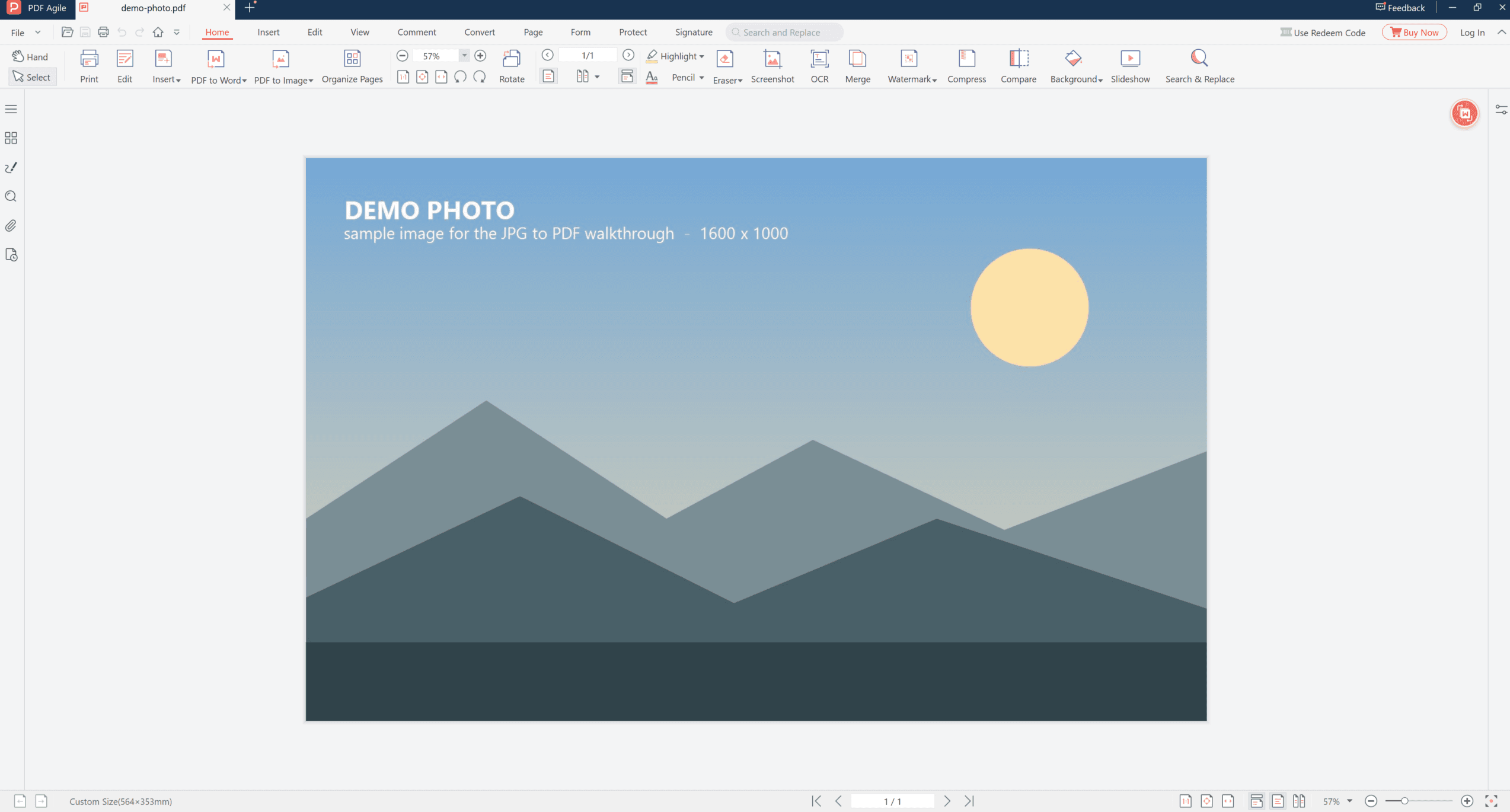
The demo image used for these screenshots is 1600 × 1000 pixels. The finished PDF reports a page size of 564 × 353 mm — that is 1600 and 1000 pixels converted at 72 dpi. A4 is 210 × 297 mm, so this single page is more than twice as wide as A4.
That number matters more than it looks:
- Phone photos are much bigger. A 4032 × 3024 photo becomes roughly 1422 × 1067 mm — a page the size of a small poster.
- Printing shrinks it. Print an oversized page onto A4 and the printer scales the whole page down to fit, so the picture prints smaller than you expected, with white margins.
- The exception is the page you want. If the PDF is for screen use — an email attachment, a form upload, a slide — the large page is harmless.
How Do You Get an A4 Page Instead?
The converter will not give you one, so change the route rather than the settings.
- Open the JPG in any viewer that can print.
- Choose Microsoft Print to PDF (Windows) or Print → Save as PDF (Mac).
- Set the paper size to A4 and the scaling to Fit.
- Save, then check the page size in the finished file.
This gives one image on one A4 page, with the picture scaled to fit and the margins filled. The trade-off is that the image is now smaller on the page than it is in the file.
Does Converting Change the Image Quality?
No. The converter places the image on a page; it does not re-encode it into a different resolution. What changes is the container, not the pixels.
The file size can still surprise you, for two reasons:
- The PDF carries the image plus the page structure, so it is usually close to the JPG size and sometimes a little larger.
- A very high-resolution photo stays high-resolution. If the PDF is too big to email, resize the image first, or compress the finished PDF.
How Do You Check the PDF Before Sending It?
Three checks, about a minute total.
1. Page count. The PDF should have one page. If it has more, the converter split a large image, or you added the file twice.
2. Page size. Open the file properties and read the page size. If it reports something in the hundreds of millimetres, the page follows the image and will print scaled. That is fine for screen use and wrong for a print queue.
3. Sharpness at 100 percent. Zoom to actual size rather than fit-to-window. A page that looks soft when fitted is usually fine at 100 percent; a page that looks soft at 100 percent was a low-resolution image to begin with, and no conversion setting will add detail.
When Converting Is the Wrong Move
- You need an editable document. A PDF made from a JPG has no text layer; it is a picture on a page. For text, the source should be a document, not a photo.
- You have twenty images. Converting one at a time gives twenty PDFs, not one. Combining several images into one PDF is a different job.
- You need A4 output. Use the print route above.
- The image is a scan of text you need to search. That needs recognition, not conversion.
If the downloaded file does not open, or the page comes out blank, re-check the source image first: a corrupted JPG will upload but convert to an empty page.
FAQ
Is it free, and do I need an account?
The tool is free and runs in the browser without an account.
Why is my PDF page so large?
Because the page is sized from the image's pixel dimensions at 72 dpi. A 4000-pixel-wide photo produces a page over a metre wide.
Can I choose A4 in the converter?
Not in this converter — the page follows the image. Use Print to PDF with A4 selected if you need a standard page.
Can I convert several JPGs into one PDF?
Not one at a time. Use a merge or combine route: combining JPEGs into one PDF covers the multi-image case.
Does the PDF lose quality compared with the JPG?
No. The image is placed on the page as it is. If the PDF looks softer, it is being displayed or printed smaller than its native size.
Where to Go Next
If the file is a single image and you only need it on a page, the conversion above is the whole job. If you are collecting several pictures into one document, start with how to make a PDF with pictures instead, which compares the routes. And if you are saving an image from an app rather than converting one you already have, saving a JPEG as a PDF covers that path.
That is the conversion: select, convert, download, then check the page size before you print anything. PDF Agile runs the converter in the browser at the JPG to PDF tool, and keeps the desktop editor for files that should not leave your machine. More conversion walkthroughs sit in the How-to & Tips section.