Key takeaways
- Open the Protect PDF tool, add the file, type a password, download.
- That sets an open password: nobody can open the file without it.
- It does not stop printing, copying or editing once the file is open. Those are permissions, and the free online tool does not set them.
Upload the PDF, type the password, and download the protected copy. Three steps, no account. What matters afterwards is knowing which of the two PDF passwords you just set, because they stop different things.
How Do You Add a Password to a PDF?
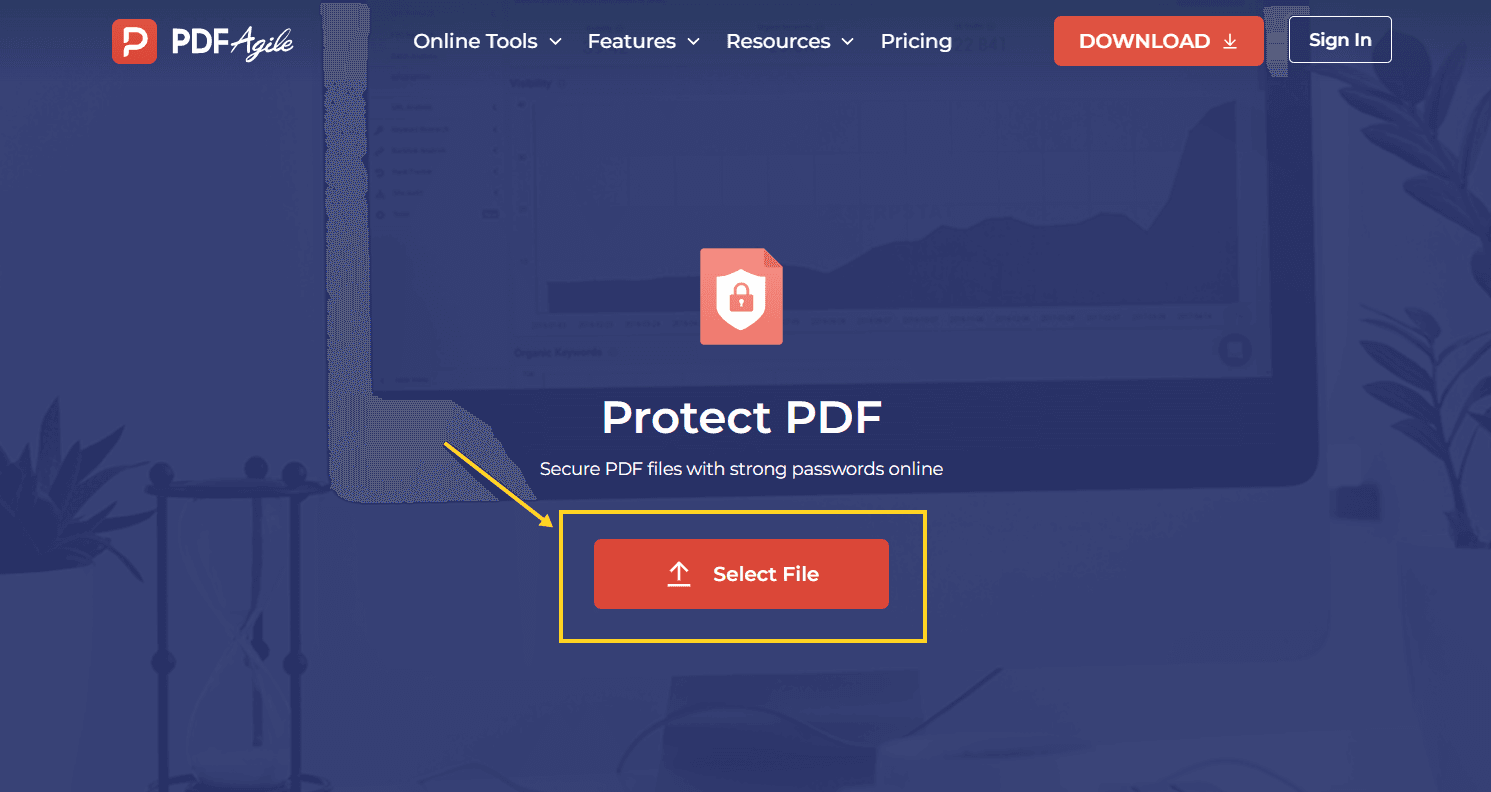
- Open the free Protect PDF tool.
- Click Select File and choose the PDF.
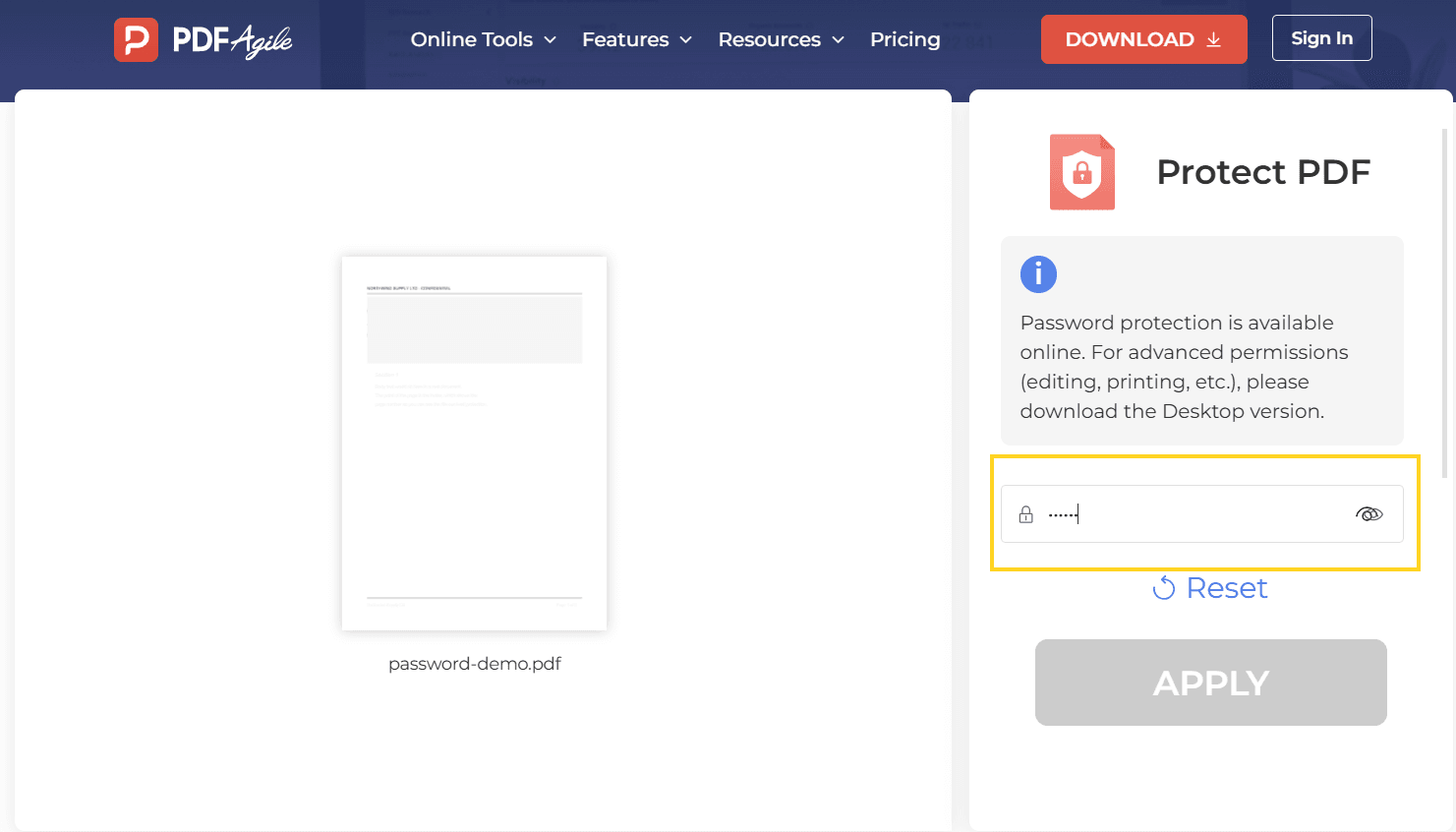
- Type the password in the field on the right panel.
- Click APPLY, then download the new copy.
Keep the original file. The protected copy is a new document; if the password is lost, the original is the only way back in.
Which of the Two PDF Passwords Did You Just Set?
PDF files carry two different passwords, and they are not interchangeable.
| Open password | Permissions password | |
|---|---|---|
| What it stops | Opening the file at all | Printing, copying, editing |
| Who needs it | Anyone who opens the file | Anyone who changes the restrictions |
| Set by the free online tool | Yes | No |
The online tool sets the first one. Its own documentation says so: the tool "focuses on Access Control by requiring an Open Password", and granular permissions to restrict printing, copying or editing need the desktop software.
What follows from that: once someone opens your file with the password, they can print it, copy the text out of it, and edit it. If your concern was "don't let them print it", an open password does not answer that.
How Do You Stop Printing, Copying, or Editing?
That is the permissions password, and it is a different setting on a different route.
Open the file in a desktop PDF editor, choose the protection or security option, and set a permissions password with the restrictions you want. Two practical notes:
- The permissions password is separate from the open password. You can use both, or permissions alone.
- Permissions are enforced by the reader, not the file. A viewer that ignores them can still print or copy. Treat them as a deterrent, not a lock.
A third option exists and is often the right one: send a link instead of a file. If the document must not be printed at all, a shared view with the file still on your side is stronger than any permission flag inside a PDF, because nothing leaves your control. That is a different workflow, but it answers the underlying worry more honestly than a checkbox does.
How Do You Check the Protection Worked?
Three checks, under a minute.
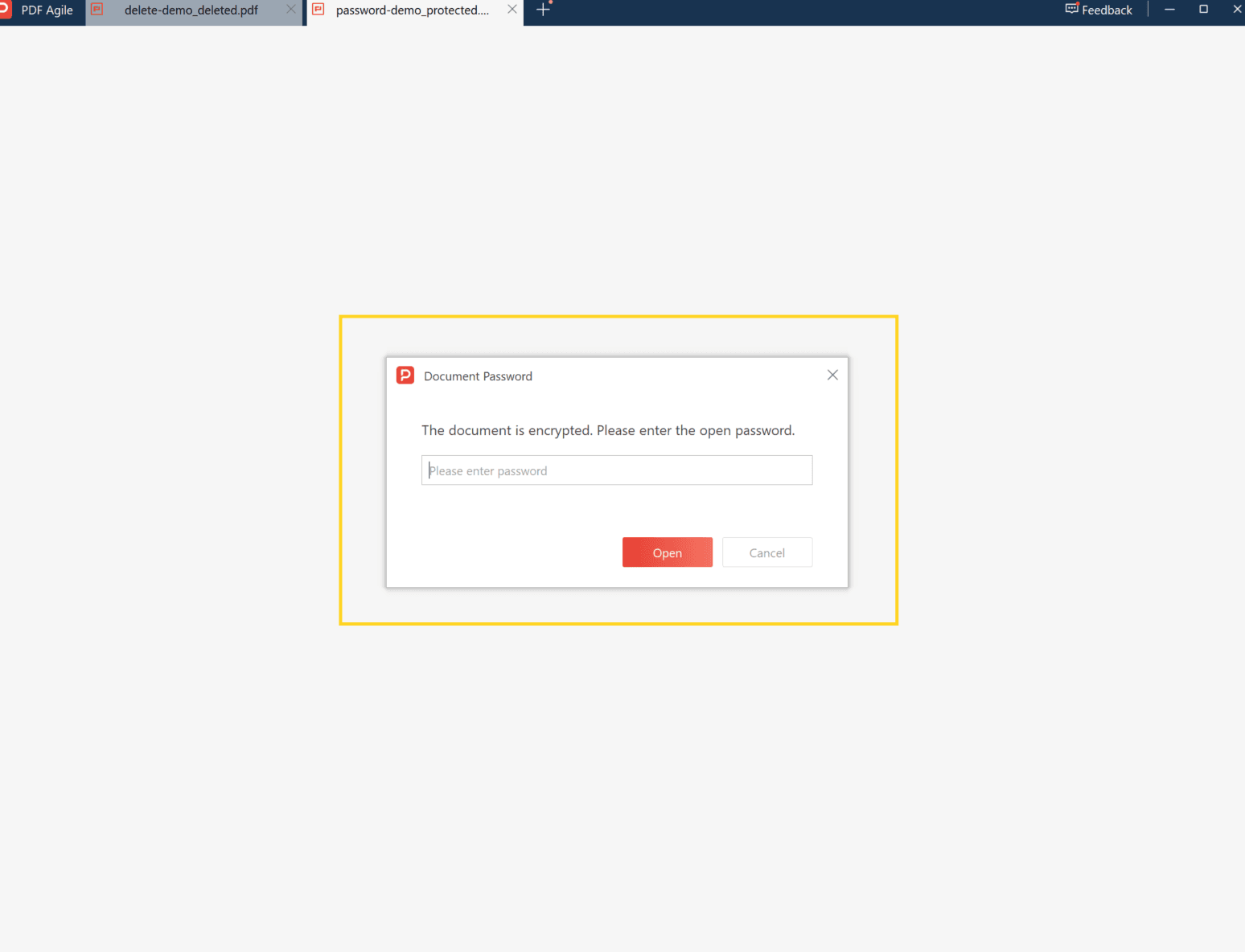
1. Close and reopen the file. It should ask for the password. If it opens straight away, the protection did not apply to the copy you downloaded.
2. Open it with the password, then try to select text. If the words highlight and copy, you have an open password only — permissions were never set.
3. Try printing to PDF. With an open password, this works once the file is open. That is the behaviour to expect, not a bug.
If the file does not open at all with the password you chose, the password was mistyped at the setting stage, and the original file is your way back.
What You Cannot Recover Once the File Is Protected
There is no recovery, and no support route. A PDF encrypted with an open password cannot be opened without it; guessing is not a viable plan for a real password.
Two habits prevent the worst of it:
- Store the password somewhere you will look again — a password manager, not a note beside the file.
- Keep the unprotected original until the recipient confirms they can open the protected copy.
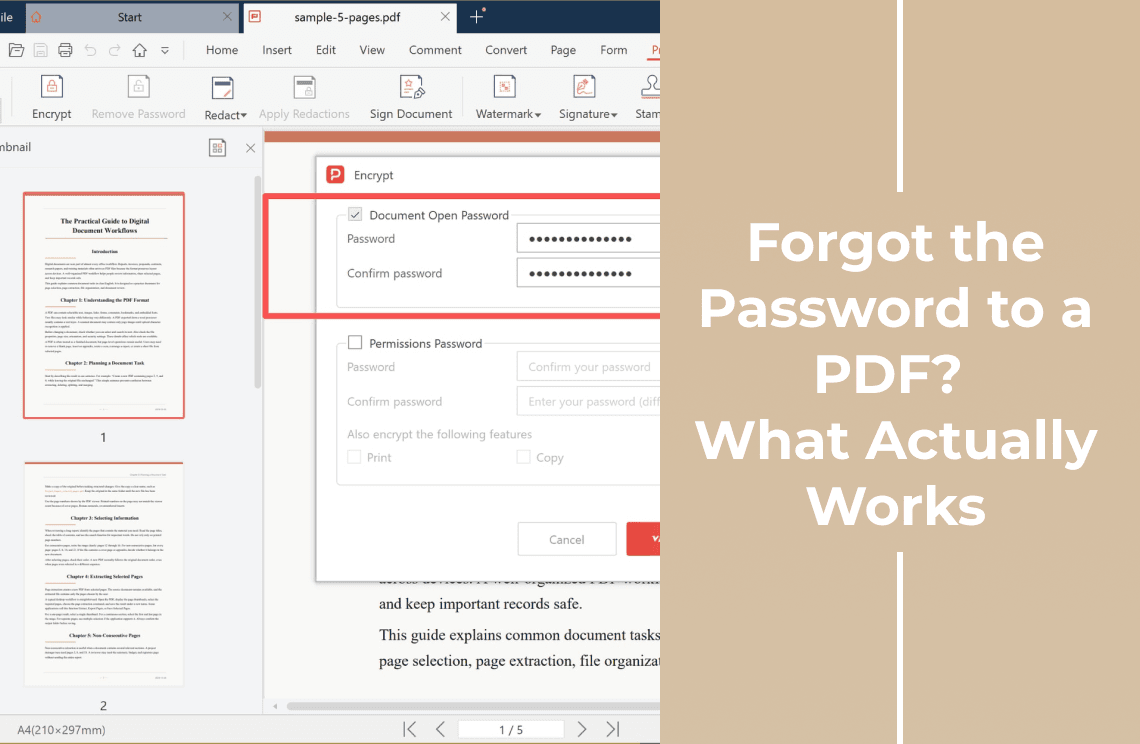
If you are the one locked out of a file someone sent you, what actually works when you have forgotten the password is the honest version of that problem.
FAQ
Is the password stored in the PDF?
Yes, in a protected form. The file will not open without the correct password; there is no backdoor in the format.
Can I add a password without uploading the file?
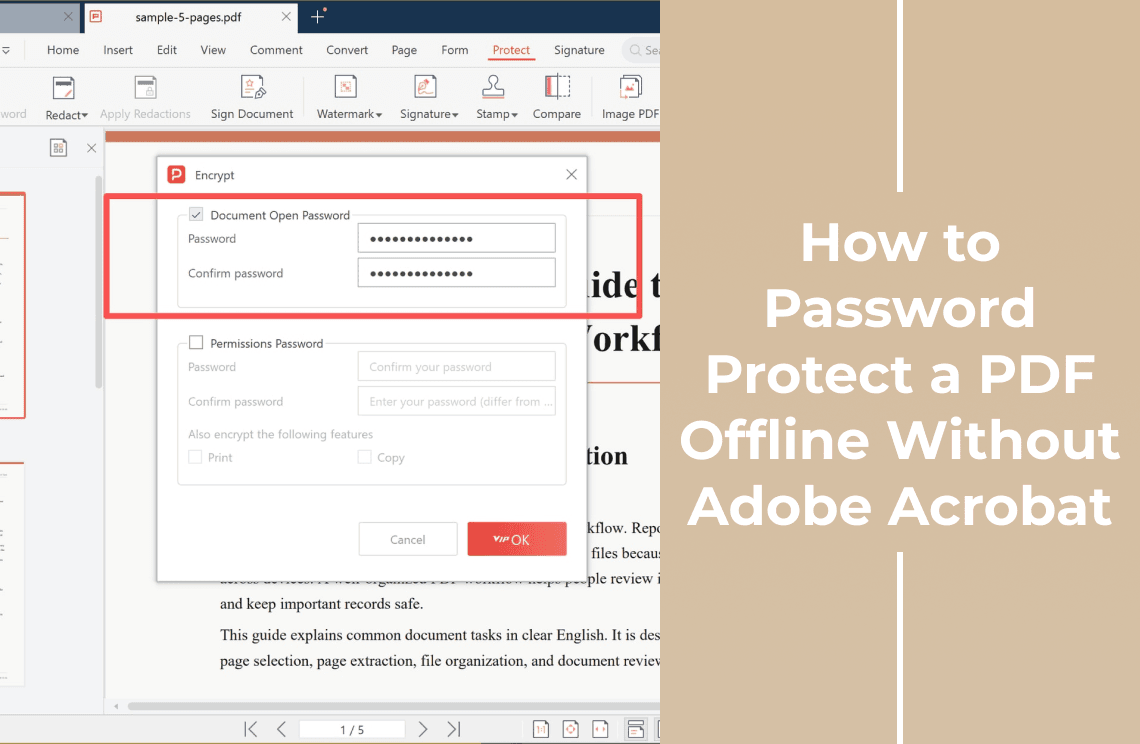
Not with the online tool — it processes the file on a server. For a contract or an ID, use a desktop editor so the file never leaves your machine, which is the offline route.
Can I remove the password later?
Only if you know it. Open the file with the password in a desktop editor and save a copy without protection.
Does a password stop someone from editing the PDF?
Not on its own. An open password protects access; editing is a permission. Use a permissions password if editing is the concern.
Does the password protect the file name too?
No. The name is visible to anyone who receives the file, so do not put the content of the document in the filename if the name matters.
Can I password-protect several PDFs at once?
Not in the browser, one file at a time. A desktop editor handles a batch.
Where to Go Next
If you need both kinds of password — one to open the file and one to restrict what can be done with it — how to password protect a PDF document covers the pair together. If the file should not be uploaded at all, the offline route keeps it on your machine.
That is the job: add the open password, then confirm what it does and does not stop before you send the file. PDF Agile sets the open password in the browser at the Protect PDF tool, and keeps permissions and desktop protection for files that should not be uploaded. More document-security walkthroughs sit in the How-to & Tips section.