

Hidden PDF Security Risks in AI Processing
How Public Cloud AI Models Can Compromise PDF Security
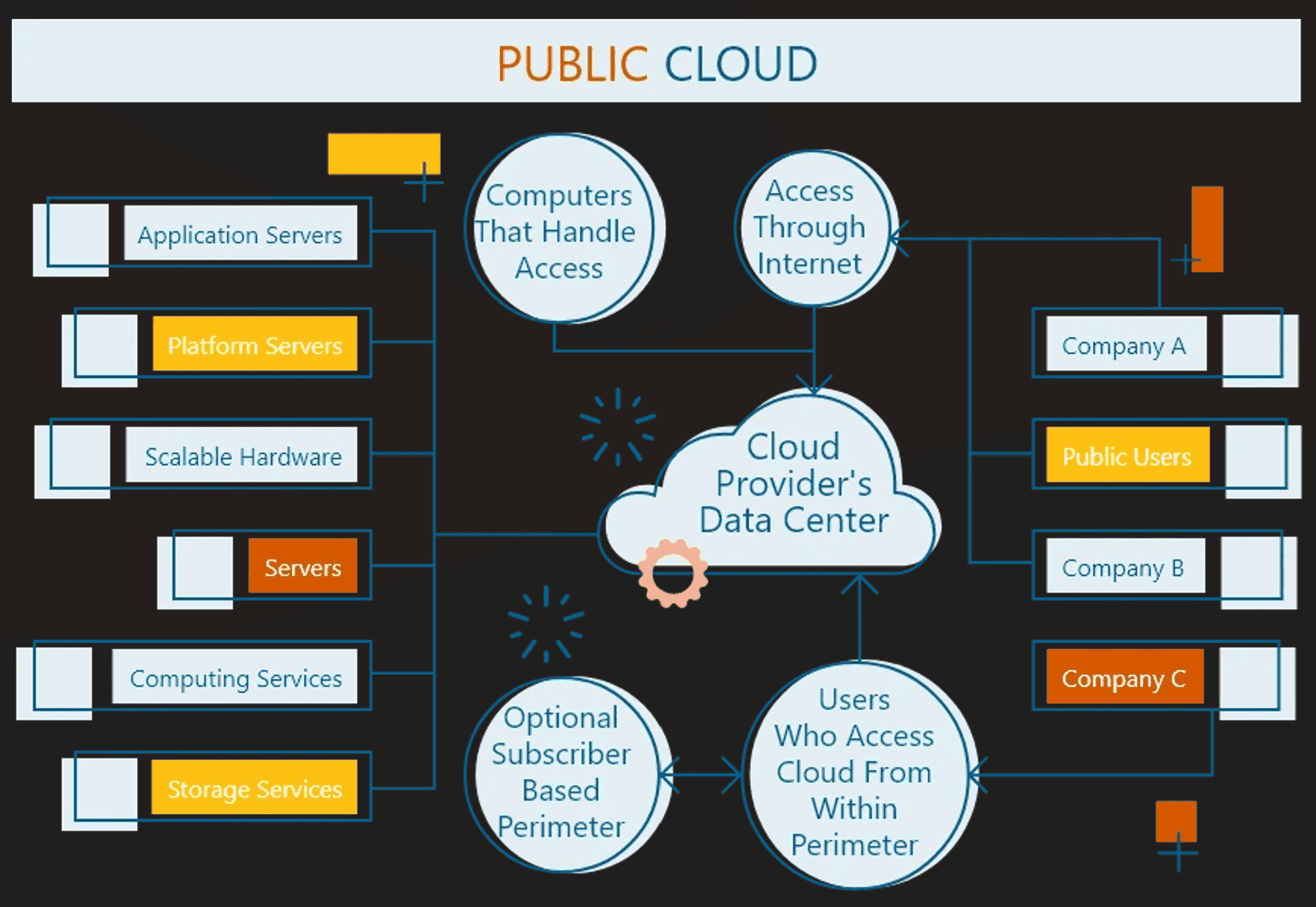
Generative AI tools such as ChatGPT, Copilot, Gemini and other PDF AI services have become a normal part of the modern digital workspace. Teams regularly paste pieces of code, confidential proposals or customer data into these models and rely on them for summarisation, translation or conversion. However, many public AI services openly state that they retain user prompts indefinitely for training purposes. Once your PDF has been absorbed into an AI model’s training data, it becomes part of the model’s knowledge base; retrieval or deletion is difficult and often impossible. The UpGuard “Shadow AI Data Leak” report explains that employees often assume these tools are private and secure, but the reality is the opposite. Data retention policies are vague, and models may store your sensitive PDFs and use them to improve their algorithms without any guarantees of anonymisation.
Hidden Leakage Through Model Memorisation
AI models do not merely generalise; they also memorise. According to Cloudflare’s training‑data security guide, “memorisation leakage” occurs when a model’s outputs reproduce parts of its training data. Such leakage can occur at several points: during training when sensitive content enters the dataset, at inference when attackers craft prompts to coax a model into revealing internal data, or even through gradient‑sharing during distributed training. GitGuardian’s analysis of GitHub Copilot showed that the model could reproduce secrets it learnt from public code repositories. When your organisation’s confidential PDF is uploaded to a cloud AI model—even an “anonymous” one—there is a risk that the model will inadvertently regurgitate parts of your document in response to someone else’s query. Anonymisation does not solve this problem because fragments of code or text can be aggregated and re‑identified.
Real Examples of PDF Security Breaches in AI Workflows
In March 2023 engineers at Samsung’s semiconductor division pasted proprietary source code and confidential meeting notes into ChatGPT to debug issues and summarise internal reports. The information entered into ChatGPT became part of the model’s data store, prompting Samsung to issue a memo banning generative AI tools and to survey staff about security concerns. Sixty‑five percent of respondents were worried about the security risks. Similar incidents at Amazon and other financial institutions have led to strict restrictions on generative AI usage. These cases illustrate how easy it is for business secrets in PDFs to leak when employees use public AI tools without safeguards.
Regulatory Risks: When PDF Data Security Is Out of Control
Beyond reputational harm and loss of competitive advantage, AI data leaks can lead to regulatory fines. The General Data Protection Regulation (GDPR) imposes strict obligations on organisations that process personal data. Article 25 requires “data protection by design and by default,” meaning that controllers must implement technical and organisational measures to ensure that by default only personal data necessary for each specific purpose are processed. It further states that personal data should not be made accessible to an indefinite number of people. The California Consumer Privacy Act (CCPA) gives consumers the right to know what personal information is collected, the right to delete it, the right to opt out of its sale or sharing and protection from discrimination for exercising those rights. When data from a PDF is fed into an external AI model, the organisation may be unable to honour deletion or opt‑out requests, exposing it to legal liability. Therefore, achieving compliance demands more than a privacy policy—it requires designing AI workflows that never send sensitive data to an uncontrolled cloud model.
How to Protect PDF Files with Local-First AI (Zero Data Upload)
Understanding Local‑first Processing
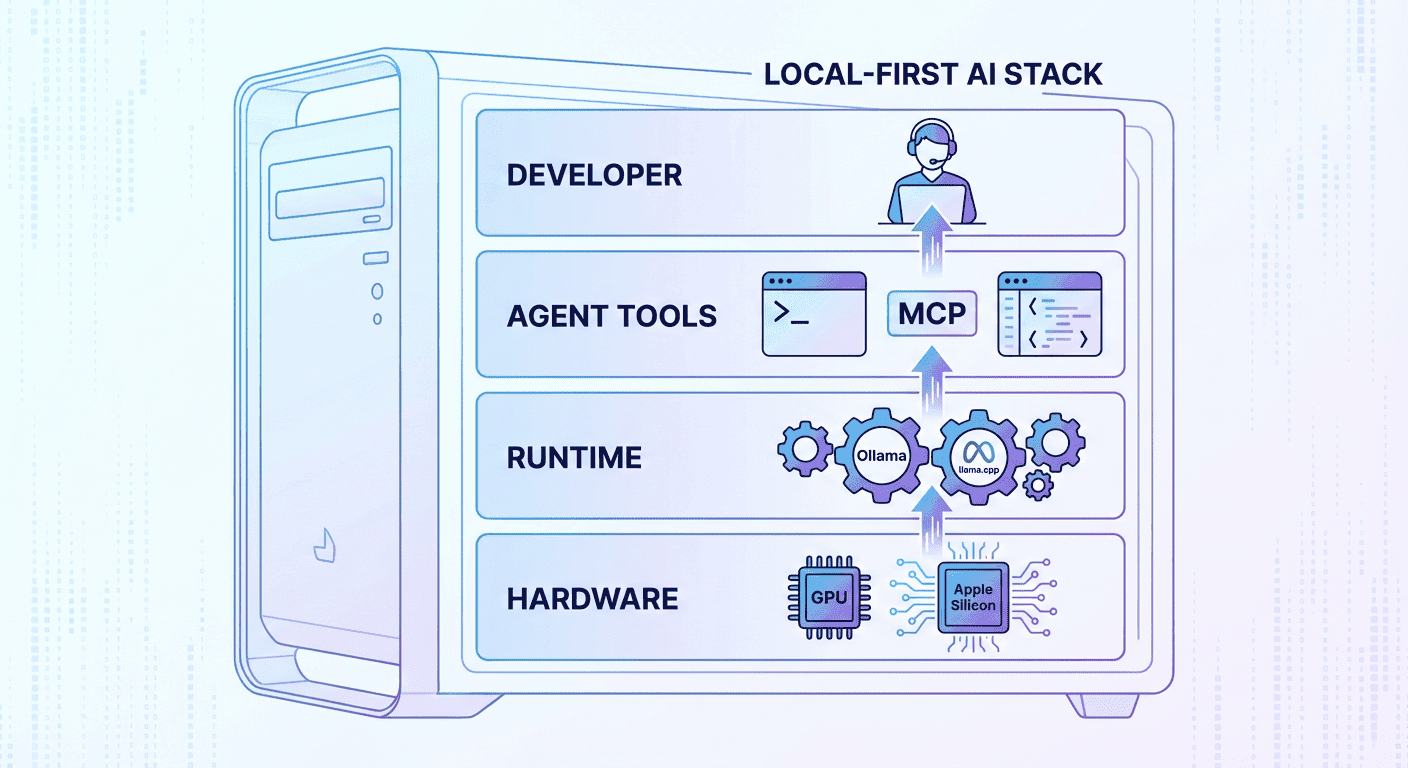
“Local‑first” software is an architectural pattern in which all processing and storage occur on the user’s device by default. Operations such as editing, OCR and conversion are executed in memory, and only the user can trigger synchronisation or sharing. A local‑first PDF editor on GitHub, Simple VaultPDF, highlights the key principles of this model: all processing happens locally with no cloud dependencies. Features include editing, reordering, merging, splitting and OCR, yet everything is executed offline. The repository emphasises privacy‑first design, noting that files never leave the device and no data is collected or transmitted. Similarly, the PDF Editor Offline project underscores that documents stay on the user’s device, no account is required and there is no forced cloud upload. It relies on a FastAPI + PyMuPDF backend and a React + TypeScript frontend to process PDFs within a local session.
Best Practices for PDF Security in AI Workflows
Implementing AI features in a PDF editor—such as summarisation, translation or conversion—often relies on machine‑learning models. Many vendors send PDFs to remote servers for analysis, but a local‑first AI PDF Maker can execute these models locally using WebAssembly or hardware acceleration. Because the models run in memory, sensitive content is never transmitted; this satisfies GDPR’s data minimisation and CCPA’s opt‑out requirements by design. The local‑first architecture also reduces latency, avoids network failures and eliminates dependence on third‑party service providers. For example, Simple VaultPDF’s features include OCR via Tesseract.js and the ability to convert PDF pages to high‑quality images or text—all without network communication. In the PDF Editor Offline project, conversion features allow exporting PDFs to Word, PowerPoint, Excel or images and importing various formats to PDFs. By integrating an AI PDF Maker or PDF to Word AI Converter into such a local‑first framework, developers can deliver powerful AI capabilities while ensuring that documents and derived embeddings never leave the machine.
How to Achieve Zero‑byte Cloud Footprints
To achieve “zero bytes uploaded,” a local‑first PDF AI system must abide by several core design principles:
In‑browser processing: Use WebAssembly or native libraries compiled to run in the browser so that algorithms operate within the client’s environment. The GitHub projects we cited implement OCR and PDF manipulation using Tesseract.js and PyMuPDF.
No external API calls by default: The application must not request external endpoints to perform AI tasks or analytics. All logs and processing occur locally, aligning with GDPR Article 25’s requirement to limit the amount and accessibility of personal data.
Optional sync via encryption: When synchronisation or cloud backup is required, the system must encrypt files on the client before transfer and only send encrypted bytes. Keys remain under the user’s control. Without the key, the cloud provider cannot access document contents, satisfying CCPA’s right to delete and right to opt‑out.
Open‑source transparency: Open‑source code allows organisations to audit the implementation and verify that no hidden network calls or telemetry exist. Simple VaultPDF and PDF Editor Offline are released under permissive licences and emphasise transparency.
Together, these principles ensure that not a single byte of your PDF leaves the local environment unless you explicitly decide to share it.
PDF Security Compliance: GDPR & CCPA Best Practices
Data Minimisation and Privacy by Design (GDPR)
The GDPR requires controllers to implement appropriate technical and organisational measures so that, by default, only personal data necessary for each specific purpose are processed. When using PDF Agile—our hypothetical local‑first AI PDF tool—you can meet this requirement by:
Processing documents offline: Because PDF Agile runs AI models locally, personal data stays within the user’s device. There is no default transmission to external servers, ensuring that only the data you deliberately use is processed. This aligns with the GDPR’s demand that personal data not be accessible to an indefinite number of people.
Explicit consent for analytics: If you choose to enable optional cloud synchronisation or usage analytics, the tool should request clear consent and explain what data will be transmitted. Users can refuse to share data, satisfying the requirement to process only necessary personal data.
Data retention controls: PDF Agile should provide local logs of AI interactions and allow users to delete or export those logs. Since the data never goes to the vendor’s servers by default, deletion is immediate and verifiable.
California Consumer Privacy Act (CCPA)
The CCPA grants consumers the right to know what personal information is collected about them, to delete personal information, to opt out of its sale or sharing and to avoid discrimination for exercising these rights. PDF Agile helps organisations comply with these requirements by:
Transparent data handling: When used locally, PDF Agile collects no personal data, so there is nothing to sell or share. If optional cloud features are enabled, the tool must provide a clear privacy notice listing the categories of data collected and the purposes of collection.
Deletion on request: Because AI processing occurs locally, deletion requests can be honoured immediately. If documents are synchronised to encrypted cloud storage, the user controls the encryption keys; deleting the key effectively deletes the data, aligning with the right to delete.
Opt‑out of data sharing: The default architecture already prevents data sharing. The only data transmitted—encrypted backups—occurs if the user opts in. This satisfies the right to opt out.
Handling Sensitive Categories of Data
GDPR Article 9 covers special categories of data (e.g., health information, political opinions), while CCPA emphasises protection for categories such as Social Security numbers and financial data. To handle these data types securely in AI workflows:
Local redaction: Use local AI redaction tools to detect and permanently remove sensitive data before sharing or analysis. The VeryPDF redaction tool demonstrates that offline processing can detect and remove sensitive information without exposing it to external servers. Steps include scanning the PDF for sensitive tokens, reviewing flagged sections and applying permanent redactions. This ensures that sensitive data never enters the AI model and thus cannot be leaked or inferred.
Tokenisation: When summarisation or translation requires context, replace sensitive values with tokens ([NAME_1], [EMAIL_1], etc.) as recommended by privacy‑preserving tools. The PrivacyScrubber guide shows that deterministic tokens allow the system to provide meaningful output while preserving anonymity. Once processing is complete, tokens can be substituted back into the document locally.
Least privilege access: Limit who can run AI analyses on PDFs. Even within an organisation, restrict AI features to authorised personnel and maintain audit logs.
How to Secure PDF Files with Offline AI Encryption Mode
The offline AI encryption mode in PDF Agile provides three steps to ensure that AI processing occurs locally and that outputs are encrypted before leaving your device. This mode is inspired by privacy‑first tools like VeryPDF Smart Redact and local‑first architectures on GitHub.

Step 1 – Enable Offline Mode and Verify Zero Network Activity
Disconnect or restrict network: Use your operating system’s firewall or PDF Agile’s built‑in “Airplane Mode” to block network connections. This ensures that AI models cannot call external APIs. The VeryPDF redaction guide emphasises that offline processing keeps files entirely within your network.
Verify offline status: PDF Agile should display an indicator confirming that offline mode is active. You can test by temporarily disabling the firewall; the indicator should change if any network call is attempted. In a local‑first architecture, no outbound packets should be observed.
Step 2 – Perform AI Tasks Locally
Load AI models into memory: PDF Agile bundles AI models for summarisation, translation and conversion; they load into memory from local storage when offline mode is active. The absence of external calls ensures compliance with data minimisation requirements.
Run AI functions on your document: Use the AI PDF Maker to generate a summary or to convert a PDF to Word. Because the PDF to Word AI Converter operates entirely on your device, the conversion is fast and private. Local OCR uses Tesseract.js similar to Simple VaultPDF.
Optionally apply redaction: If your document contains sensitive information, run a local AI redaction. The VeryPDF guide demonstrates a simple workflow—load the PDF, let the AI flag sensitive data, review and apply redactions. Removing sensitive data before conversion or summarisation prevents accidental disclosure.
Step 3 – Encrypt and Export
Encrypt your output: After processing, encrypt the resulting PDF or Word file using industry‑standard encryption (e.g., AES‑256). Many local tools allow you to set a password or export to encrypted ZIP. This aligns with the VeryPDF recommendation to permanently remove confidential information and prevent third‑party exposure.
Store encryption keys locally: Keep the encryption keys on your device or in a secure password manager. Avoid storing them with the encrypted file; this ensures that even if someone gains access to the file, they cannot decrypt it. This practice meets CCPA’s requirement to protect against unauthorised sharing and aligns with GDPR’s data minimisation.
Additional Operational Tips
Audit and logs: Enable audit logging to record who accesses PDF Agile and what actions they perform. Keep logs locally and use them for compliance reporting.
Regular updates: Keep your local AI models and encryption libraries up to date. Vulnerabilities in outdated software can undermine privacy even when processing is local.
Employee training: Train staff on safe AI usage. UpGuard stresses that employee awareness reduces inadvertent errors.
Conclusion
Artificial intelligence offers powerful tools for organizing PDFs—summarising reports, converting documents and extracting data. Yet the convenience of cloud AI comes with significant hidden risks: data retention and model memorisation may lead to leakage of sensitive information. Real‑world incidents, such as Samsung’s ChatGPT leak, show that even large enterprises can inadvertently expose proprietary code. Regulatory frameworks like GDPR and CCPA require privacy by design, data minimisation and the ability for users to know, delete and opt out.
A local‑first AI PDF solution like PDF Agile addresses these challenges by ensuring that all processing occurs on the user’s device. GitHub projects such as Simple VaultPDF and PDF Editor Offline demonstrate that comprehensive PDF editing and AI features are feasible without any cloud interaction. Implementing local‑first architecture, tokenisation, offline redaction and encrypted export enables organisations to harness AI’s benefits while maintaining compliance and protecting trade secrets. The three‑step offline AI encryption mode provides a practical operational guide for secure PDF workflows. By adopting these practices, companies can confidently integrate AI into their document processing pipeline without sacrificing privacy or exposing their digital workspace to unseen risks.