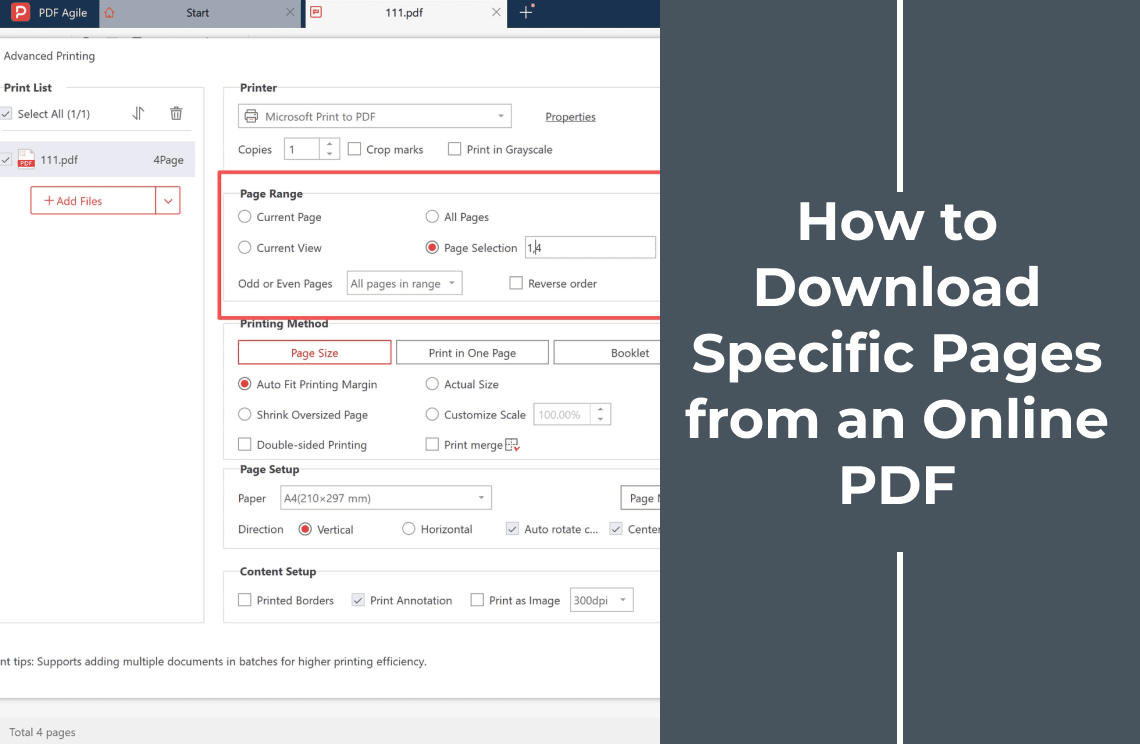
An online PDF opens in the browser viewer as one document, and its download button hands you that document in full. A PDF download has no point at which you can tick page 4 and skip the rest. To download specific pages from an online PDF, save the complete file first, then write a shorter PDF from the pages you selected.
This guide focuses on online PDFs that arrive as complete files: you save the original, then create a separate file with only the pages you need, and the source document is never edited. A consecutive run is enough for the browser's own print dialog. Scattered pages, such as 1 and 4 out of 4, are better typed into a desktop editor's print window, which previews the selection before anything is written.
Can You Download Only Certain Pages from an Online PDF?
Not in one step, and the reason is structural. A download copies the file the server is serving, whole. Page-level choice happens one step later, when a print command renders the pages you name into a new document, or when a page tool copies those pages out of the file.
That gap explains three things people find surprising:
- The downloaded file is the original, unmodified, with every page in it.
- The file you keep is a new PDF with its own page count, so its page 2 can be page 4 of the original.
- The download is only the input; the deliverable comes from the step after it.
The new file is a rendering of the pages rather than a slice of the original, so anything interactive can change on the way through, and a scanned page stays a picture.
Method 1 — Download the Original PDF First
Step 1: Open the Online PDF and Note the Pages You Need
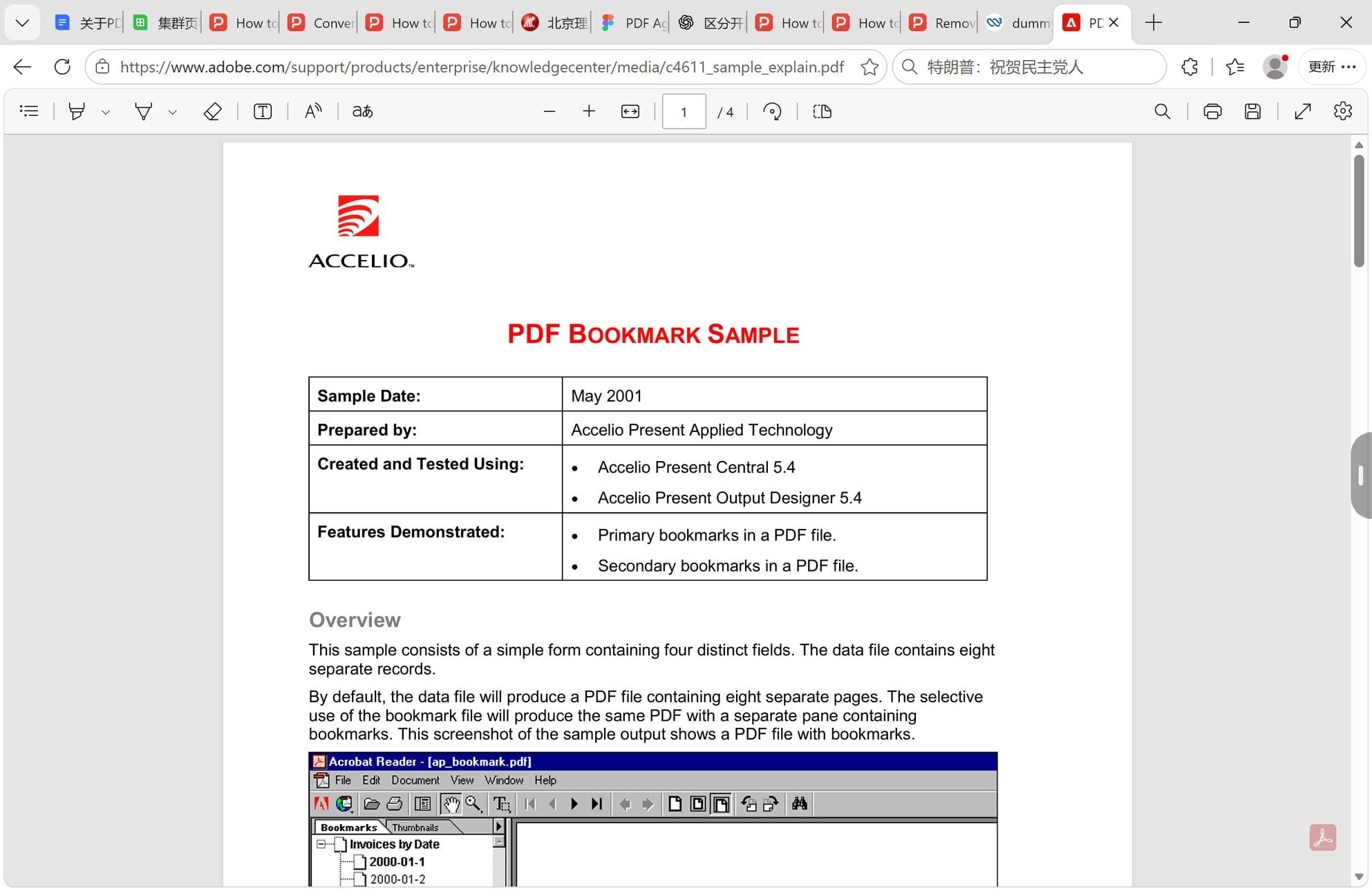
Open the file in the viewer and read the page counter in its toolbar: 1 / 4 in the screenshot, so four pages, and the pages needed here are the first and the fourth. Write those numbers down in the order you want them, because the number printed at the foot of a page is not always the viewer's number. A cover sheet or roman-numeral front matter shifts the count.
Step 2: Download the Complete File
Click the download icon in the viewer toolbar. The browser opens a save dialog and the file lands in your Downloads folder. At this stage you are downloading the complete PDF, not the selected-pages file. The dialog follows your Windows display language, so its buttons may not be in English, and the file name field sits in the same place either way.
If the viewer offers no download and no print option at all, the document's permissions are set against you. A permissions password can block printing outright, and no print setting overrides it. Ask the document's owner rather than working around the lock.
Method 2 — Save Only the Pages You Need as a New PDF
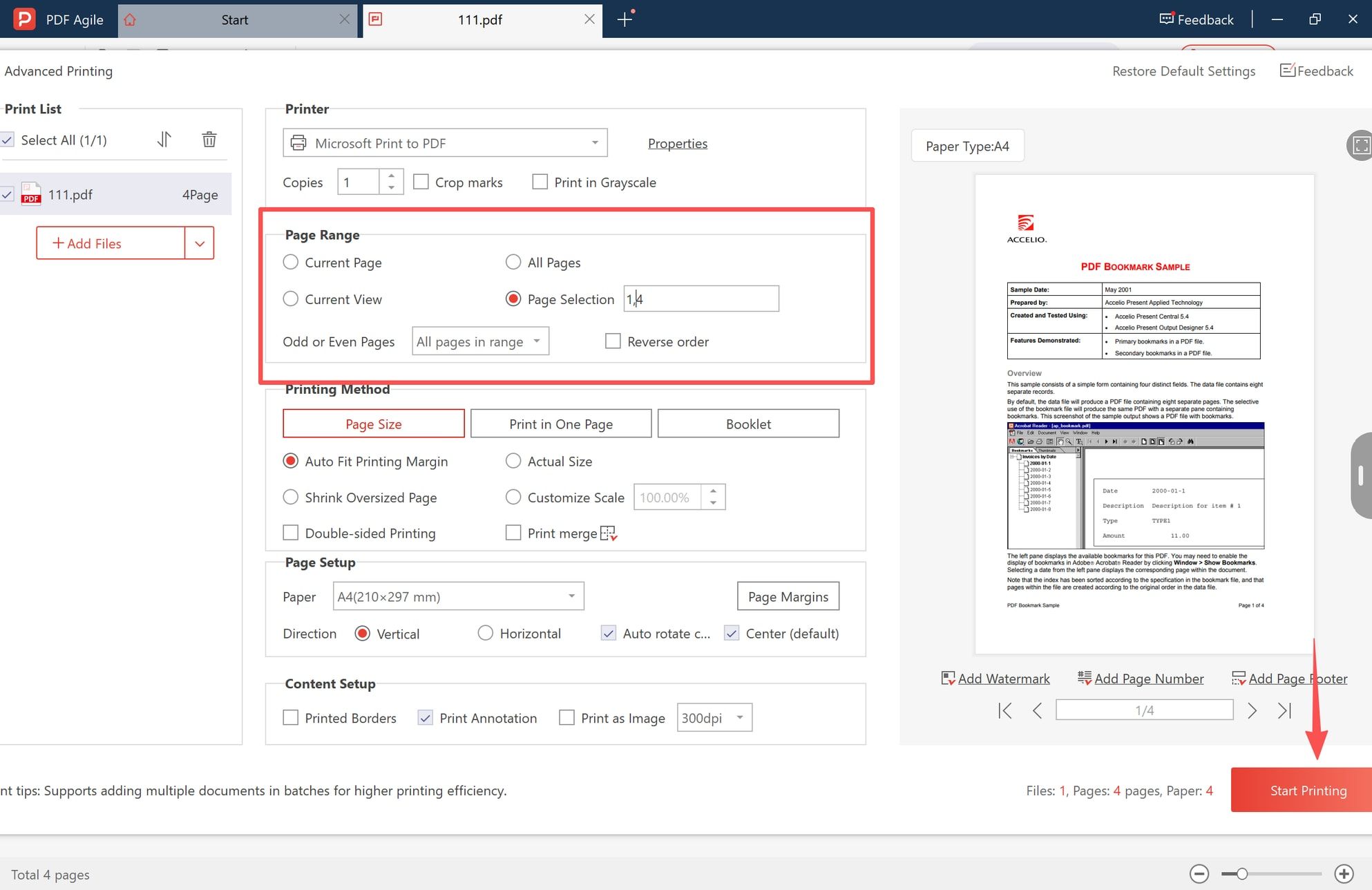
The browser can print a page range but previews nothing. The route below uses PDF Agile on Windows, where the page list, the printer and a preview sit in one window, which makes a selection like 1,4 easy to confirm before the file is written.
Step 3: Open the Downloaded PDF in the Page View
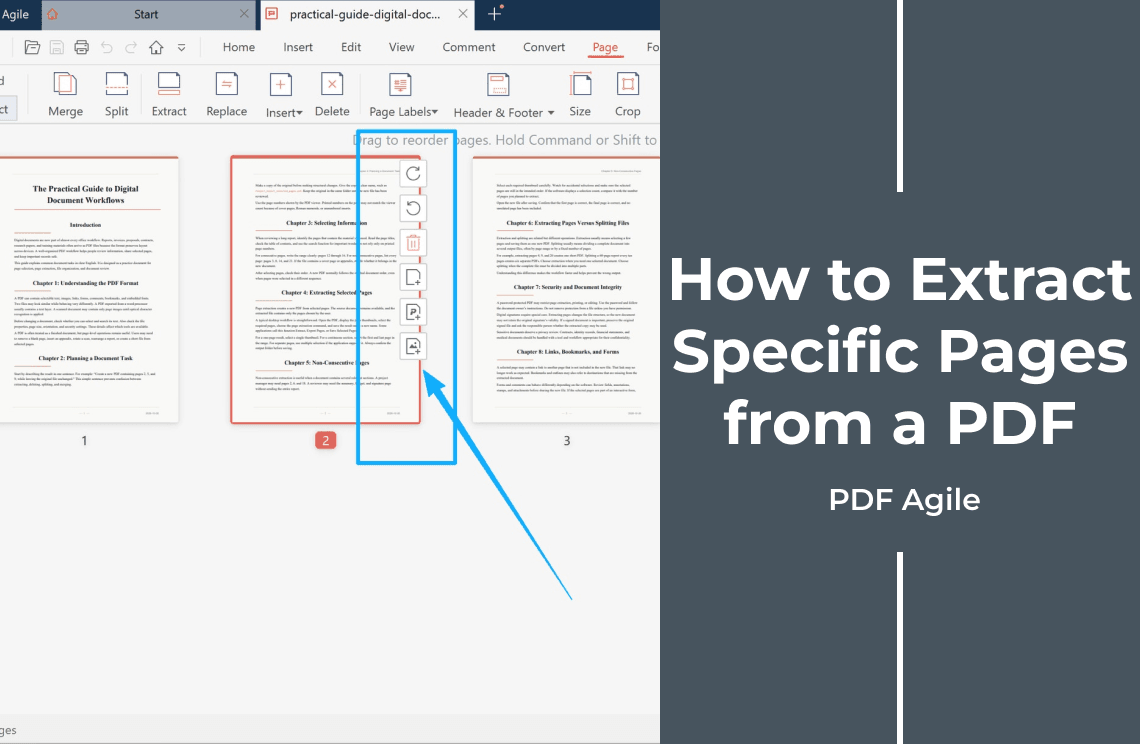
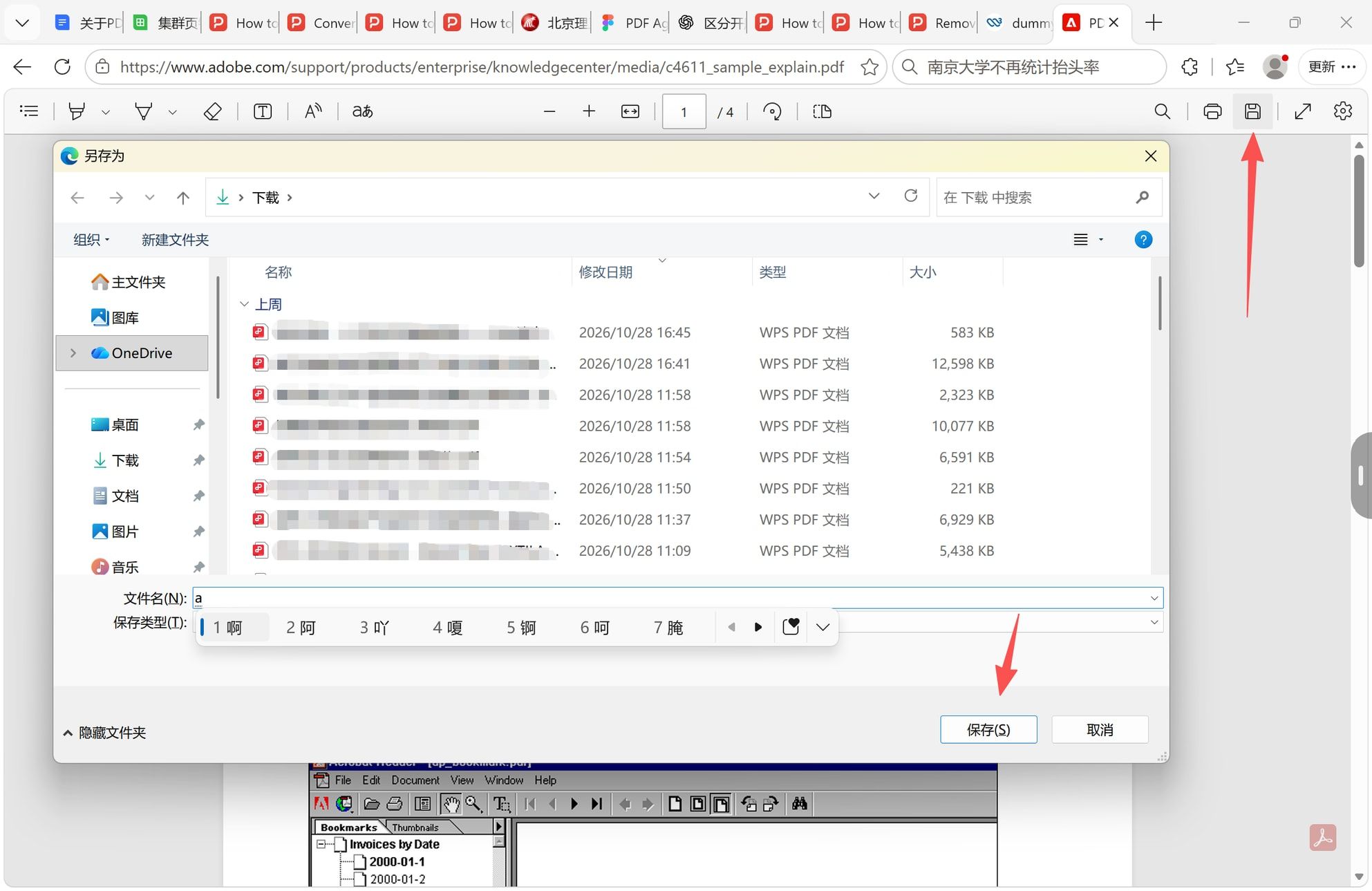
Open the saved file and switch to the page thumbnail view. The status bar reports the total page count, four here, matching the counter you read in the browser, and the toolbar reports how many pages are selected.
Step 4: Type the Page List in the Print Window
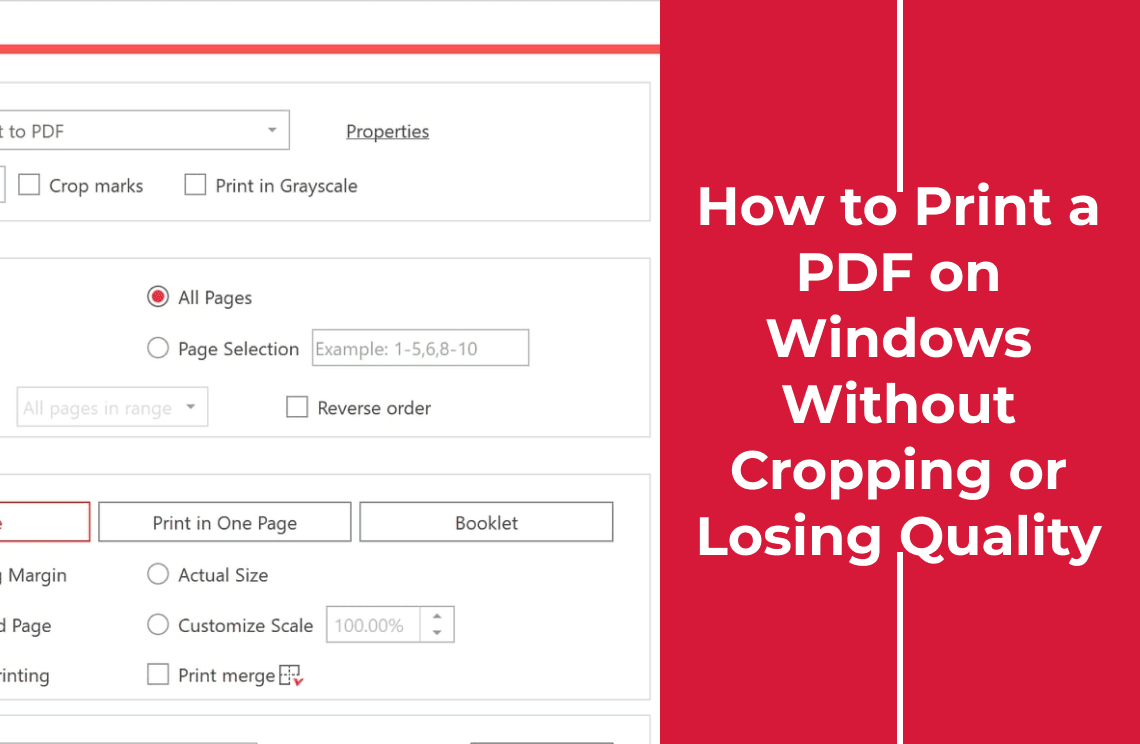
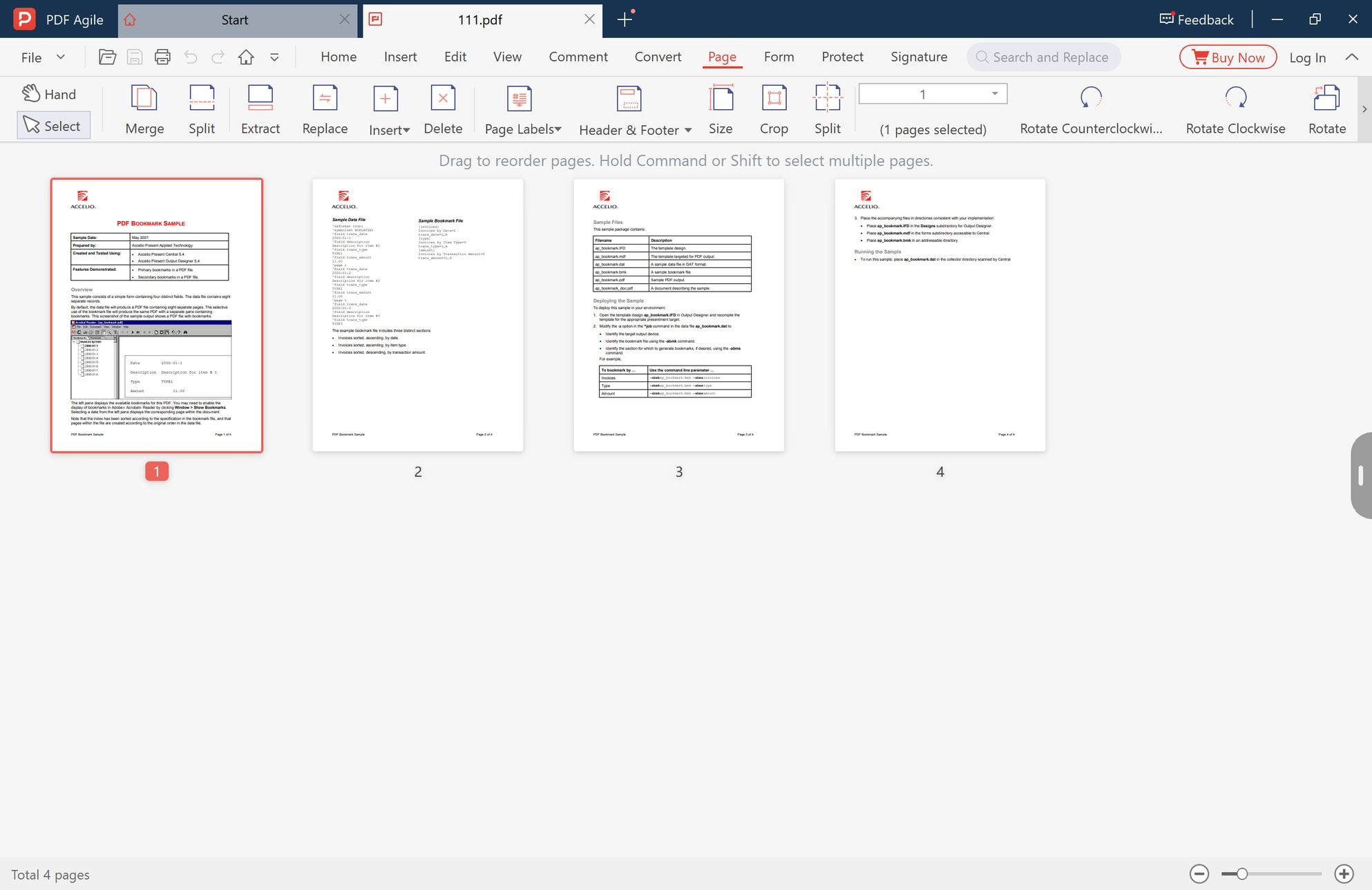
Open File > Print, press Ctrl+P, or use the Print button on the Home tab. The editor opens its own print window, titled Advanced Printing, rather than the Windows system dialog.
Set the printer to Microsoft Print to PDF, which is built into Windows and writes a file instead of using paper. Under Page Range, choose Page Selection and type the pages you need as a comma-separated list. Entering 1,4 keeps the first and fourth pages and drops the two between them, and a consecutive run is entered the same way. Press Start Printing, then name the output so it cannot be mistaken for the original, such as brochure-pages-1-4.pdf.
Step 5: Check the New File Before You Send It
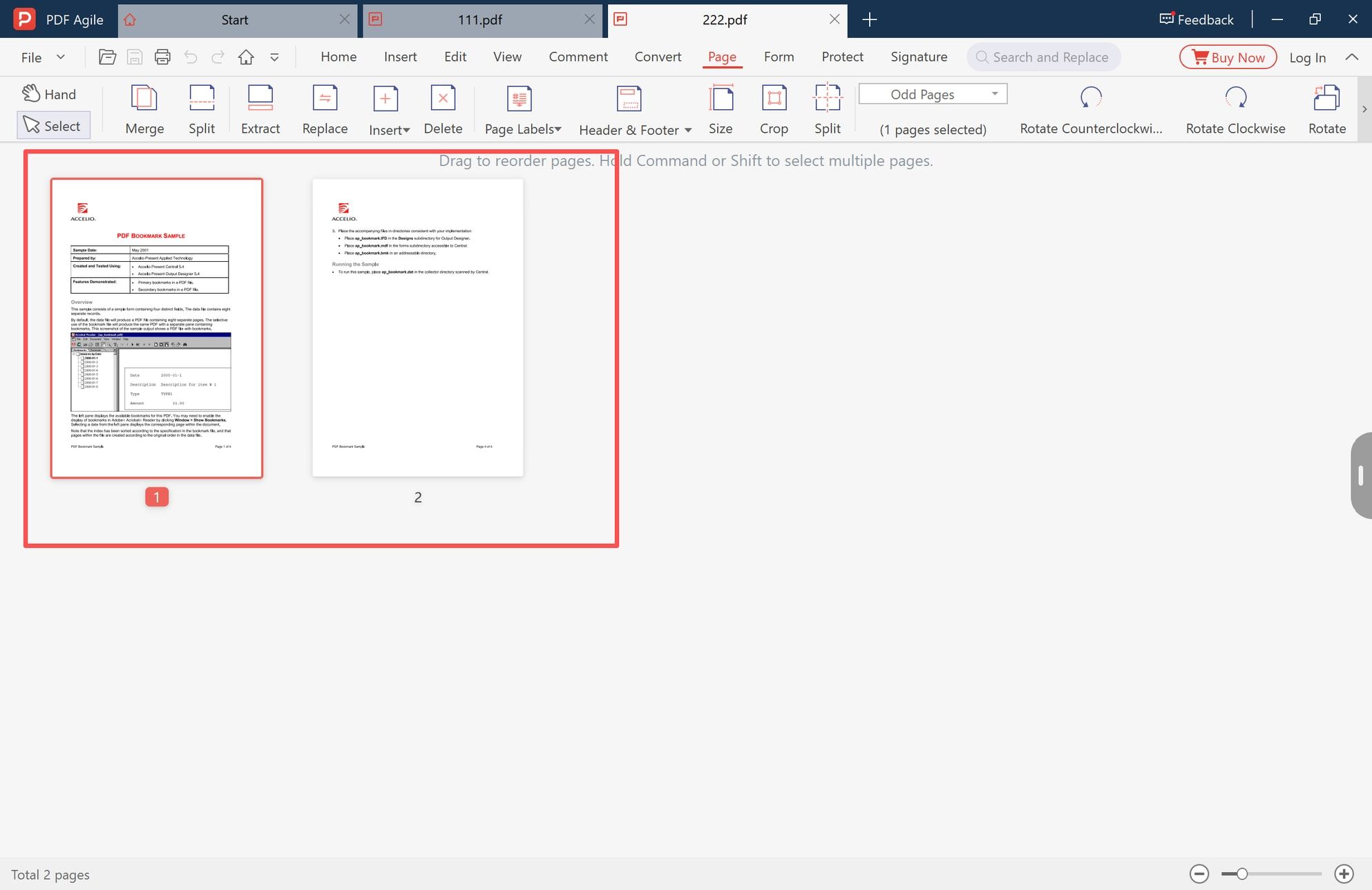
Open the new PDF and read the page counter: two pages, and the second one is the page that was fourth in the original. Turn through both pages instead of trusting the first thumbnail, because a correct-looking first page followed by pages that should not be there is the common failure in this workflow.
Interactive content is where a printed copy separates from the original. Compare the two files on what your reader will actually use: links, form fields, comments, and the signature panel if the document was signed.
What Changes When the Pages Are Printed, Not Copied
Printing draws each page again onto a new page. That is why the result is clean and self-contained, and also why some things do not survive the trip:
- Internal links and bookmarks. A link to page 18 has no target in a two-page document.
- Form fields and comments. Typed text can arrive as drawn characters rather than a clickable field, and a markup may be flattened onto the page instead of staying a comment; Print Annotation is the switch.
- Digital signatures. A printed copy is a new file and is not covered by the original signature, so keep the signed original as the record.
- Printed page numbers. They travel with the page, so the new page 1 may still read 1/4; both numbers are correct in their own context.
- Text. With Print as Image switched off, words stay real text and can be searched and copied; switching it on sends each page as a bitmap.
None of this is a reason to avoid the print route. It is a reason to look at the result before you forward it.
When the Browser Alone Is Enough
For a short consecutive run, with nothing installed, the browser is enough: open the PDF, press Ctrl+P, set the destination to Save as PDF, and put the page numbers in the Pages field. Chrome, Edge and Firefox all accept a comma-separated list and a hyphenated range there.
The trade-offs are the ones above, plus two more: the browser prints the pages as the viewer renders them, and it shows no page-level preview. Fine for two pages out of a public brochure, not for a signed contract.
If the pages are scattered and you still want to stay in the browser, a page tool that takes the file is the alternative: split a PDF online by page range and download the result.
When You Should Extract Instead
If the recipient needs the page content as it is, with links that work and fields that accept typing, print is the wrong tool. An Extract command copies the selected pages out of the original structure instead of drawing them again. How to extract specific pages from a PDF walks through that command and what still breaks when a document is rebuilt.
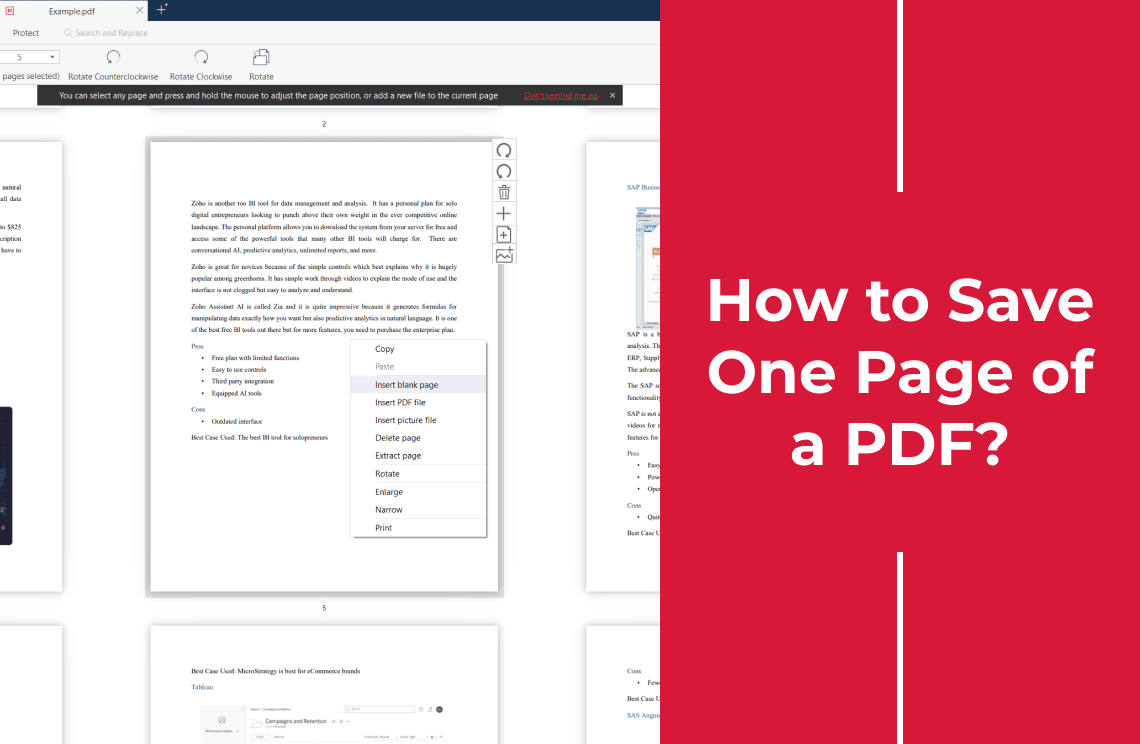
Print when the printed appearance is what matters. Extract when the file's behaviour matters. If the job is one page out of a long report, saving one page of a PDF collects the single-page shortcuts for browsers and macOS.
What to Check After You Save the Selected Pages
Run this list on the new file, not on the original:
- Does it hold exactly the pages you listed, in the order you listed them?
- Is the page count the one you expected, and does the last page look like the last page you picked?
- Are images, tables and stamps intact, or cut off at the page edge?
- Is the text still selectable and searchable, or has it become a picture?
- Do the links the reader needs still open something?
- Are comments and form fields still usable, and is a signature still valid?
- Does the file open correctly in a different reader or on a phone?
FAQ
Can I download only page 4 from an online PDF?
Not in one step. Save the complete file, then print page 4 to a new PDF or extract it. The result is a one-page PDF and the original stays whole.
Why does the browser download the whole PDF?
Because a download copies the file the server sends. Page-level choice is not part of the transfer; it happens afterward, in a print command or a page tool.
Can I select non-consecutive pages?
Yes. Type them as a list, such as 1,4 or 1,4,9, in the Page Selection field, or select the thumbnails and run Extract instead.
Will the original PDF change?
No. Both routes write a new file. Nothing is deleted from the file you downloaded, and the copy on the website is untouched.
What if the PDF does not allow printing?
Do not work around the permission. Ask the publisher for a copy you may print or split, or for the pages you need.
Does this work on a scanned PDF?
The pages can be selected the same way, but the result is still an image: the text stays unsearchable until OCR adds a text layer.
PDF Agile for Windows keeps the page list, the printer and a preview in one print window, so a scattered selection can be typed and checked before the file is saved. The same window holds the paper size and scale settings that decide whether a printed page arrives whole; how to print a PDF without cropping or losing quality covers those, and the rest of the How-to & Tips library groups page work by task.
The steps above were checked against the desktop app's Advanced Printing window and the four-page sample PDF used in the screenshots. Interface labels reflect the Windows version in use and may change in later releases. Adobe, Acrobat, Chrome, Edge and Windows are trademarks of their respective owners. This guide was written by the team behind the desktop app used in steps 3 to 5.