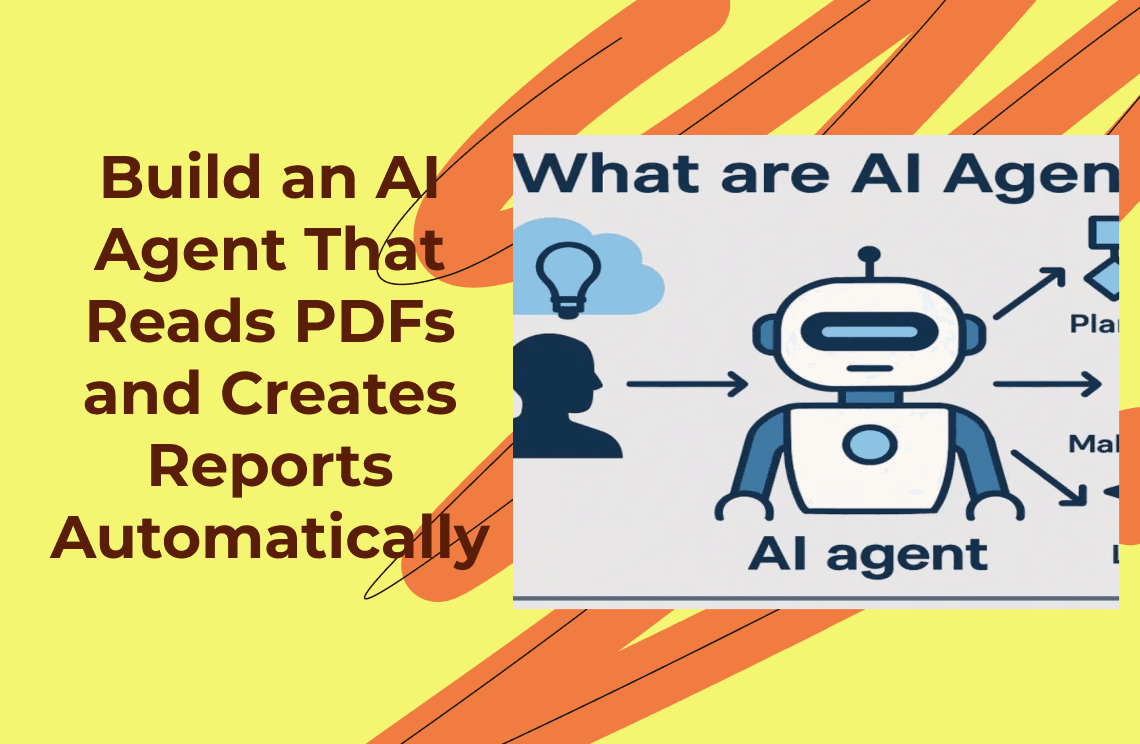
PDFs are one of the most common file formats in professional work, but they are also one of the most annoying to process manually. A PDF can be a contract, invoice, research paper, audit report, user manual, technical specification, financial statement, resume batch, inspection record, or internal policy document. It may contain clean digital text, scanned pages, tables, images, signatures, handwritten notes, or a mix of all of them.
That is why “PDF automation” has become one of the most practical use cases for AI agents. The goal is not just to upload a PDF and ask, “What is this about?” That is useful, but limited. The bigger opportunity is to build an AI agent that can receive a PDF, understand whether OCR is needed, extract the right information, summarize the content, generate a structured report, and send that report to the right place.
In other words, the real value is not “chat with a PDF.” The real value is turning PDF documents into finished work.
This article explains how to build an AI agent that reads PDFs and creates reports automatically. The workflow is simple:
Input PDF → OCR → Summary → Report Output
But under that simple flow, there are several important design decisions: how to handle scanned PDFs, how to structure prompts, how to avoid unreliable summaries, how to generate useful reports, and how to connect the agent with real tools. At the end, we will also look at how an EasyClaw-style workflow can make this process more practical for everyday users who want PDF automation without manually connecting every system.
Why PDF Automation Is a Perfect AI Agent Use Case
Many AI use cases sound impressive in demos but fall apart in real work because they are too vague. “Use AI to improve productivity” is not a workflow. “Use AI to analyze documents” is closer, but still broad. “Build an AI agent that reads incoming PDFs, extracts key information, and creates a report every day” is specific enough to be useful.
PDF automation works well because the task is repetitive, high-volume, and usually follows a predictable structure. A human receives a file, opens it, reads it, extracts important content, rewrites it into a report, and shares it with someone else. The exact PDF changes, but the process remains similar.
This is exactly the kind of task where an AI agent makes more sense than a simple chatbot. IBM defines an AI agent as a system that can autonomously perform tasks by designing workflows with available tools, and notes that agents can go beyond natural language generation to make decisions, solve problems, interact with external environments, and perform actions.
That definition matters. A PDF chatbot answers questions. A PDF agent handles a process.
For example, a chatbot can answer:
“Summarize this PDF.”
An agent can do more:
“Check this folder every morning. When a new PDF appears, run OCR if needed, extract the key information, create a report, save it as a Word or PDF file, and send a summary to Slack.”
That second version is much closer to how work actually happens.
The Difference Between a PDF Assistant and a PDF Agent
Before building anything, it helps to separate three product types that often get mixed together.
A PDF reader assistant helps users understand a PDF. It can summarize pages, answer questions, explain sections, and sometimes provide citations.
A PDF extraction tool pulls structured information from documents. It may extract invoice numbers, contract dates, product names, tables, or compliance fields.
A PDF agent combines reading, extraction, reasoning, and action. It can decide whether OCR is needed, call the right tool, generate the right report format, and pass the output to another system.
The agent layer is important because most PDF work does not end with understanding. After a PDF is read, someone usually needs a report, an email, a tracker update, a compliance note, a contract summary, a project brief, or a follow-up task.
A useful PDF agent should not only answer “What does the document say?” It should also help answer “What should happen next?”
That is the shift from document intelligence to document operations.
Step 1: Input the PDF
The first step is PDF intake. This sounds basic, but it shapes the whole workflow.
The agent needs to know where PDFs come from. They may be uploaded manually, dropped into a folder, received through email, downloaded from a portal, pulled from a CRM, collected from a form, or sent through a chat app.
For a simple prototype, manual upload is enough. A user uploads a PDF, and the agent processes it. For a real workflow, the intake source should be automated. For example, a company might create a folder called “Incoming Reports.” Every PDF placed in that folder becomes a trigger for the agent.
At intake, the agent should record basic metadata:
Document name
Upload time
File size
Source
Document type
User or department
Processing status
Output destination
This metadata helps later. If the report fails, someone can trace what happened. If the file needs to be reprocessed, the agent knows where it came from. If the output is used in a business workflow, the report can include the document name and date.
For API-based workflows, modern AI systems can accept files directly as inputs. OpenAI’s file input documentation says PDF files can be passed as input files, and that models with vision capabilities can extract both text and page images from PDFs. This is useful because many PDFs are not just plain text files; they may include visual layout, tables, scanned pages, charts, and embedded images.
Still, accepting a PDF is not the same as understanding it perfectly. The intake step should not assume that every PDF is clean. The agent should inspect the document first.
Step 2: Detect Whether OCR Is Needed
OCR stands for optical character recognition. It is the process of turning images of text into machine-readable text.
Some PDFs already contain selectable text. These are usually easier to process. Other PDFs are scanned documents, meaning each page is essentially an image. If you cannot select or copy the text in the PDF, OCR is probably needed.
This distinction matters because an AI model cannot reliably summarize text it cannot access. If the PDF is scanned and no OCR is performed, the agent may miss important content or produce a weak report.
A good PDF automation workflow should classify each file into one of three categories:
Text-based PDF: The document already contains extractable text.
Scanned PDF: The document is mostly page images and requires OCR.
Mixed PDF: Some pages contain text, while others contain scanned images, tables, screenshots, or attachments.
For scanned or mixed PDFs, the agent should run OCR before summarization. Tesseract is one common open-source OCR engine. Its official repository says it supports Unicode, can recognize more than 100 languages out of the box, supports image formats such as PNG, JPEG, and TIFF, and can output plain text, searchable PDFs, TSV, hOCR, ALTO, and other formats. It also notes that OCR quality often depends on improving the input image quality.
That final point is important. OCR is not magic. A blurry scan, tilted page, low-resolution image, dark background, small font, or complex table can reduce accuracy. A serious PDF agent should not hide that uncertainty.
The report should include a note such as:
“OCR was applied to pages 3–12. Confidence may be lower on pages with small tables and handwritten notes.”
That makes the output more trustworthy.
Step 3: Extract the Raw Text
After the agent determines whether OCR is needed, it extracts raw text.
This step should be boring, but it is one of the most important parts of the workflow. Bad extraction creates bad summaries. Bad summaries create bad reports. A polished AI-generated report based on incomplete extraction is worse than no automation at all because it gives users false confidence.
The agent should preserve useful structure where possible:
Page numbers
Headings
Paragraph breaks
Tables
Footnotes
Captions
Section numbers
Date fields
Signature blocks
Appendices
For short PDFs, the agent can usually process the full text directly. For long PDFs, it may need chunking. Chunking means splitting the document into smaller sections so the model can analyze them without losing context.
A simple chunking strategy is to split by page. A better strategy is to split by section headings. For example, in a contract, “Payment Terms,” “Confidentiality,” and “Termination” should stay together. In a research paper, “Methods,” “Results,” and “Discussion” should remain separate. In a financial report, tables should not be separated from the notes that explain them.
The agent should also create a document map before summarizing. The document map is a lightweight outline of the PDF:
Title
Document type
Main sections
Page range for each section
Detected tables
Detected figures
Detected appendices
Potentially important fields
This gives the agent a sense of the whole document before it starts writing.
Step 4: Create a Summary
Once the text is extracted, the agent creates a summary. This is where many PDF tools stop. But for report automation, a summary is only an intermediate step.
A useful summary should not be a generic paragraph. It should match the document type.
For a contract, the summary should include parties, effective date, term, payment obligations, termination, liability, confidentiality, governing law, and unusual risks.
For an invoice, it should include vendor, invoice number, invoice date, due date, total amount, tax, payment status, and line items.
For a research paper, it should include research question, methods, dataset, main findings, limitations, and implications.
For a business report, it should include objective, key metrics, conclusions, recommendations, and next steps.
For a compliance document, it should include obligations, deadlines, responsible teams, required evidence, and risk items.
This means the agent should not use the same prompt for every PDF. It should first classify the document type, then choose a summary template.
A strong prompt might look like this:
“Identify the document type. Then summarize the PDF using the most appropriate structure for that document type. Include page references where possible. Do not invent missing information. If the text is unclear or OCR quality appears weak, mark the section as requiring human review.”
That instruction is simple, but it prevents a common failure: the model confidently fills in gaps when it should say “not found.”
Step 5: Extract Report Fields
A report is not just a longer summary. A report has structure, sections, fields, and a clear audience.
Before generating the final report, the agent should extract report fields into a structured format. For example:
Document title
Document type
Source file
Date processed
Executive summary
Key findings
Important data points
Risks or issues
Recommended actions
Open questions
Source references
OCR notes
Confidence level
This extraction stage makes the report easier to control. Instead of asking the model to “write a report” in one step, the agent first builds the ingredients.
That matters because report generation needs consistency. If a business wants daily PDF reports, every report should follow the same structure. If a law firm wants contract summaries, every summary should include the same categories. If a finance team wants invoice reports, every report should use the same fields.
AI is powerful, but without structure, it tends to improvise. Structured extraction reduces that problem.
Step 6: Generate the Final Report
Now the agent can create the report.
The report should be written for the intended reader. A technical report for engineers will look different from a management brief. A legal review memo will look different from a sales operations summary. A compliance report will look different from a market research digest.
A practical automatic PDF report usually includes:
Title
Source document
Processing date
Executive summary
Key points
Detailed findings
Extracted data
Risks or anomalies
Recommended next steps
Appendix or source references
For many business workflows, the best report style is not overly long. The user does not need a rewritten version of the entire PDF. The user needs a clear, reliable version of what matters.
A good report should also make uncertainty visible. For example:
“The document appears to be a scanned copy. OCR was applied. Table extraction on page 8 may require verification.”
Or:
“The PDF references Appendix B, but Appendix B was not included in the uploaded file.”
Or:
“The contract mentions a security schedule, but no attached security schedule was detected.”
These small notes make the AI report much more useful. They help the human reviewer know what to check.
Step 7: Output the Report
The output format depends on the workflow.
Some users want a Word document. Some want a PDF. Some want Markdown. Some want a spreadsheet. Some want a Slack message. Some want a Notion page, Google Doc, CRM note, or email draft.
For a simple workflow, the agent can output a Markdown report. For a business workflow, it may generate both a full report and a short notification.
For example:
Full report: Saved as a PDF or Word document.
Short summary: Sent to Slack, Teams, email, or a project management tool.
Structured data: Added to a spreadsheet, database, or dashboard.
This is where the agent becomes much more useful than a normal PDF assistant. The work does not end with an answer in a chat window. The agent sends the output where it belongs.
What Makes the Agent “Agentic”?
A PDF automation system becomes agentic when it can make decisions and call tools.
IBM describes agentic workflows as AI-driven processes where autonomous agents make decisions, take actions, and coordinate tasks with minimal human intervention; it also contrasts them with traditional rule-based automation, which follows predefined patterns and struggles with more dynamic workflows.
In a PDF report workflow, agentic behavior may include:
Detecting whether OCR is needed
Choosing the right extraction method
Selecting the right report template
Calling a PDF parser
Calling an OCR engine
Using a file system tool to save output
Sending a Slack message
Updating a tracker
Asking for human approval when confidence is low
Retrying when extraction fails
Flagging missing pages or attachments
This is different from a static automation rule. A static rule says:
“When a PDF arrives, run OCR, then summarize it.”
An agentic workflow says:
“When a PDF arrives, inspect it. If it has selectable text, extract text directly. If it is scanned, run OCR. If OCR confidence is low, flag it. If the document is an invoice, use the invoice report template. If it is a contract, use the contract review template. Then generate the report and send it to the right channel.”
That conditional decision-making is where the agent becomes valuable.

A Practical Build Plan
A realistic version of this project does not need to start with a complex multi-agent system. It can begin with a simple pipeline.
First, create a PDF intake folder. Every file placed there becomes a job.
Second, build a text extraction step. The system checks whether text is available. If not, it sends the document through OCR.
Third, classify the document. The agent determines whether the PDF is a contract, invoice, report, manual, research paper, policy, or another type.
Fourth, choose the correct summary template. Different PDF types need different outputs.
Fifth, extract structured fields. The agent collects dates, names, amounts, obligations, findings, risks, or recommendations depending on the document.
Sixth, generate the report. The report should have a fixed structure and include uncertainty notes.
Seventh, send the output. The report can be saved locally, uploaded to a folder, or sent to Slack, Teams, or email.
Eighth, log the job. The system records file name, processing time, status, errors, and output location.
This is enough for a strong first version.
Only after this works reliably should the workflow become more advanced. Later, you can add multi-document comparison, automatic charts, approval flows, CRM updates, scheduled reporting, or browser automation.
Common Mistakes When Building PDF AI Agents
The first mistake is skipping OCR detection. Many teams assume every PDF contains usable text. That is not true. Scanned PDFs are common, especially in legal, finance, education, healthcare, logistics, manufacturing, and government workflows.
The second mistake is asking for a final report too early. If the agent goes directly from raw PDF to final report, it becomes harder to debug. A better design separates extraction, summary, field structuring, and report generation.
The third mistake is using one report template for every document. A contract report and an invoice report should not look the same.
The fourth mistake is hiding uncertainty. If OCR quality is poor, if pages are missing, if a table is unclear, or if the model cannot find a referenced appendix, the report should say so.
The fifth mistake is over-automating external actions. It is safe for an agent to draft a report. It may be risky for the agent to send it to a client, submit it to a regulator, or update an official system without human approval.
The sixth mistake is treating the agent as a magic brain instead of a workflow system. The value comes from the whole process, not just the model.
Where This Workflow Is Most Useful
An AI agent that reads PDFs and creates reports automatically can be useful in many scenarios.
Legal teams can use it to summarize contracts, extract risks, and create review memos.
Finance teams can use it to process invoices, statements, receipts, and expense documents.
Operations teams can use it to read inspection reports, delivery documents, vendor files, and daily logs.
Research teams can use it to summarize papers, extract methods, compare findings, and create literature notes.
Sales teams can use it to process RFPs, customer requirements, and procurement documents.
Compliance teams can use it to extract obligations, deadlines, audit findings, and required actions.
Education teams can use it to summarize reading materials, policy documents, student records, or administrative reports.
The common pattern is simple: a PDF enters the workflow, and a report needs to come out.
That is why this use case is so strong. It is not theoretical. It matches real office work.
How EasyClaw Can Fit Into the Workflow
EasyClaw is interesting here because PDF automation often needs more than model intelligence. It needs desktop and workflow execution.
EasyClaw describes itself as a native desktop AI agent for Mac and Windows, and its site highlights the ability to use it from chat apps, generate reports remotely, and have results pushed back to the user. It also lists chat app connections such as Slack, Google Chat, Microsoft Teams, Telegram, WhatsApp, Feishu, DingTalk, WeCom, and others.
For this PDF workflow, EasyClaw can act as the automation layer around the AI report process.
A practical workflow could look like this:
A user drops a PDF into a local folder.
EasyClaw notices the file or receives a chat command.
The agent reads the PDF or sends it to the PDF-processing workflow.
OCR is applied if the file is scanned.
The AI creates a summary and structured report.
The report is saved into the correct output folder.
A short summary is sent to Slack or another chat app.
The original PDF and generated report are renamed and organized.
A status message is pushed back to the user.
This does not need to feel like a hard-sell tool pitch. It is simply a practical example of why desktop agents matter. Many PDF workflows happen across local files, browsers, chat apps, and office tools. A model alone can write the report, but an agent layer can help move the report through the user’s actual work environment.
EasyClaw’s site also lists capabilities such as local file read/write, terminal command execution, system-level computer control, browser automation, scheduled automated tasks, skills, and multi-agent collaboration. Those capabilities are exactly the kinds of “last mile” actions that PDF automation often needs.
The Future of PDF Automation
The first generation of PDF AI tools focused on reading. The next generation will focus on execution.
Reading is useful, but work does not end after reading. A user still needs a report, a decision, a task, a notification, a file, a record, or a follow-up. That is why AI agents are a better fit for PDF automation than simple PDF chat tools.
The future PDF agent will not just answer:
“What does this PDF say?”
It will handle instructions like:
“Every Friday, read all new supplier PDFs, summarize key risks, create a management report, and send the top issues to the procurement Slack channel.”
Or:
“Whenever a new research paper is added to this folder, extract the methods, dataset, conclusions, and limitations, then add the summary to my literature review table.”
Or:
“When a scanned invoice arrives, run OCR, extract the vendor and amount, flag anomalies, and prepare a finance report.”
That is where AI becomes operational.
The winning workflows will be simple, reliable, and honest about uncertainty. They will not pretend every PDF can be perfectly understood. They will detect OCR problems, preserve source references, show confidence levels, and keep humans in the loop when decisions matter.
Conclusion
Building an AI agent that reads PDFs and creates reports automatically is one of the most practical AI automation projects today. It is specific enough to be useful, repetitive enough to justify automation, and flexible enough to apply across legal, finance, research, operations, compliance, education, and business teams.
The core workflow is straightforward:
Input PDF → OCR → Summary → Report Output
But the quality depends on how carefully the workflow is designed. The agent should inspect the file, decide whether OCR is needed, extract text cleanly, classify the document, choose the right report template, structure the information, generate a readable report, and send it to the right place.
The future is not just AI that reads PDFs. The future is AI that helps finish the work PDFs create.
That is why agent-based PDF automation matters. Chatting with a PDF saves time. Turning a PDF into a finished report saves a workflow.
EasyClaw fits naturally into that final layer because it can help connect local files, chat apps, scheduled tasks, browser actions, and report delivery. For users who want PDF automation to move beyond a single chat window, that kind of agent workflow is where the real productivity gain begins.