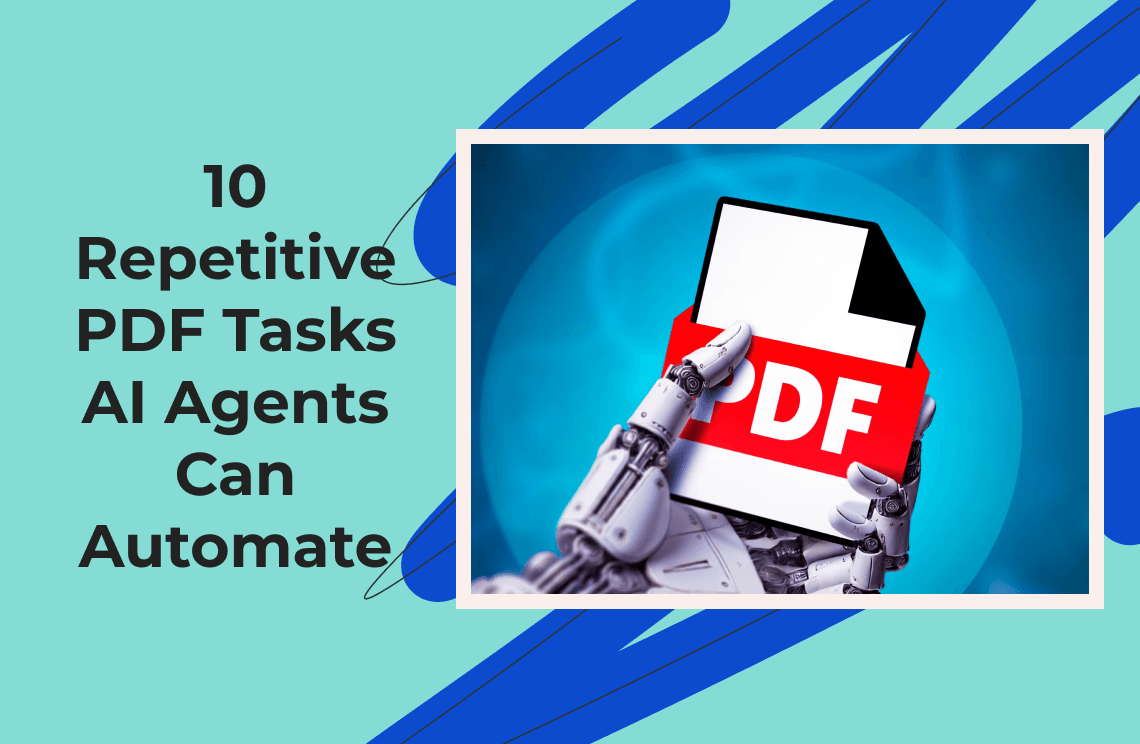
Most people do not think of PDFs as “work.” They think of PDFs as files.
An invoice arrives as a PDF. A contract is attached as a PDF. A shipping document, insurance form, purchase order, research report, onboarding packet, bank statement, inspection report, resume, product manual, or compliance certificate arrives as a PDF. Someone opens it, reads it, renames it, forwards it, extracts a few fields, copies data into a spreadsheet, compares it with another version, uploads it somewhere, and eventually archives it.
That entire chain is work.
And in many companies, it is still painfully manual.
PDFs are useful precisely because they preserve the look of a document across different systems. The ISO PDF standard describes PDF as a format for representing electronic documents so they can be exchanged and viewed independently of the environment in which they were created or displayed. That portability is the reason PDFs became so common, but it is also why they often become workflow bottlenecks: the document looks stable to a human, while the data inside may still be hard for software to understand cleanly.
For years, document automation mostly meant rigid templates, OCR tools, folder rules, or RPA bots clicking through screens. Those still matter. But the newer wave of AI agents is different. Instead of only extracting text, an AI agent can read context, decide what kind of document it is, pull out the right fields, summarize the meaning, compare versions, ask for clarification when confidence is low, and trigger the next step in the workflow.
That is why “document automation” and “document workflow automation” are becoming much more interesting than simple file processing. The real value is not that AI can read a PDF. The value is that AI can help move the PDF from arrival to action.
The old PDF workflow vs. the agentic workflow
Traditional PDF Workflow | AI Agent PDF Workflow |
Email attachment arrives | Agent monitors inbox or upload folder |
Human downloads PDF | Agent detects and saves file |
Human renames file | Agent renames using extracted metadata |
Human reads document | Agent summarizes and highlights key points |
Human copies fields | Agent extracts structured data |
Human checks another system | Agent compares document against records |
Human asks manager what to do | Agent routes based on rules and confidence |
Human archives file | Agent stores, tags, and logs the document |
Human updates Slack/email/spreadsheet | Agent sends status update automatically |
The shift is simple: PDFs stop being passive attachments and become triggers for structured work.
Rename PDFs automatically
Renaming PDFs sounds too small to deserve automation until you watch a real operations team do it for an hour.
A supplier invoice arrives as scan_00482.pdf. A logistics document arrives as Bill_of_Lading_FINAL_revised_new.pdf. A contract comes in as Agreement Signed.pdf. Someone has to open each one, identify the vendor, date, customer, project name, invoice number, or order ID, and rename it into a format the team can actually search later.
That is boring work, but it is not trivial. A good filename is a tiny database record.
For example:
2026-05-21_Acme-Inc_INV-10482_$3,450.00.pdf
That filename tells the team what the document is before anyone opens it. It also makes folders easier to search, prevents duplicates, and reduces “where did that file go?” messages.
An AI agent can automate this by reading the document, extracting a few naming fields, checking for missing or conflicting values, and applying a naming convention. This is where AI is more flexible than old folder rules. A rule-based system might rename files only if the invoice number appears in a fixed location. An AI agent can handle different layouts, scanned documents, vendor-specific formats, and documents where the key details appear in a paragraph instead of a table.
Modern document AI systems already support extracting key-value pairs, tables, selection marks, and document layout information. Google’s Document AI, for example, describes its platform as transforming unstructured document data into structured fields that can be analyzed and consumed by other systems.
A practical PDF-renaming agent might follow this logic:
Detect whether the file is an invoice, contract, report, form, receipt, or statement.
Extract the naming fields required for that document type.
Normalize the date format.
Remove illegal filename characters.
Check whether a file with the same name already exists.
Rename the file.
Log the original filename and new filename in a spreadsheet or database.
This may not sound glamorous, but it fixes a real problem: most document workflows begin with a messy file name.
Summarize PDFs before anyone reads them
PDF summarization is probably the most obvious AI use case, but it is still underrated.
The point is not to replace reading. The point is to help people decide what deserves full attention.
A 40-page vendor proposal may only need a 10-line summary for the first review. A 90-page research report may need the key findings, methodology, limitations, and recommended next steps. A 15-page contract may need renewal dates, payment terms, termination clauses, risk points, and unusual obligations. A PDF agent can prepare this first pass before the human opens the file.
Adobe’s Acrobat AI Assistant, for instance, is positioned around asking questions about documents, generating insights, creating summaries, and linking answers back to document citations so users can verify the source. Adobe’s learning materials also emphasize that generated summaries include citations so the user can double-check the relevance and validity of the answer.
That citation layer matters. A summary without source references is convenient but risky. In document workflow automation, a good agent should not just say, “The contract renews automatically.” It should say where it found that information, ideally with page number, section title, and quoted source snippet.
A useful PDF summary should usually include:
| Summary Type | Best For | Output |
| Executive summary | Reports, proposals, white papers | 5–10 key points |
| Risk summary | Contracts, compliance documents | Deadlines, obligations, unusual clauses |
| Action summary | Internal docs, meeting notes | Decisions, owners, next steps |
| Financial summary | Invoices, statements, POs | Amounts, dates, payment status |
| Comparison summary | Revised documents | What changed and why it matters |
The human touch here is important. Nobody wants a robotic summary that says, “This document discusses several topics related to business operations.” That is useless. A good agent summary should feel like a sharp colleague skimmed the document and said, “Here is what you actually need to know.”
A good PDF summary should answer four questions
┌─────────────────────────────┐
│        PDF DOCUMENT          │
└──────────────┬──────────────┘
               │
               ▼
┌─────────────────────────────┐
│  1. What is this document?   │
│  invoice / contract / report │
└──────────────┬──────────────┘
               ▼
┌─────────────────────────────┐
│  2. What matters most?       │
│  money / dates / risks / asks│
└──────────────┬──────────────┘
               ▼
┌─────────────────────────────┐
│  3. What should happen next? │
│  approve / review / pay / file│
└──────────────┬──────────────┘
               ▼
┌─────────────────────────────┐
│  4. Where is the evidence?   │
│  page / clause / source text │
└─────────────────────────────┘
This is the difference between “AI summary” and useful document automation.
Extract invoice data
Invoice extraction is one of the strongest use cases for AI-powered PDF automation because the business value is obvious.
Every invoice has data that needs to go somewhere else: vendor name, invoice number, invoice date, due date, PO number, line items, tax, subtotal, total, payment terms, bank details, and sometimes project codes or cost centers. When people copy that data manually, mistakes happen. A single wrong digit can create payment delays, reconciliation issues, or awkward vendor follow-ups.
Microsoft’s Azure AI Document Intelligence invoice model uses OCR to analyze and extract key fields and line items from sales invoices, utility bills, and purchase orders. Amazon Textract also supports document text detection and analysis, including tables, key-value pairs, selection elements, invoices, receipts, and confidence scores for extracted information.
The important part is not only extraction. It is validation.
A useful invoice agent should not blindly dump OCR output into a spreadsheet. It should check whether the extracted total matches the sum of line items, whether the invoice number already exists, whether the vendor is recognized, whether the PO number matches an open purchase order, and whether the amount exceeds an approval threshold.
A simple invoice workflow might look like this:
Invoice PDF arrives
      ↓
OCR + layout extraction
      ↓
Vendor / invoice / line-item extraction
      ↓
Validation checks:
- duplicate invoice?
- PO match?
- total = subtotal + tax?
- due date present?
- bank details changed?
      ↓
Confidence score decision
      ↓
High confidence → export to accounting system
Low confidence → send to human review
This is where AI agents become more useful than isolated OCR. The agent can combine extraction, reasoning, business rules, and routing.
For example, if an invoice total is $12,500 but the matching purchase order is $10,000, the agent should not just extract the number. It should flag the mismatch and send the PDF to the right person with a short explanation.
That is document workflow automation, not just document parsing.
Compare documents and versions
Anyone who has compared two PDF contracts manually knows the pain.
Maybe a vendor sends back a revised agreement. Maybe a client changes a statement of work. Maybe a supplier sends “final_final_v3.pdf.” You need to know what changed, whether the changes are harmless, and whether anything risky was added or removed.
Old document comparison tools can highlight textual differences, but they often struggle to explain meaning. They may show that a sentence changed from “30 days” to “60 days,” but they do not always tell you that the cash flow implication has changed. AI agents are useful because they can turn differences into business meaning.
Adobe’s contract intelligence features in Acrobat AI Assistant can recognize contracts, summarize complex language, surface key terms, provide citations, and compare differences across up to 10 contracts, including scanned documents.
A document comparison agent can handle tasks such as:
Document Type | What the Agent Compares |
Contract versions | Payment terms, renewal, liability, termination, jurisdiction |
Vendor proposals | Pricing, scope, exclusions, delivery timeline |
Insurance policies | Coverage, exclusions, deductibles, effective dates |
Employee forms | Missing signatures, outdated fields, changed clauses |
Product specs | Dimensions, materials, compliance certificates |
Legal drafts | Redline-style changes plus plain-English risk notes |
The best output is not a giant list of every changed comma. The best output is a ranked explanation:
“Three changes matter. Payment terms changed from Net 30 to Net 60. The liability cap was removed. The renewal clause changed from manual renewal to automatic renewal unless canceled 60 days before term end.”
That is the kind of summary a busy person can act on.
Archive PDFs with the right metadata
Archiving sounds like the last step in a workflow, but it is often where long-term problems begin.
A PDF saved in the wrong folder is basically missing. A PDF saved without searchable text is hard to find later. A PDF archived without metadata becomes invisible to future automation. A PDF stored without retention rules may create compliance or legal risk.
PDF/A exists specifically for long-term preservation. The PDF Association describes ISO 19005, known as PDF/A, as a format based on PDF that preserves a document’s static visual appearance over time, independent of the tools and systems used to create, store, or render the file.
AI agents can help with archiving by deciding what the document is, where it belongs, what metadata should be attached, and whether it needs to be converted, tagged, compressed, encrypted, or retained under a specific policy.
A basic archive agent can do the following:
Identify document type.
Extract important metadata.
Apply tags such as vendor, client, project, year, country, department, or status.
Convert scanned PDFs into searchable PDFs when needed.
Save the document to the correct folder or document management system.
Add the record to a tracking spreadsheet or database.
Notify the owner that the file is archived.
Apply retention or deletion rules.
The bigger idea is that archiving should not be a dead end. A well-archived PDF becomes easier to search, audit, summarize, compare, and reuse later.
Metadata turns PDFs into searchable records
PDF Without Metadata | PDF With AI-Generated Metadata |
signed_doc.pdf | Document type: Vendor contract |
Unknown date | Effective date: May 21, 2026 |
Unknown owner | Owner: Procurement |
Unknown counterparty | Vendor: Northbridge Logistics |
Buried in folder | Tags: contract, logistics, renewal, 2026 |
Hard to search | Searchable by vendor, date, renewal, risk |
Good metadata is not administrative decoration. It is what makes future automation possible.
Classify incoming PDFs and route them
Many document workflows break at the first decision: “What is this?”
An inbox may receive invoices, receipts, signed contracts, tax forms, resumes, support documents, product certificates, purchase orders, customs forms, warranty claims, and random screenshots exported as PDFs. The first human step is often classification.
AI agents can classify PDFs automatically and route them into different workflows.
UiPath’s Document Understanding combines RPA and AI to process documents, collect them from sources, validate extracted information with human-in-the-loop components, and respond based on the information. Google Document AI also supports classification and splitting documents by type, which is important when a single upload contains multiple document categories.
A classification agent might route documents like this:
Detected PDF Type | Next Step |
Invoice | Extract fields, check PO, send to accounting |
Signed contract | Compare to approved version, archive, alert legal |
Resume | Extract candidate info, add to recruiting system |
Receipt | Extract amount, category, reimbursement owner |
Certificate | Check expiration date, attach to supplier profile |
Bank statement | Extract period, balance, transactions |
Product manual | Summarize, add to knowledge base |
Unknown document | Send to human review |
Classification sounds simple, but it has an outsized effect. Once the document type is known, every downstream step becomes easier.
This is also where human review should remain part of the system. A good AI workflow does not pretend to be perfect. It uses confidence thresholds. If the agent is 98% confident that a PDF is an invoice, it can proceed. If it is 62% confident between “invoice” and “purchase order,” it should ask a human.
Convert scanned PDFs into searchable text
A scanned PDF can look fine to a human but be nearly useless to software. It is basically an image wrapped inside a PDF container. You can open it and read it, but search may fail, copy-paste may produce garbage, and automation tools may not see the structure.
OCR fixes part of this by converting the image into machine-readable text. But modern document automation goes beyond basic OCR. It also tries to understand layout, tables, checkboxes, handwriting, forms, and reading order.
Azure AI Document Intelligence describes layout extraction as using high-definition OCR tailored for documents, including table structures, row and column numbers, selection marks, and more. Amazon Textract can detect words and lines and analyze related text, tables, key-value pairs, and selection elements.
An AI agent can make scanned PDFs more useful by:
Running OCR.
Detecting page rotation and skew.
Identifying tables and form fields.
Creating searchable text layers.
Extracting key sections.
Flagging unreadable pages.
Asking for a better scan if confidence is too low.
Saving the searchable version back into the workflow.
This is especially useful for companies that still deal with scanned invoices, signed contracts, customs documents, medical forms, insurance claims, and handwritten notes.
The limitation is worth saying clearly: OCR quality depends heavily on image quality. A blurry scan, folded page, low contrast, handwriting, stamps, or unusual layout can still cause errors. That is why serious document workflow automation should include review steps, confidence scores, and source citations.
Extract tables and line items
Many PDFs hide their most important information inside tables.
Invoices have line items. Bank statements have transactions. Product catalogs have SKUs. Inspection reports have measurements. Freight documents have shipment details. Research papers have results tables. Insurance documents have coverage schedules.
Copying table data from PDFs into Excel is one of those tasks that feels small but quietly destroys hours.
AI agents can extract tables, normalize columns, and send the data to spreadsheets, databases, or business systems. This is especially useful when the table layout varies between vendors.
For example, invoice line items may appear as:
Vendor A | Vendor B | Vendor C |
Description / Qty / Price | Item / Units / Unit Cost | SKU / Amount / Total |
Tax below table | Tax in summary box | Tax included in each line |
PO number in header | PO number in footer | PO number in body text |
A traditional template may fail when the layout changes. An AI agent can use layout understanding and semantic cues to infer that “Units,” “Qty,” and “Quantity” are probably the same kind of field.
Google’s Document AI extraction overview notes that form parsing can extract key-value pairs, tables, selection marks, and generic fields, while custom extraction can define specific entities for documents such as invoices, contracts, bank statements, bills of lading, and payslips.
A useful table-extraction agent should not only extract rows. It should also clean them:
Normalize column names.
Convert currency values.
Remove duplicate header rows.
Detect totals and subtotals.
Preserve row-level confidence.
Flag strange values.
Export into a structured format.
This turns a PDF from a static document into usable business data.
Check PDFs for missing information and rule violations
Some PDF tasks are not about reading. They are about checking.
Is the signature missing? Is the invoice date older than 90 days? Does the certificate expire next month? Is the tax ID absent? Does the contract include the required data processing clause? Does the form have all mandatory fields? Does the amount exceed the approval limit?
These checks are repetitive but important. They are also easy for humans to miss when handling many documents in a row.
AI agents can combine extracted data with rules. Some rules are simple: “If total is above $5,000, require manager approval.” Some rules require interpretation: “If this agreement involves customer data, check whether the data protection clause is present.” That second kind of rule is where LLM-based agents become useful, because they can reason over language rather than only matching exact keywords.
Recent research on agentic document intelligence describes systems that combine document classification, extraction, analytics, and rule validation for complex compliance checks. The practical lesson is clear: the future of document automation is not just extracting fields; it is validating whether those fields and clauses satisfy the workflow.
A PDF-checking agent might output something like:
Check | Result | Evidence | Action |
Signature present | Passed | Page 8 | Continue |
Invoice number present | Passed | Header | Export |
PO number matches | Failed | PO not found | Human review |
Vendor bank details changed | Warning | Page 1 | Finance approval |
Contract auto-renewal clause | Warning | Section 6.2 | Legal review |
Certificate expiration | Failed | Expires in 12 days | Request update |
This kind of output is extremely useful because it separates facts from actions. The agent does not just say “problem found.” It says what failed, where it found the evidence, and what should happen next.
Trigger downstream actions from PDFs
The final step is the most important one.
If an AI agent summarizes a PDF but the user still has to copy the result into Slack, rename the file, update a spreadsheet, email a manager, and upload the file to a folder, then only part of the workflow has been automated.
The real goal is end-to-end document workflow automation.
That means the PDF becomes a trigger:
PDF arrives
  → Agent reads it
  → Agent extracts data
  → Agent validates data
  → Agent decides next step
  → Agent updates tools
  → Agent notifies people
  → Agent archives evidence
This is where AI agents start to feel different from “AI chat with PDF” tools. Chatting with a PDF is useful. But many business workflows need action.
For example:
PDF Event | Automated Action |
Invoice received | Add row to accounting sheet, alert approver |
Contract signed | Archive signed version, notify sales/legal |
Report uploaded | Summarize, create task list, send team briefing |
Certificate near expiry | Notify supplier manager |
Resume received | Extract candidate profile, add to hiring tracker |
Shipping document received | Extract tracking info, update order system |
Bank statement uploaded | Extract transactions, reconcile records |
Product spec updated | Compare with previous version, flag changes |
This is the point where the word “agent” actually matters. A chatbot waits for a prompt. An agent can monitor, decide, and execute a workflow.
The 10 repetitive PDF tasks mapped by business value
Task | Saves Time | Reduces Error | Improves Search | Triggers Action |
Rename PDFs | High | Medium | High | Low |
Summarize PDFs | High | Medium | Medium | Medium |
Extract invoices | High | High | Medium | High |
Compare documents | High | High | Medium | High |
Archive PDFs | Medium | Medium | High | Medium |
Classify PDFs | High | High | High | High |
OCR scanned PDFs | Medium | High | High | Medium |
Extract tables | High | High | Medium | High |
Check missing info | Medium | High | Medium | High |
Trigger downstream actions | High | High | High | Very High |
The deeper the workflow goes, the more valuable the automation becomes.
What makes a PDF agent better than a normal PDF tool?
A normal PDF tool helps you work inside the document. It lets you read, annotate, sign, convert, compress, or search.
A PDF agent helps you move work across documents and systems.
That distinction matters.
A PDF summarizer can answer, “What is this document about?”
A PDF agent can answer, “What should happen to this document next?”
A PDF converter can turn a scan into text.
A PDF agent can decide whether the scan is good enough to process.
A PDF comparison tool can show changed text.
A PDF agent can explain which changes affect payment, risk, renewal, or compliance.
A PDF archive tool can save a file.
A PDF agent can save the file with the right name, metadata, retention category, and audit trail.
This is why document automation is moving toward agentic workflows. Tools are becoming less like single-purpose utilities and more like workflow participants.
The human should not disappear from the workflow
It is tempting to describe PDF agents as if they remove humans entirely. In real teams, that is usually the wrong goal.
The better goal is to remove repetitive handling while keeping human judgment where it matters.
A well-designed PDF automation workflow should have three lanes:
Lane | Agent Role | Human Role |
Low-risk, high-confidence | Process automatically | Review logs if needed |
Medium-risk or uncertain | Prepare recommendation | Approve or correct |
High-risk or sensitive | Extract and summarize | Make final decision |
For example, a $48 office supply receipt can probably be processed automatically. A $480,000 vendor contract should not be approved just because an AI agent summarized it. The agent can help identify changes, surface risky clauses, and prepare a review brief, but a responsible person still decides.
This is also why citations, audit logs, and confidence scores matter. Document automation without traceability creates a new problem: people may trust outputs they cannot verify.
The best PDF agents should make verification easier, not harder.
How to start automating PDF workflows without overbuilding
The biggest mistake teams make is trying to automate everything at once.
A better approach is to start with one repetitive PDF workflow that has clear inputs and outputs. Invoices are a classic starting point because the fields are predictable and the value is measurable. Contract comparison is another good candidate if legal or sales teams frequently deal with revised versions. Report summarization works well when teams receive long documents but only need key actions.
A simple evaluation framework looks like this:
Question | Why It Matters |
How many PDFs arrive per week? | Volume determines ROI |
Are the document types predictable? | Predictability improves automation quality |
What fields matter? | Defines extraction schema |
What mistakes happen today? | Shows where validation matters |
Who reviews exceptions? | Keeps humans in the loop |
What system needs the output? | Turns extraction into workflow automation |
What evidence must be stored? | Supports auditability |
The best first workflow is usually not the most impressive one. It is the one that is frequent, annoying, measurable, and low enough risk to test safely.
EasyClaw workflow case study: automating invoice PDFs without making it feel like a software project
Let’s make this concrete.
Imagine a small e-commerce operations team that receives supplier invoices by email every day. The old process looks like this:
Open Gmail.
Download invoice PDFs.
Rename each file.
Open the invoice.
Copy invoice number, vendor, date, amount, and due date into a spreadsheet.
Check whether the PO number exists.
Send a Slack message if approval is needed.
Save the PDF into a vendor folder.
Follow up when information is missing.
Nobody joined the company to do this. But the work has to be done.
A lightweight AI-agent workflow could look like this:
Supplier email arrives with PDF
        ↓
EasyClaw monitors the inbox or receives forwarded PDFs
        ↓
Agent runs OCR / document reading
        ↓
Agent classifies document as invoice
        ↓
Agent extracts:
- vendor
- invoice number
- invoice date
- due date
- line items
- subtotal / tax / total
- PO number
        ↓
Agent validates:
- duplicate invoice?
- PO exists?
- total matches line items?
- missing payment details?
        ↓
Agent renames file:
2026-05-21_VENDOR_INV-10482_$3450.pdf
        ↓
Agent updates spreadsheet
        ↓
Agent sends Slack/Telegram summary:
“New invoice from Vendor X, $3,450, due June 20.
PO matched. No duplicate found. Ready for approval.”
        ↓
Agent archives PDF in the right folder
EasyClaw positions itself as an out-of-the-box AI agent that can work across daily scenarios such as information briefing, data collection, data analysis, and operational reporting. Its documentation describes EasyClaw as a background automation system rather than just another chat window, which fits this kind of recurring PDF workflow better than a one-off PDF summarizer.
The reason this case study works as a natural fit is not because EasyClaw is “the PDF tool.” It is because repetitive PDF tasks rarely live inside the PDF alone. The PDF arrives through email. The extracted data goes into a spreadsheet. The approval happens in Slack, Telegram, Feishu, or another messaging tool. The archive may live in a cloud drive. The real workflow crosses tools.
That is exactly where an agent-style setup is useful.
A good implementation would still keep a human approval step for exceptions. For example:
Situation | Agent Action |
High confidence, PO matched, amount under limit | Process and notify |
New vendor detected | Ask finance to confirm |
Bank details changed | Escalate for approval |
PO mismatch | Send to procurement |
OCR confidence low | Request manual review |
Duplicate invoice found | Flag and pause |
This is not a hard sell for any one tool. It is the broader pattern that matters: PDF automation becomes much more valuable when it connects reading, reasoning, routing, and follow-up.
Final thought: the future of PDF work is not “better PDFs”
PDFs are not going away.
They are too embedded in business, government, finance, law, education, logistics, healthcare, and operations. The better question is not whether teams can escape PDFs. Most cannot.
The better question is: how much human time should still be spent handling them manually?
Renaming files, summarizing documents, extracting invoices, comparing versions, archiving records, classifying attachments, running OCR, pulling tables, checking missing fields, and triggering downstream actions are not rare edge cases. They are the daily background noise of modern work.
AI agents are finally making that background noise automatable.
The biggest opportunity is not flashy. It is not a robot lawyer or a fully autonomous finance department. It is a quiet assistant that notices a PDF arrived, understands what it is, extracts what matters, asks for help when uncertain, updates the right system, and leaves a clean trail behind.
That is where document automation becomes genuinely useful.
Not because the PDF disappeared.
Because the manual workflow around it did.