Compression rarely fails. It usually has nothing to remove. Most compressors work on one part of a PDF, the images, by lowering their resolution and re-encoding them. Text, fonts, form fields, attachments and scans already saved as compressed images pass through untouched. When the weight sits in that second group, the file comes back the size it went in.
If the number barely moved, stop changing levels and look at what is inside the document. This guide covers that check, the six reasons a compressed PDF stays large, and the fixes that do move the number. It does not cover merging files, page size, or a file that will not open.
What a Compressor Can and Cannot Change
A PDF is a container, and each part of it is stored differently.
- Images are compressed picture streams. A compressor can resample them, swap them for a smaller encoding, or drop duplicates.
- Text and vector art are characters and drawing instructions. They are already compact, so shrinking them means deleting content.
- Fonts, attachments, form data, layers and saved revisions are carried along as they are.
Compression does not add or remove pages. It changes how the pictures inside them are stored, which is why one High level can halve a phone scan and leave a long text report where it started.
Check What Is Inside the File First
Four checks, and none of them needs a PDF editor.
- Select a sentence. If the cursor picks up individual words, the page holds text. If it drags a box over the whole page, the page is a picture.
- Compare page count with file size. A long document that stays small is text. A short document that is very large is pictures.
- Open document properties. Most desktop readers name the producer and the PDF version under File > Properties, and the producer names the program that wrote the file.
- Look for an attachments panel or paperclip. Files embedded in the PDF travel inside it and never appear on a page.
The answer points to the fix: a text document needs a smaller export, a scan needs lower-resolution pictures, and a file with attachments needs the attachments taken out.
Six Reasons the Size Barely Changes
1. The images were already compressed
A scan or a phone photo is a compressed image to begin with, so a second pass at similar quality moves the file by a few percent at most. At a gentler level it can even grow, because the new encoding adds overhead without removing detail.
2. The weight is text, fonts and vector art
A long report with embedded fonts, tables and charts can reach several megabytes without a single photograph, and image compression cannot touch any of it. Exporting the source again, with fewer embedded fonts or lighter chart output, is what helps.
3. The file carries more than its pages
Attachments, hidden layers, form data and earlier revisions all live inside the PDF without appearing on a page, and most compressors leave them alone. Extract the attachments, remove unused layers in the app that made the file, and export a fresh copy rather than saving over the old one.
4. You are measuring the wrong file
The compressor wrote its output into the same folder, and the size you read belongs to the original. Or you compressed a copy of a copy. Run the job on the original, write to a different folder, and read the size of the new file.
5. The setting does not touch what is large
Levels are not interchangeable. A lossless level only repackages the image data, and a low level removes very little. With a photograph-heavy document and the gentlest option, expect almost no change. Choose the level that rewrites images, and step up only while the file is still too large.
6. The file is protected or already signed
An encrypted PDF cannot be read by the compressor, so nothing happens or the tool reports an error instead of a result. A signed file is a different case: compression rewrites it, so the signature no longer matches what was signed. Work on an unlocked copy and keep the signed original.
Run the Compression Again, and Read the Real Number
If the checks point at images, run the job once more on the original, at a level that rewrites them, then compare the two sizes.
Step 1: Open the Compress Tool
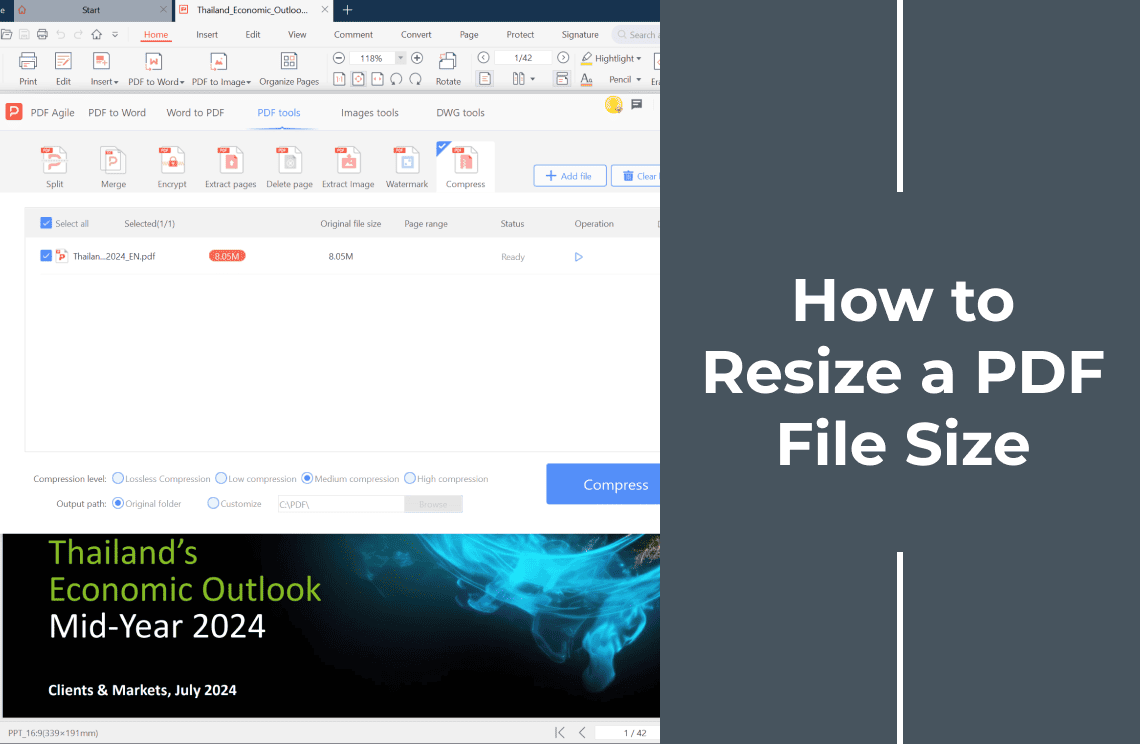
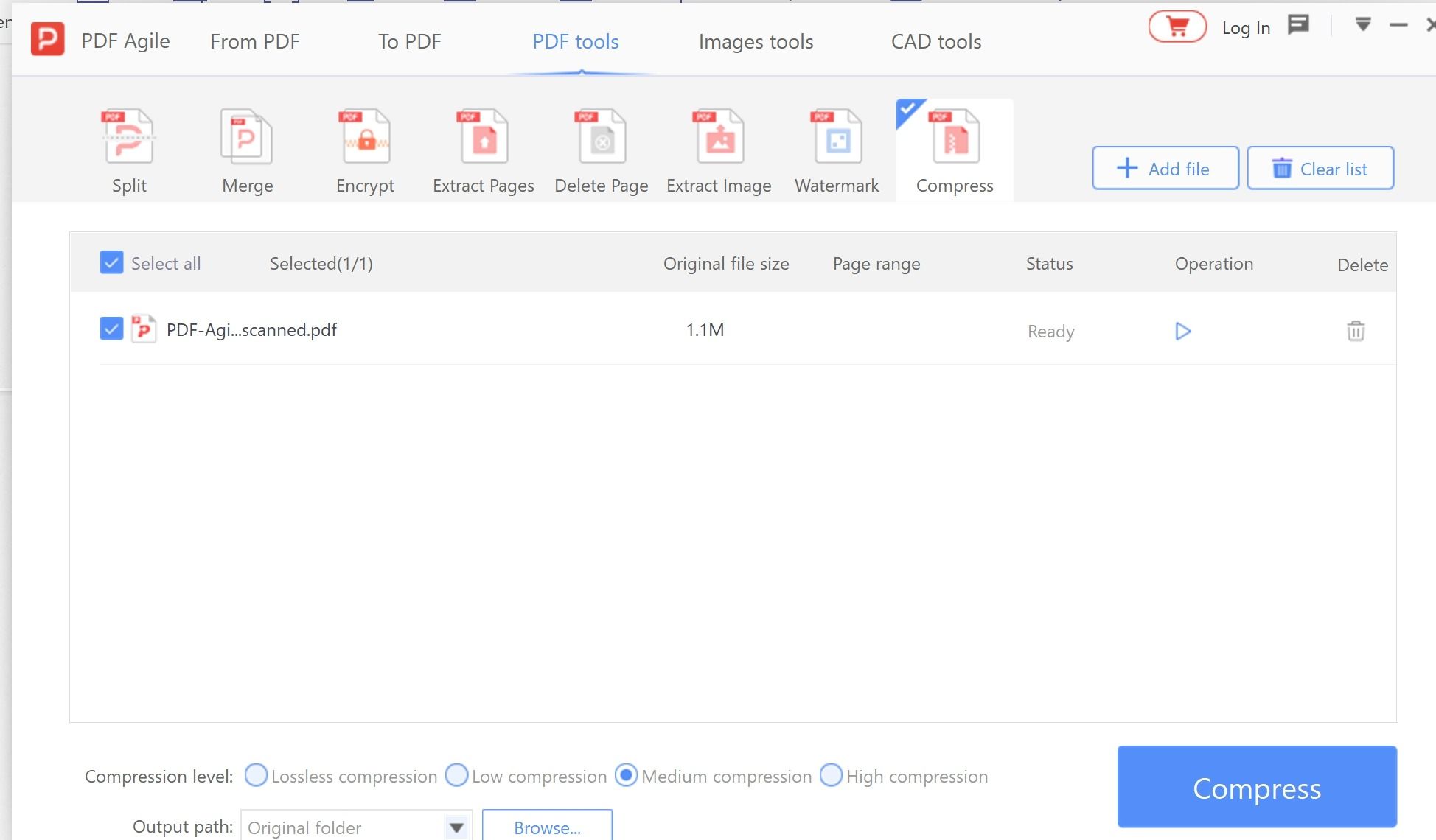
On the Home tab, Compress sits in the same ribbon group as OCR, Merge, Watermark and Compare. Clicking it opens the PDF tools window, where Compress appears next to Split, Merge, Encrypt, Extract Pages, Delete Page, Extract Image and Watermark.

Step 2: Add the Original File and Choose a Level
Use Add file to load the original, not the compressed copy. The queue reports the Original file size before anything runs, so the starting point is on screen. Set Compression level to Lossless, Low, Medium or High, then send the output elsewhere with Output path so both files stay side by side.
Step 3: Compare the Two Files
Run it, open the output folder, and check the new size against the number the queue showed. A small movement means the weight is not in the images, and the section below is the next step rather than another level.
Fix the Part Compression Cannot Reach
- Export the source again. Exporting a fresh PDF from the Word file, workbook or design file produces one clean file, without the revisions that pile up when a PDF is saved repeatedly. The settings are covered in how to resize a PDF file size.
- Lower the resolution before the scan. Scanning at print resolution and compressing afterwards is a lossy way to reach the same place. Scan at the resolution you need, in greyscale when colour is not required.
- Take the attachments out. Extracting embedded files and sending them separately usually removes more than any level setting: see how to extract embedded files from a PDF.
- Reduce what the document contains. Drop the pages the recipient does not need, or split the PDF into separate files and send only the part that is required.
- Flatten what does not need to stay editable. Layers, transparency and editable form fields all add structure, and flattening them in the app that produced the file can shrink it.
What Will Not Shrink, However Hard You Try
- A text-only PDF that is already small. There is nothing to remove, and the compressor will report almost no change.
- An archive around a PDF. PDF streams are compressed inside the file already, so zipping saves very little. Other options are compared in ways to reduce a large PDF file.
- A file that has to stay searchable or signed. If a scan's text layer disappears in the compressed copy, the saving has cost you the search, and a valid signature will not survive a rewrite at all.
Online or Desktop for a Stubborn File
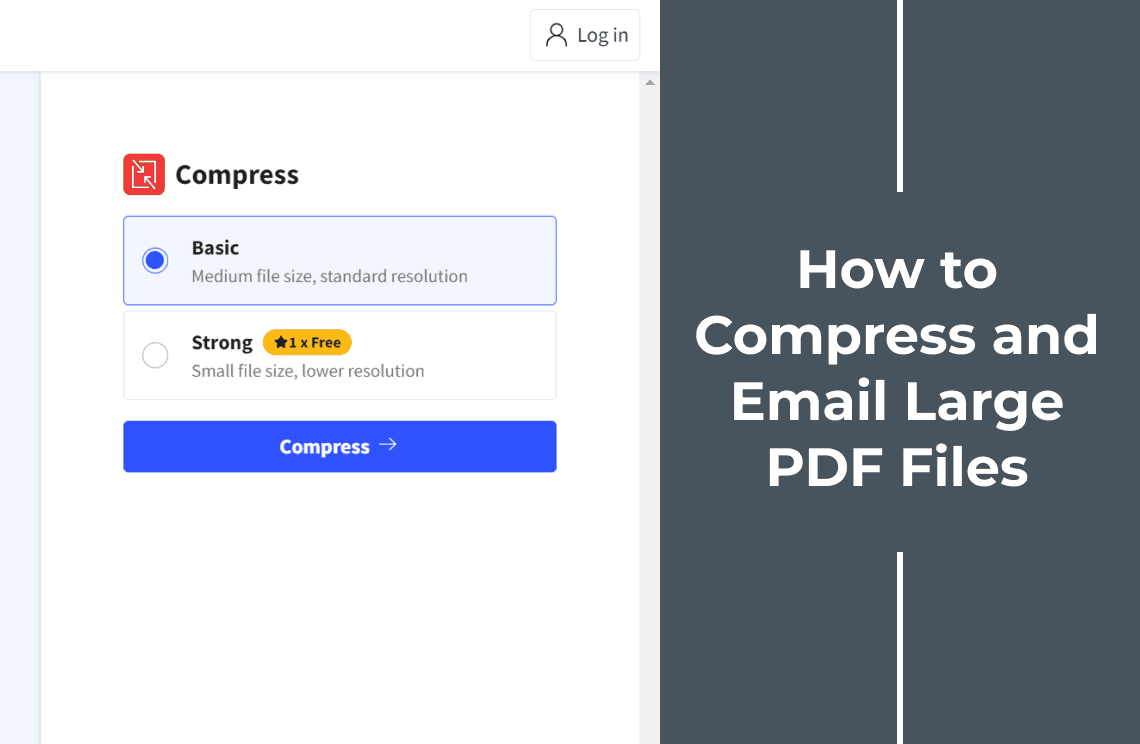
The online compressor runs three levels, Low, Medium and High, and accepts up to 20 files in one batch. It needs no installation, and its page states that uploaded files are removed automatically within 24 hours. That suits a single scan you need to send now; it does not suit anything confidential, because the file leaves your computer.
The PDF Agile desktop app runs four levels, including a lossless one, and shows the original size of every file in the queue before you start. Output goes to a folder you choose and processing happens on your machine, which is what tells you whether the weight is in the images at all.
When the constraint is a mail gateway rather than the file, the limits and delivery options are set out in compressing large PDFs for email.
Before You Upload a Confidential PDF
An online compressor is an upload. Contracts, medical records, identity documents and bank statements are better compressed locally, or read the service's retention policy first. If it does not say when files are deleted, assume they are kept.
Frequently Asked Questions
Why did my PDF get bigger after compressing?
Usually because it was already compressed. Re-encoding an image at low quality adds overhead and removes almost nothing, and a lossless pass may add structure instead of removing it. Keep the original and compare both sizes.
Does compressing a PDF twice make it smaller?
Rarely, and the second pass costs quality. If the first pass barely moved, the weight is somewhere compression does not reach: fonts, attachments, text or vector art. Change the content rather than the setting.
Why is a scanned PDF so large even after compression?
Every page is a picture, so the size follows the resolution and colour depth of those pictures, not the amount of text on them. Scan again at a lower resolution, or keep only the pages that are needed.
Does zipping a PDF make it smaller?
Almost never by a useful amount. PDF streams are compressed inside the file already, so an archive mostly wraps them, and a mail gateway is rejecting the real size.
Can I compress a password-protected PDF?
Only after unlocking it. The compressor has to read the file, and an encrypted document cannot be read without the password. Unlock a copy, compress that copy, then protect the result again if the restriction is still needed.
Bottom Line
If the number did not move, the setting is not the problem. Check whether the document is text or pictures, look for attachments and saved revisions, and confirm you compressed the original into a new folder. Then either compress at a level that rewrites images, or change what the file contains. More fixes are in the How-to and Tips library.
Download PDF Agile for the original size of each file in the queue, four levels including lossless, and output kept on your own machine. For one scan you need to send this minute, the browser tool is enough.
Sources and scope. The desktop levels, the original size column, the output path and the Compress entry on the Home ribbon were read from the Windows app in the screenshots. The online tool's three levels, the 20-file batch limit and the 24-hour removal statement come from the online compressor page, checked in November 2026. Interfaces change between versions. Adobe Acrobat, Microsoft Word and macOS are trademarks of their owners; this guide is published by the team that builds the desktop app used here.