Key takeaways
- Editable text, an embedded object, and page images are three different results — this page covers the first.
- Conversion never returns the original file: check fonts, tables and page breaks before sending.
If you need to edit the text, convert the PDF: open the PDF to Word tool, upload the file, download the result, and open it in Word. Three steps, no account needed.
What comes back is a Word file rebuilt from the PDF, so the five minutes after conversion decide whether it is usable. If you want the PDF inside Word unchanged instead — as an object you can double-click — that is a different job, covered at the end of this page.
How Do You Put a PDF Into a Word Document So the Text Is Editable?
Four steps, about a minute for a normal document.
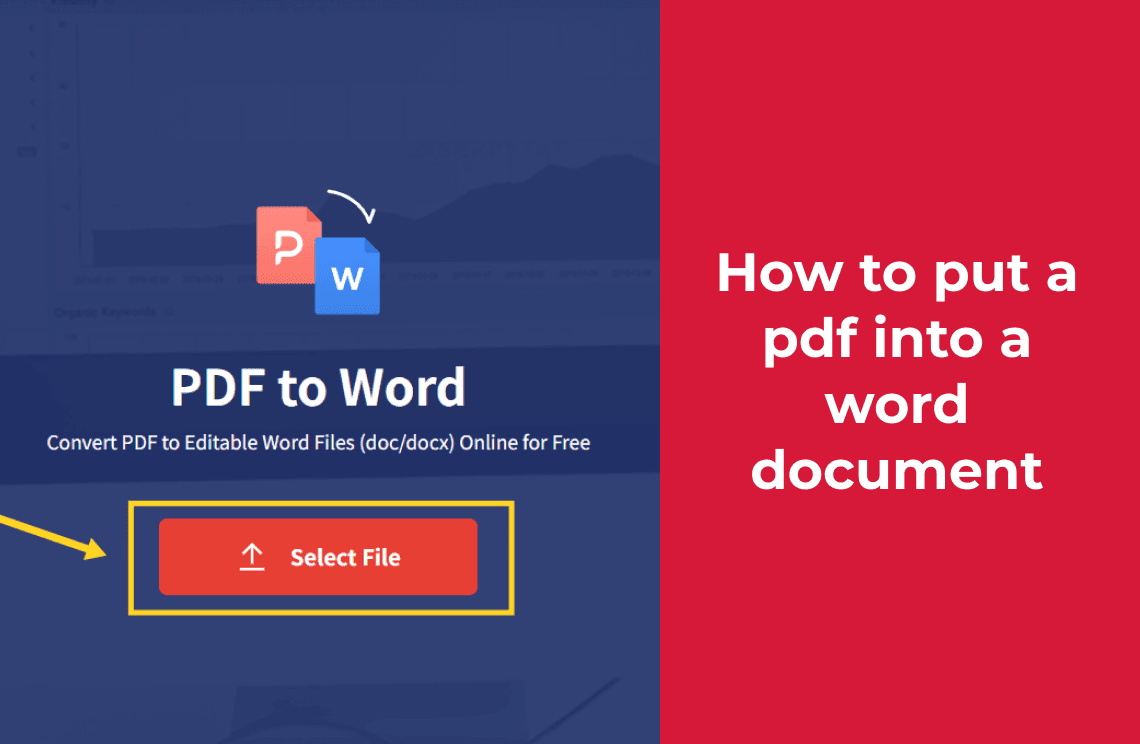
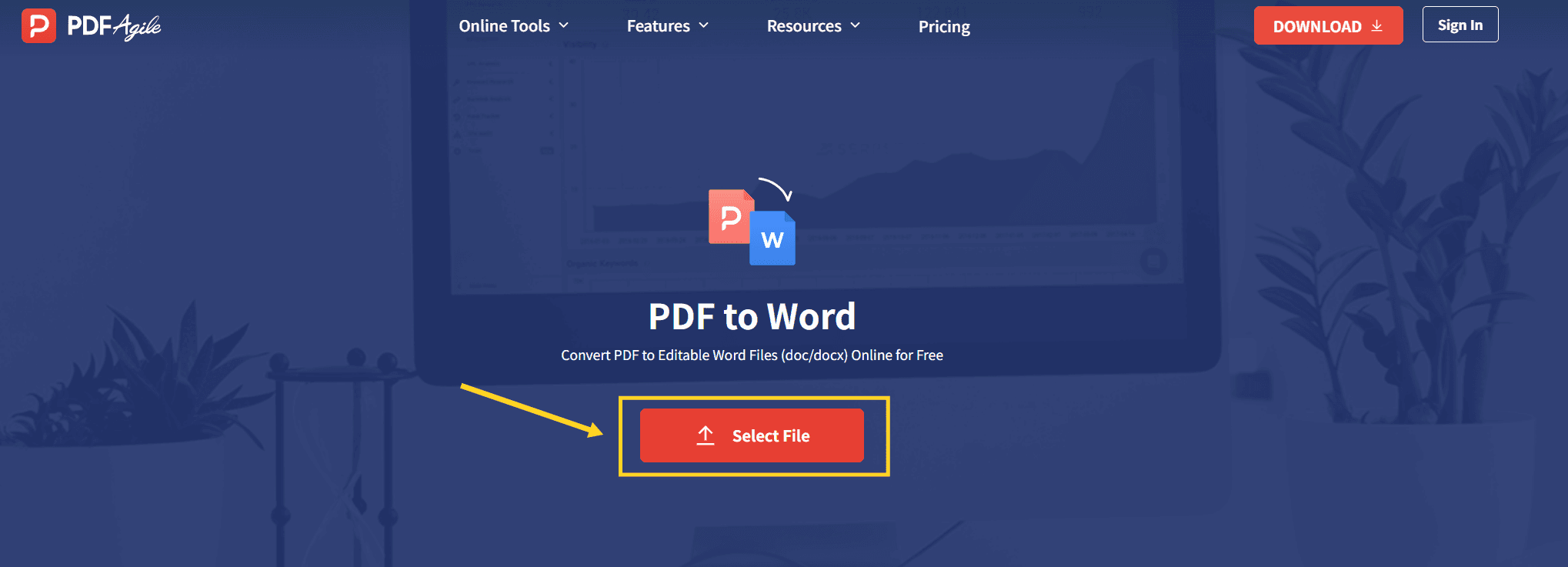
- Open the online PDF to Word converter.
- Drag the PDF onto the upload area, or click to choose it.
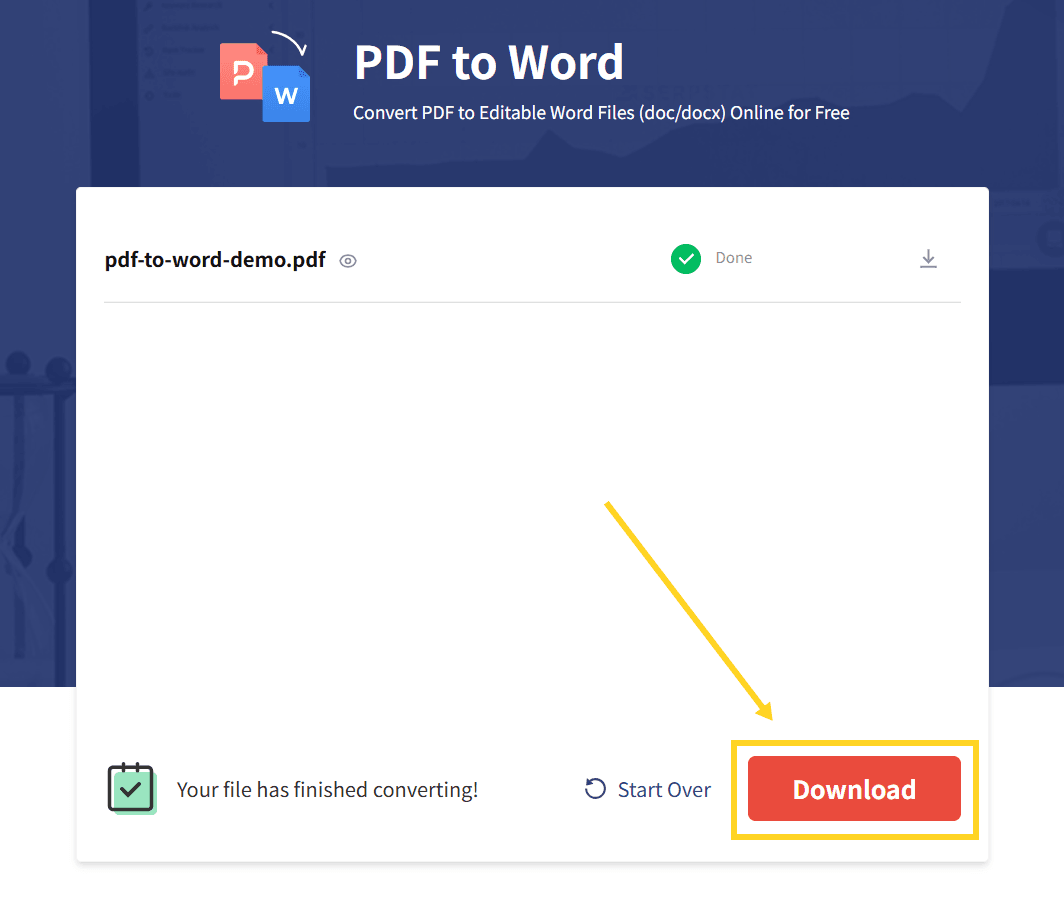
- Wait for the status to change to Done. A progress row appears while the file is processed.
- Click Download and open the file in Word.
The download arrives as a `.doc` file. Word opens it normally; if the person you are sending it to needs `.docx`, use Save As in Word and pick the newer format. The text is identical either way.
What Should You Check Before Converting?
Two things, and both save you a wasted conversion.
Is the PDF text, or is it a picture of text? Open the PDF and try to highlight a sentence with your cursor. If individual words select, the file carries a text layer and conversion has something to work with. If the whole page selects as one block, or nothing selects at all, the file is a scan — conversion will return images, not words.
Is the file locked? A password or a permissions restriction can stop extraction before conversion starts. Try copying one line; if copy is blocked, the file is restricted and has to be unlocked first.
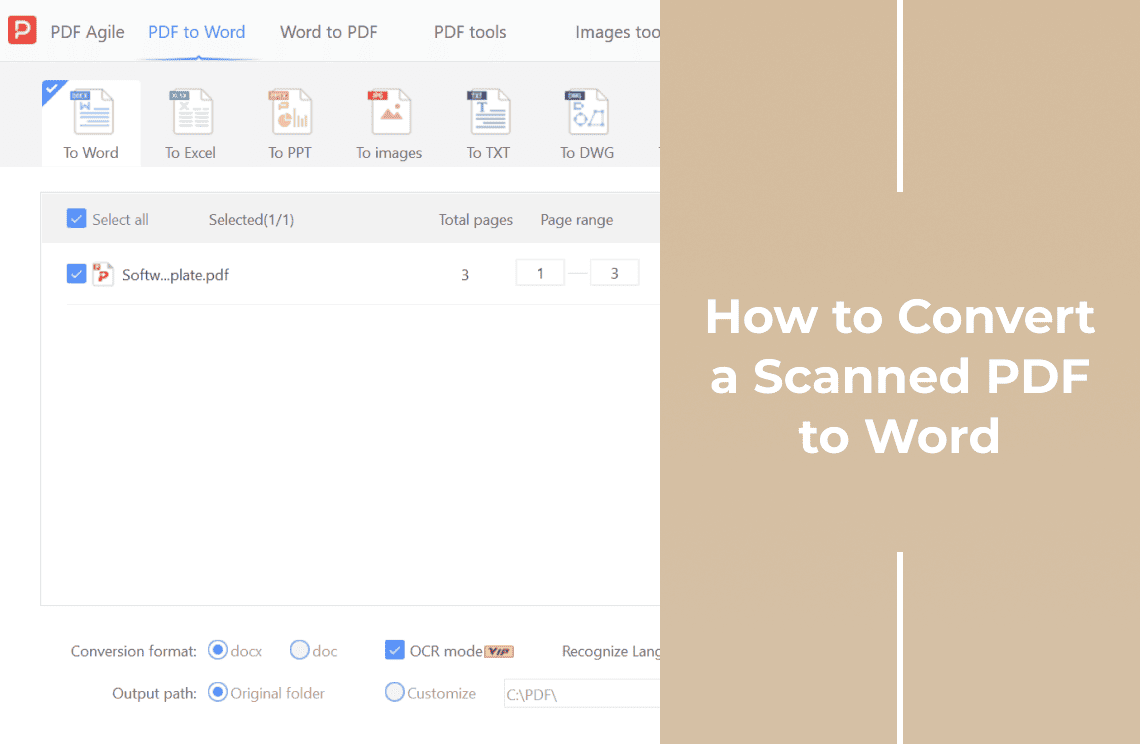
Scanned files need a different route: they have to be recognised before they can be edited. Converting a scanned PDF to Word covers that path.
How Do You Check the Conversion Worked?
Open the downloaded file and look at three things. This takes about a minute and catches almost everything that goes wrong.
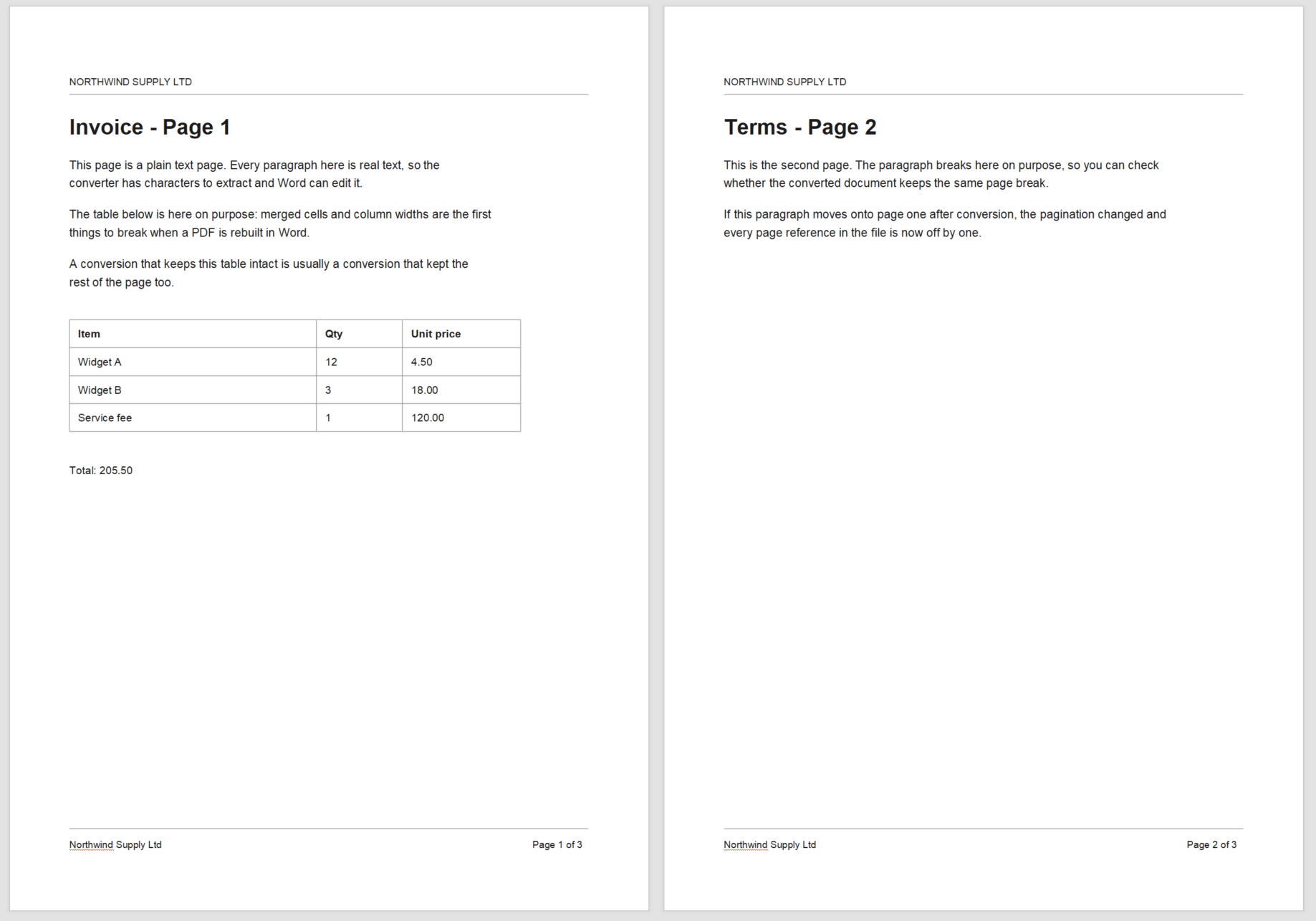
1. Fonts. Compare the first paragraph against the PDF. If the typeface changed, the page was rebuilt with a substitute font, and line breaks will differ from the original.
2. Tables. Find one table and check it is still a table, not a stack of paragraphs. Merged cells are the first thing to break. If a row collapsed into loose lines of text, that table has to be rebuilt by hand.
3. Page breaks. Scroll to the bottom of page one and the top of page two. If a paragraph that fitted on one page now spills onto the next, the pagination has shifted, and every page reference in the document is now off.
If all three look right, the file is safe to edit and send. If one looks wrong, fix it before you start rewriting — editing on top of a broken layout doubles the work.
Which Result Did You Actually Need?
The phrase "put a PDF into Word" covers three jobs that end with three different files. If your job is not the first row, stop here and take the other route — converting anyway gives you a file that looks right and edits wrong.
| What you want | What it does | Where it goes |
|---|---|---|
| Editable text — change words, fix a typo, reuse a paragraph | Rebuilds the pages as Word content | The steps above |
| An embedded object — keep the PDF inside the Word file as an icon or preview | Word holds the PDF, the text stays locked | Insert a PDF file into Word |
| Page images — show the page exactly as it looks | Screenshots pasted into the document | Any screenshot tool |
The practical difference: converting gives you something you can edit; embedding gives you something you can carry. A contract you have to send on unchanged belongs in the second row.
What Conversion Cannot Fix
- Scans. An image of text has no characters to extract. It needs recognition first.
- Complex layouts. Multi-column pages, text wrapped around images, and text boxes often come back in the wrong order.
- Headers, footers and footnotes. These frequently land in the body text or disappear.
- Form fields. Fillable boxes usually convert to plain text, and the form logic does not survive.
- Anything the original embedded as an image. A chart, a signature, a stamp — it stays an image inside the Word file.
None of these mean the conversion failed. They mean a PDF is a finished document, and the Word file is a reconstruction of it.
FAQ
Can I keep the original layout exactly?
No. Conversion rebuilds the page from extracted content, so spacing, line breaks and sometimes font size shift. You can get close, but the result is a new document that resembles the original, not a copy of it.
Why did I get a .doc file instead of .docx?
The converter outputs the older Word format. Word opens it without complaint, and Save As → Word Document (.docx) upgrades it in one step. Do that before sending if the recipient specified the newer format.
Does it work with a scanned PDF?
Not for text editing. A scan has no text layer, so conversion returns images of the pages. Those files need recognition first — that is the scanned PDF to Word job.
What if the converted file opens with everything in one column?
That is the common failure on multi-column pages and on pages with text boxes: the reading order is lost. Rearranging it by hand is usually faster than converting again with different settings.
Is there a file size or page limit?
The converter processes files online, and very large documents take longer or may be rejected. For a long or sensitive document, working on it locally avoids the upload entirely — a desktop editor handles both, and editing a PDF covers the local route.
Where to Go Next
If the file turned out to be a scan, start with recognition rather than conversion. If you only need the PDF to travel inside a Word file unchanged, embed it as an object instead. And if the PDF is the version that has to stay authoritative, leave it as a PDF and edit that — for anything beyond this one job, editing a PDF is the wider guide.
That is the whole job: confirm the PDF has a text layer, convert it, then check fonts, tables and page breaks before you touch a word. The conversion takes a minute; the check is what keeps the file usable. PDF Agile runs the conversion in the browser at the PDF to Word tool, and keeps the desktop editor for files that should not be uploaded. More conversion and page-level walkthroughs sit in the How-to & Tips section.