Key takeaways
- Three clicks: Select File, Convert, Download. No settings screen appears at any point.
- Each worksheet becomes its own page, and each page is sized to its table — a wide sheet produced a 317 × 279 mm page, not A4.
- Formulas arrive as plain numbers, and the text stays selectable.
Converting an Excel file to PDF in the browser takes one file and three clicks. What comes back is rarely what people expect: not one A4 document, but one page per worksheet, each page as wide as its table needs to be. That is fine for email and wrong for anything that has to print on paper, so check two numbers before you send it.
How Do You Convert an Excel File to PDF?
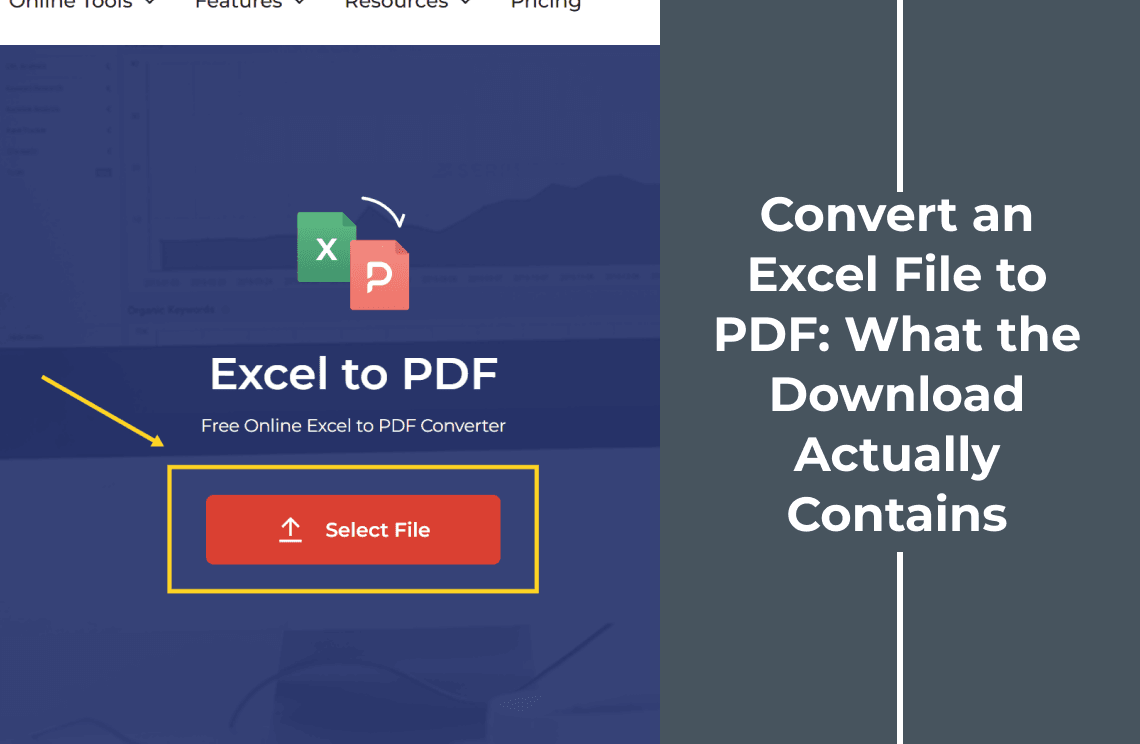
- Open the online Excel to PDF tool.
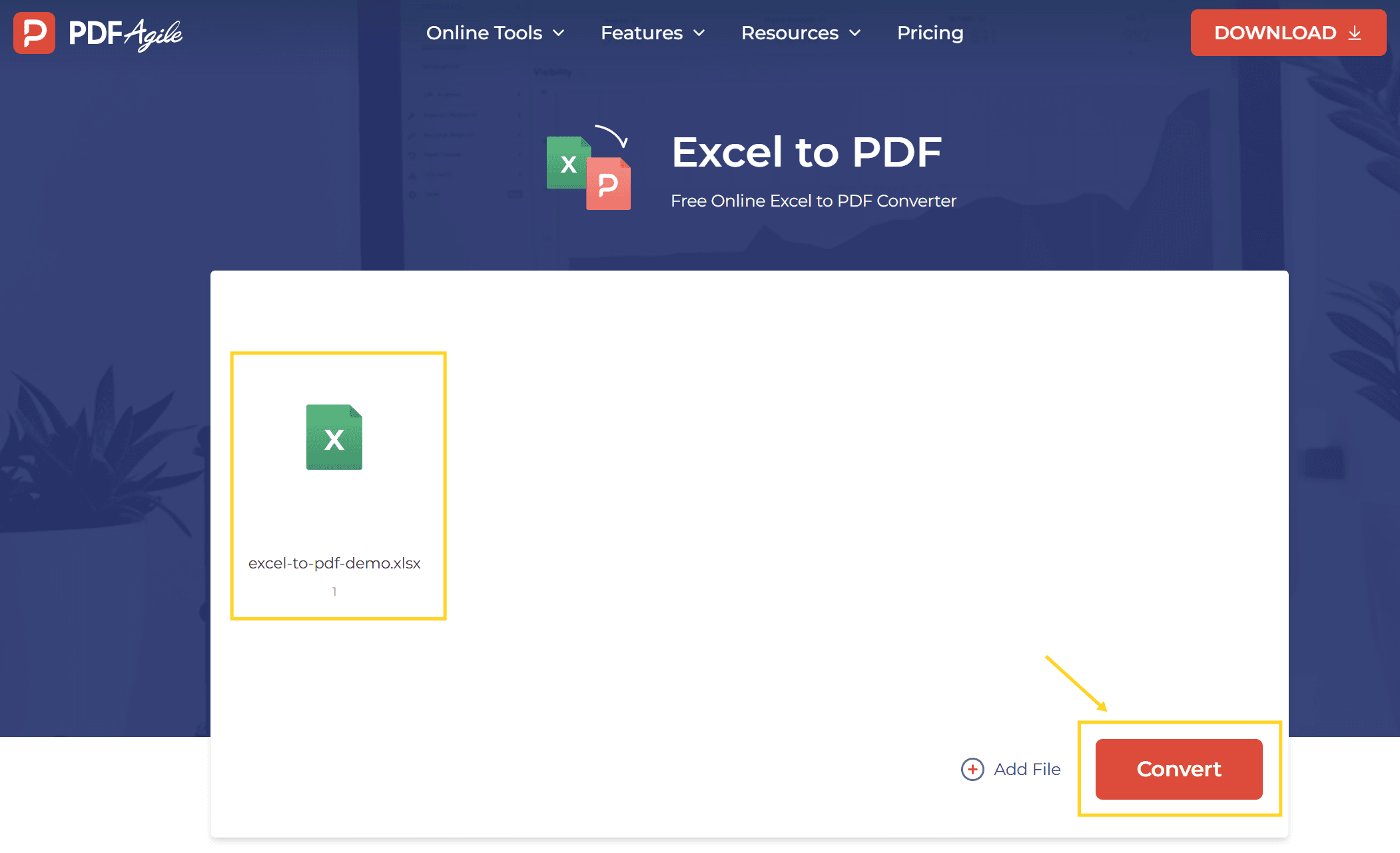
- Click Select File and choose the workbook. The card shows the file name and a small Excel icon.
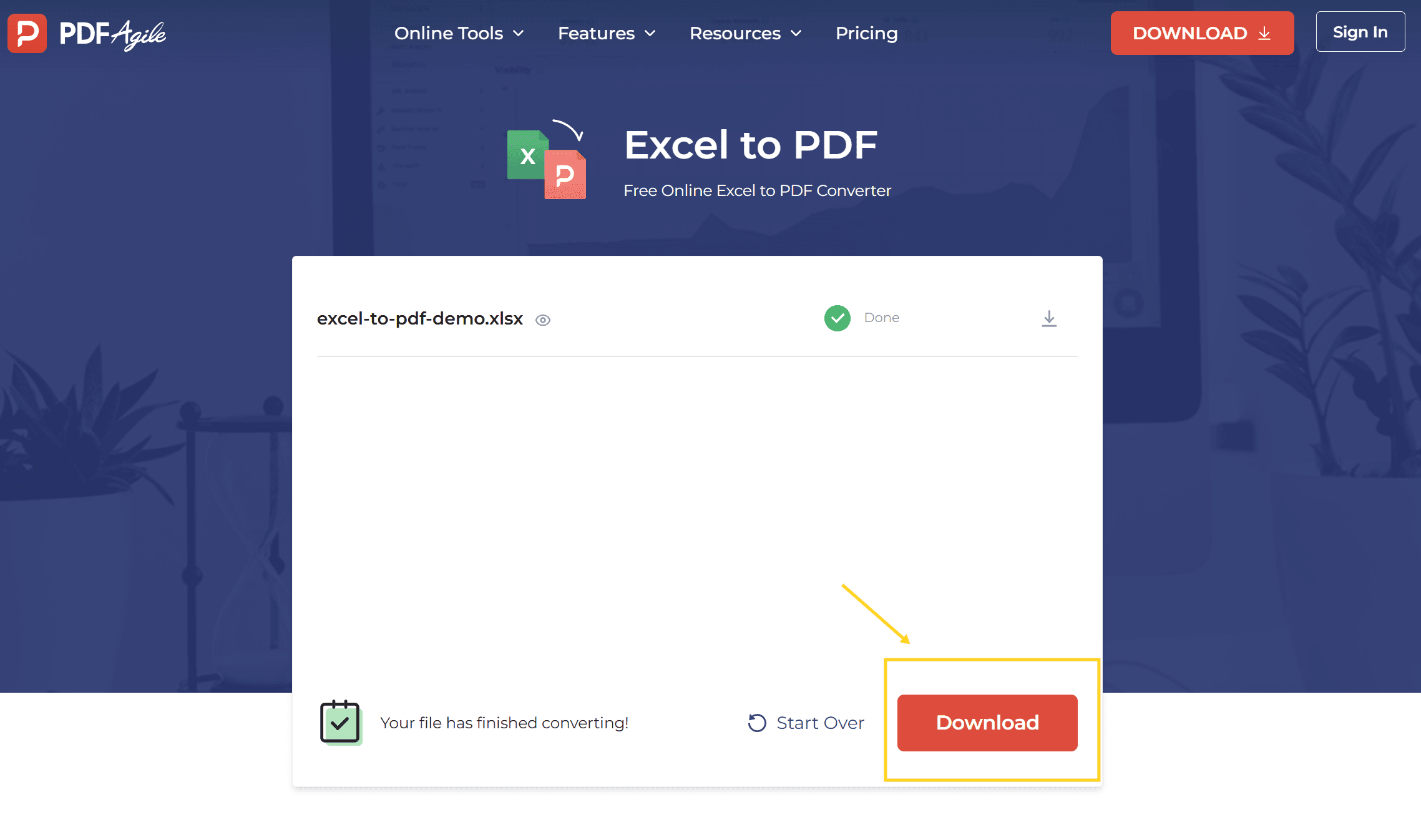
- Click Convert. The card is replaced by the file name with a green Done mark and the line "Your file has finished converting!"
- Click Download. One PDF comes back for the whole workbook.
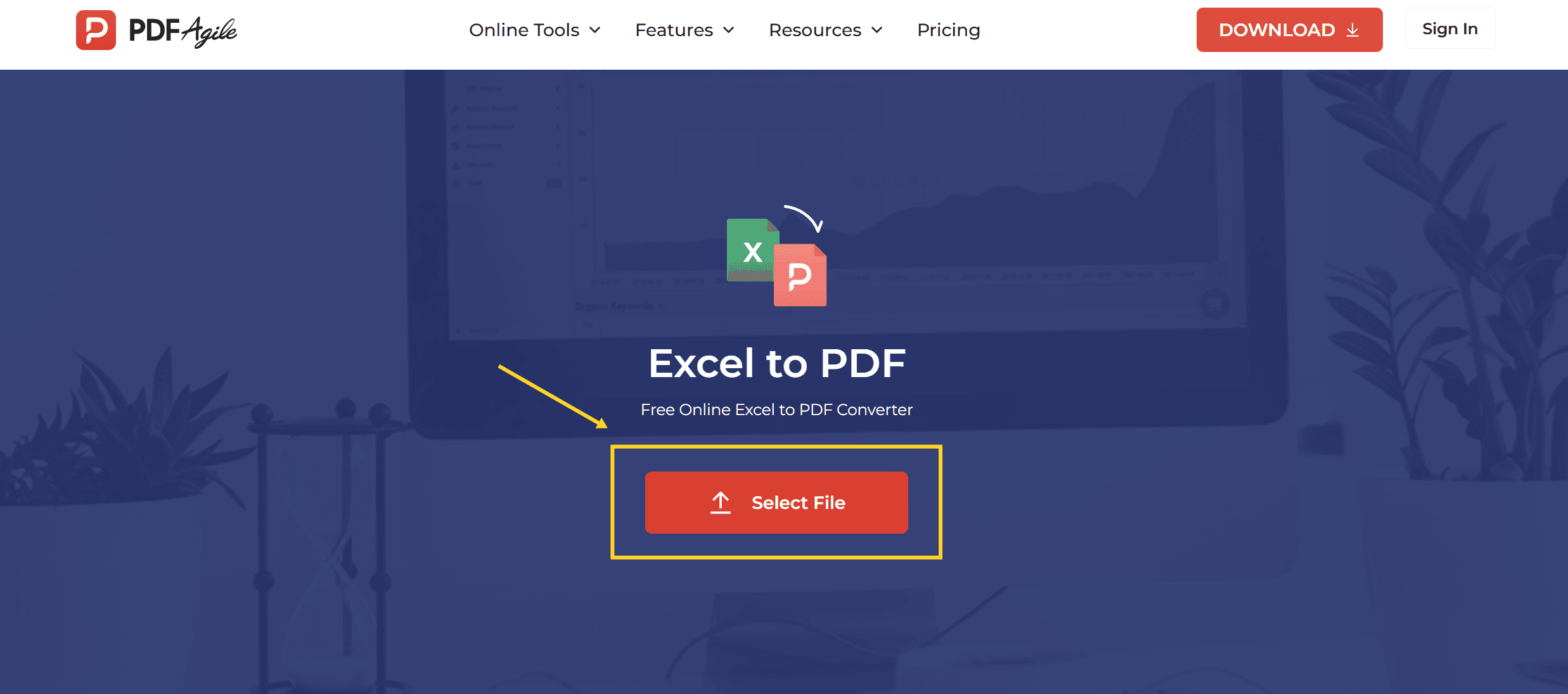
Nothing is asked about paper size, orientation, scaling or which sheets to include. The upload card carries a small number under the file name, and the next step is already the Convert button.
What Comes Back in the Download?
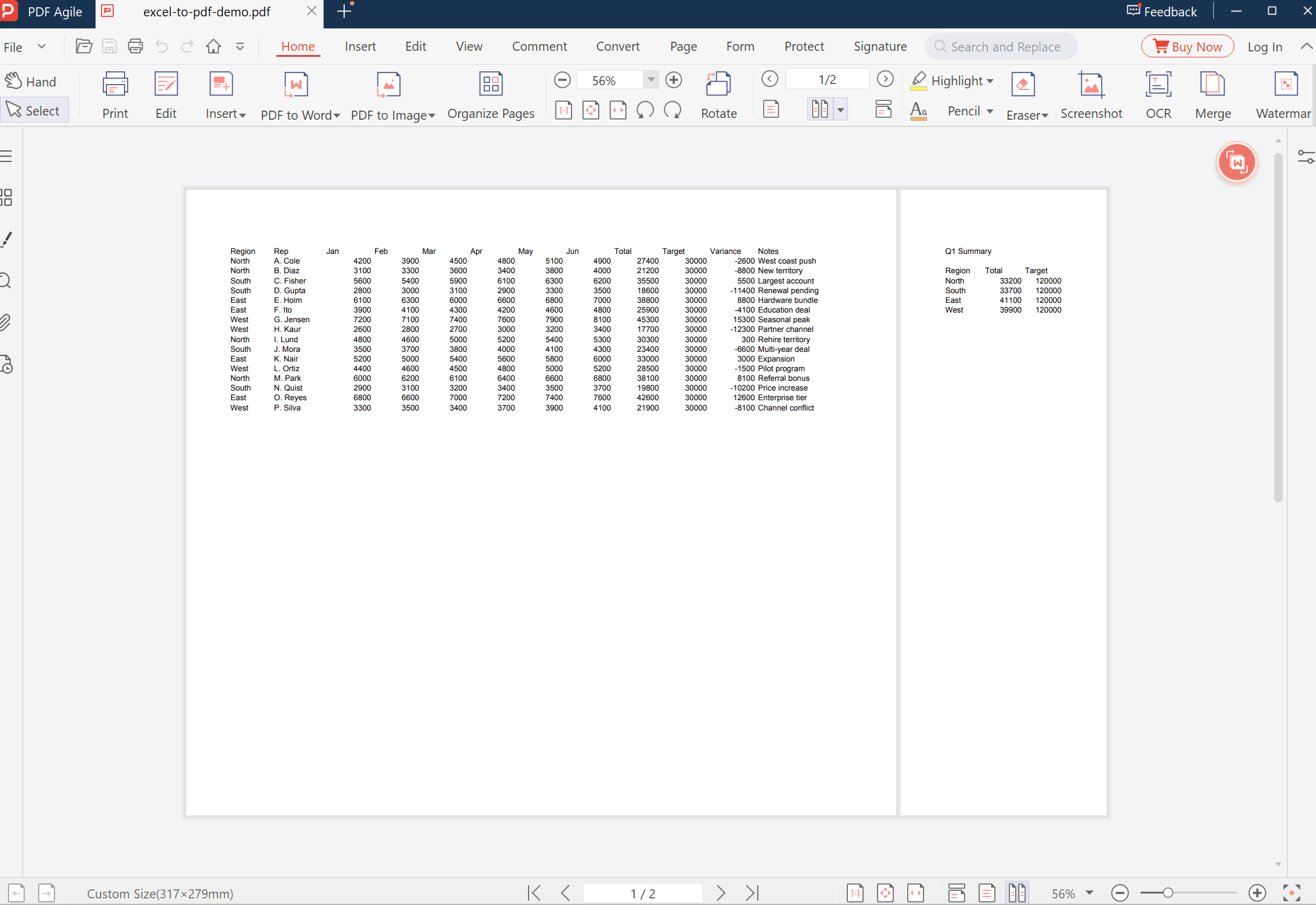
The test workbook behind these screenshots has two worksheets: a 12-column sales table and a small summary table. The download had two pages.
Page 1 measured 897.9 × 792 points, which is 317 × 279 mm — close to a 12.5-inch wide sheet, and the reason the viewer's status bar reads Custom Size (317×279mm). It holds the full sales table: every column, all 16 rows, nothing cut off.
Page 2 measured 259.5 × 792 points, about 91.5 × 279 mm. It holds only the summary table.
So the rule the converter follows is: one worksheet, one page, width determined by the content. That matches the two blocks you see when both pages are open side by side.
Two more things the file itself confirms. The formulas were evaluated: the Total column carries 27400 and the Variance column carries -2600, not `=SUM(C2:H2)`. And the output is real text, not a picture — the PDF contains fonts and no images, so the numbers are still selectable and searchable.
Which Sheets End Up in the File?
| What you want | What this tool does |
|---|---|
| The whole workbook | Every worksheet gets its own page — two sheets produced two pages |
| One sheet only | No option for it; delete or hide the other sheets before converting |
| A very wide table | The page grows sideways instead of shrinking to A4 — 317 mm here |
| Something that prints on A4 | Set the print area and scaling in Excel first, then convert |
The last row is the one that catches people. The converter does not squeeze a 12-column table onto A4, so if the PDF is going to a printer, the layout work has to happen before the upload, not after.
Why the Page Is Not A4
Print settings live in Excel, and this tool never sees them. It reads the cells and lays them out on a canvas that fits them, which is why a 12-column sheet produced a page 317 mm wide while the three-column summary produced one 91.5 mm wide.
Two consequences follow:
- Printing shrinks it. A 317 mm page printed onto A4 is scaled down to about 66 percent, so 10-point text arrives around 6.5 points.
- Phone viewing suffers too. A PDF viewer fits the page width to the screen, so the wide page becomes a thin strip with small type.
Neither is a defect in the conversion; both are the layout the file actually has. If either matters, fix the sheet in Excel — set a print area, choose Fit to one page wide, and pick a paper size — then convert.
How Do You Check the PDF Before Sending It?
Four checks, all under a minute.
1. Page count against sheet count. Two worksheets should give two pages. If you get one, a sheet was empty or hidden.
2. Page width. Look at the page size in the viewer's status bar, or open the print dialog and read the paper size. Anything that is not a standard size will print scaled.
3. The numbers. Find one cell you know, such as a total, and confirm it is a number rather than a formula. Formulas do not survive as formulas.
4. Selectable text. Drag across a cell. If nothing highlights, the page was flattened into an image and search will not work.
What This Cannot Do
- It cannot choose a paper size. There is no A4, Letter or orientation option in the flow.
- It cannot merge worksheets onto one page. Each sheet becomes its own page.
- It cannot convert a single sheet. The upload takes the workbook.
- It cannot keep formulas live. They arrive as their calculated values.
- It cannot fix a layout problem. Column widths, print areas and scaling are decided before the upload.
FAQ
Why is my converted PDF wider than A4?
Because the page is sized to the table. A sheet with many columns produces a wide page, and the converter does not shrink it to a standard paper size.
Can I convert just one worksheet?
Not from this flow — the whole workbook goes in and every worksheet comes out on its own page. Convert first and delete the pages you do not need, or strip the workbook down before uploading.
Are formulas kept in the PDF?
No. They are replaced by their results, so the PDF shows 27400 where the sheet had `=SUM(C2:H2)`. Keep the workbook if you need to recalculate later.
Will it look the same as Excel's own Save as PDF?
Excel's own export honours the print settings you set — paper size, scaling, print area. This converter ignores them and sizes each page to its content, so the two outputs differ whenever the sheet is not already shaped like a page.
Does it keep charts and comments?
Not verified in this test: the sample workbook contained no charts or cell comments. Check one such sheet yourself before relying on it for a report.
Where to Go Next
If the conversion has to happen on a Mac with Excel itself, how to make Excel to PDF on Mac walks the print-dialog route, which is where paper size and scaling actually live. Going the other way — a PDF table that has to become a spreadsheet again — is covered in how to convert PDF to Excel, with a narrower case in converting a PDF table to Excel.
PDF Agile runs the conversion in the browser at the Excel to PDF tool; the tool page states that uploaded files are deleted from its server after conversion. More spreadsheet-to-document walkthroughs sit in the How-to & Tips section.
The job in one line: convert, then check the page count and the page width, because those two numbers decide whether the file is ready to send or ready to print.