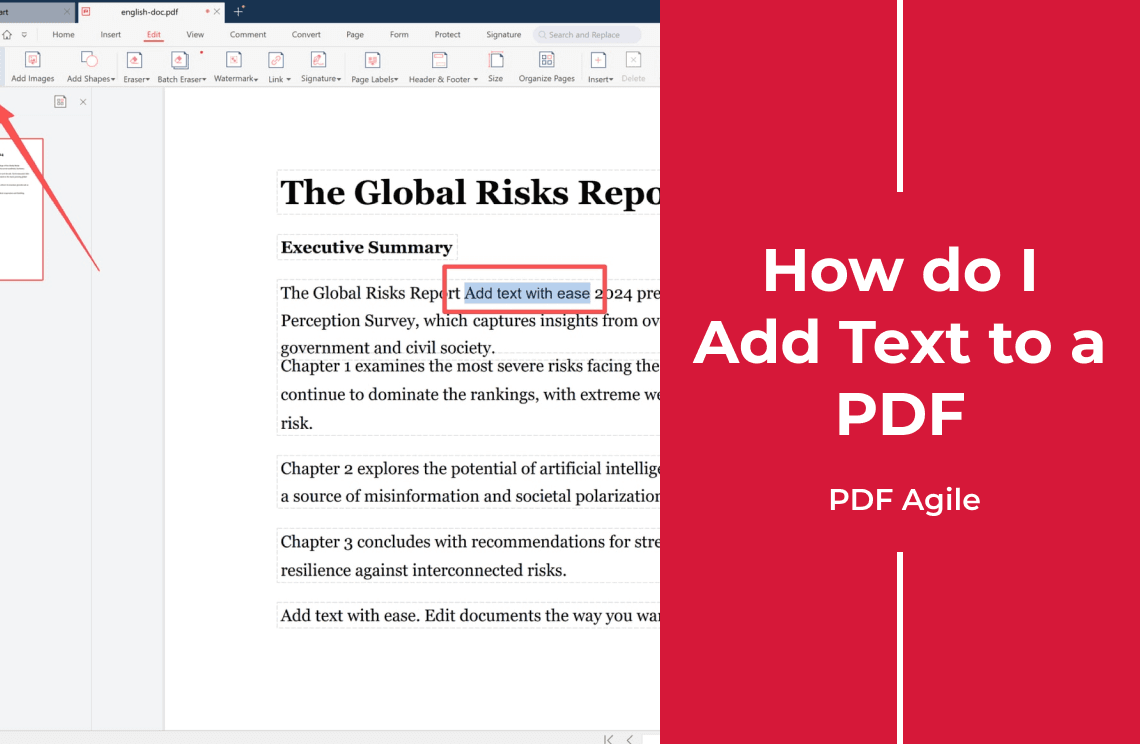
Ask how do I add text to a PDF and the honest answer is: it depends which of four PDFs you are holding. The route changes completely between a blank spot, real text, a form, and a scan.
Which Case Is Your PDF?
- Empty space on the page — place new text over the layout, and nothing else moves.
- Text that is already there — the words must be real, selectable text before you can change them.
- A form with fields — click inside a field and type; no text tool is needed.
- A scanned page — it is only an image, so run OCR first, then add or change text.
What the Four Cases Share
You work in a desktop editor instead of printing the page and scanning it back in. Save as a copy so the original stays unchanged, then check the result: on a fixed layout, new text does not push the surrounding content around. A desktop editor such as PDF Agile covers both writing routes — adding text and changing text that is already there — and its OCR turns scanned pages into editable ones.
FAQ About Adding Text to a PDF
Do I need Adobe Acrobat?
No. A standalone PDF editor adds text without installing it.
Can I change text that is already on the page?
Only if the PDF contains real text. A scan must be recognized first.
What if the page has no free space?
Place the text where it fits; a fixed layout will not reflow around it.
Not sure which case you are in? Download PDF Agile and try both routes on your own file.