Clicking a Download button does not move a PDF onto your computer. The website only hands the file to your browser, and the browser is what writes it to disk. That one fact answers most of the confusion behind this question: the PDF is not stored "on the site", it is in the folder your browser downloads to, under a name the site chose for it.
This guide covers the three ways people actually download a PDF — a Download button on a page, a PDF that opens inside the browser instead of saving, and an email attachment — then where the file lands on each device, and how to keep a copy you can still use next month.
What a Download Really Does
Every download is two separate decisions that look like one click.
- The server decides how the file is delivered. Served as an attachment, it is saved. Served for display, it opens in the browser's built-in viewer instead.
- The browser decides where it lands. Unless you changed the setting, that is the Downloads folder, and the browser keeps its own list of recent downloads.
That list is a record, not the file. Clearing browsing history can empty it while the PDF stays on disk; deleting the PDF from the folder leaves a dead entry in the list. When the two disagree, trust the folder.
There is also a middle state worth knowing about. Browsers write to a temporary file first and rename it when the transfer ends, so an interrupted download shows up as `.crdownload` in Chrome and Edge, or `.part` in Firefox. That is a download in progress, not a broken PDF.
Where the File Lands on Each Device
- Windows. The `Downloads` folder in your user profile. The folder icon in the browser's download panel opens exactly that folder, which beats hunting through the file manager.
- Mac. Safari, Chrome, and Firefox all default to `Downloads` in your home folder, and Finder's sidebar has it.
- iPhone and iPad. Unless you chose an app, the file goes to the Files app, under Downloads — On My iPhone or iCloud Drive, depending on the browser.
- Android. Files app, Downloads category.
If nothing is there, check the browser's download location setting before assuming the download failed. A custom path is the most common reason a finished file appears to have vanished.
Download a PDF From a Website in Four Steps
Labels below match the four screenshots; the same controls exist in Chrome, Edge, Firefox, and Safari under slightly different icons.
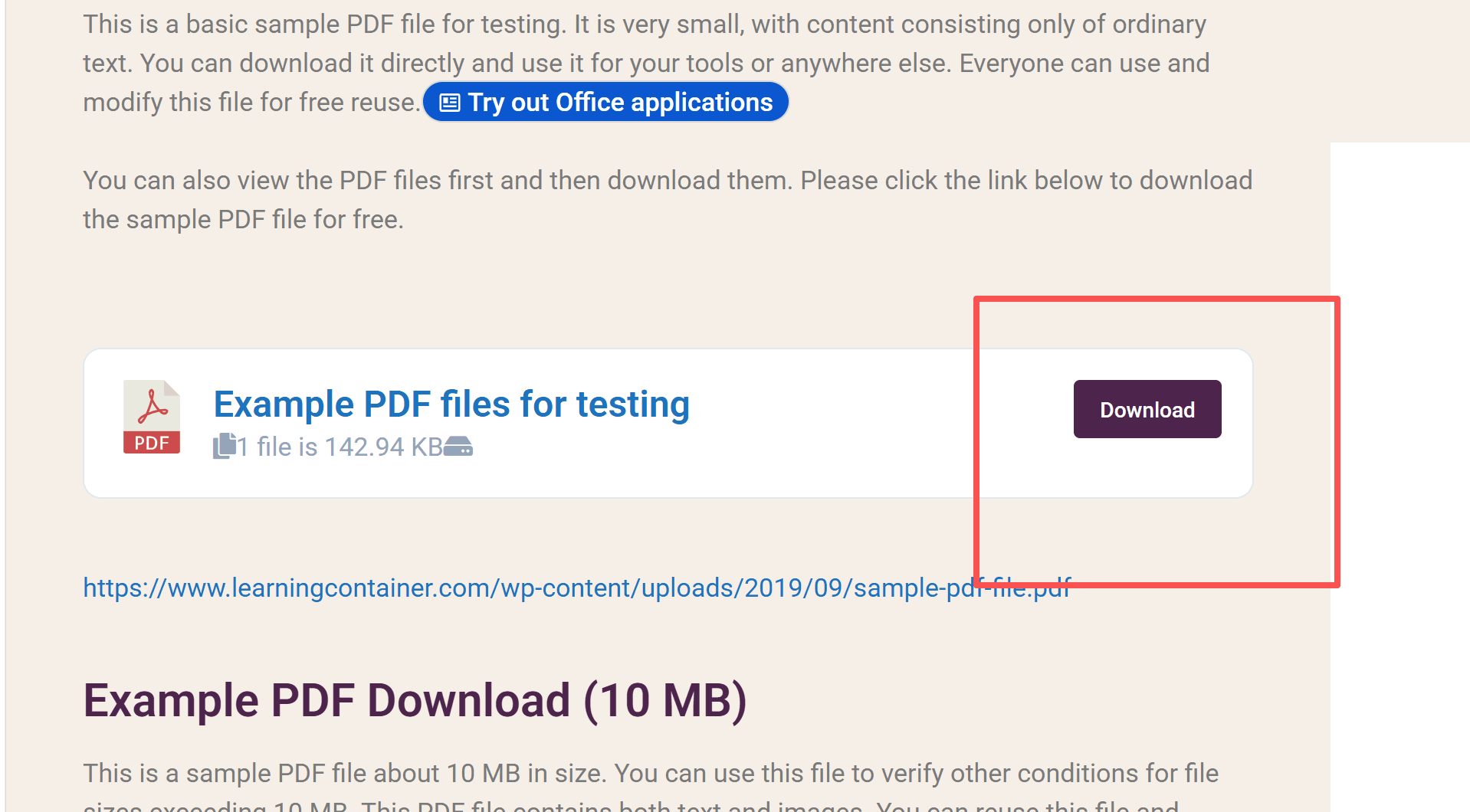
Step 1: Click the Download Button
Find the file block on the page and click Download. Nothing visible happens on the page itself, and that is normal: the transfer now belongs to the browser. A plain link ending in `.pdf` behaves the same way, as does a button that only appears after you dismiss a cookie banner or sign in.
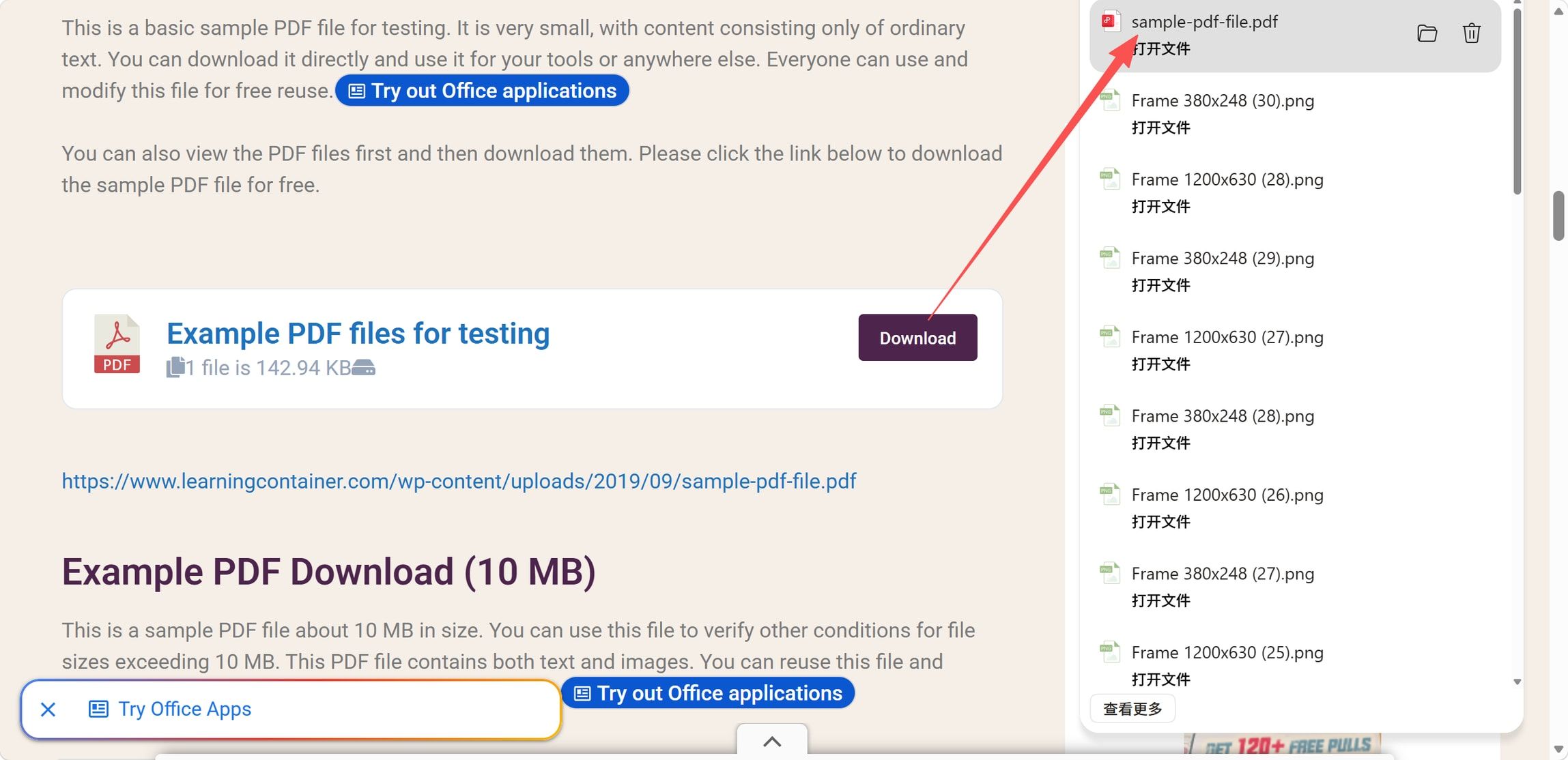
Step 2: Confirm the File in the Download Panel
Open the download panel — the arrow icon in the Chrome and Edge toolbar, the downloads icon in Firefox and Safari — and check that the item reads as finished rather than in progress. The panel shows the file name and size, and that name is usually the server's, not the title you were promised.
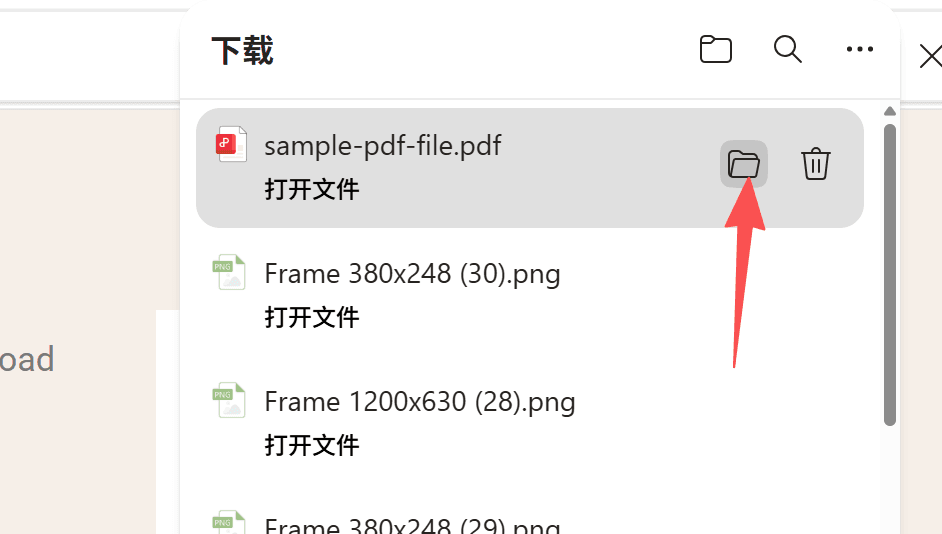
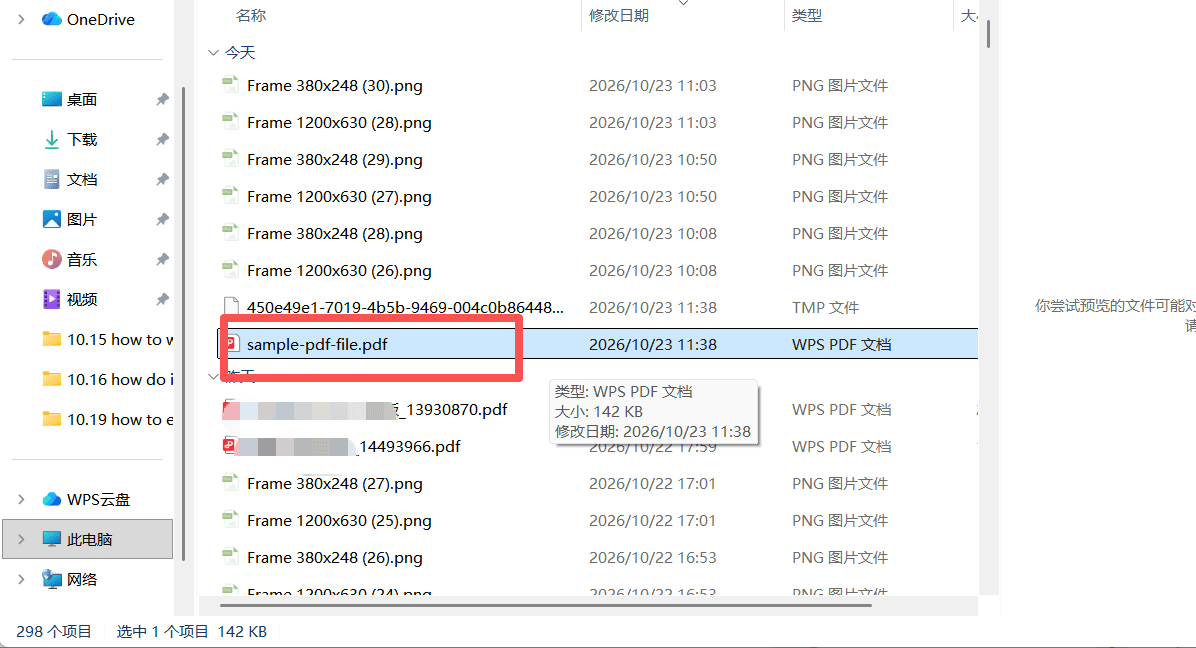
Step 3: Open the Folder That Received It
Every finished item carries a folder icon. Click it and the system file manager opens at the folder holding the PDF — no path typing, no guessing whether it went to Downloads or somewhere else.
Step 4: Find the PDF Before You Open It
In the folder, the newest file sits at the bottom of a date-sorted list or the top of one sorted by modified time. Check the type column and the file size before double-clicking: a PDF that arrived at 0 KB, or one still wearing a `.crdownload` extension, is not readable yet.
When the PDF Opens in the Browser Instead
Some sites serve files for display, so the click opens a viewer instead of saving anything. You can read the document, but the only copy on disk is in the browser cache — not a file you can attach, rename, or keep.
Three ways out, fastest first:
- Use the viewer's download icon, at the right-hand end of its toolbar.
- Press Ctrl + S on Windows or Cmd + S on a Mac while the viewer has focus, then pick a folder you will remember.
- Right-click the original link and choose Save link as.
If the link points at Google Drive or another cloud viewer and no download control exists at all, the owner shared a view rather than the file. That case has its own rules, and no browser trick replaces permission.
Download a PDF From an Email Attachment
Email adds one layer and changes no rule: the attachment still reaches your browser or your mail app, and the file still lands in the same download folder.
- Webmail — hovering the attachment brings up a download arrow. Clicking it hands the file to the browser, so everything from Step 2 onwards applies.
- Desktop mail clients — a save dialog opens instead. You choose the folder, so the file is not in Downloads unless you put it there.
- Cloud attachments — a link to OneDrive, Drive, or Dropbox is a page, not a file. Download from the cloud page itself.
- Phone mail apps often keep the attachment inside the app until you tap Save to Files or Share. That is why Downloads looks empty on a phone while the attachment is clearly there.
Keep a Copy You Can Actually Use
A downloaded PDF is easy to lose inside a folder that syncs, cleans itself up, or fills with files named `document(3).pdf`. Two habits fix it: rename the file as soon as you find it, and save a copy of your own where you will look for it later.
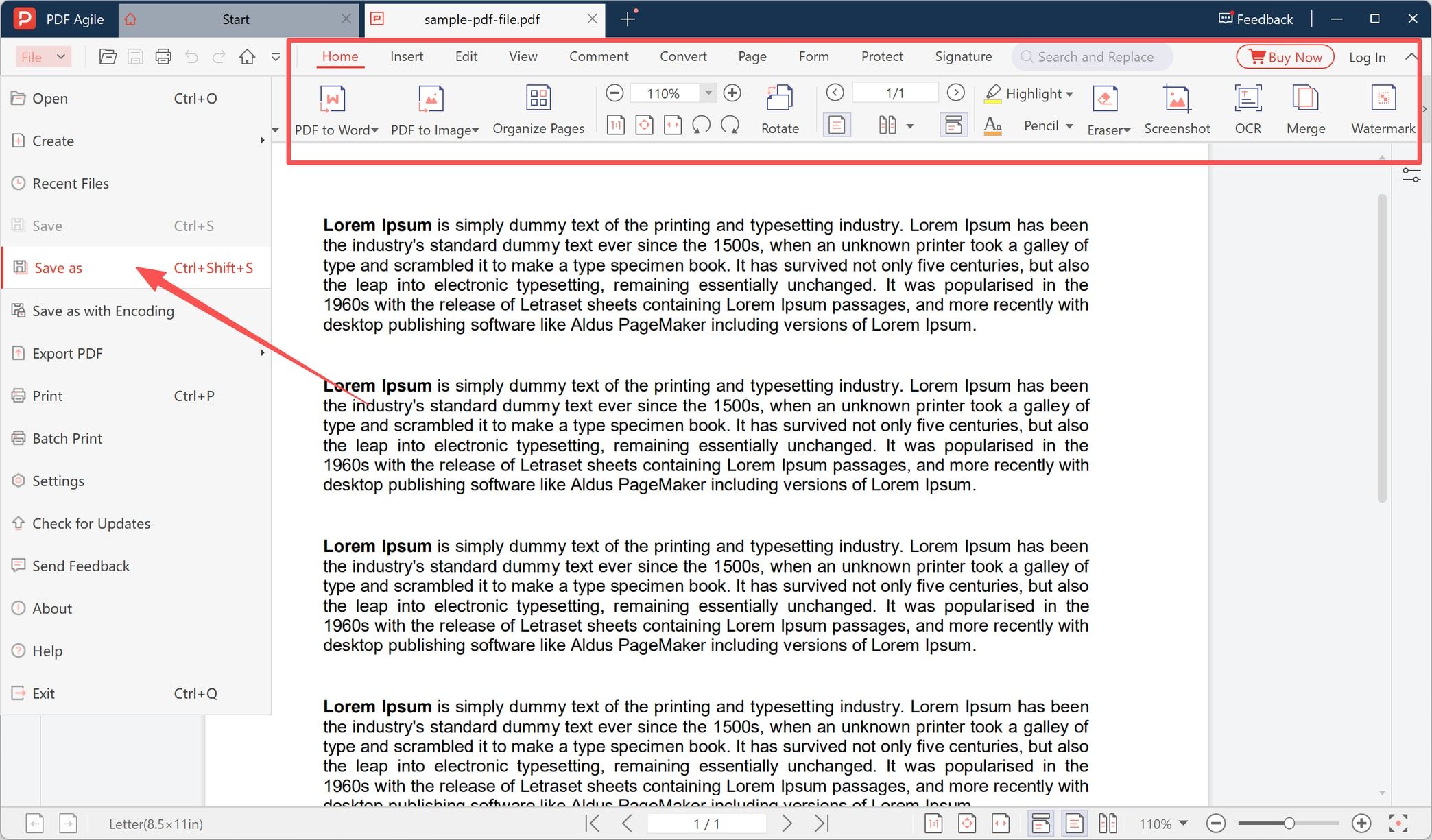
Step 5: Save Your Own Copy in a Desktop App
Open the PDF in a desktop reader, then use File → Save as (Ctrl + Shift + S) to write a copy under a name you chose, in a folder you control. PDF Agile, a Windows desktop PDF editor, puts this in its File menu, and the same window carries what a downloaded PDF usually needs next — PDF to Word, OCR, Merge, Organize Pages — without uploading the document anywhere.
Why a Download Fails, and What to Check
Most "it didn't download" cases fall into a short list, and each one looks different once you are in the folder.
- You saved a login page, not a PDF. The file is a few KB and opens as a web page in the reader. The site wanted a session; sign in and download again.
- 0 KB, or still ending in `.crdownload`, `.part`, or `.tmp`. The transfer never finished. Retry instead of renaming the extension.
- The browser blocked it. The download panel offers Keep or Download anyway for files it considers uncommon, and the item sits pending until you confirm.
- It opens but will not edit. The file is encrypted or permission-locked. Downloading is not editing; you can read it and still be unable to change it.
- It is in a synced folder. OneDrive and iCloud can keep a file "available online only", so it opens instantly on one machine and is missing on another. Copy it to a local folder first.
- Antivirus quarantined it. The file disappears minutes after arriving, and the security tool's log says where it went.
- The link expired. Sharing links carry time limits or download counts. Ask for a fresh link rather than retrying.
If the file is present, the right size, and still refuses to open, the problem has moved past downloading — these fixes for a PDF that will not open pick up there, and problems saving a file are a different failure again.
After the Download
Once the file is on disk, downloading stops being the interesting part:
- Print it at the size it was made for, or print one page range instead of all forty.
- Fill and sign it if it is a form. A downloaded form is still a fillable form.
- Merge or split it when it arrives as one file but has to travel as several.
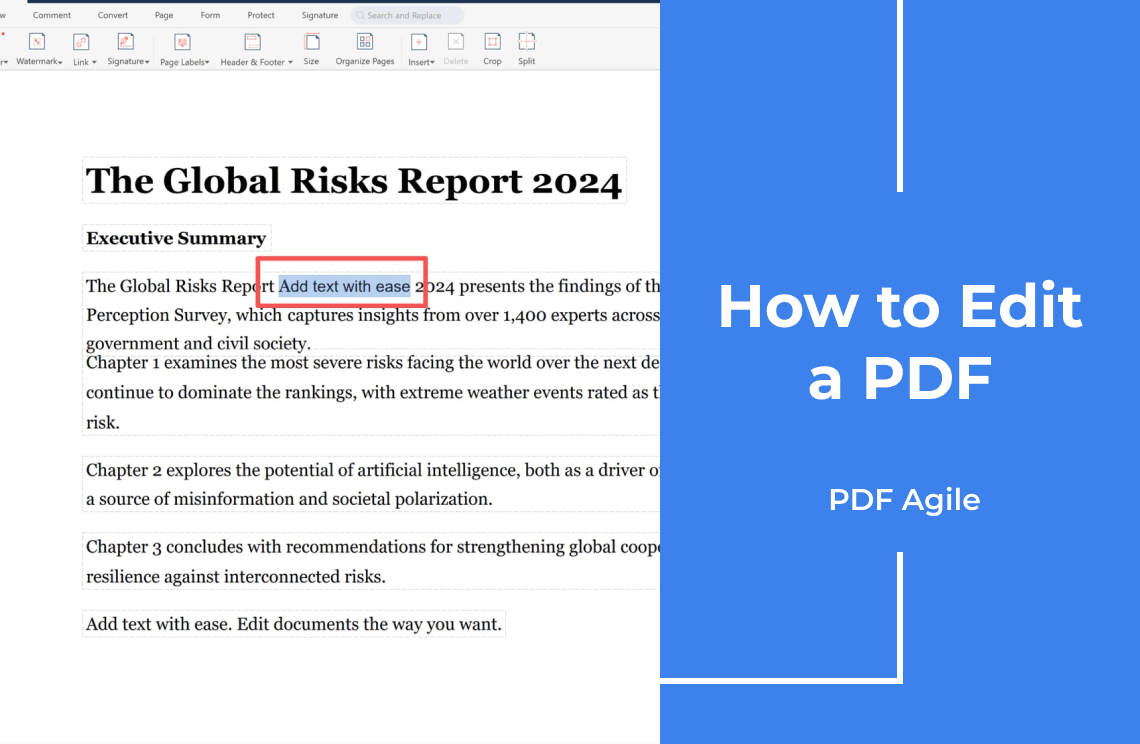
- Convert it with PDF to Word when the text has to change rather than just be read. For changes inside the PDF itself, this guide to editing a PDF covers text, images, pages, and scans.
More walk-throughs like this one are filed under PDF how-tos.
FAQ
Why do I get a `.crdownload` file instead of a PDF? The transfer is still running or was interrupted. Wait for the panel to say complete, or cancel and start over. Renaming the extension produces a broken file, not a PDF.
Can I open a downloaded PDF without internet? Yes. A download is a complete copy, so reading, searching, and printing work offline. Only features that need a server — verifying a signature online, opening a cloud link — do not.
Where did the PDF go on my phone? Files app → Downloads on iPhone and iPad, Files → Downloads on Android. If the mail app kept it, look inside that app and use Share or Save to Files to move it out.
Can I download a PDF that I can only view? Often there is no download button because the owner shared viewing rights only. The page permission blocks it, not the browser, so respect it.
Is it safe to download a PDF from an unfamiliar website? The transfer itself is usually harmless; what you open afterwards is the risk. Scan files from unknown sites, and keep sensitive documents in a desktop app instead of an online converter that uploads them.
Downloading is the part your browser already handles well. Finding the file, naming it, and keeping a copy of your own is the part worth doing deliberately.