Key takeaways
- A DWG has geometry and units, but no paper. Unless the file carries a layout with a sheet, the converter has nothing to size the page from except the drawing's extents.
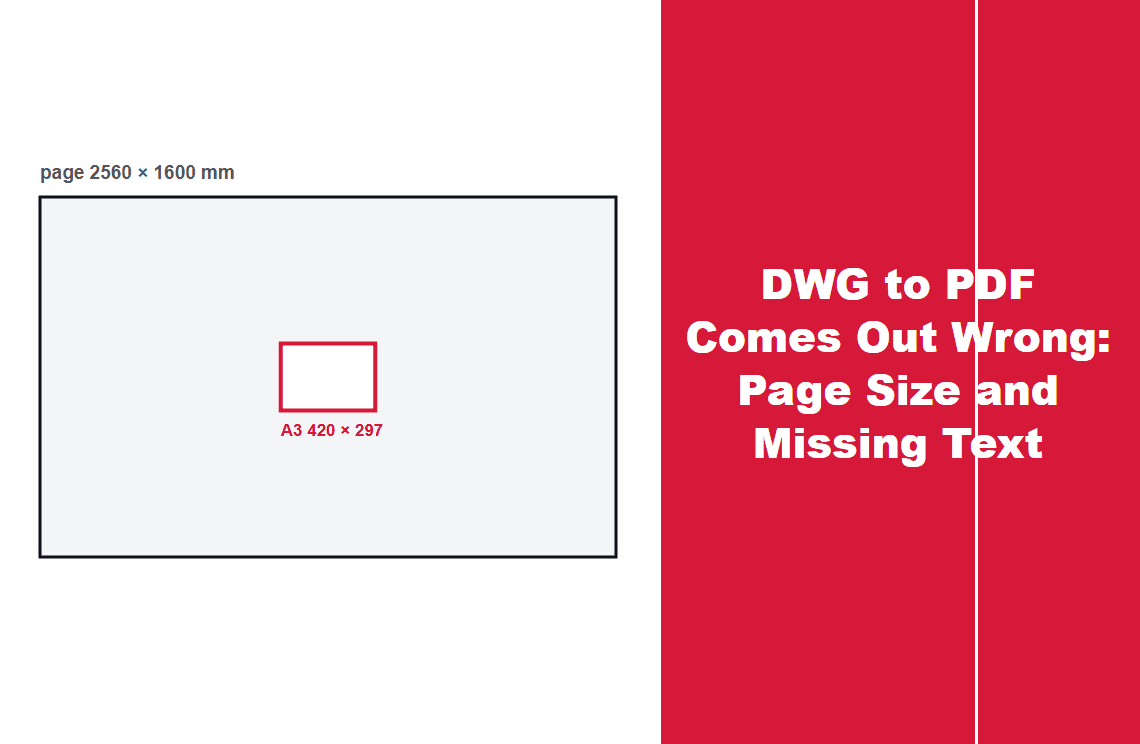
- In the test below, one DWG came back as a single 2560 × 1600 mm page — an A3 drawing on a sheet roughly six times too wide.
- The same export carried no fonts at all: every letter was written as vector outlines, so the text cannot be selected or searched.
Both faults look unrelated and have the same root: the PDF was written from the geometry, not from a sheet. One is about the rectangle the geometry sits in, the other about what the geometry is made of.
Which of the Two Problems Do You Have?
| What you see | What it means | How to confirm it |
|---|---|---|
| The page is metres wide, not A3 or A4 | Page size was taken from the drawing extents | Look at the page size in document properties |
| Text looks right but cannot be selected | Letters were written as outlines, not as text | Drag over a word; or check the font list is empty |
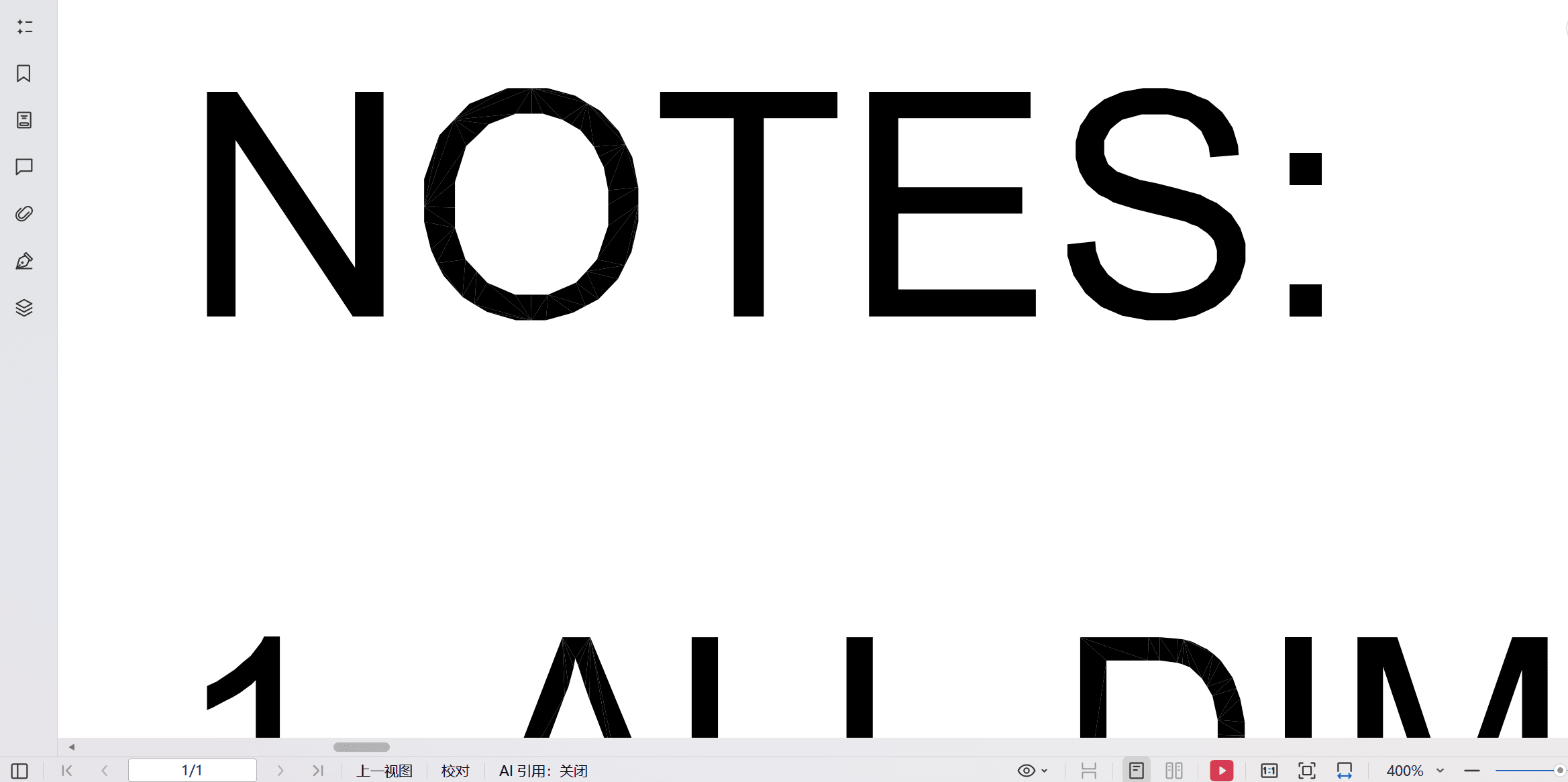
| Zoomed text shows faceted edges | The glyphs are paths; the facets are the triangles that fill them | Zoom to 400% on a round letter |
| Line weights look heavier than on screen | Outlines and hatches were stroked at plot widths | Compare at 100% with the CAD view |
| Everything is one layer / no layers | PDF has no layer concept | Layer panel is empty |
The rest of this page takes the first three, because they are the ones the file itself can prove.
Why the Page Comes Out 2.5 Metres Wide
A DWG stores coordinates in drawing units. It does not store a paper size — a sheet is a layout: a page of a chosen size plus a viewport that looks into the model. Export to PDF through a converter that ignores layouts, or open a DWG that has none, and the only rectangle available is the bounding box of the geometry.
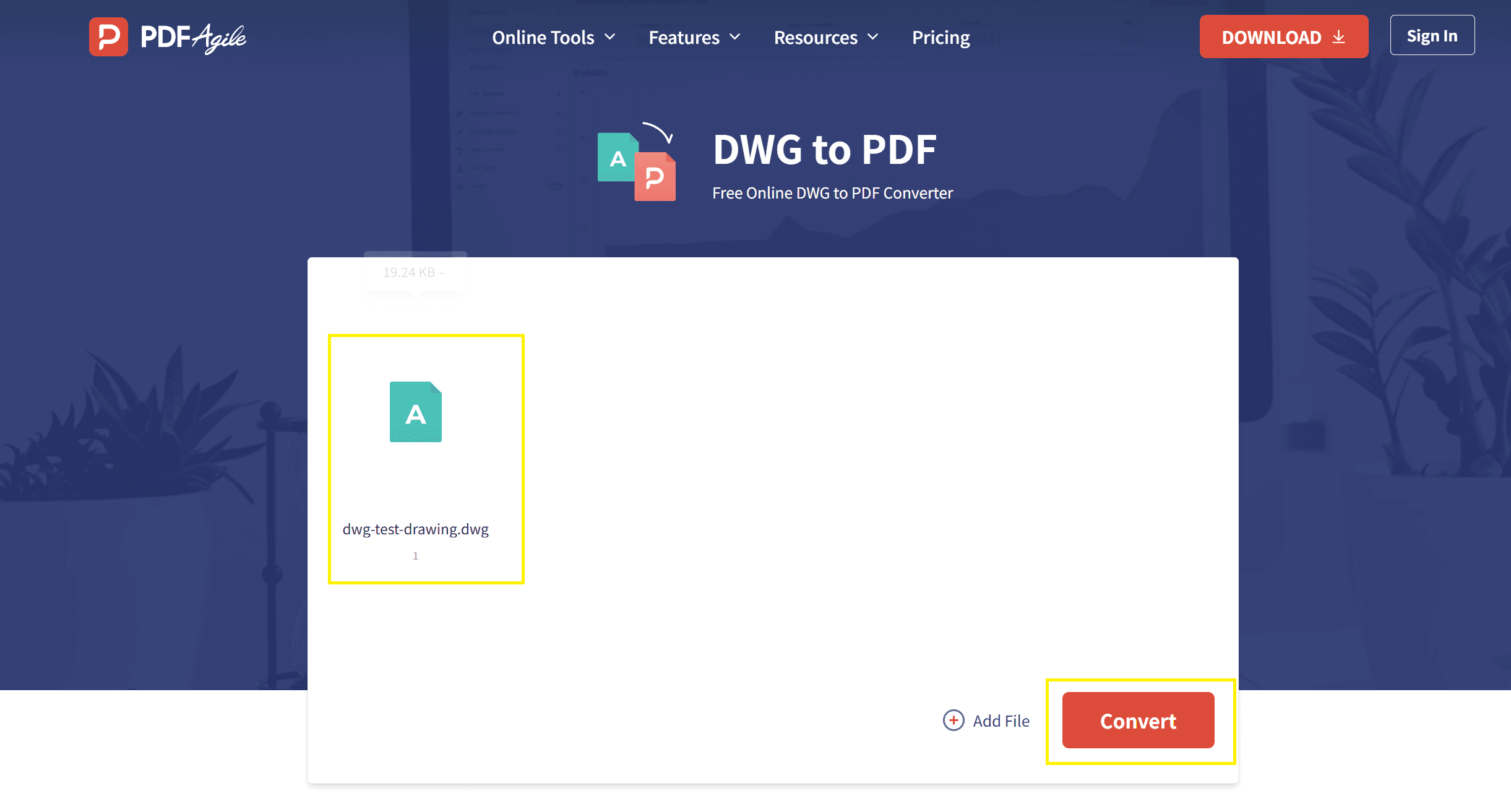
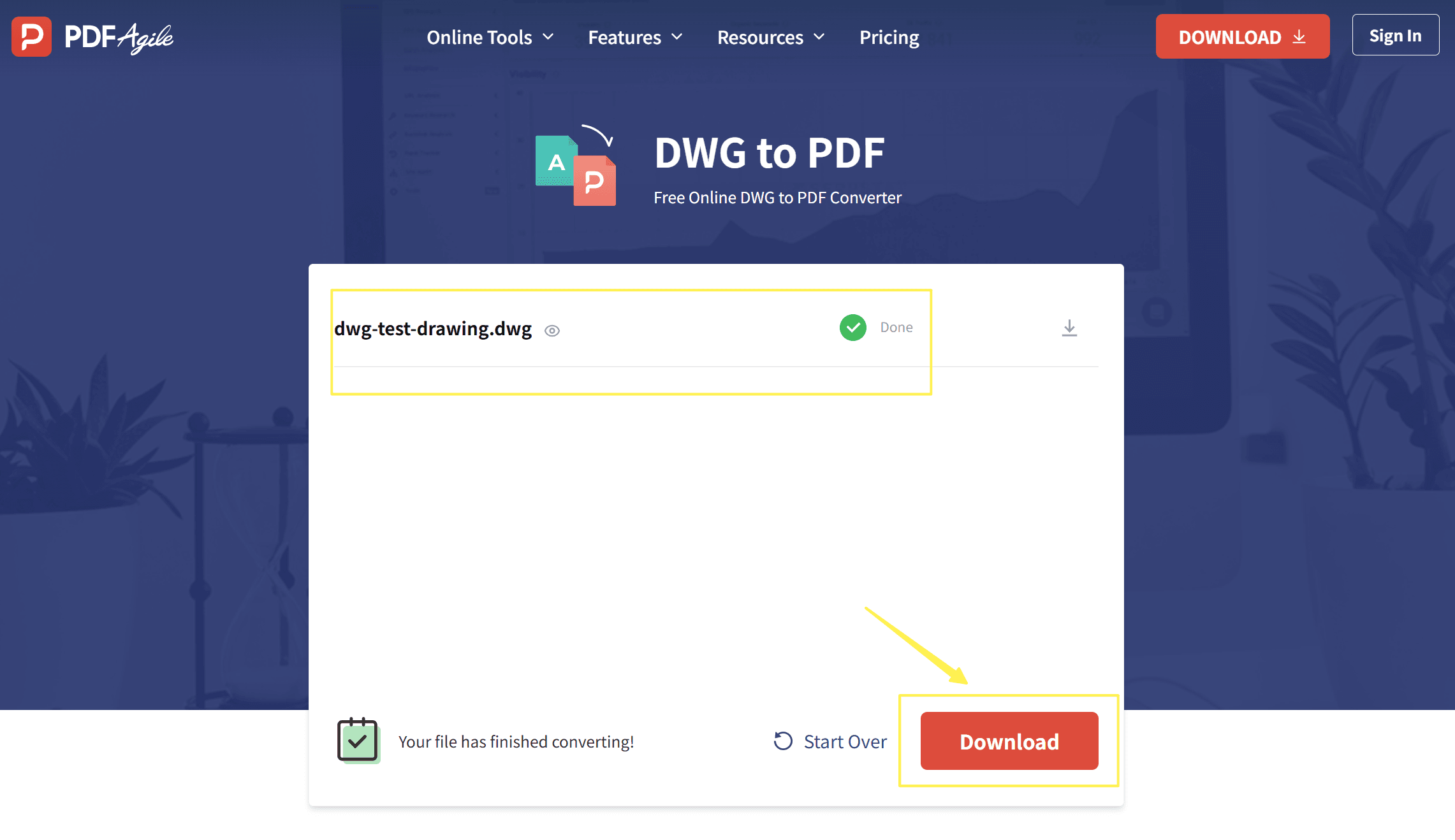
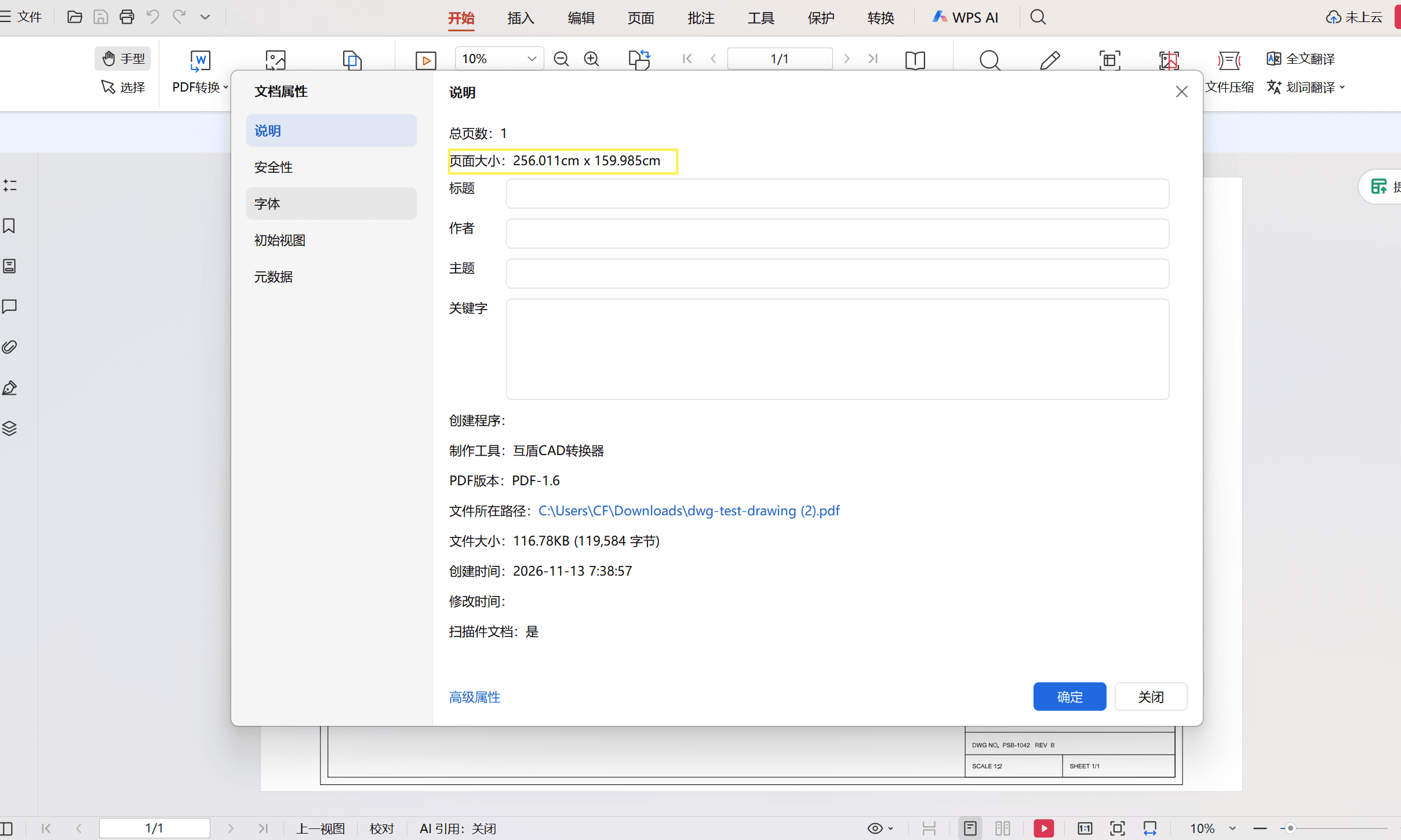
The test file for this page was a single A3 sheet: a frame, a title block, a part view with hatching, dimension lines and labels. Uploaded to a browser converter and returned as PDF, the page measured 7257 × 4535 pt, which is 2560 × 1600 mm.
Nothing was corrupted. The geometry spans 2560 by 1600 drawing units, the converter read those units as millimetres, and wrote a page of that size. An A3 sheet is 420 × 297 mm, so the result is about 6.1 times too wide and 5.4 times too tall — and because the two factors differ, the aspect ratio changed as well, which means the sheet was not scaled uniformly.
That is what a page-size fault looks like from the outside: a document that opens, prints and looks correct at fit-to-window, while every dimension on it is wrong by a factor nobody wrote down.
Why the Text Cannot Be Selected
A PDF can carry text in two ways: as characters that reference a font, or as shapes. The second is what a plotter does when it has no font to reference — every glyph becomes a filled path, correct in appearance and empty of meaning.
The exported file contains no font objects at all, and the page content has no text-drawing operators. Every label on the sheet — the title block, the dimensions, the notes — is a path.
You can see it without any tools. Zoom to 400% on a round letter and look inside the stroke: the curves are built from flat segments, and a letter like `O` often shows the triangles that were used to fill it.
The practical consequences are the ones you notice later: the page cannot be searched, a colleague cannot copy a dimension out of it, screen readers find nothing, and any downstream tool that expects text — including OCR pipelines that check whether a text layer already exists — treats the page as an image that happens to be sharp.
How Do You Get a Usable PDF Out
There is no setting in the receiving converter that fixes either fault, because both were decided when the file was written. In order of how much control they give you:
- Plot from the layout, in CAD. This is the only route that gets both the sheet and the text right. The layout already has a paper size; the plot dialog lets you keep text as text.
- Set the drawing units before converting. If the file has to go through an online converter, at least make the units millimetres and the extents match the sheet, so the page comes out at a plausible size.
- Accept the outlines when nobody needs to search the file. A PDF for reading or printing does not need a text layer. A PDF for a filing system, an archive or a website does.
- Run OCR only as a last resort. It adds a text layer on top of the outlines; it does not restore the original fonts, and the recognised text inherits OCR's own mistakes.
Check Before You Send
Four checks, two minutes, all inside the PDF.
- Page size: open document properties. A drawing that came from an A3 sheet should not report a page in centimetres with a leading 2.
- Selection: drag across a label. Text that highlights is text; a page that highlights as one block is a picture of the drawing.
- Font list: an empty font list is the confirmation that no text layer exists, even if the page looks sharp.
- One known dimension: measure a dimension line. If the printed length is off by a round factor, the page was scaled, not drawn wrong.
What This Cannot Do
- It cannot add a sheet size the DWG did not have. Without a layout, there is nothing for the converter to read.
- It cannot turn outlines back into text. The characters are shapes now; the only recovery is OCR, which guesses.
- It cannot preserve layers. A PDF has no equivalent, so anything you rely on layer names for has to be rebuilt.
- It cannot fix a non-uniform scale after the fact. When width and height were scaled by different factors, no single correction restores it.
- It cannot tell you what the drawing should measure. That knowledge has to come from the drawing, not the file.
FAQ
Why is my DWG to PDF page so large?
The converter took the page size from the drawing's extents instead of a layout. If the geometry spans 2560 units and the units are millimetres, the page is 2560 mm wide.
Why can't I select or search text in the PDF?
The letters were written as filled outlines rather than as characters tied to a font. The page looks correct but contains no text.
Does that mean the conversion failed?
No. The geometry is intact and prints correctly. What is missing is the text layer, which matters for search, copying and accessibility but not for printing.
Can I fix the missing text afterwards?
Only by OCR, which adds a new text layer over the outlines and brings its own errors. Re-plotting from CAD with text kept as text is the clean fix.
Will a different converter produce a proper A3 page?
Usually yes, if the DWG has a layout and the converter reads it. The sheet comes from the layout, so a file without one gives every converter the same problem.
Where to Go Next
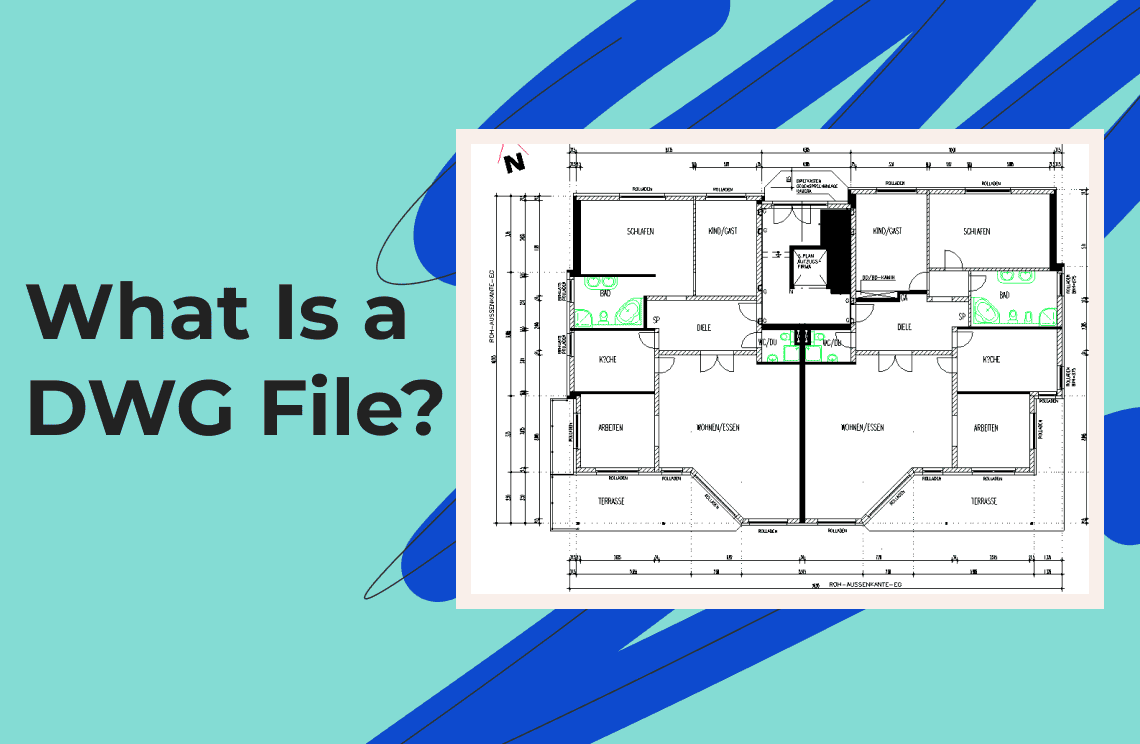
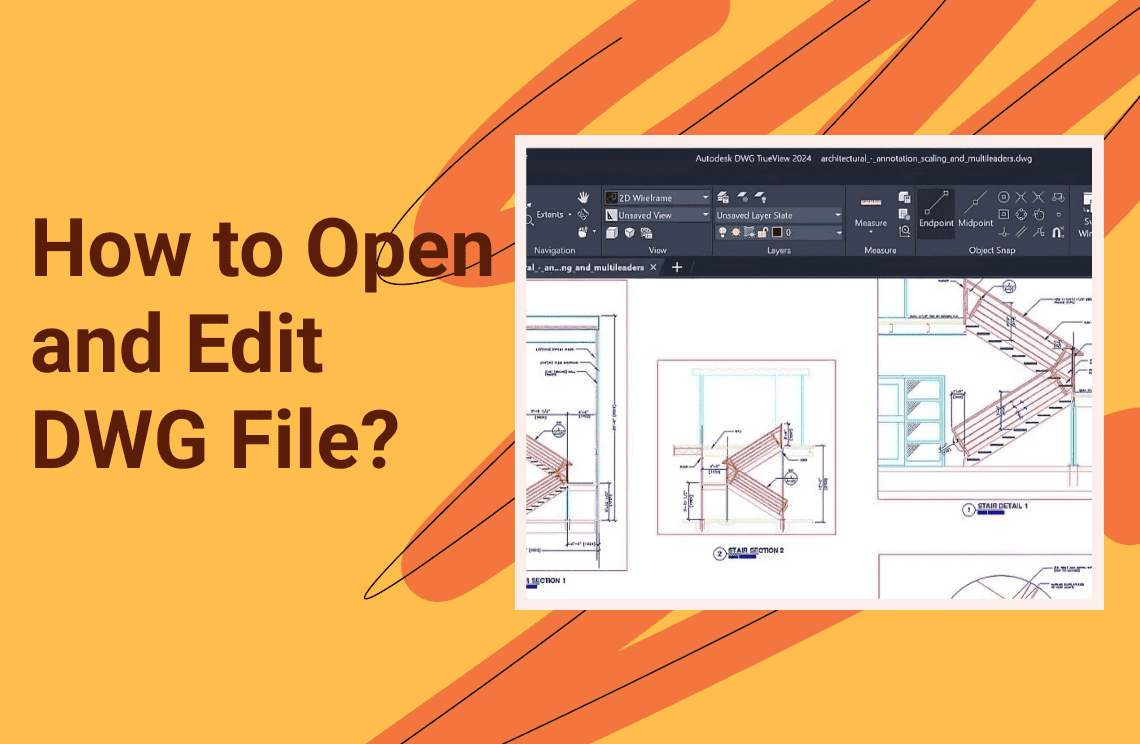
If the question is what the file even is, what a DWG file is covers the format, and opening and editing a DWG covers the working side. The opposite direction — turning a PDF into geometry — is covered by converting a PDF to an AutoCAD drawing and by why a converted DWG comes out at the wrong scale.
The conversion in the screenshots runs at the DWG to PDF tool; if the drawing has to come back into CAD afterwards, PDF to DWG is the other direction.
The short version: the page size and the text layer are both decided by what the DWG was able to tell the converter — a layout and real fonts, or neither.