TAG: Edit PDF
How-to & Tips4 Mins
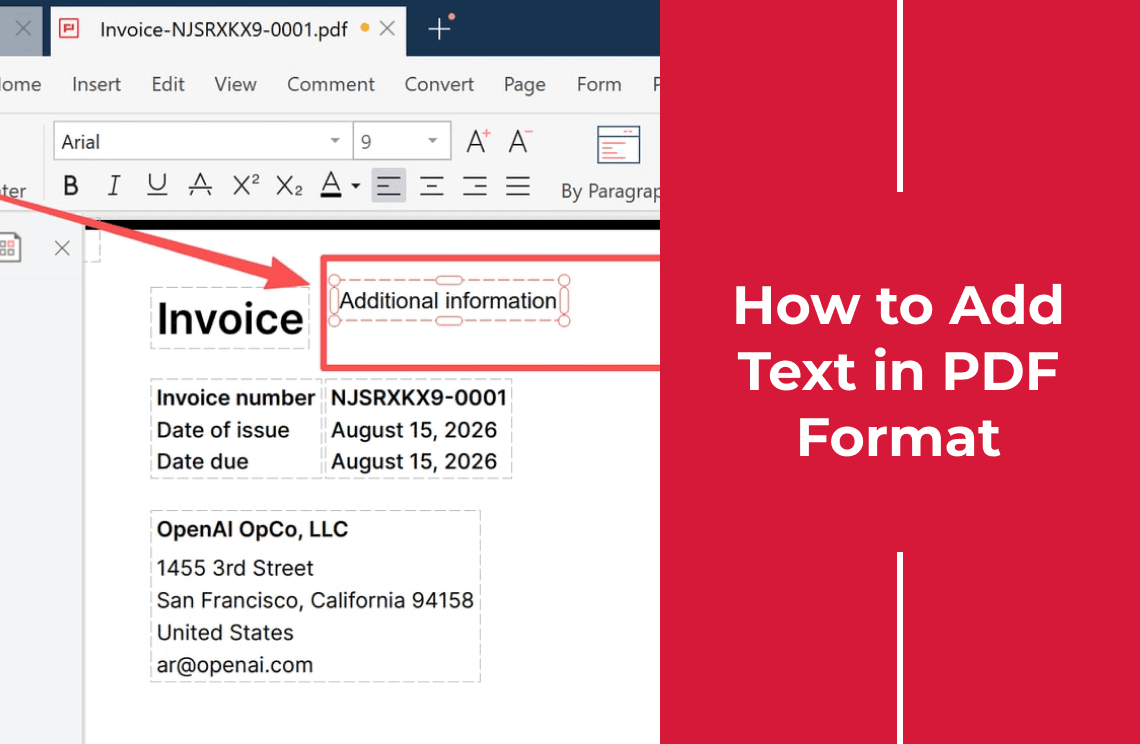
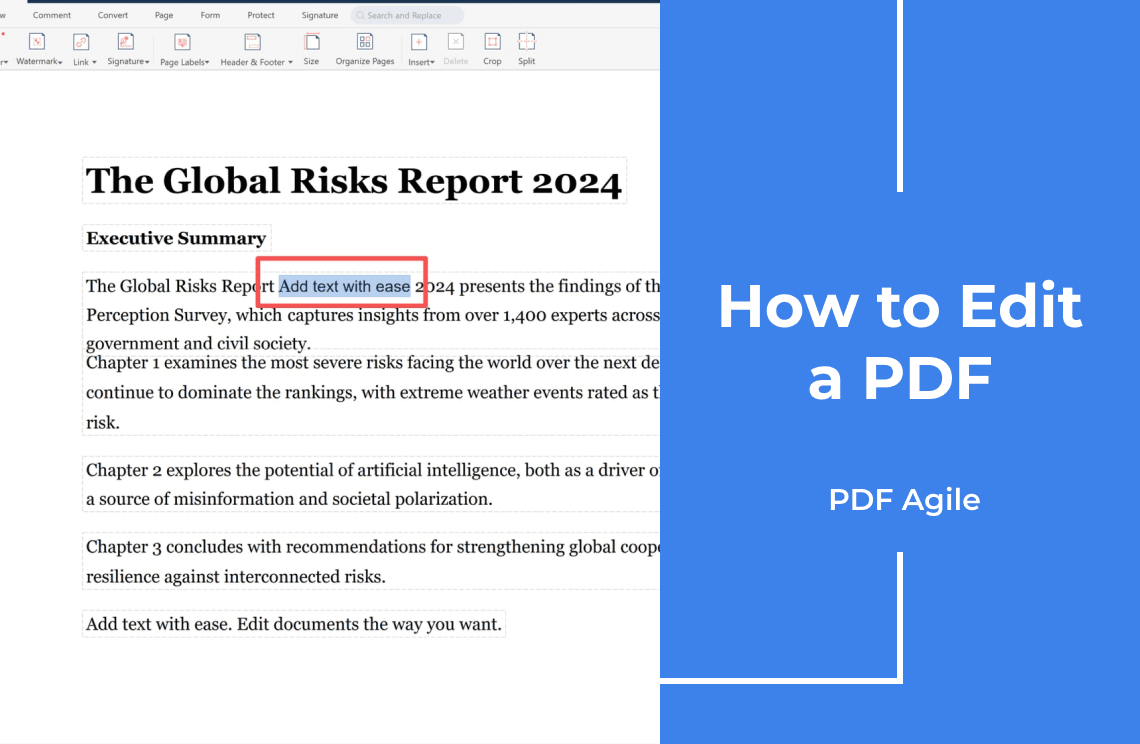
How to Edit a PDF: Text, Images, Pages, and Scanned Files
Learn how to edit a PDF: check for selectable text, rewrite existing text, add new text, replace images, manage pages, and run OCR on scans.
Read More >>
How-to & Tips4 Mins
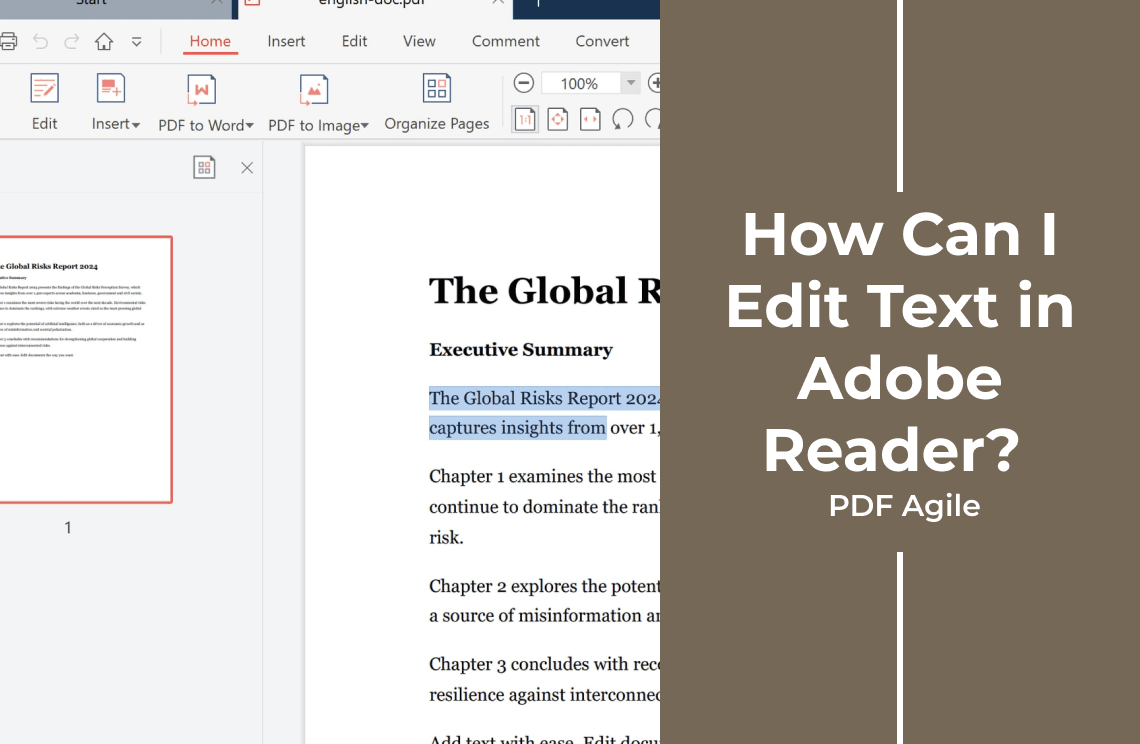
How Can I Edit Text in Adobe Reader? What Works and What Doesn't
A free PDF reader cannot change existing text. See what it does allow, when you need a PDF editor, and how to handle scans, fonts, and locked files.
Read More >>
How-to & Tips6 Mins
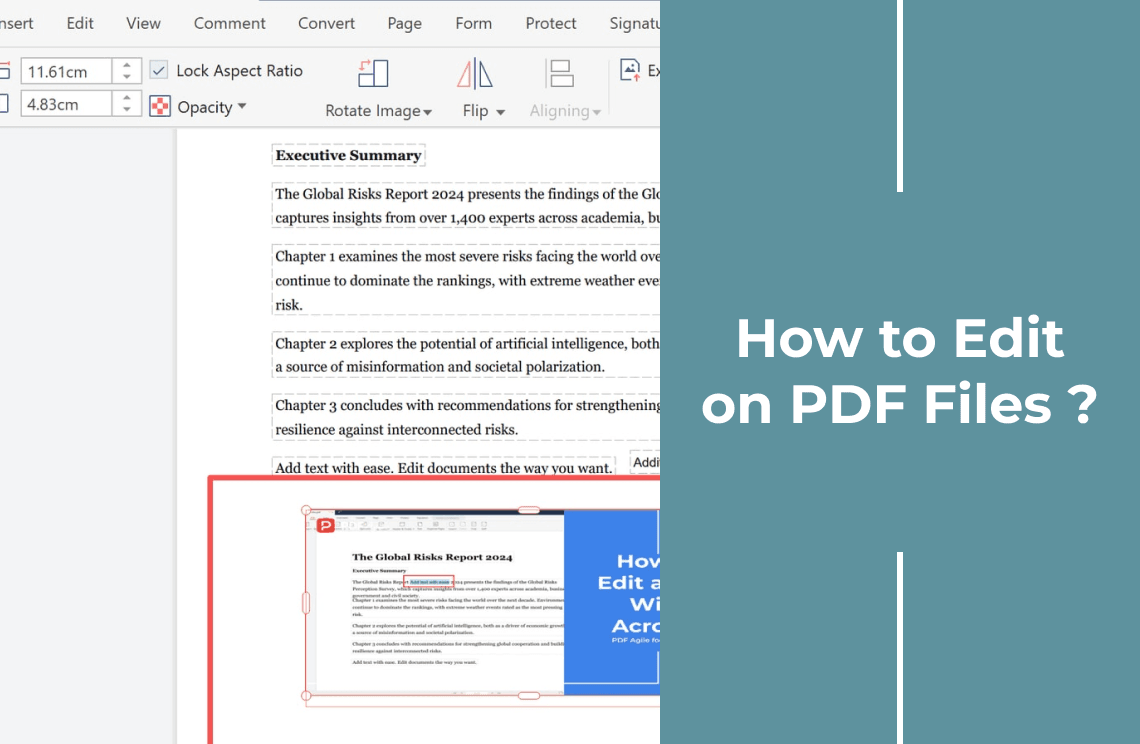
How to Edit on PDF Files: Replace Text and Add Images
Learn how to edit on PDF files: open the document, retype existing text, add new text, insert an image, and resize it so nothing shifts on the page.
Read More >>
How-to & Tips3 Mins
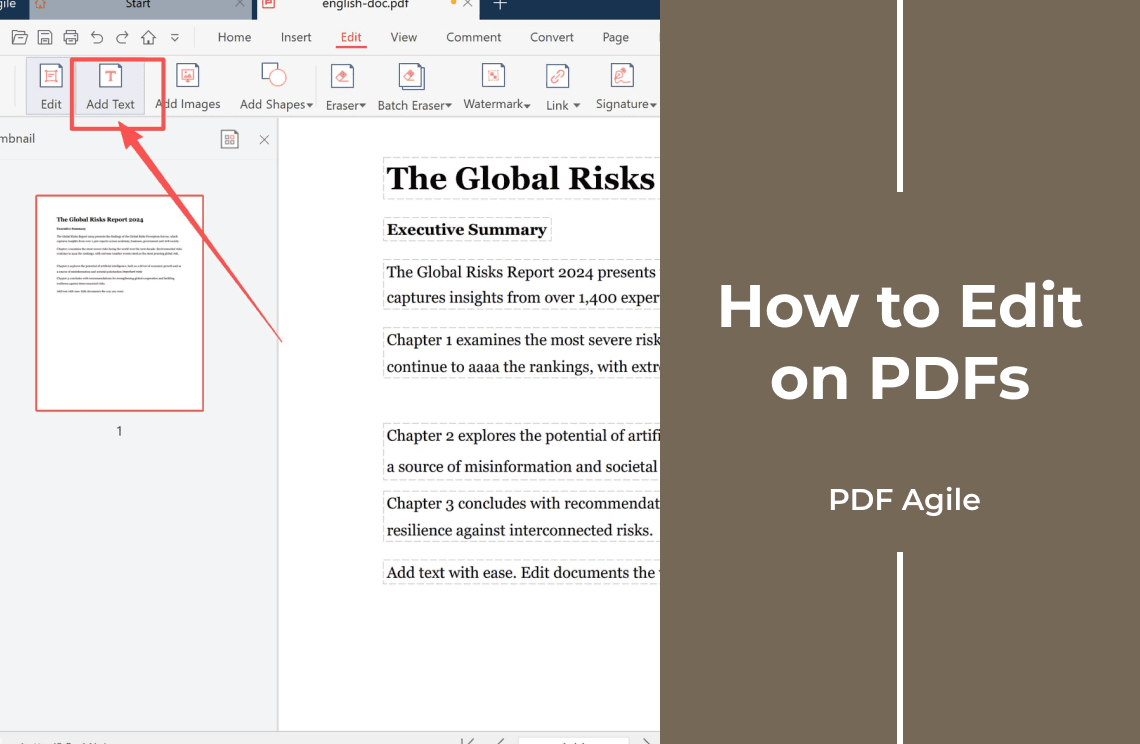
How to Edit on PDFs: Three Layers and Which One You Need
Learn how to edit on PDFs by layer: change text that is really text, reorder pages, or add annotations in a free reader, plus what refuses to change.
Read More >>
How-to & Tips3 Mins
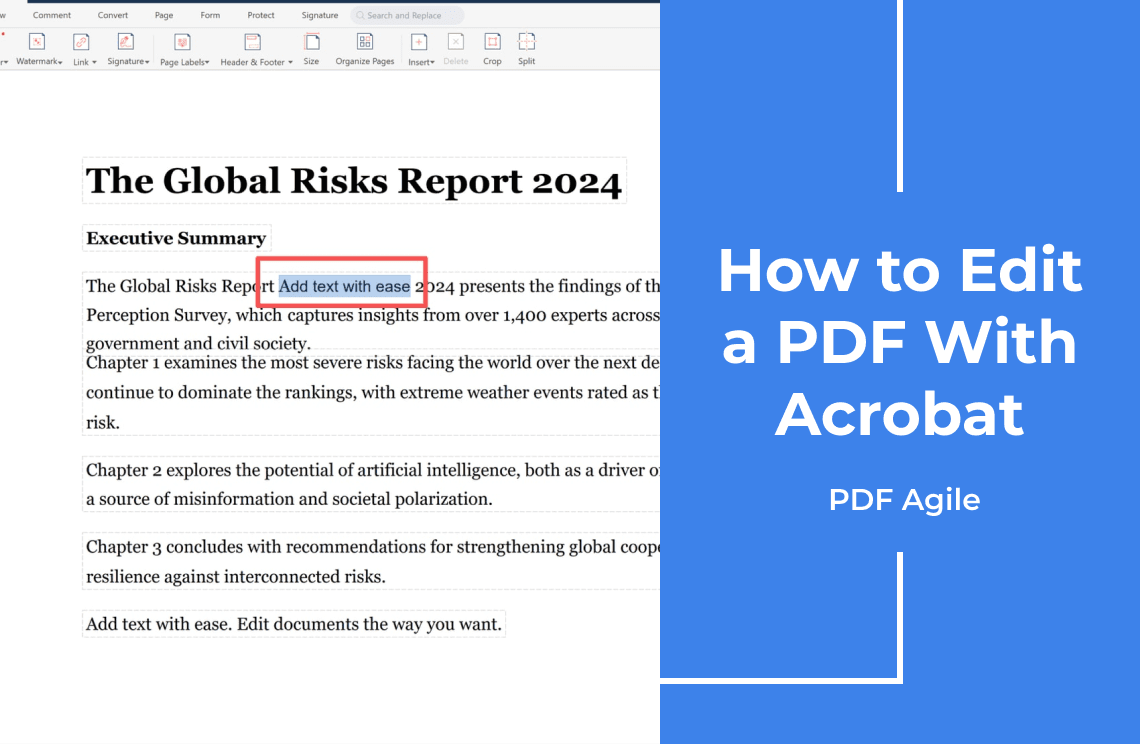
How to Edit a PDF With Acrobat: Which Version You Need
Learn how to edit a PDF with Acrobat: which edition can edit text and images, the steps inside the Edit PDF tool, and the limits to expect.
Read More >>
How-to & Tips4 Mins
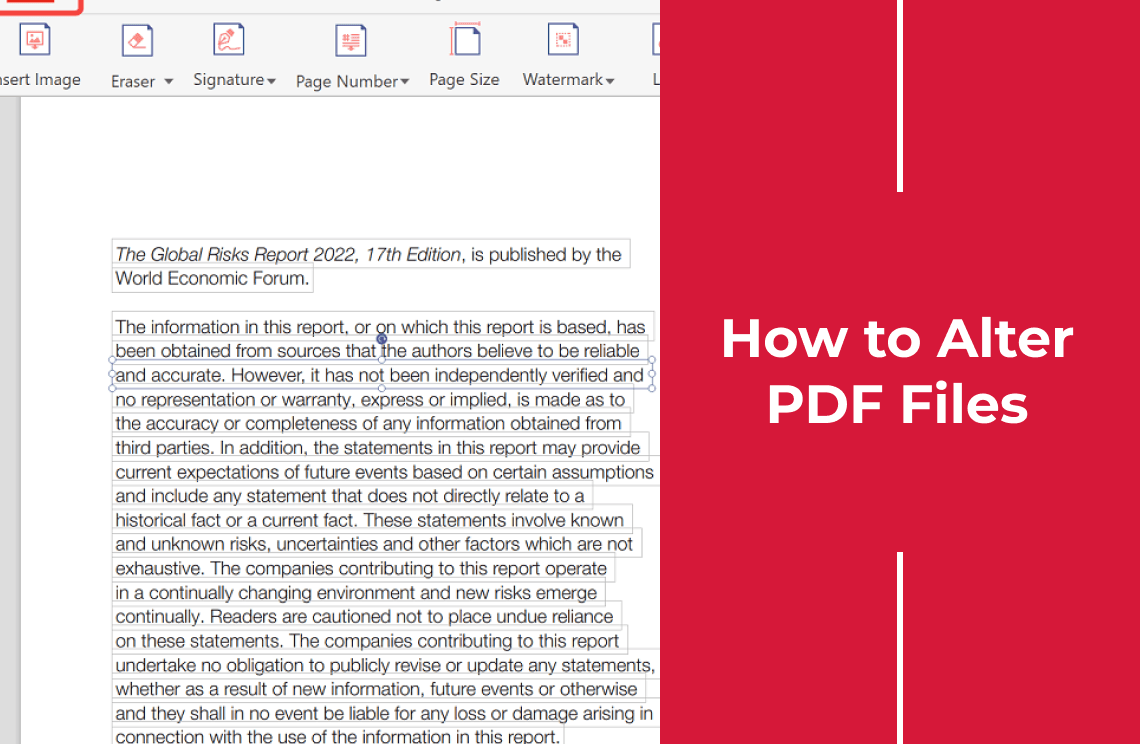
How to Alter PDF Files Without Breaking the Layout
Learn how to alter PDF files: change text, pages, images, or form fields, pick the right tool for each edit, and avoid the layout breaks that follow.
Read More >>
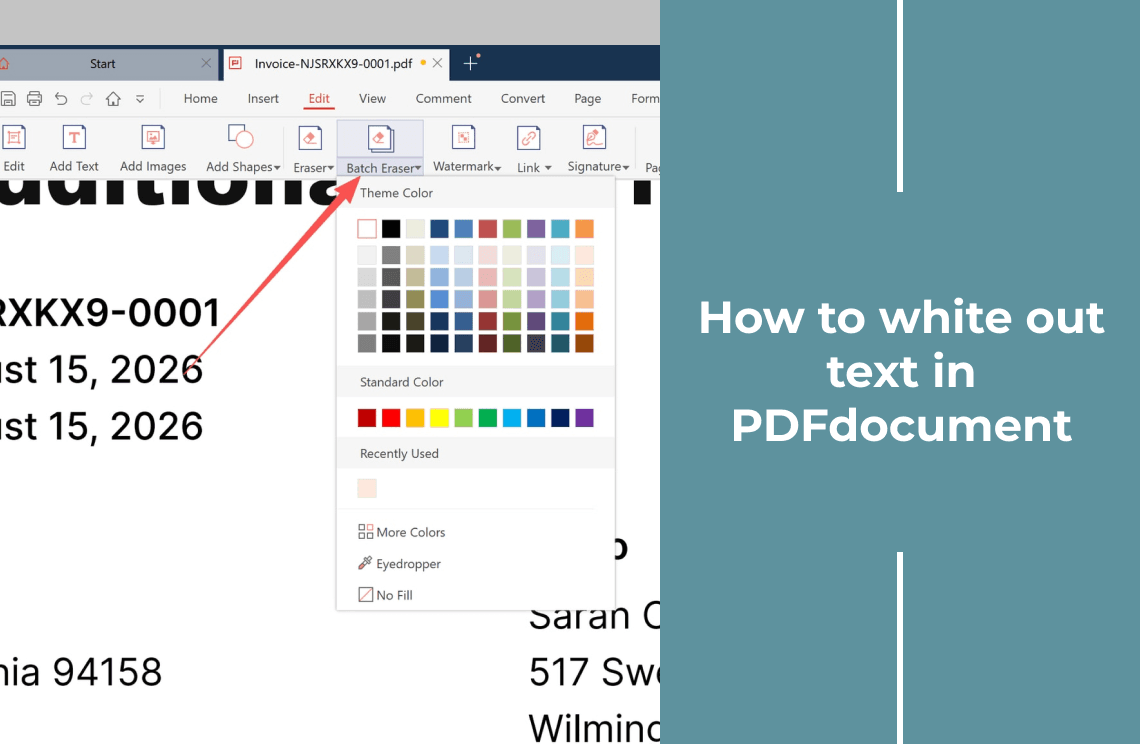
How-to & Tips5 Mins
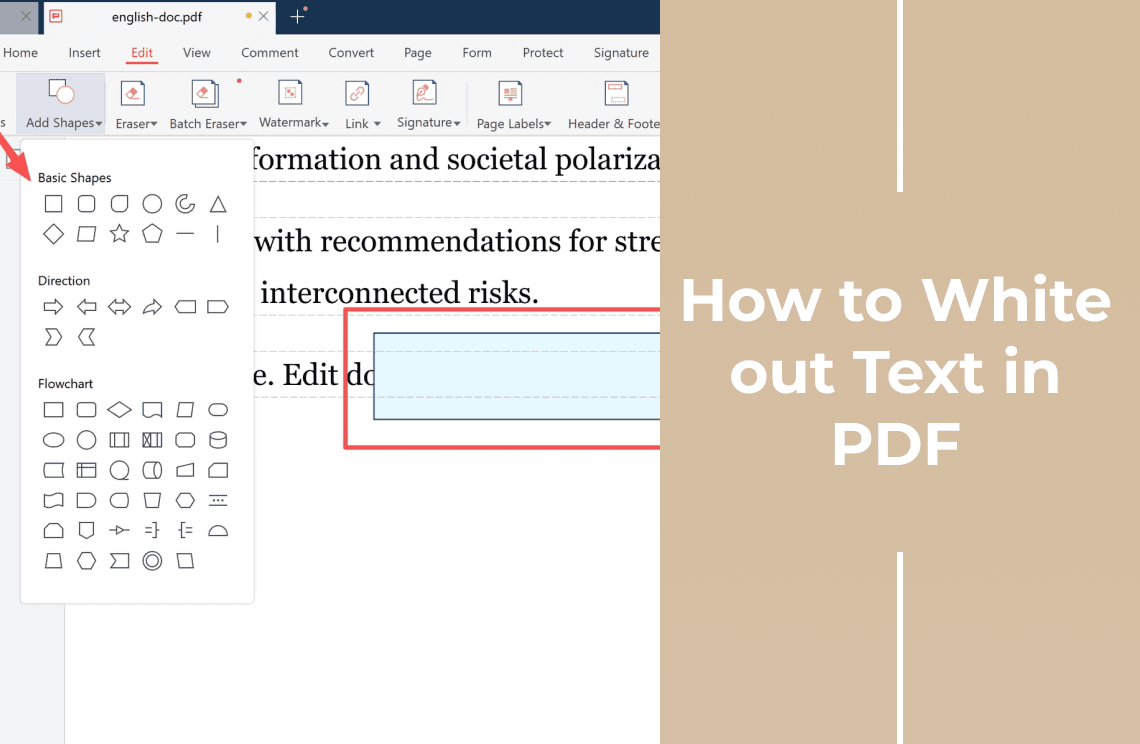
How to White Out Text in a PDF Document: Step-by-Step
Learn how to white out text in a PDF document in four steps: open the Edit tools, pick a white fill, drag over the text, and save the covered copy.
Read More >>