

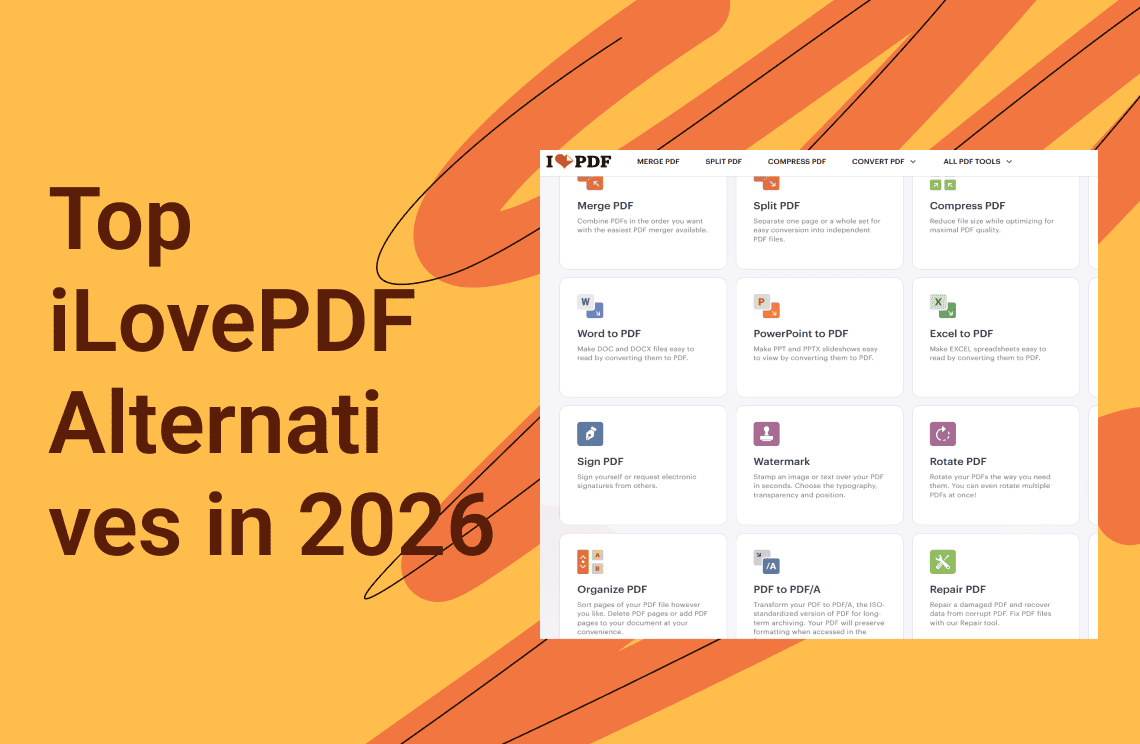
iLovePDF is widely used because it’s simple, web-based, and covers common PDF tasks like merging, compressing, and converting files. For quick, one-off jobs, it works well.
However, as usage increases, many users begin to notice limitations. Daily task caps, file size restrictions, slower performance on large PDFs, and limited editing options can interrupt workflows—especially for students, freelancers, and small teams who rely on PDFs every day.
In 2026, the PDF tool market has matured. Users can now choose from advanced online services, free offline utilities, and professional desktop editors, depending on how and where they work.
Below are the most capable iLovePDF alternatives, starting with an all-in-one solution for users who want fewer limits and more control.
1. PDF Agile — Best Overall iLovePDF Alternative for Long-Term Use
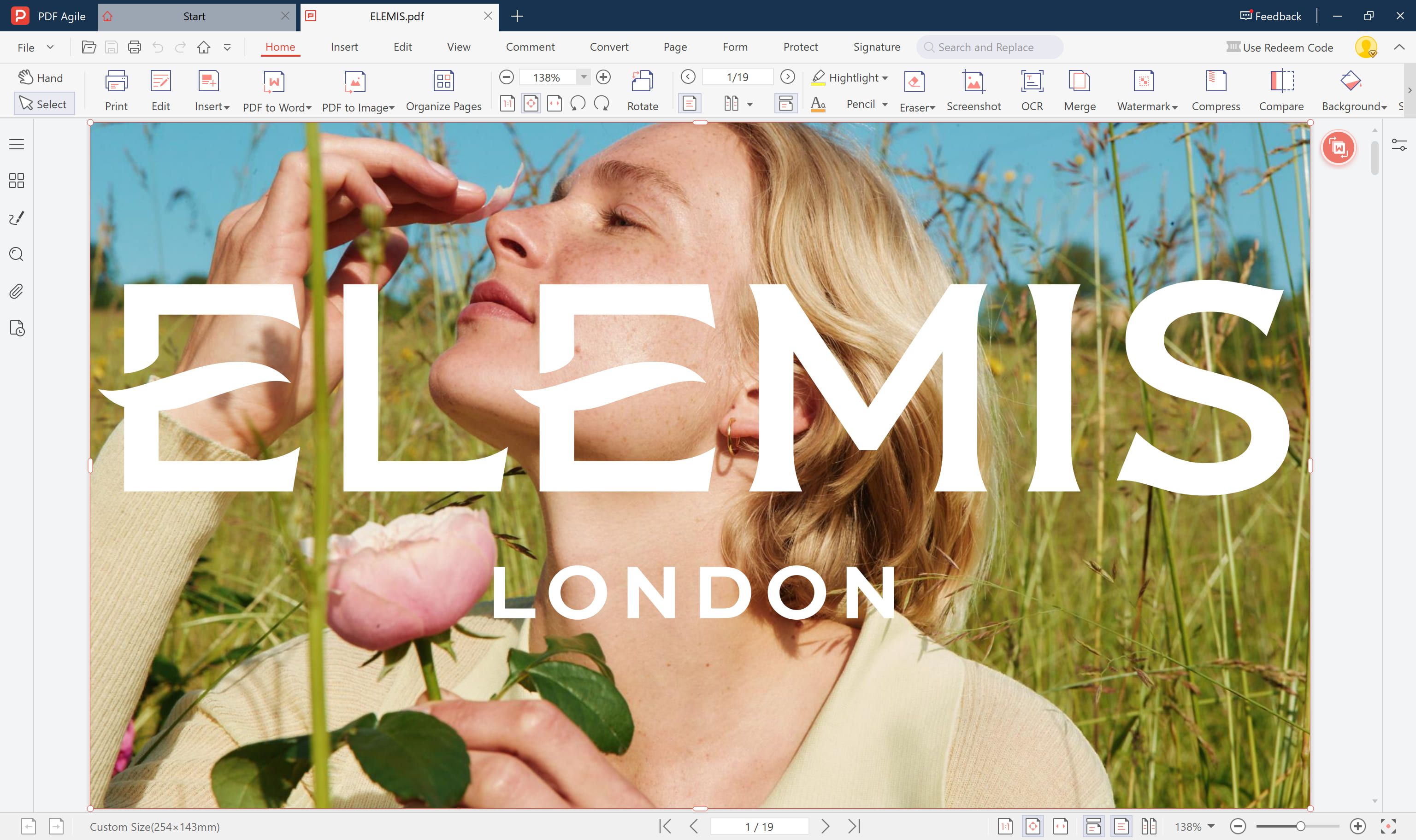 PDF Agile is a budget-friendly PDF editor positioned as a direct competitor to Wondershare PDFelement, offering a comprehensive suite of PDF management tools without the premium price tag. It's designed for users who need robust PDF functionality but don't want to break the bank on software subscriptions.
Core Features:
- Complete PDF editing (text, images, pages, headers/footers)
- PDF creation and conversion (supports 10+ file formats)
- Advanced annotation and markup tools
- Form creation, filling, and data extraction
- OCR technology for scanned documents
- Merge, split, compress, and organize PDFs
- Password protection and encryption
- Batch processing capabilities
- Cross-platform availability (Windows, Mac, online version)
Why Choose PDF Agile?
- Best Value Proposition: You get professional-grade PDF tools at a price point that's accessible to virtually anyone. The annual plan costs less than a single month of Adobe Acrobat.
- No Feature Compromises: Despite the low cost, PDF Agile doesn't skimp on functionality. You get editing, conversion, OCR, security, and batch processing - everything most users need daily.
- Simple, Functional Design: The interface prioritizes usability over flashiness. Tools are logically organized and easy to find, reducing the time spent hunting for features.
- Flexible Licensing: Whether you want to test with monthly, commit annually, or buy once forever, PDF Agile offers options to match your budget and commitment level.
- Quick Setup: Lightweight installation means you're editing PDFs within minutes, not waiting through lengthy downloads and updates.
Pros:
- Unbeatable pricing for the feature set
- Covers all essential PDF workflows
- Straightforward, no-nonsense interface
- Lifetime license option eliminates recurring costs
- Good batch processing for handling multiple files
- Decent OCR accuracy for everyday scans
- Low system resource usage
- Free trial available to test before buying
Cons:
- No AI-powered features (summaries, chat, content generation)
- Limited cloud storage and collaboration features
- Smaller ecosystem means fewer integrations
Best For?
- Budget-conscious individuals who need reliable PDF tools without ongoing subscriptions
- Students on tight budgets requiring basic to intermediate PDF functionality for coursework
- Small businesses and startups minimizing software expenses while maintaining productivity
- Occasional PDF users who don't need cutting-edge features but want solid fundamentals
- Users transitioning from free tools ready to upgrade without major financial commitment
- Organizations equipping multiple users where per-seat costs matter significantly
2. Smallpdf — Closest iLovePDF-Style Online Competitor
 Smallpdf is a comprehensive, cloud-based PDF management platform. Originally launched in Switzerland as a simple tool to compress large PDF files, it has evolved into a full-scale ecosystem. It allows users to create, edit, convert, and sign documents without the need to download heavy, expensive software like Adobe Acrobat. It operates via a web browser, a desktop app, and a mobile app.
Key Features
- Convert & Create: Seamlessly turn PDFs into Word, Excel, or PowerPoint files (and vice versa) with high formatting accuracy.
- Compression: Significantly reduce file sizes for email attachments without losing visible image quality.
- Merge & Split: Combine multiple documents into one or extract specific pages from a massive PDF.
- eSign: A secure tool to sign documents digitally and request signatures from others, making it a budget-friendly alternative to DocuSign.
- Edit & Annotate: Add text, shapes, and images directly to a PDF.
- Security: Features like password protection and PDF unlocking.
- OCR (Optical Character Recognition): Convert scanned images of text into searchable, editable PDF documents.
The Pros
- User Experience (UX): It is arguably the most intuitive PDF tool on the market. The "drag-and-drop" interface requires zero training.
- Cloud-Native: You can access your files from anywhere and integrate directly with Google Drive and Dropbox.
- No Installation Required: For the web version, you don't need to install anything; it works perfectly in any browser.
- Speed: Tasks that take minutes in Adobe often take seconds in Smallpdf.
- Cross-Platform: Whether you are on Windows, Mac, iOS, or Android, the experience is seamless.
The Cons
- Free Version Limitations: The free tier is quite restrictive, often limiting you to only 2 tasks per day.
- Internet Dependent: The core web version requires a stable internet connection (though a desktop Pro version exists).
- Basic Editing: While you can add text and shapes, you cannot "deeply" edit existing text within a PDF as easily as you can in Adobe Acrobat Pro.
- Privacy Concerns: For highly sensitive legal or government documents, some users are hesitant to upload files to a cloud-based server (though Smallpdf uses TLS encryption and deletes files after an hour).
Best For
- Small to Medium Businesses (SMBs): Who need a professional document workflow but don't want to pay for a "bloated" Adobe Creative Cloud license.
- Freelancers & Contractors: Who frequently need to sign contracts or convert invoices.
- Students: Who need to merge lecture notes or compress large assignments for submission portals.
- Admin & HR Professionals: Who deal with high volumes of forms, scans, and signatures and need a tool that "just works."
3. PDFgear — Best Completely Free Online Alternative
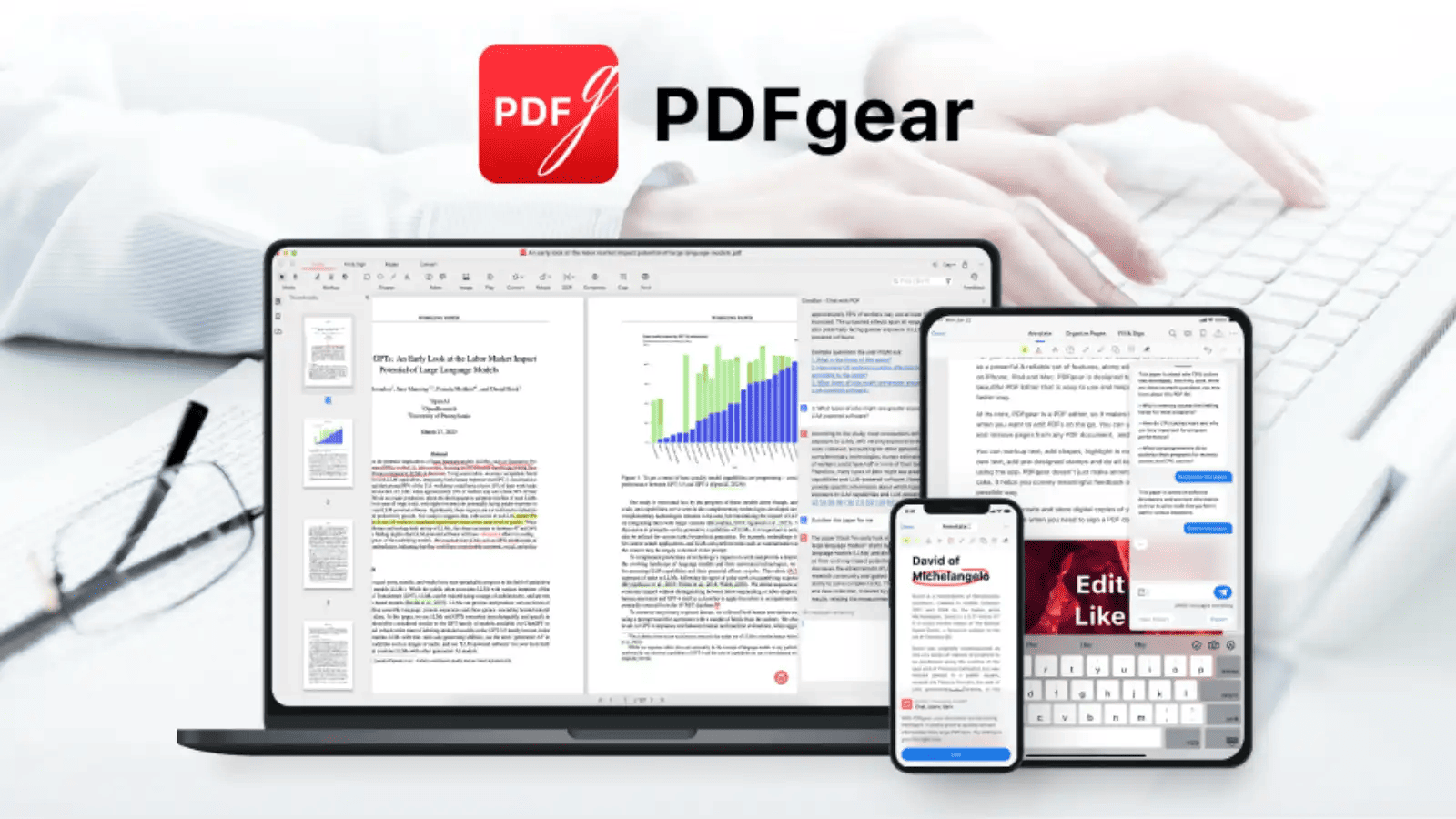 PDFgear has quickly gained popularity as a free, no-friction PDF tool. Unlike many online services, it doesn’t rely on aggressive upgrade prompts or strict daily limits.
It focuses on essential PDF tasks and delivers them in a straightforward way. For users who only need core functionality and want to avoid subscriptions entirely, PDFgear is one of the most practical choices in 2026.
Key Features
- AI Copilot (Powered by GPT): You can "chat" with your PDF. Ask it to summarize a 50-page legal contract, extract key dates, or translate specific sections into another language.
- True PDF Editing: Unlike most free tools, you can click on any sentence in a PDF and change the words, fonts, and formatting as if you were in Microsoft Word.
- No Limits OCR: Convert scanned images or non-searchable PDFs into editable text without the page limits common in other free software.
- Batch Processing: Convert, compress, or merge dozens of files at once.
- Form Building: Create fillable forms with checkboxes, radio buttons, and text fields.
- Offline Desktop App: Because it’s a downloadable program, it processes files locally on your computer, which is faster and more secure for large files.
The Pros
- 100% Free (For Now): There are currently no watermarks, no "2-tasks-per-day" limits, and no registration required.
- The AI Edge: The ability to summarize long documents instantly via the AI chatbot is a massive productivity booster that even many paid tools lack.
- Offline Privacy: Since the desktop version doesn't require you to upload files to a server, it’s often preferred for sensitive data.
- Feature Density: It includes "Pro" features like OCR, redaction, and page numbering that almost every other competitor charges for.
The Cons
- The "Wait and See" Pricing: The developers have stated that while it is free now to build a user base, they may introduce paid "Pro" or AI features in the future.
- UI Organization: The interface is clean, but some tools are scattered across different tabs, making it slightly less "idiot-proof" than Smallpdf's simplified web dashboard.
- Newer Brand: It doesn't have the 10+ year track record of Adobe or Smallpdf, which may give some corporate IT departments pause regarding long-term support.
- No Cloud Sync: Unlike Smallpdf, which integrates deeply with Google Drive/Dropbox for cloud workflows, PDFgear is primarily a local-first application.
Best For
- Power Users on a Budget: If you need to edit text and use OCR but refuse to pay the for Adobe or Smallpdf Pro.
- Researchers and Students: Anyone who has to read massive PDFs and wants an AI to summarize, explain, or find information within them quickly.
- Privacy-Conscious Users: People who don't want to upload their sensitive documents to a web-based converter.
- High-Volume Workers: Users who need to process 20+ files a day and are tired of hitting the "Free Trial Ended" walls on other sites.
4. Sejda PDF — Best for Freelancers & Small Businesses
 Sejda positions itself between casual online tools and professional desktop software. It offers both a web editor and a desktop version, giving users flexibility depending on the task.
Sejda is especially known for its clean design and business-friendly tools, such as form editing and document signing, making it popular with freelancers and consultants.
Key Features
- Direct Text Editing: You can click on any existing text in a PDF and change it (edit typos, update dates, etc.).
- Advanced Merging & Splitting: You can split PDFs by bookmarks, by text occurrences, or even by visual "half-pages" (useful for scanned books).
- Bates Numbering: A critical feature for legal and medical professionals to label and index pages across multiple documents.
- PDF Grayscale: A unique feature that converts colored PDFs to black and white to save printer ink.
- OCR & Web-to-PDF: Turn scanned images into searchable text or convert entire live websites into PDF format.
- Forms & Signatures: Easily create fillable forms or apply signatures.
The Pros
- Better Free Limits than Smallpdf: While Smallpdf limits you to 2 tasks per day, Sejda allows 3 tasks per day and supports files up to 200 pages or 50MB for free.
- The "Week Pass": Sejda offers a unique pricing model. If you only have a one-off project, you can buy a $5 "Web Week Pro" pass instead of committing to a monthly or yearly subscription.
- Privacy First: For web users, files are automatically deleted after 2 hours.
- Linux Support: Sejda is one of the few high-quality PDF suites that offers a native desktop version for Linux users.
- Visual Utility: The interface is very "flat" and functional—no flashy animations, just tools that load instantly.
The Cons
- Strict Limits on Free Version: If you exceed 3 tasks or the 50MB file size, you are completely locked out until the next day (or until you pay).
- Basic UI: Compared to Smallpdf’s modern, colorful design, Sejda looks a bit more like a "utility tool" from the early 2010s.
- No AI Features: Unlike PDFgear, Sejda hasn’t integrated GPT-style chatbots for summarizing documents yet.
- Desktop App isn't Free: Unlike PDFgear (which is free on desktop), Sejda’s desktop version requires a Pro subscription.
Best For
- Legal & Medical Professionals: Anyone who needs Bates numbering and document indexing.
- People with One-Off Projects: Those who don't want a subscription but are happy to pay $5 for a week of unlimited access.
- The "3-Task" User: Someone who finds Smallpdf's 2-task limit too restrictive but doesn't need a 100% free tool like PDFgear.
- Linux Users: Who often struggle to find reliable desktop PDF editors.
5. PDF Candy — Best for Tool Variety
 PDF Candy offers one of the largest collections of PDF tools available online. Instead of focusing on a single workflow, it provides dozens of specialized utilities for different PDF-related tasks.
This makes PDF Candy especially useful when you need less common features, such as PDF repair or specific format conversions.
Key Features
- Massive Format Support: Beyond the standard Word/Excel, it handles niche formats like EPUB to PDF, MOBI to PDF, DjVu to PDF, and even FB2.
- Metadata Editor: A rare feature that allows you to change the author, title, keywords, and creation date of a PDF file.
- Advanced Page Management: Dedicated tools to crop PDFs, resize pages (A4, A3, Letter), and rotate files.
- Security Tools: Easily add watermarks, protect files with passwords, or "unlock" protected PDFs.
- OCR (Optical Character Recognition): Turn scans into searchable text documents.
- Header & Footer: A specific tool to add custom headers and footers (page numbers, dates, or company names) to your documents.
The Pros
- The Interface: There is no "searching." You go to the homepage, find the icon for exactly what you want to do (e.g., "Add Watermark"), and click it.
- High Precision: Because each tool is "standalone," they tend to be very good at their specific job.
- Reliability: It is one of the oldest and most stable online converters, known for maintaining formatting during complex conversions (like PDF to RTF).
- Desktop Version: They offer a "Lifetime License" for their desktop app, which is a rare and popular alternative to the modern "subscription-only" model.
The Cons
- The Free Version "Wall": This is the biggest drawback. PDF Candy’s free tier is extremely limited—often allowing only one task per hour (and sometimes even less during high-traffic times).
- Not a "Real" Editor: While it has an "Edit PDF" tool, it is more for annotating (adding text/shapes). It is not as powerful as Sejda or PDFgear for changing the existing text in a document.
- No AI Integration: Unlike PDFgear, PDFCandy remains a traditional conversion tool; it won't summarize or "chat" with your documents.
Best For
- E-book Users: People who need to convert EPUB, MOBI, or DjVu files to PDF for easier reading.
- Niche Task Seekers: Someone who needs to do one specific thing—like "Rearrange Pages" or "Edit Metadata"—and wants a tool dedicated solely to that.
- The "Lifetime Buyer": Users who hate subscriptions and would rather pay a one-time fee for the desktop version to own it forever.
- Quick Document Prep: People who need to quickly add headers, footers, or watermarks to professional documents.
6. Xodo — Best for Annotation & Form Filling
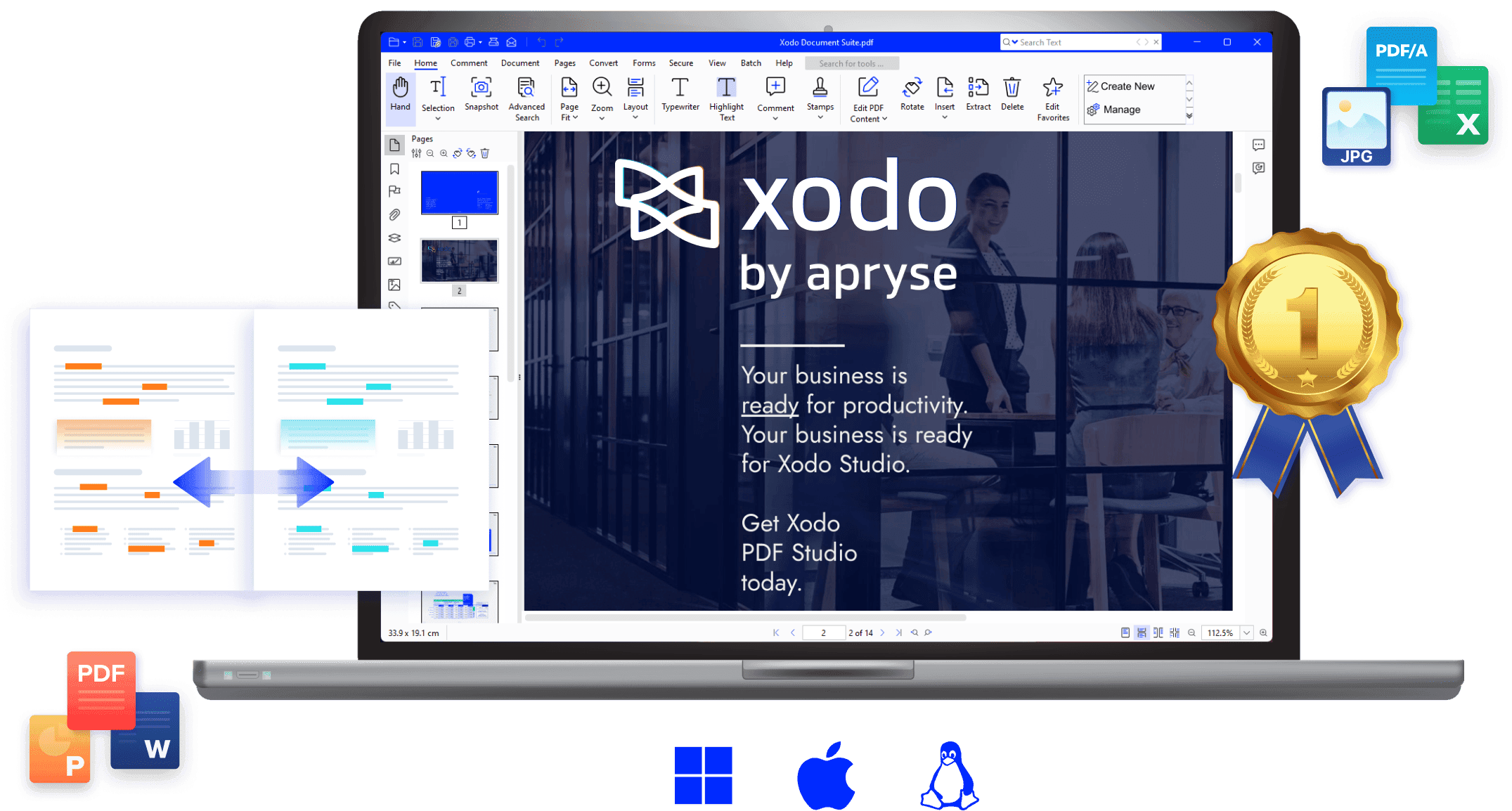 Xodo is a cross-platform PDF solution designed with collaboration and mobility in mind. It’s available on the web, Android, and iOS, and is especially strong in annotation and form-related workflows.
It’s often chosen by users who review documents, sign forms, or annotate PDFs on tablets and phones.
Key Features
- World-Class Annotation: The best tools for highlighting, underlining, and adding "sticky notes." It is optimized for Apple Pencil and Stylus input.
- Xodo Drive: A built-in cloud storage system that syncs your documents across your phone, tablet, and computer so you can start a task on one and finish on the other.
- Multi-File Viewing: A tabbed interface (on desktop and web) that allows you to have multiple PDFs open at once, similar to a web browser.
- Advanced Redaction: Permanently black out sensitive information (unlike just drawing a black box over it).
- Seamless Integration: Deep "Auto-sync" with Google Drive, Dropbox, and OneDrive.
- Form Filling & Signing: Quick, responsive tools for completing PDF forms on the go.
The Pros
- The Best Mobile App: Xodo’s Android and iOS apps are widely considered superior to Adobe’s mobile offerings. They are faster, cleaner, and more stable.
- Handling Large Files: Xodo can open 100MB+ files almost instantly where other web-based tools might crash or stutter.
- Collaboration: It allows for "Xodo Connect," where multiple people can view and annotate the same document in real-time.
- Smooth Navigation: Features like "Night Mode," "Double Page View," and "Crop Margins" make reading long documents much more comfortable.
The Cons
- The "Pro" Paywall: Xodo used to be entirely free, but they recently moved to a "Freemium" model. Free users are now limited to 1 or 2 actions per day on the web version.
- Subscription Cost: Their Pro subscription is on the pricier side compared to Sejda or PDFgear.
- Complex for Simple Tasks: If you just want to convert one file, the interface (which is built for heavy-duty viewing and editing) might feel like "too much" compared to the simplicity of Smallpdf.
Best For
- Students & Academics: Who need to read hundreds of pages, highlight key text, and take handwritten notes using a stylus on a tablet.
- Construction & Engineering Pros: Who need to open large blueprints or technical drawings on-site using a mobile device.
- Remote Workers: Who constantly switch between their phone, laptop, and tablet and need their documents to follow them.
- Power Readers: Anyone who spends hours reading PDFs and needs "Night Mode" and smooth scrolling.
7. PDF24 Creator
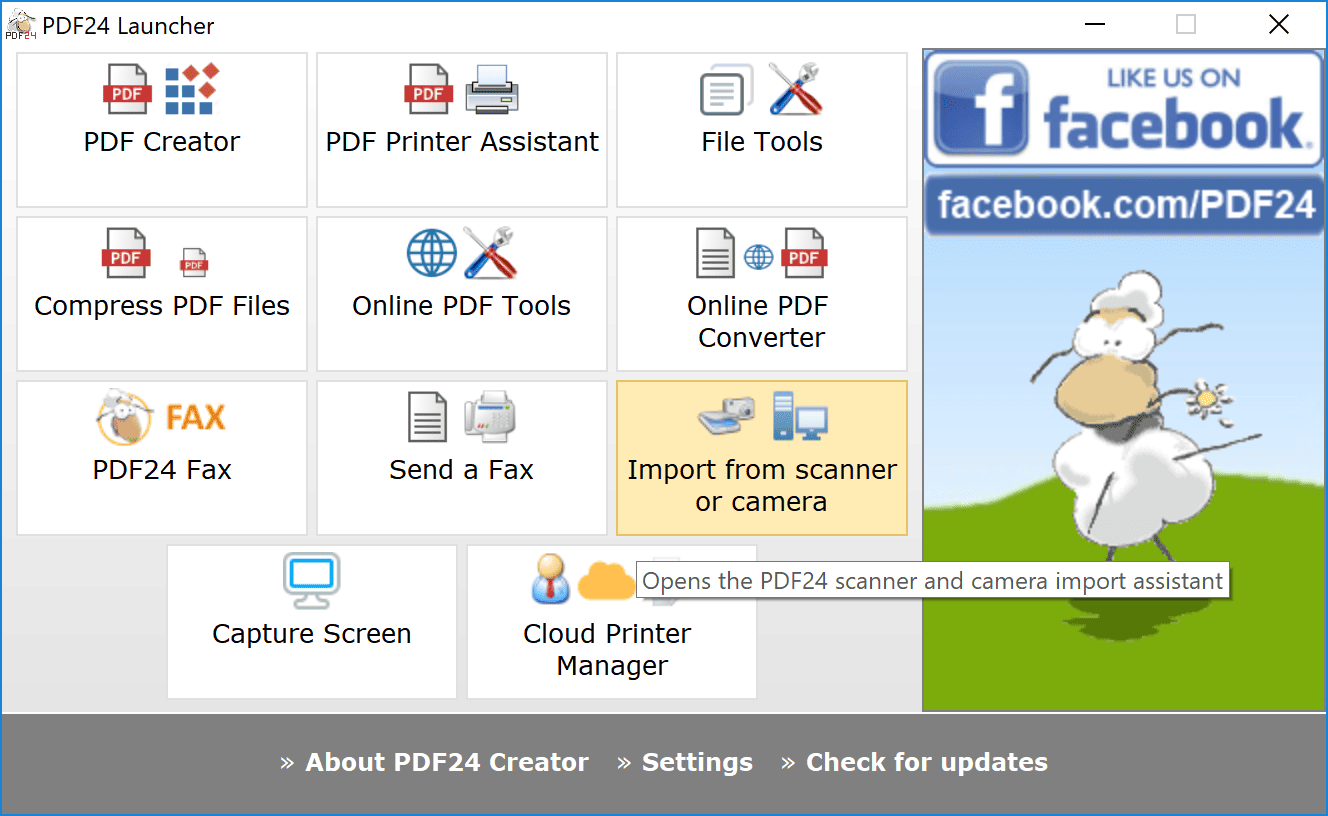 Developed by a German company (Geek Software GmbH), PDF24 is a comprehensive PDF suite that has been free for both personal and commercial use since 2006. It exists as both an online toolkit and a flagship offline desktop application for Windows. Unlike many "free" tools that eventually hit you with a paywall, PDF24 is famous for having zero limits, zero watermarks, and zero subscription fees.
Key Features
- Virtual PDF Printer: One of its most famous features; you can "print" any document (Word, Excel, Webpage) to the PDF24 printer to instantly create a high-quality PDF.
- Powerful OCR: High-accuracy Optical Character Recognition that turns scanned PDFs into searchable text.
- File Compression: Superior control over compression settings (DPI, image quality) to shrink files for email.
- Batch Processing: Convert or merge 100+ files at once with a single click.
- Security Suite: Protect PDFs with 256-bit encryption, sign documents digitally, and redact sensitive information.
- Document Toolbox: Everything from overlaying "digital letterhead" and adding page numbers to extracting images and capturing screens directly into a PDF.
The Pros
- 100% Free for Business: While Smallpdf and Xodo charge high fees for corporate use, PDF24 is completely free for companies, making it an IT department favorite.
- Total Privacy (Offline): Because the "Creator" version runs locally on your PC, your files never leave your computer. This is a massive advantage for legal, medical, or financial documents.
- No Limits: There are no "2 tasks per day" or "50MB file size" restrictions. You can use it as much as you want.
- Lightweight: It doesn't hog system resources; it's designed to be fast even on older office computers.
- The "MSI" Installer: It offers an MSI installer for easy deployment across an entire company's network.
The Cons
- Windows Only: The desktop app is only available for Windows. Mac and Linux users are forced to use the online web-based tools.
- Modular (Clunky) Interface: Instead of one "all-in-one" window, it uses a modular layout where each tool (Merge, Compress, Edit) opens in its own window. This can feel disjointed.
- Basic Text Editing: Like Sejda, it allows you to annotate and add text, but it isn't a "full" text editor that lets you rewrite existing paragraphs as easily as PDFgear or Adobe.
- No AI (Yet): As of late 2026, it remains a traditional utility tool and lacks the GPT-powered chat/summarization features found in PDFgear.
Best For
- Privacy-Conscious Users: Anyone handling sensitive data who doesn't want to upload files to a "cloud" converter.
- Small to Large Businesses: Who need to equip 50+ employees with PDF tools without spending thousands on licenses.
- IT Administrators: Who need a reliable, deployable PDF solution that "just works" without user registration.
- The "Old School" Power User: Someone who wants a dedicated desktop program that works without an internet connection.
How to Choose the Right iLovePDF Alternative
1. Choose by Budget & Frequency
- Best for "Unlimited & Free": PDFgear
- Why: It is the standout choice for 2026 because it provides professional features—like editing existing text, OCR, and a ChatGPT-powered AI assistant—entirely for free without daily task limits.
- Best for "Occasional Quick Fixes": Smallpdf
- Why: If you just need to compress a file or convert a document once in a while, Smallpdf has the most user-friendly interface. You will hit their 2-tasks-per-day limit quickly, but for a single, one-off task, it’s the fastest experience.
- Best for "Business/Offline Power": PDF24 Creator
- Why: It is 100% free for both personal and commercial use. As a Windows desktop app, it has no file size limits and keeps your data private on your local machine.
2. Choose by Operating System
- If you are a Windows Power User: PDF24 Creator or PDFgear
- Why: These offer the best desktop-native performance. PDF24 is the ultimate "toolbox," while PDFgear offers the best modern editing and AI experience.
- If you move between Phone, Tablet, and PC: Xodo
- Why: Xodo has the most mature cloud-syncing ecosystem. You can highlight a document on your phone during a commute, and the changes will be there when you open the document on your desktop later.
- If you are on Linux: Sejda PDF
- Why: Sejda is one of the few high-quality PDF suites that offers a dedicated desktop version for Linux users.
3. Choose by Specific Task
- Need to edit the actual words in a PDF?
- Use PDFgear (Free) or Sejda (3 tasks/day). These tools allow you to change the original text, whereas others often only let you add new text on top of the page.
- Need an AI to summarize a 100-page document?
- Use PDFgear or Smallpdf (AI Chat). In 2026, these are the most advanced for "chatting" with your documents to extract key insights quickly.
- Need to organize, merge, or Bates number legal docs?
- Use Sejda PDF. It is specifically built for professional document assembly and offers specialized features like Bates numbering and "PDF Grayscale" to save printer ink.
- Need to convert a rare format (like an eBook/EPUB)?
- Use PDF Candy. It features a library of 47+ niche tools, making it the best for converting unusual file types that standard editors can't handle.
Summary Table for a Quick Decision
| If you want... | Use this tool |
| Everything for free (with AI) | PDFgear |
| Total privacy (Offline Windows) | PDF24 Creator |
| To edit original text (Web) | Sejda |
| Best Mobile/Tablet Sync | Xodo |
| Simplicity & Beauty | Smallpdf |
| A specific niche conversion | PDF Candy |
Conclusion
iLovePDF is a solid starting point, but it isn’t designed for every workflow. As PDF tasks become more frequent or complex, choosing the right alternative can significantly improve efficiency.
For users looking to move beyond basic online tools while keeping things simple and cost-effective, PDF Agile offers the most complete upgrade path—combining offline processing, advanced editing, and long-term value in a single solution.