

Finding the right PDF editor usually feels like a choice between an expensive subscription or a basic reader that can’t actually edit anything. While Foxit is a powerhouse for many, it isn't the only way to get the job done in 2025.
Whether you're looking for a free AI assistant to summarize your research, a lightweight viewer that won't lag on your laptop, or a professional toolkit that fits a student budget, the options have never been better. We’ve tested and rounded up the best tools available right now—organized by how they actually fit into your day—so you can stop searching and start doing.
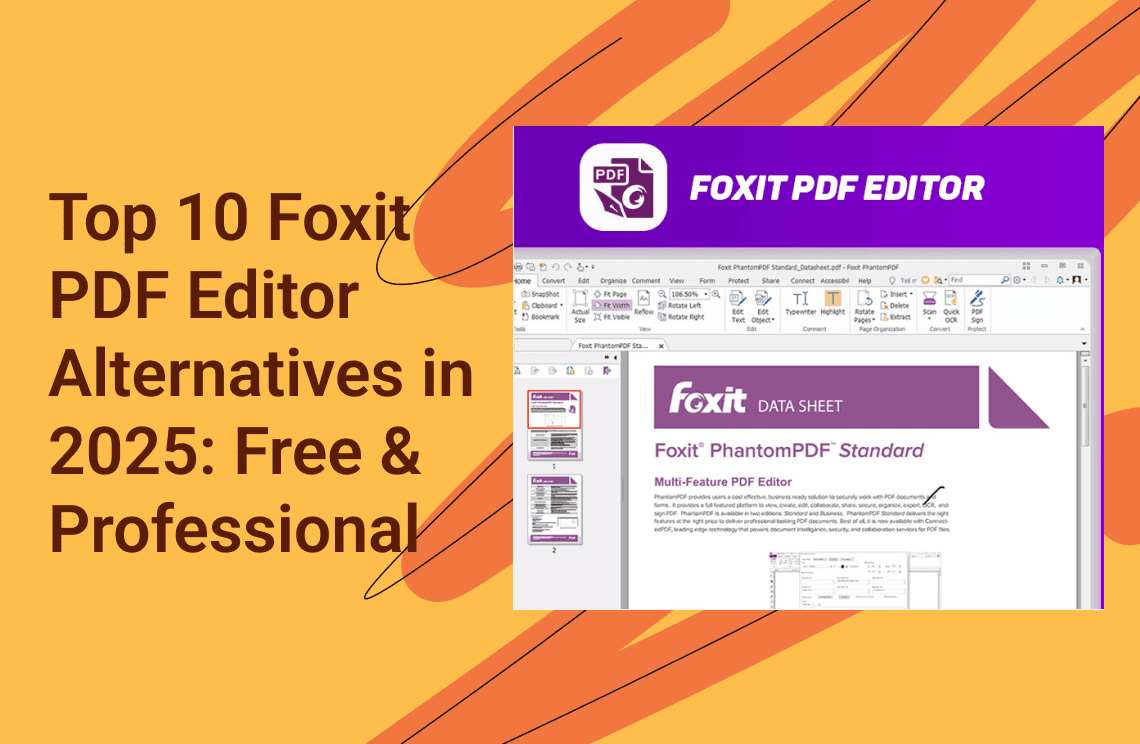
What is Foxit PDF Editor
Foxit PDF Editor is a professional-grade software suite used for creating, editing, and managing PDF documents. It is widely recognized as the primary business-focused alternative to Adobe Acrobat, offering similar advanced features—such as OCR, e-signatures, and document security—at a more affordable price point.
Key Features
- Word Processor-style Editing
It allows for "paragraph reflow," meaning you can edit text across columns and pages just like in Microsoft Word without breaking the document's layout. - AI Assistant
A new integrated AI tool can instantly summarize complex reports, translate documents into 30+ languages, and answer questions about document content via a chat interface. - Advanced OCR
It uses industry-leading technology to convert scanned paper documents and images into fully searchable and editable text. - Security & Redaction
Includes AES-256 encryption and "Smart Redact," which uses AI to automatically identify and permanently remove sensitive information (like Social Security numbers) from large volumes of files. - Collaboration
Offers real-time shared reviews and integration with Microsoft Teams, Google Drive, and Salesforce.
Available Versions & Pricing
In 2025, Foxit continues to offer perpetual (one-time purchase) licenses for users who prefer to own their software outright rather than paying a recurring subscription. However, it is important to note that perpetual licenses are restricted to a single platform (Windows or Mac) and do not receive major version upgrades.
| Plan Type | Price (Approx.) | Platform Support | Included Extras |
| Subscription (Editor) | $129 / year | Windows, Mac, Web | 20GB Cloud, PDF AI Assistant |
| Subscription (Editor+) | $159 / year | Windows, Mac, Web, Mobile | 150GB Cloud, AI Assistant, eSign Pro |
| One-Time Purchase | $199 / once | Windows OR Mac only | Basic editing, no AI, no Cloud storage |
Reasons & Risks of Using a crack
Common Motivations
- Cost Avoidance
While Foxit is cheaper than Adobe, professional versions still cost approximately $130–$160 per year or $199 for a one-time purchase, which remains a barrier for individual users or students. - Access to Restricted Tools
Many users only need one or two "Pro" features—like converting a scanned document to editable text (OCR) or batch processing multiple files—and seek a crack rather than paying for a full license they rarely use. - One-Time Use Needs
Some users look for a "free" way to complete a single urgent task, such as removing a watermark or signing a high-stakes legal document, without committing to a paid plan.
Critical Risks in 2025
Security researchers have identified significant dangers associated with cracked Foxit software in 2025:
- Malware & Infostealers
Attackers frequently disguise malware as "cracked" Foxit installers. A notable 2024/2025 campaign called "SteelFox" specifically targets Foxit PDF Editor users to steal credit card data and browser credentials while covertly mining cryptocurrency on the user's machine. - macOS Exploits
The AMOS (Atomic macOS) Stealer targets Mac users by tricking them into downloading cracked software, which can then bypass system protections to steal keychain passwords, Telegram chats, and crypto wallets. - Hidden Backdoors
Cracked versions lack official security updates, leaving users vulnerable to zero-day flaws. For instance, recent vulnerabilities (like NTLM data leaks) require official patches that cracked versions cannot receive, exposing user credentials to remote hackers.
Smarter Alternatives to Foxit PDF Editor Cracks
Ready to find your new favorite tool? We’ve broken down 2025’s top PDF alternatives by user scenario, ensuring you find a match that feels like it was designed just for your desk.
Best Free Alternatives
1. PDFgear
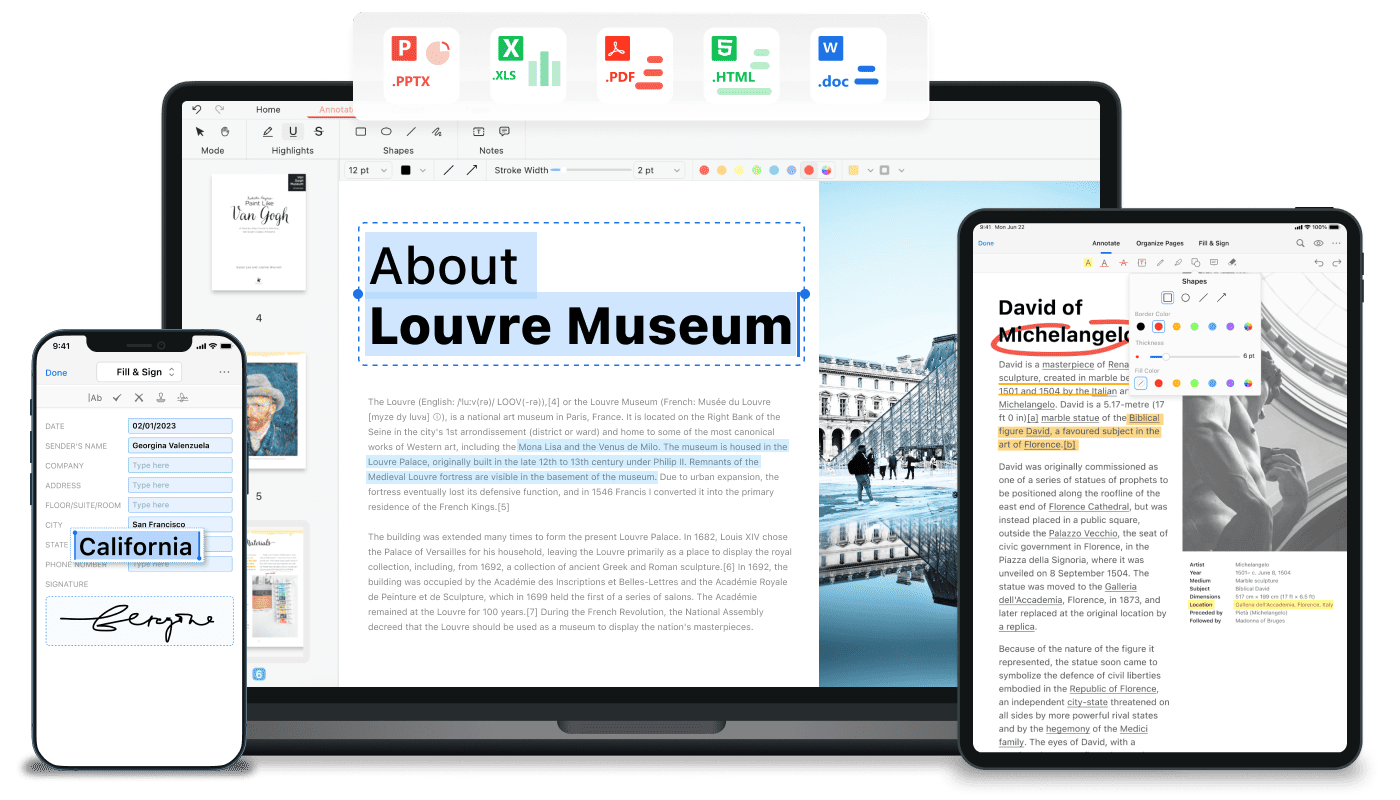 PDFgear is currently the most powerful free tool on the market. It offers professional features like text editing, OCR, and PDF conversion without watermarks or registration. It also includes an AI Copilot to summarize long documents.
Core Features
- Full PDF Editing: Unlike many "free" tools that only allow annotations, PDFgear allows you to modify existing text, images, and links directly within the document, similar to a word processor.
- AI Copilot: Integrates a GPT-powered assistant that can summarize long research papers, extract key details, translate text, and even perform software tasks (e.g., "compress this PDF") through a chat interface.
- Comprehensive OCR: Supports Optical Character Recognition in over 30 languages, allowing you to convert scanned documents into editable Word or TXT files.
- Security & Privacy: Offers secure redaction for sensitive content, password protection, and certificate-based digital signatures.
- PDFgear Scan (New for 2025): A dedicated mobile app launched in July 2025 that uses AI to scan physical documents, automatically categorize receipts into expense reports, and solve academic questions from images.
Limitations
In 2025, while PDFgear is an excellent free tool, it has the following brief limitations compared to paid professional suites:
- Missing Enterprise Tools: Lacks advanced features like Bates numbering, complex form field logic, and deep document comparison tools.
- OCR Accuracy: Formatting can break on highly complex or low-quality scanned documents compared to high-end engines like ABBYY or Adobe.
- Fragmented Editing: Text editing can sometimes split paragraphs into separate boxes, making large-scale reformatting difficult.
- Lack of Integrations: No native plugins for enterprise ecosystems like SharePoint, Salesforce, or Microsoft 365.
- Platform Gaps: Currently lacks a native Linux version.
- No Dedicated Support: As a free product, it does not offer 24/7 technical support or administrative consoles for team management.
Best For
- Students/Researchers: Using AI to digest massive volumes of text.
- Budget-Conscious Users: Accessing Adobe-level features for free.
- Quick Editing: Users who need to fix a document without installing a heavy suite or creating an account.
2. Sumatra PDF
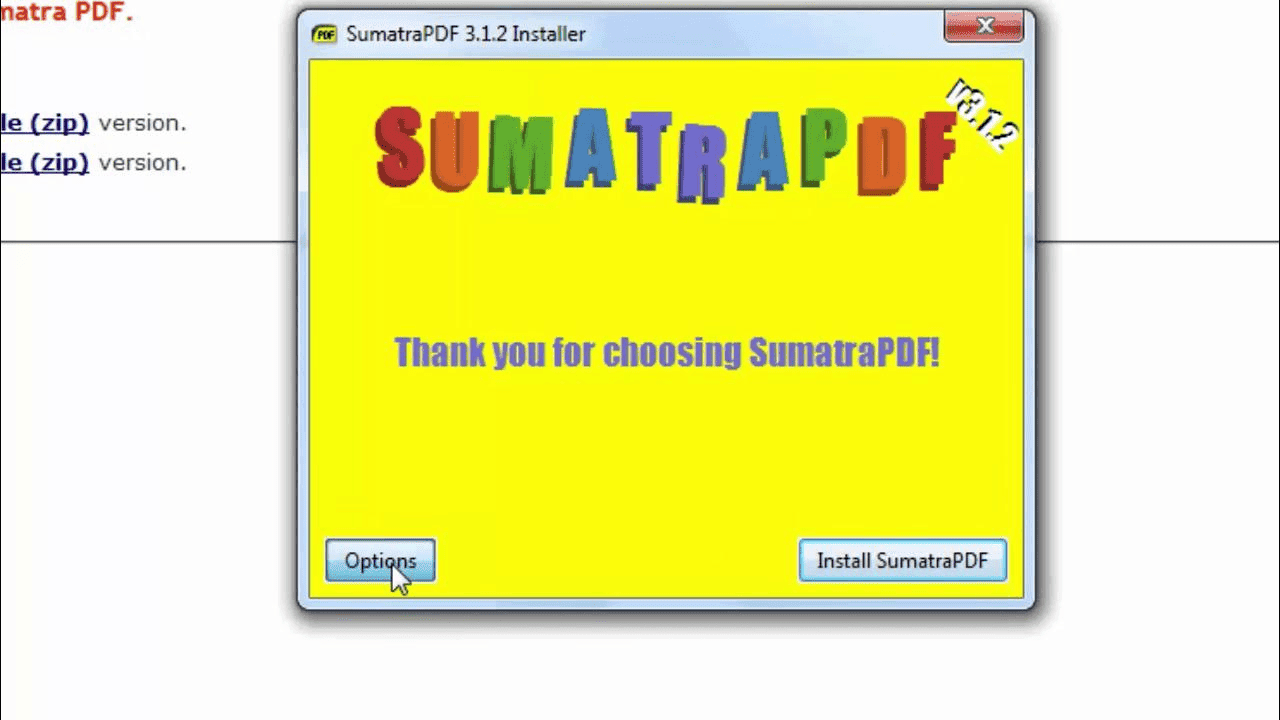 Sumatra PDF is a free, open-source document viewer for Windows, renowned for being the most lightweight and fastest PDF reader available in 2025. It is designed for users who prioritize speed and simplicity over complex editing tools.
Key Features
- Extreme Performance: It uses a minimal amount of system resources (RAM and CPU), allowing even massive PDF files (thousands of pages) to open almost instantly.
- Multi-Format Support: Beyond PDFs, it natively supports EPUB, MOBI, CBZ, CBR, XPS, DJVU, and CHM files, making it a favorite for reading ebooks and digital comics.
- Minimalist Interface: The UI is clean and distraction-free, focusing entirely on the content of the document rather than a cluttered toolbar.
- Portable Version: Sumatra offers a standalone
.exethat requires no installation. You can run it directly from a USB drive or a cloud folder on any Windows machine. - Advanced Rendering: In 2025, it continues to use the MuPDF rendering engine, ensuring high-quality text and image display that matches more expensive software.
Limitations
It is important to understand that Sumatra PDF is a viewer, not an editor.
- No Text Editing: You cannot modify the text or images within a PDF.
- No Forms/Signatures: It does not support filling out interactive PDF forms or adding digital signatures.
- No OCR: It cannot perform optical character recognition on scanned documents.
Best Use Cases
- Ebook/Comic Reading: Excellent for managing digital libraries due to its support for CBZ and EPUB formats.
- Technical Reference: Ideal for developers or engineers who need to keep large manuals open in the background without slowing down their PC.
- Low-Spec Hardware: The best choice for older laptops or tablets running Windows.
Sumatra PDF vs. Foxit vs. PDFgear
| Feature | Sumatra PDF | Foxit PDF Editor | PDFgear |
| Primary Use | Fast Reading | Professional Editing | Free Editing + AI |
| Cost | $0 (Open Source) | $129+/year | $0 (Freeware) |
| Speed | Fastest | Moderate | Fast |
| Editing | None | High-End | Advanced |
| AI Tools | None | Yes | Yes (Copilot) |
Best for Professional Editing & Budget-Conscious Users
3. PDF Agile
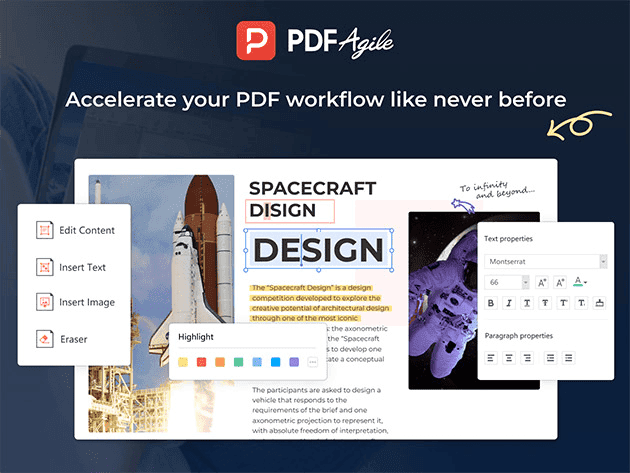 Recognized cost-effective alternative to Adobe Acrobat, PDF Agile is an all-in-one PDF solution that focuses on speed and an intuitive, user-friendly interface, offering a suite of professional tools without the high recurring subscription costs typical of competitors. It is designed to replace cumbersome, expensive software by providing a streamlined workflow for editing, converting, and securing documents.
Key Features
PDF Agile provides a comprehensive suite of tools designed to mirror the essential functions of Acrobat Pro.
- Advanced Editing: Modify text (change font, size, color) and images directly within the PDF as if you were using Microsoft Word.
- Powerful OCR (Optical Character Recognition): Convert scanned documents or images into searchable and editable PDF or Word files.
- High-Fidelity Conversion: Convert PDFs to Word, Excel, PowerPoint, TXT, and JPG while maintaining the original layout and formatting.
- Document Management: Merge multiple files, split documents, delete/rotate pages, and add watermarks or page numbers.
- Security & Signing: Apply password protection to sensitive files, redact confidential information, and add legally binding electronic signatures.
- Annotation Tools: Markup documents with highlights, underlines, freehand drawings, and comment bubbles.
- Device Flexibility: Most lifetime licenses allow for simultaneous installation and use on up to two Windows devices.
PDF Agile Pricing
| Plan | Price (Approx.) | Key Features Included |
| Free Trial | $0 | Basic viewing, limited conversion/editing tasks to test the interface. |
| Seme-Annual Plan | $39.00 | Full Suite: Edit text/images, OCR, PDF to Office conversion, e-signatures, 2 devices. |
| Annual Plan | $59.00 | Full Suite: Edit text/images, OCR, PDF to Office conversion, e-signatures, 2 devices. |
| Lifetime Plan | $295.00(Campaign Price $119.00 Now) | Permanent access, all advanced features, OCR, batch processing, no recurring fees. |
Best for
- Budget-Conscious Professionals: Ideal for individual users and small businesses looking to avoid recurring monthly subscriptions.
- Windows-First Environments: Since it is optimized specifically for Windows, it is a top choice for PC power users in fields like civil engineering, education, and administration.
- High-Volume Converters: Users who frequently need to move content between PDFs and Microsoft Office formats while maintaining 90%+ layout accuracy.
- Translation & Localization: Professionals who need to translate PDF content while preserving the original complex document layout.
4. Nitro PDF Pro
 Nitro PDF Pro provides an all-in-one platform for creating, editing, and managing PDFs. Its primary goal is to streamline document workflows through a familiar Microsoft Office-style "Ribbon" interface, which minimizes the learning curve for new users. By 2025, it has evolved into a multi-platform solution supporting Windows, macOS, and iOS.
Key Features
- Advanced PDF Editing: Modify text, images, and pages directly within PDF files with font-matching technology.
- High-Quality OCR: Transform scanned documents into searchable, editable text across multiple languages.
- Nitro AI Assistant: New in 2025, it uses generative AI to summarize complex documents, extract data, and provide instant translations.
- Batch Processing: Convert or combine dozens of different file types (Word, Excel, PPT) into single or multiple PDFs simultaneously.
- Integrated eSignatures: Includes Nitro Sign for requesting and managing legally binding electronic signatures with full audit trails.
- Secure Redaction: "Smart Redact" tools use AI to automatically identify and remove sensitive data for compliance.
Nitro PDF Pro & Nitro Sign Pricing
| Plan Name | License Type | Price (USD) | Key Features Included |
| Nitro PDF Standard | Subscription (Annual) | $15.00 /mo ($180/yr) | Full editing, AI productivity tools, PDF creation/conversion, & 24/7 support. |
| Nitro PDF Plus | Subscription (Annual) | Contact Sales | All Standard features + SSO, Nitro Analytics, domain control, & dedicated success manager. |
| Nitro PDF Classic | One-Time (3-Year) | $270.00 (Billed once) | Essential editing for Windows, password protection, merging/splitting, & Office-style UI. |
| Nitro Sign Standard | Subscription (Annual) | $15.00 /mo ($180/yr) | Multi-doc signature packages, form building, audit logs, & manual reminders. |
| Nitro Sign Plus | Subscription (Annual) | Contact Sales | All Sign Standard features + templates, bulk sending, SMS/Email identity verification, & SSO. |
| Nitro Sign Enterprise | Subscription (Annual) | Contact Sales | Flexible API integration, digital certificates, & compliance (eIDAS/ZertES/AES/QES). |
Note for 2025: Tax is calculated at checkout. For enterprise-level volume discounts or to purchase, visit the Nitro Pricing Page.
Best for
- Business Teams: Organizations looking for Adobe-level features without the premium subscription costs.
- Microsoft Office Users: Anyone who wants a familiar interface that integrates seamlessly with Word, Excel, and Outlook.
- Legal & HR Professionals: Teams that frequently handle contracts, require secure eSignatures, and need robust redaction tools.
- Budget-Conscious Individuals: Users who prefer a straightforward editor that provides more value per dollar than legacy industry leaders.
Best for AI-Powered Research & Analysis
5. UPDF
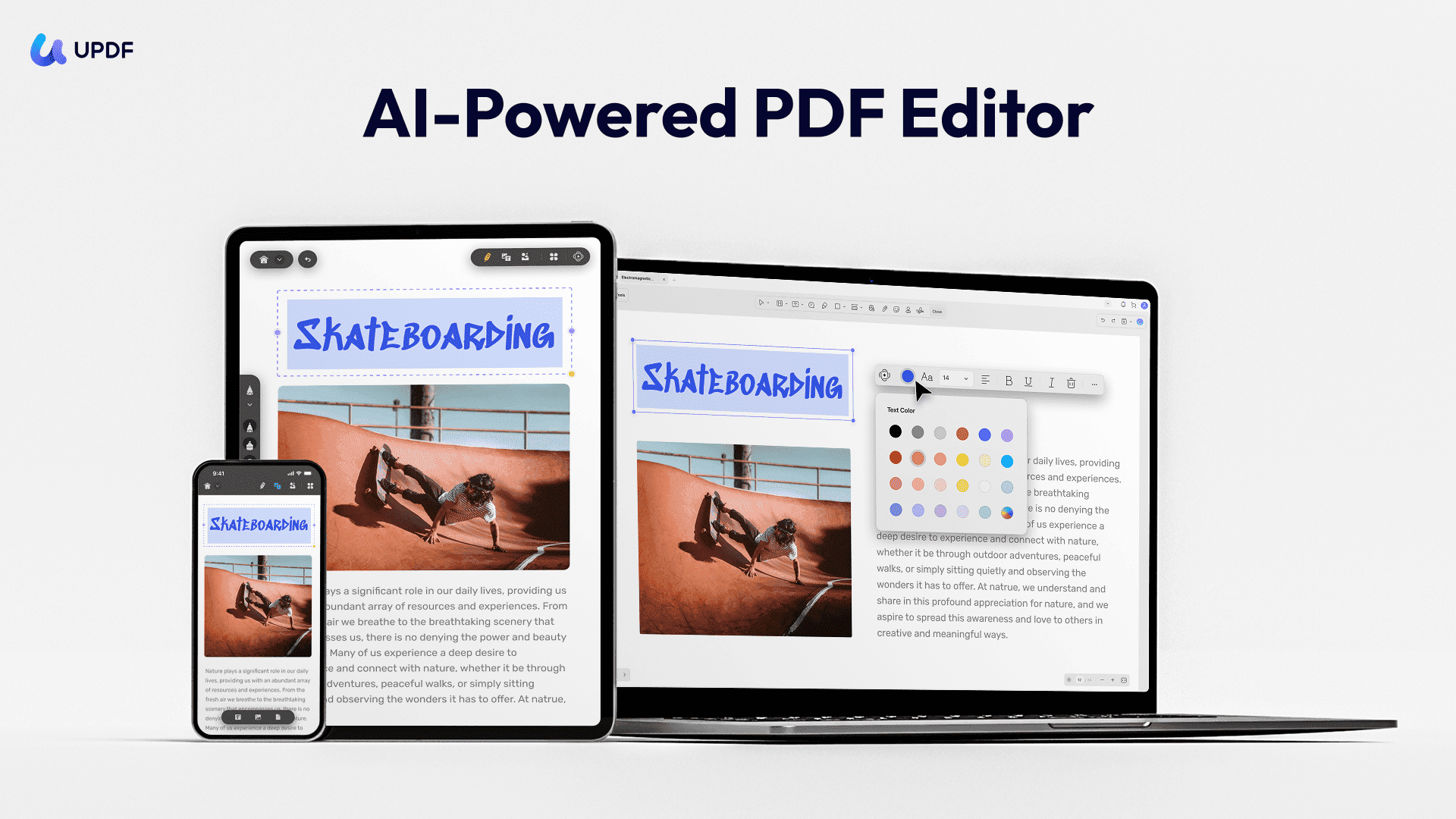 UPDF stands out in the 2025 market as the most visually intuitive and "youthful" alternative to legacy PDF software. Built with a focus on aesthetics and speed, it moves away from the cluttered, menu-heavy interfaces of the past in favor of a sleek, minimalist dashboard. It is a cross-platform powerhouse, allowing users to handle complex document tasks on Windows, macOS, iOS, and Android with a single unified account.UPDF offers deep AI integration that can summarize, translate, and even explain complex PDF data by turning it into mind maps. One license covers four different devices (Desktop and Mobile).
Key Features
- UPDF AI: A deeply integrated AI assistant that can summarize long PDF reports in seconds, explain technical jargon, and translate content into over 100 languages.
- Rapid Editing & Annotation: Edit text and images with zero lag. It features a unique "Drag-and-Drop" page management system and a vast library of stickers and stamps for creative feedback.
- Advanced OCR: Employs an AI-driven OCR engine that maintains high layout accuracy when converting scanned paper into editable formats.
- Form & Signature Management: Create fillable forms from scratch or convert non-interactive PDFs into fillable ones; supports secure, stylish electronic signatures.
- UPDF Cloud: Offers dedicated cloud storage that syncs your PDF edits and annotations across your desktop and mobile devices in real-time.
- PDF Presentation Mode: A built-in slideshow feature that allows you to present your PDF like a PowerPoint without needing to convert it.
UPDF Pricing & AI Features
| Plan Name | License Type | Price (USD) | Discount/Notes | Key Features Included |
| UPDF Professional | Annual Subscription | $35.99/year | 28% off from $49.99 | All basic PDF tools (edit, convert, manage) |
| UPDF Professional | Perpetual (Lifetime) | $59.99 (one-time) | 25% off from $79.99 | All basic PDF tools (edit, convert, manage) |
| AI Assistant | Annual Subscription | $79.00/year | 43% off from $139.00 | Unlimited AI functions (Summarize, Translate, Ask PDF), Analyze unlimited PDFs, 100GB Cloud Storage. |
| AI Assistant | 7-Day Free Trial | $69.00/year (auto-renews) | Available option | GPT-5 powered, 7 days free, then auto-renews annually. |
Note: The prices listed in the table reflect significant Christmas/New Year promotional discounts available at the time this blog was created. For the most accurate and up-to-date current pricing, please check the official UPDF website.
6. Wondershare PDFelement
 PDFelement is a comprehensive, AI-powered PDF solution that provides professional-grade tools across all platforms (Windows, macOS, iOS, Android, Web) at an affordable price point. It is known for its user-friendly, intuitive interface that simplifies complex document management tasks.
Key Features
- AI-Powered Productivity: Built-in AI tools enable instant document summarization, content translation, grammar checks, and conversational Q&A interaction with PDFs.
- Comprehensive Editing: Edit text, images, and pages within PDFs seamlessly, adjust font styles and colors, insert links, watermarks, headers, and footers.
- High-Quality Conversion & OCR: Convert PDFs to and from numerous formats (Word, Excel, PPT, images, CAD, etc.) while preserving formatting integrity. Its regional OCR recognizes text in over 20 languages.
- Forms & Signatures: Create, fill out, and manage interactive forms easily. Securely e-sign documents and utilize bulk-sending features for multiple recipients.
- Organization & Security: Combine, split, compress, and redact PDFs. Features include password protection, batch processing, and professional Bates numbering.
PDFelement Pricing
| Plan Name | License Type | Price (USD) | Key Features Included |
| Yearly Plan | Subscription | $79.99/year (Discounted from $129) | Auto-renews, cancel any time. 1 year of updates, all features, 20GB Cloud storage, no watermark, tech support. |
| 2-Year Plan | Subscription | $109.99 (Discounted from $149) | Manually renew subscription. 2 years of updates, all features, 20GB Cloud storage, no watermark, tech support. |
| Perpetual Plan | One-Time Purchase | $129.99 (Discounted from $159) | One-time fee. Perpetual access to PDFelement 12, all features, 20GB Cloud storage, no watermark, tech support. |
Note: The prices listed in the table reflect significant promotional discounts available when the blog was created. For the most accurate and up-to-date current pricing, please check the official PDFelement website.
Best For
- Budget-Conscious SMBs & Individuals: Ideal for users seeking powerful features comparable to Adobe Acrobat but at a significantly lower cost, especially with the perpetual license option.
- Cross-Platform Users: Excellent for those who need a consistent experience and document syncing across Windows, Mac, iOS, Android, and web platforms.
- Academics & Professionals: The robust OCR, annotation summary, and AI summary tools make it highly valuable for research, education, and legal fields.
Best for Students & Touch-Screen Users
7. Drawboard PDF
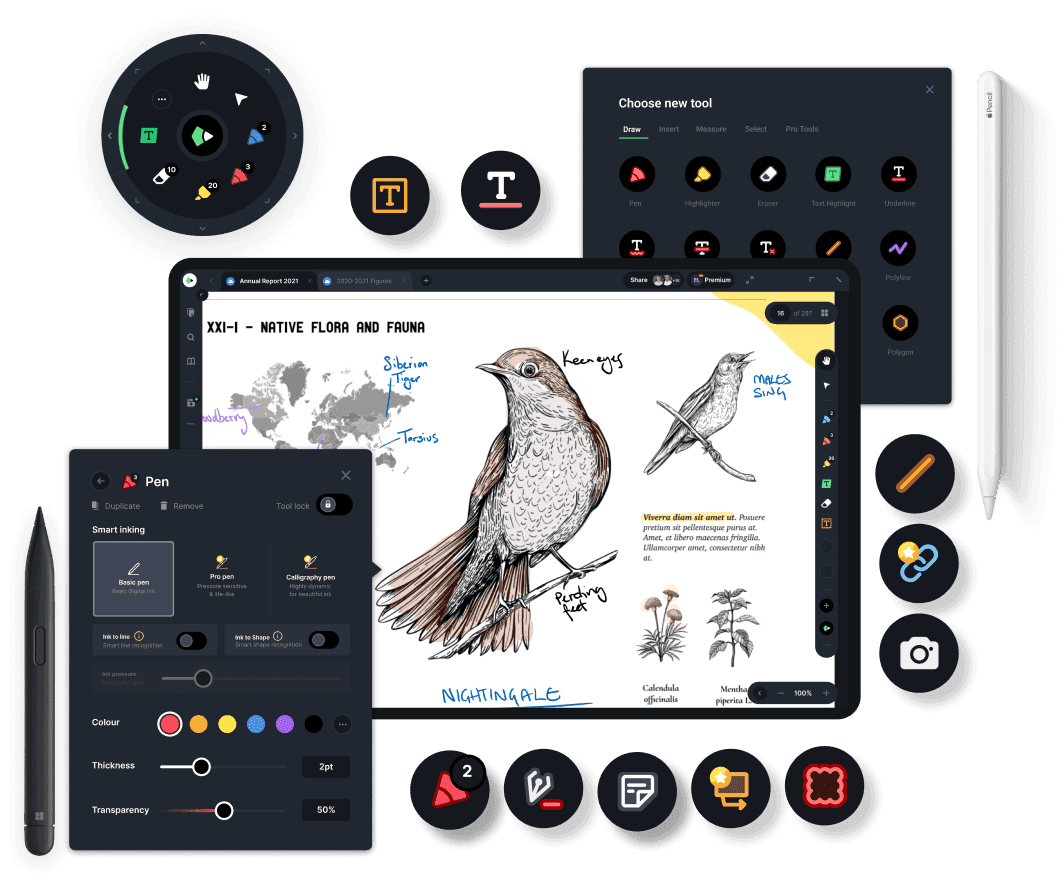 Drawboard PDF is the best choice for Surface or iPad users. It is optimized for stylus input, offering a "pen and paper" feel for annotating textbooks, grading papers, or sketching over architectural plans.
Key Features
- Superior Digital Ink: Renowned for its low-latency, pressure-sensitive inking experience, ideal for pen-enabled devices.
- Intuitive Interface: A fluid and intuitive design focused on ease of use, making complex markups simple.
- Measurement Tools: Essential for technical users (architecture/engineering), including calibrated measurements, on-screen protractor, and grids/lines overlays.
- Document Management: Features like Document Builder (merge/split PDFs), compression, and flattening annotations are standard in paid tiers.
- Store+Share Cloud: Integrated cloud storage capabilities ranging from 10 files (Free) to unlimited storage (Pro Unlimited) for team collaboration and synchronization.
- Cross-Platform Access: Full access across Windows, iOS, and Android platforms in Pro Lite and above tiers.
Pricing
| Plan Name | License Type | Price (USD) | Key Features Included |
| Basic | Free | Free | Digital ink, shapes/images, notes, signatures, create blank docs, bookmarks, search, basic page management, 10 files storage/share. |
| Pro Lite | Subscription | $5.99/month | All Basic tools + Mark-up library, measurement tools, compression, callouts, Snapshot tool, Document Builder, pressure-sensitive ink, 20 files storage/share. |
| Pro Plus | Subscription | $9.99/month | All Basic & Pro Lite tools + 200 files storage/share, custom keyboard shortcuts, multi-window mode, detailed markup history. |
| Pro Unlimited | Subscription | $18.99/year | All previous tools + Unlimited Storage, MS Teams integration, Single Sign-On (SSO), Admin Portal, team management features. |
Best For
- Engineers & Architects: The precise measurement and calibration tools are highly valued by technical professionals.
- Pen & Touch Users: Anyone with a Surface Pro, iPad Pro, or other stylus-enabled device will appreciate the superior inking experience.
- Collaborative Teams: The Pro Plus and Unlimited tiers offer necessary features for teams to organize, store, and collaborate on shared documents.
- Windows Ecosystem Users: Those seeking an intuitive, high-performance default PDF viewer and editor optimized for the Windows platform.
8. Skim
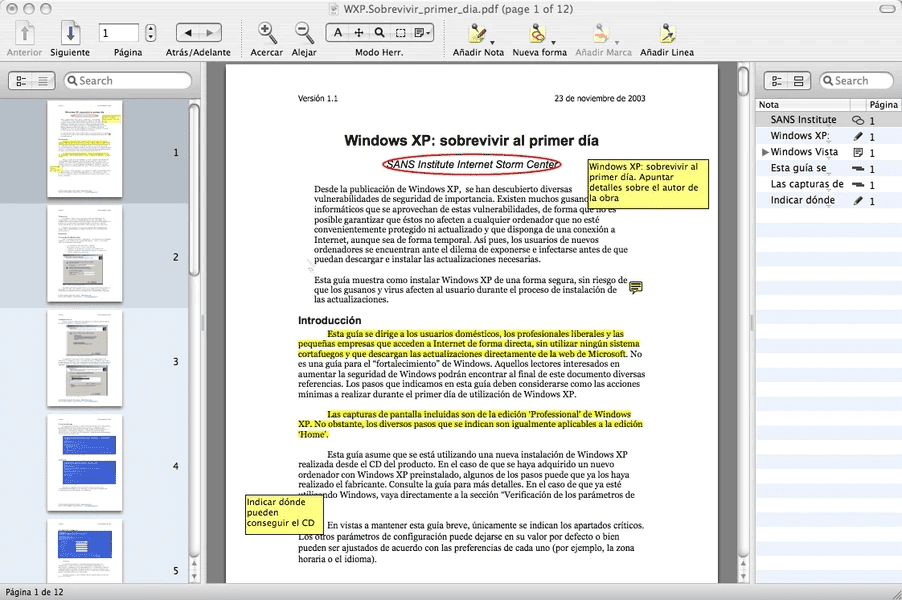 Skim is a free, open-source PDF reader and note-taker designed primarily for the academic community and optimized exclusively for macOS. Originally developed at the University of California, Skim's goal is to provide a lightweight, stable, and highly compatible PDF experience within the Apple ecosystem, serving as a powerful alternative to the default Preview app. It focuses purely on speed, privacy, and robust annotation tools rather than complex editing features or cross-platform business functions found in commercial software.
Key Features
- Free & Open Source: Absolutely free with no ads, tracking, telemetry, or hidden upsells.
- Robust Annotation: Tools include highlighting (with one-swipe mode), underlining, sticky notes, drawing shapes, and creating bookmarks.
- Academic Integration: Seamlessly integrates with LaTeX editors (like TeXShop), BibDesk, and supports AppleScript for powerful workflow customization.
- Viewing & Presentation Modes: Offers a clean full-screen reading mode, a reading bar to maintain focus, snapshots for quick reference, and built-in transitions for presentations.
- System Integration: Feels native to macOS, supporting iCloud sync for annotations, Spotlight search, Quick Look, and Dark Mode.
Best For
- Academics & Researchers: Designed specifically for managing large volumes of scientific papers, research documents, and collaborating with LaTeX environments.
- macOS Power Users: Individuals who want a native Apple experience that is faster and more customizable than the built-in Preview application.
- Privacy-Conscious Users: Ideal for those who prioritize open-source software that collects no user data and has no ads.
- Basic Note-Taking: Great for anyone needing a simple, reliable tool for basic PDF viewing and annotating without needing advanced editing features like OCR or document creation.
How to Get Started
1. Download and Install
Since Skim isn't on the Mac App Store, you'll get it directly from the source.
- Download: Visit the official Skim website and grab the latest disk image (
.dmg). - Install: Open the
.dmgfile and drag the Skim icon into your Applications folder. - Security Note: The first time you open it, macOS might ask for confirmation because it’s from an "identified developer." Just click Open in the prompt.
2. Set Skim as Your Default (Optional)
If you want every PDF to open in Skim automatically:
- Right-click any PDF file.
- Select Get Info.
- Under Open with, select Skim.
- Click Change All…
3. Mastering the Workspace
Once your PDF is open, the true power of Skim lies in its sidebars.
- Left Sidebar (Table of Contents): Use this to jump between chapters or sections of your document.
- Right Sidebar (Notes & Highlights): This is where the magic happens. Every highlight, "sticky note," or circle you add to the page will appear here as a list. You can click any note in this list to jump straight to that page.
4. Highlighting and Note-Taking
Skim uses a "Tool Mode" approach. To start annotating:
- Highlighting: Click the Highlight icon (usually a yellow 'H' or a marker) in the toolbar. You can change the color by opening the Show Colors panel (Cmd + Shift + C).
- Adding Notes: Click the Note icon to drop a digital sticky note anywhere on the page.
- Anchored Notes: These allow you to link a specific comment to a specific line of text.
Best for Quick Online Tasks (No Install)
9. Smallpdf
 Ideal for users who rarely edit PDFs and just need to merge two files or sign a document quickly in a web browser. It integrates directly with Google Drive and Dropbox.
Key Features
- Comprehensive PDF Suite: Over 20 tools for merging, splitting, compressing, rotating, and organizing PDF pages.
- AI-Powered Tools: Integrated AI allows users to summarize, translate, or "chat" with their PDFs directly in the browser to extract insights.
- Advanced Conversion & OCR: High-quality conversion between PDF and Office formats (Word, Excel, PowerPoint) and images, featuring OCR to turn scanned documents into searchable text.
- Secure eSignatures: Built-in digital signing capabilities with audit trails and digital seal protection on signatures.
- Cloud & Browser Integration: Seamlessly upload files from cloud storage (Google Drive, Dropbox) or use the Chrome extension for quick access.
- Enterprise Security: ISO/IEC 27001 certified and GDPR compliant, with TLS encryption for all file transfers.
Pricing
| Plan | Users | Price (Annual/mo) | Price (Monthly) | Key Benefits |
| Free | 1 | $0 | $0 | Limited downloads; 2 documents/mo on Sign.com. |
| Pro | 1 | $9 | $12 | Unlimited access, OCR, AI tools, and Sign.com Premium. |
| Team | 2–19 | $7/user | $10/user | Priority support, centralized billing, and team management. |
| Business | 20+ | Custom | Custom | Dedicated support and flexible payment options. |
Best For
Quick "Get-In-Get-Out" Tasks: Users who need to perform straightforward edits or conversions without navigating complex menus.
Casual & Academic Use: Students and freelancers who need reliable, no-frills tools for occasional document manipulation.
Modern Workflows: Professionals who prefer browser-based, AI-enhanced tools over traditional, feature-heavy enterprise software like Foxit or Adobe.
10. iLovePDF
 Launched in Barcelona in 2010, iLovePDF's mission was to make PDF management universally accessible and free. It has since grown into one of the world's 50 most visited websites, with a full suite of over 25 tools available on the web, desktop, and mobile. Unlike Foxit's enterprise-heavy approach, iLovePDF prioritizes an intuitive user interface, ensuring a minimal learning curve for everyday document tasks
Key Features
- Comprehensive Toolkit: Provides essential tools like merging, splitting, compressing, rotating, and organizing PDFs.
- High-Quality Conversion: Convert files to and from various formats, including Word, Excel, PowerPoint, and JPG, with OCR technology for scanned documents.
- Security & Compliance: Files are protected with end-to-end encryption (HTTPS/TLS), password protection, and the service is ISO 27001 certified and GDPR compliant, with files automatically deleted after two hours.
- E-Signing Capabilities: Offers secure e-signing features, allowing users to fill out forms and add signatures on any device.
- Multi-Platform Access: Available as a web service, a desktop app for offline processing, and mobile apps for iOS and Android.
- Batch Processing: Premium users can process multiple files simultaneously to save time.
Pricing
iLovePDF operates a popular freemium model. Monthly plans are more expensive than the annual subscription, which offers a better value.
| Plan | Price (Annual/mo) | Price (Monthly) | Key Benefits |
| Free | $0 | $0 | Limited access to core tools, file size limits. |
| Premium | $7/month | $9/month | Full access to all tools (web/mobile/desktop), OCR, unlimited processing, and no ads. |
| Business | Custom | Custom | All Premium features plus user management, custom contracts, and dedicated customer support. |
Best For
Casual Users: Anyone who needs a quick, hassle-free way to manage PDFs occasionally without needing to install heavy software.
Students & Freelancers: Highly praised in the education sector for its free tier and simple interface, allowing easy conversion and merging of study materials.
Simplicity Over Complexity: Users who prioritize a clean, intuitive user interface over Foxit's extensive, enterprise-focused functionalities.
Web-Based Workflows: Ideal for those who primarily work in a browser environment and need seamless cloud storage integration.
For further information and to start using the tools, visit the iLovePDF Official Site.
How to Choose the Best Alternatives
 Selecting the right Foxit alternative in 2025 depends on your specific workflow, budget, and the devices you use daily. Consider these three primary factors:
- Workflow Complexity: If you only need to merge files or sign a document once a month, a lightweight web-based tool like Smallpdf or iLovePDF is sufficient. For daily professional editing, OCR, and complex form management, dedicated desktop software like PDFAgile or Nitro PDF is necessary.
- Budget vs. Features: Determine if you prefer a one-time purchase to avoid recurring costs. PDFgear offers professional features for free, while UPDF and PDF Agile provide affordable lifetime licenses that are often cheaper than a single year of Adobe or Foxit.
- Platform Ecosystem: Mac power users should lean toward Skim or PDF Expert for a native feel, whereas Windows users needing deep Office integration will find Nitro PDF or PDFAgile more aligned with their environment.
Summary Comparison
The following table provides a quick reference to help you match your needs with the best tool discussed in this guide:
| Category | Best Recommendation | Standout Reason |
| Overall Free Choice | PDFgear | Offers OCR and AI tools for $0 with no watermarks. |
| Speed & Reading | Sumatra PDF | Fastest loading times for massive technical documents. |
| Professional Value | PDF Agile | High-fidelity conversion and professional tools at a low price. |
| Business/Enterprise | Nitro PDF Pro | Familiar Office-style interface with robust batch processing. |
| AI & Research | UPDF | Best AI integration for mind maps and 100+ language translations. |
| Stylus & Touch | Drawboard PDF | Superior "pen and paper" inking experience for Surface/iPad. |
| Mac Academic Use | Skim | Open-source, lightweight, and perfectly integrated with LaTeX. |
| Quick Web Tasks | Smallpdf / iLovePDF | No installation required; best for one-off browser edits. |