


View PDF
Document Layout
By clicking the following buttons under the Read tab option, you can adjust the layout of the document.
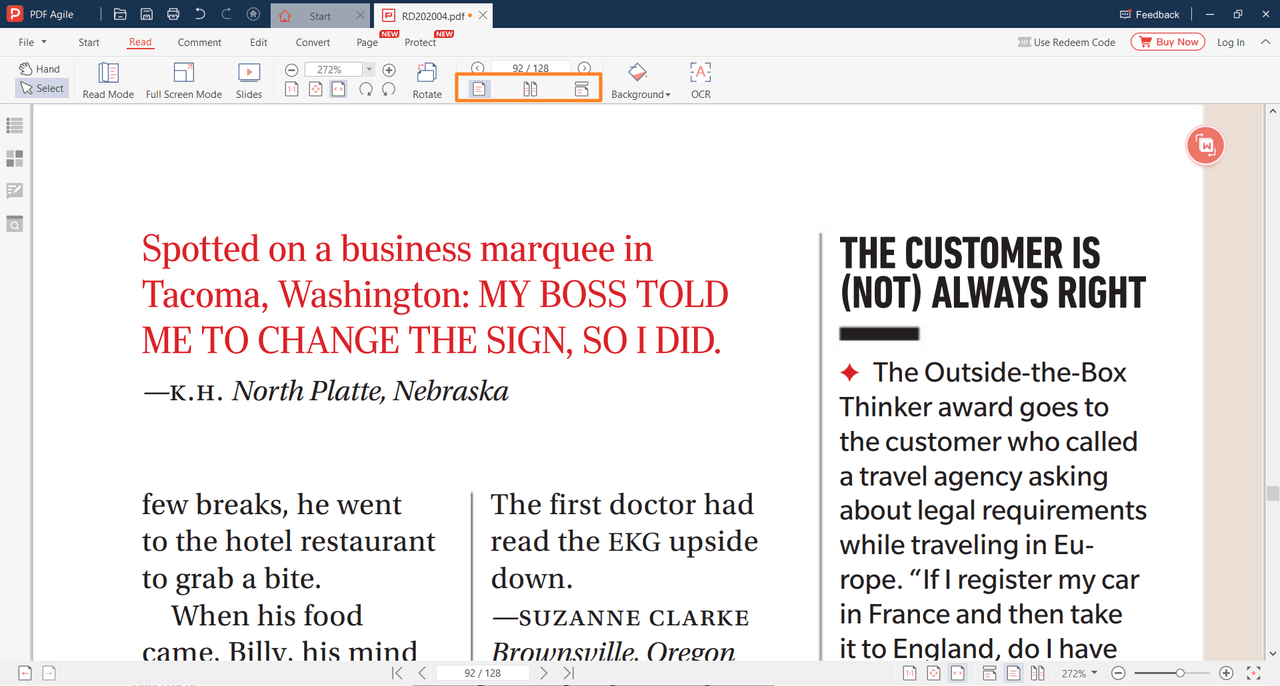
Single Page View: Read a single page in the document panel at a time.
Two Page View: Read two pages in the document panel at a time.
Enable Scrolling: Display the pages in the document panel in a continuous vertical column.
You can also click the Single Page Reading button and Continuous Reading button or Double Page Reading button and the Continuous Reading button at the same time.
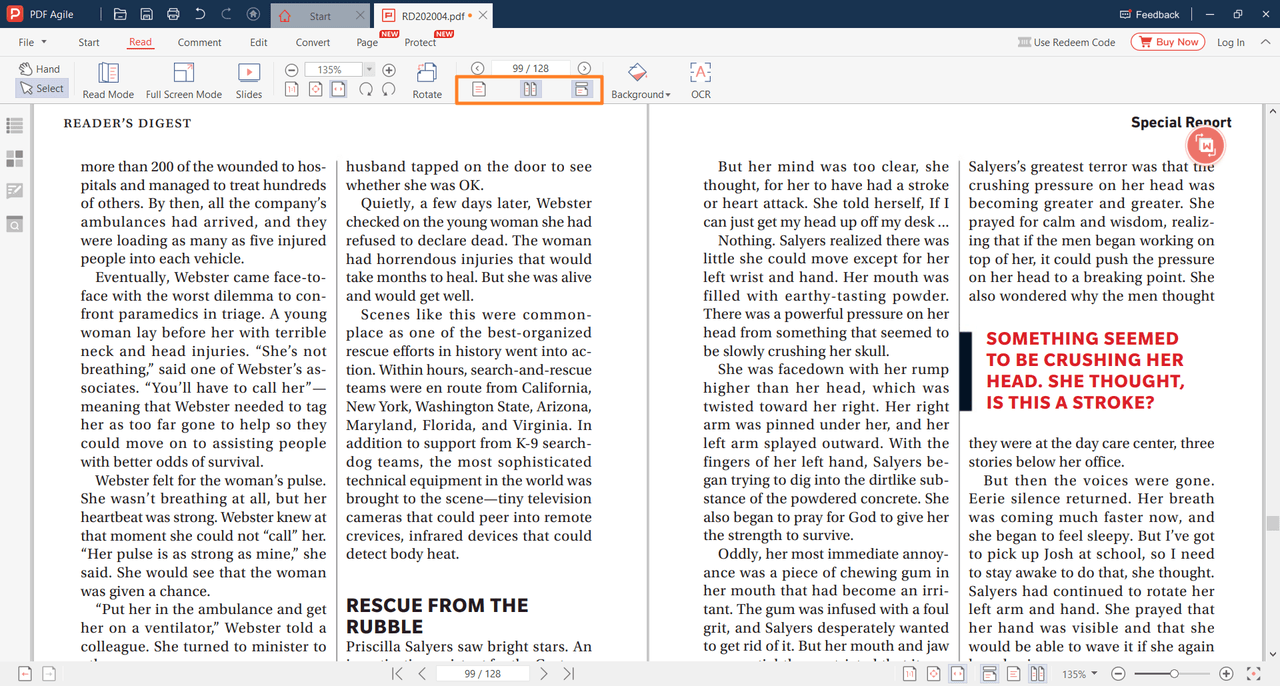
The mini toolbar at the bottom right corner can also help you adjust the layout of the document.
Page Layout
You can change the page layout by clicking the buttons as follows:
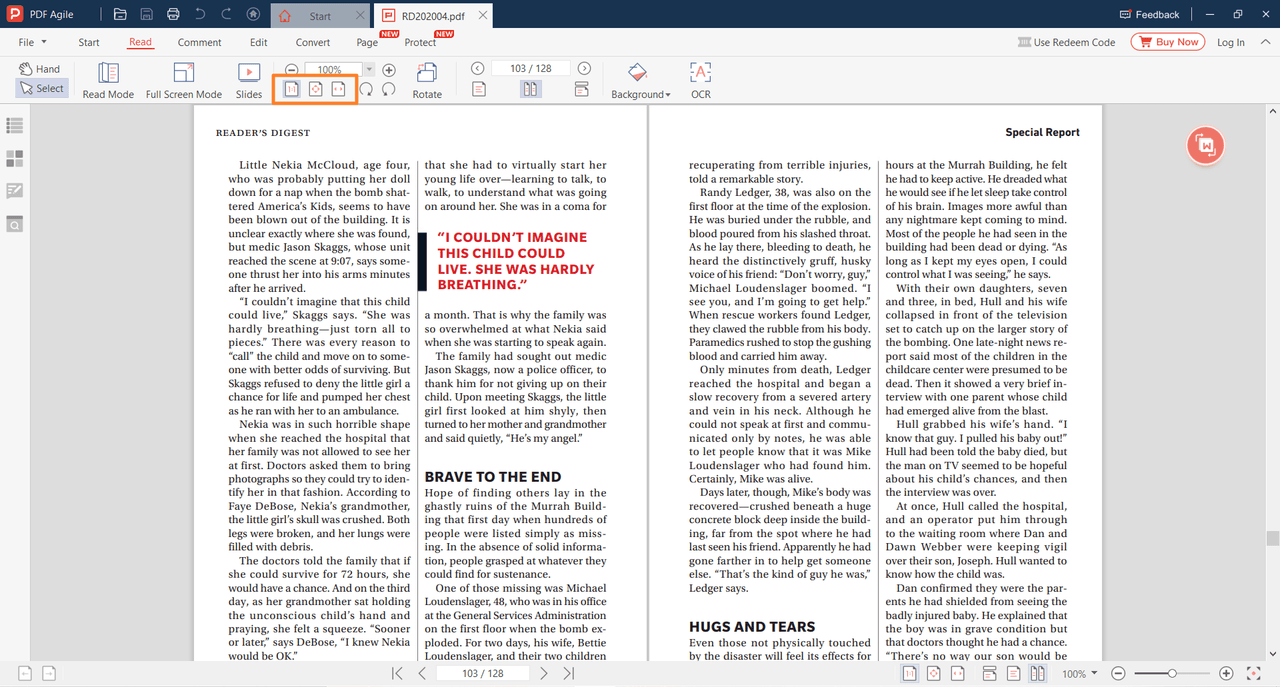
Actual Size: To resize the page to its actual size of 100% zoom level.
Zoom to Fit Page: To resize the page to make it perfectly fit in the document panel.
Fit One Full Page: To resize the page to make it fit the width of the window.
To rotate a page or pages in the current document, use the Clockwise button and Counterclockwise button on the Read tab.
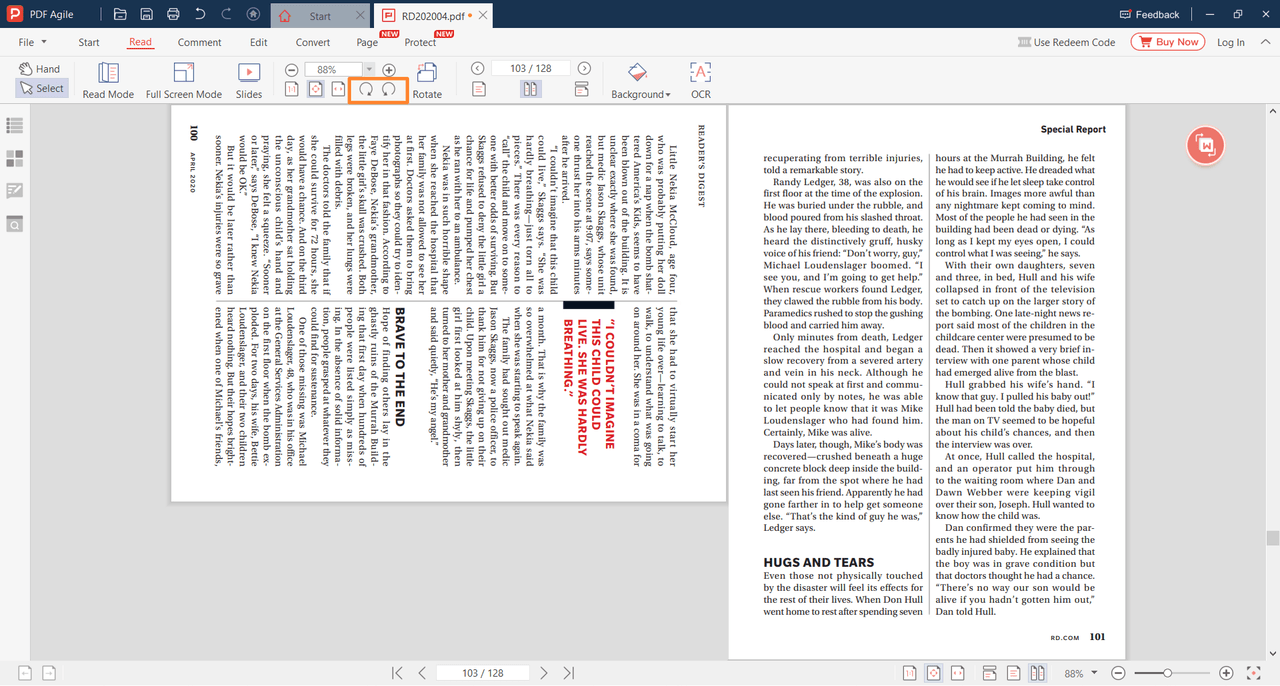
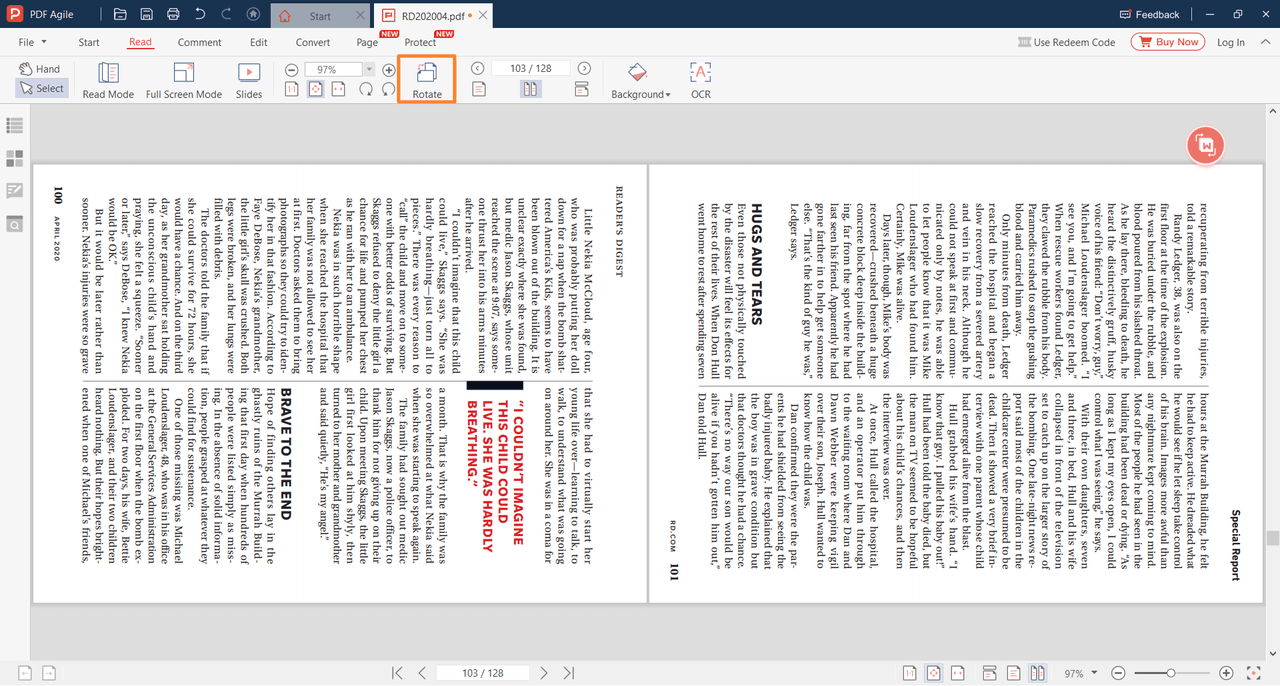
You can click the Rotate button to rotate all pages. The page will be rotated clockwise and its layout after the rotation will be saved after clicking the Save icon.
Zoom
You can use the Zoom tool under the Read tab option to zoom in on PDF to show more details. The zoom range is from 8% to 6400%.
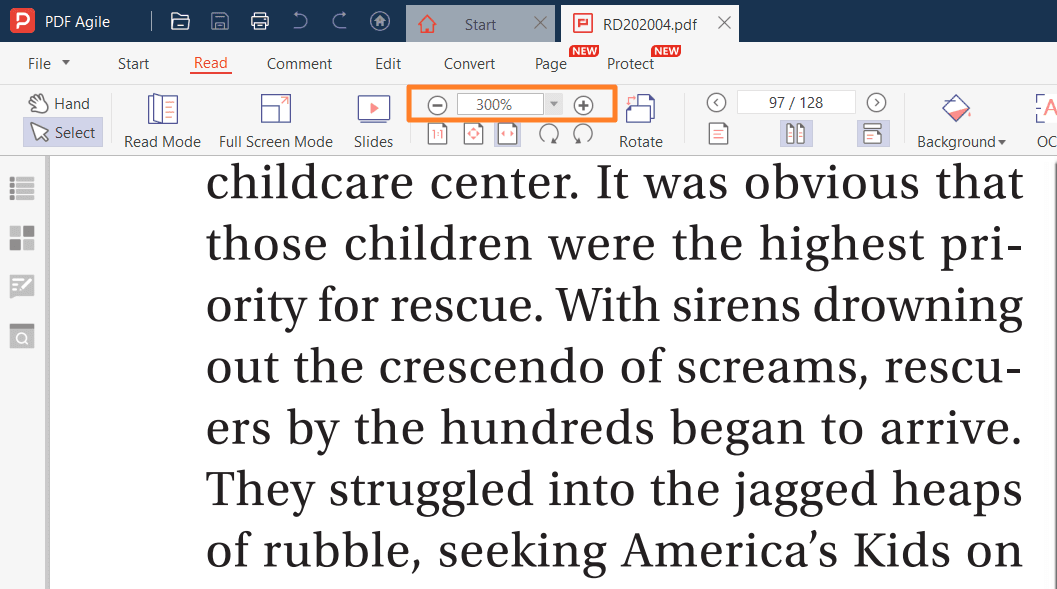
Click the + or - button to zoom, or manually type the desired zoom scale. You can also select a scale between 8% and 6400% in the drop-down list.
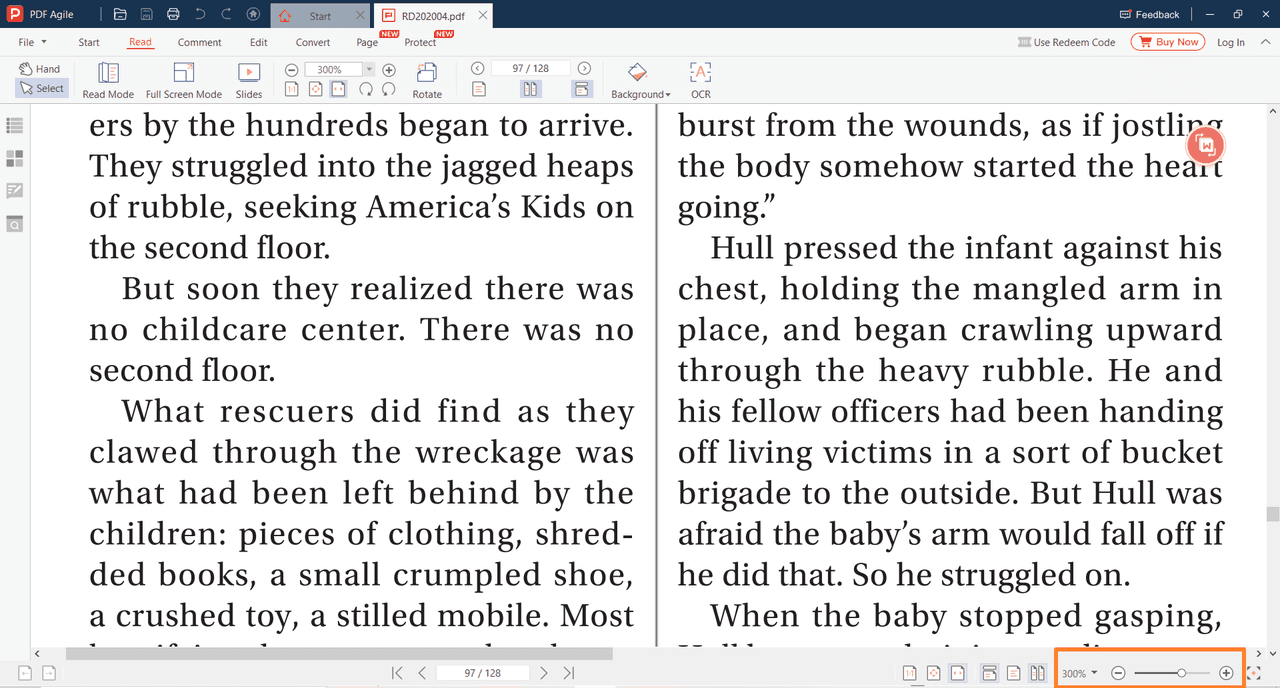
Change the zoom scale by using the bottom zoom bar at the button right corner.